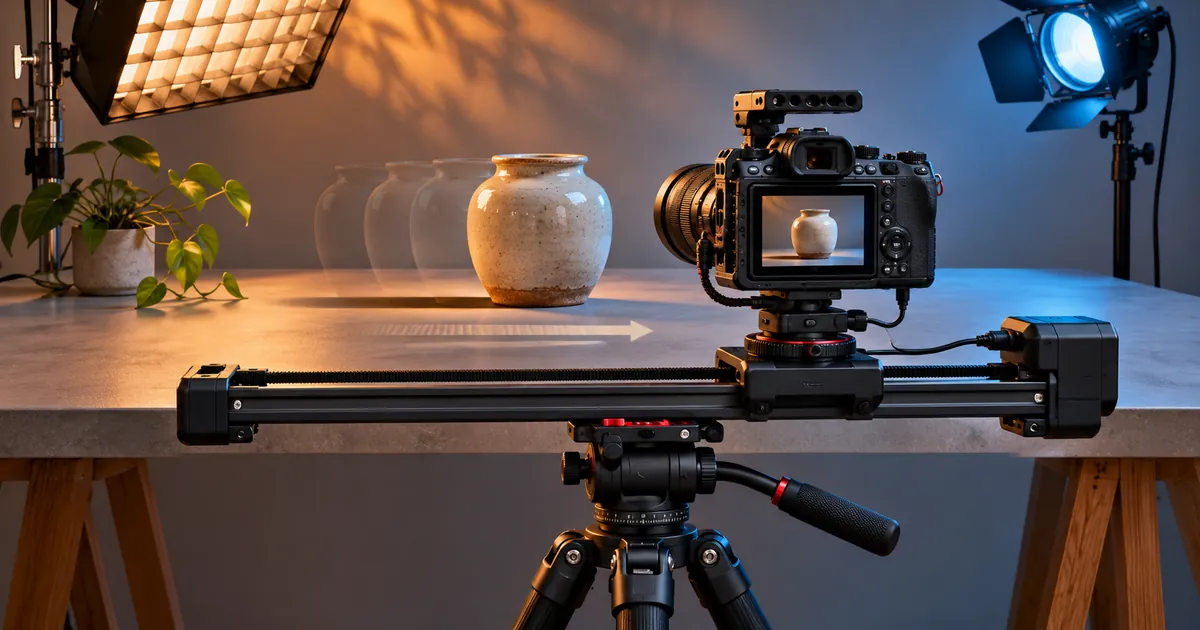

To match an AI video camera move to real footage, describe what moves in the frame as well as what the camera is doing. Take three frames and measure where a foreground landmark, the subject, and a background feature appear. Their movement tells you whether you're matching a slide, a pan, or a change in scale. Use a short overlap and compare both sides of the cut at speed before exporting.
Jump to the Video Lab example or download the worksheet.
Read the source move from three landmarks
Duplicate the original timeline. Export a still at the first useful frame, one around the midpoint, and one near the cut. Choose a near edge, a product edge in the main plane, and a background point. Use the same edge in every frame. A reference at the top of a tall jar can grow larger or shift if the generator changes its shape, so record both the edge and the jar's approximate width. Pick a landmark anchored in the physical set, like a rear shelf screw or a seam in the tabletop.
When a camera slides horizontally and the near and far objects are at different distances, the near ones generally move farther across the frame. This is parallax. With a focal-length change from a fixed position, apparent sizes can grow while the relative perspective stays fixed. Looking at both differences helps you catch a shot labeled “slide” that behaves like a zoom. The result still needs to work at the particular cut, where a viewer sees the timing and direction together.
Check whether the reference clip already contains a digital crop or added stabilization. Measure the delivered version that will be adjacent to your new shot, using the same canvas and crop. An editor may have adjusted the frame after capture, so camera notes alone won't capture everything a viewer sees.
Make a sample movement chart
Suppose a sequence has a short tabletop slide in a 1,920 pixel wide frame. Mark the x positions at the beginning, middle and end. This fictional measurement records movement in the frame, in pixels, with increasing values to the right. The near mark travels farther than the background. The jar stays about 360 pixels wide, so a replacement should avoid getting noticeably larger.
| Frame | Near table edge | Left edge of jar | Back shelf detail |
|---|---|---|---|
| 0 | 410 px | 800 px | 1,360 px |
| 12 | 460 px | 825 px | 1,370 px |
| 24 | 510 px | 850 px | 1,380 px |
Use this to describe the move: “Foreground shifts right about twice as far as the jar edge. Back shelf moves right only slightly. Jar width is steady.” Numbers are review targets, not a promise that a generative model accepts literal pixel coordinates. The concrete movement relation helps you see which part of an edit went wrong. For another output size, divide each x position by the canvas width and use percentages to compare.
Give the test shot less to solve
Trim a source sample to include the move and a few frames around the intended join. Keep subject action simple for the first variation and describe the angle and movement in one sentence. A smooth slide under a static product is easier to assess before introducing a hand or lid movement. If a route accepts a movement or video reference, use that input and check its own size and duration requirements. If it only accepts a start image, match the first composition and ask for restrained, steady motion.
Hold light direction, crop and movement speed consistent. Avoid phrases such as “aggressive cinematic zoom” if you need a lateral slide. Look at the first result at speed and check the chart before making changes. If the model shows the movement in the opposite direction, restate the direction in screen terms and remove any contradictory camera instruction. The image-to-video versus video-to-video guide explains choosing a starting reference.
Compare the approaches at the actual join
Drop the variation next to your source and mark the last frame of one and first frame of the other. If the main subject lurches sideways, adjust the crop modestly and check again. If the background has the opposite parallax, an x position adjustment might align one frame while making the rest of the move unstable. A cut to a different angle is often easier to judge than a near-identical frame with incorrect motion.
Review a second or two on both sides of the cut. Turn off music so the edit cannot hide an obvious visual jump. Then put the original sound and title back and check the timing again. If you need a tiny speed correction, test it on the short segment before applying it across the shot. Inspect the hands, letters and product details after any interpolation. Use a static insert or reshoot when the correction is larger than the edit can bear.
Give the editor a fallback angle
Record a static closeup of the jar or use a matching image if you can show a true detail. Put it at the point where the source motion settles. Then open the replacement shot on a clear new angle. The viewer sees a reason for the perspective shift. A fallback costs less to test when you already have the clip trims and the chart. Check that the insert does not change the position of the lid, light or hands before using it to hide the join.
How QuestStudio helps
Use QuestStudio Video Lab to test a short variation when your chosen route accepts a video reference. Start with your measured move and compare the generated shot at the same effective crop. Hold the original nearby in an editor.
Match the source tabletop slide. On screen the near table edge tracks right noticeably, the jar moves right a shorter amount, and the shelf behind it shifts only slightly. Keep the jar width and proportions steady. Hold focal length, height and light direction. Smooth constant movement through the middle with no sudden tilt or zoom.Export three stills and compare from the same start frame. If the subject and far shelf relationship improves but the motion still jars at the cut, try a different edit point before generating again.
Try it with your own material
Make the movement chart before writing the prompt. The first useful result is one that joins without a jump and keeps the same scene details. Check the physical set before accepting a polished but mismatched move.
References
Frequently asked questions
How can I tell a slide from a zoom?
Compare how far near and far points move in the scene and whether the main subject grows. A side slide gives depth-dependent shift. A fixed-position zoom changes size without new perspective.
Should I use an entire source take?
Use the shortest source section that shows the move clearly and contains the join you need to match.
Can I mirror a shot to fix reversed motion?
Check labels, handedness, light and set continuity first. Mirroring can reverse details customers recognize.
What if my reference is already stabilized?
Measure the version used in the edit. A digitally stabilized and cropped source establishes the frame the viewer needs to match.
Related guides
 Video
Image-to-Video vs Video-to-Video AI: Which Workflow Gives You More Control?
Compare image-to-video vs video-to-video AI, learn when to use each, what affects quality, and the best workflow for cleaner results.
 Video
AI Video Looks Like Slow Motion? Fix Unwanted Slowness
Fix AI video that looks like slow motion. Separate slow action from camera drift, simplify the shot, and decide when to regenerate or adjust playback speed.
 Video
Cinematic Motion Prompt Pack
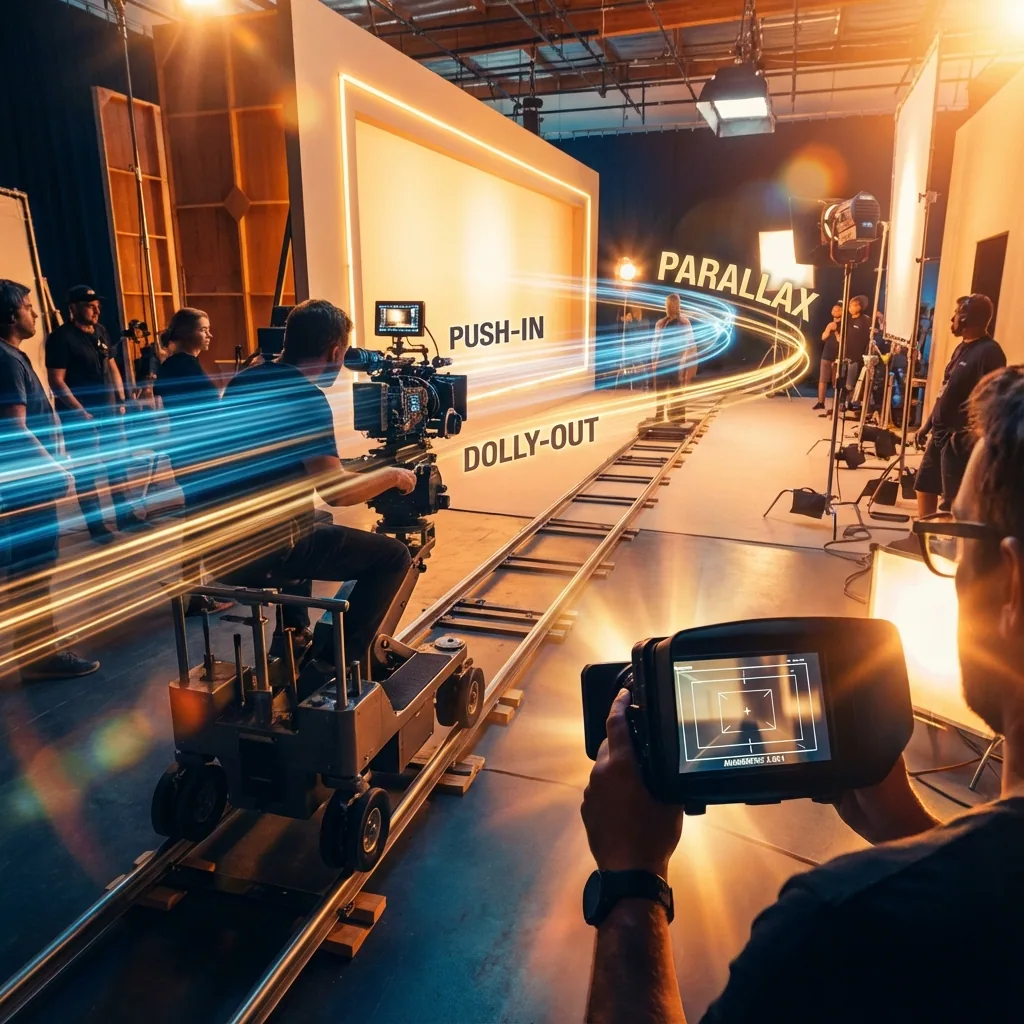
Copy-paste AI video prompts for cinematic camera moves: push-in, dolly-out, parallax, and handheld. Works with Sora 2, Kling AI, and Veo 3.1 in QuestStudio.