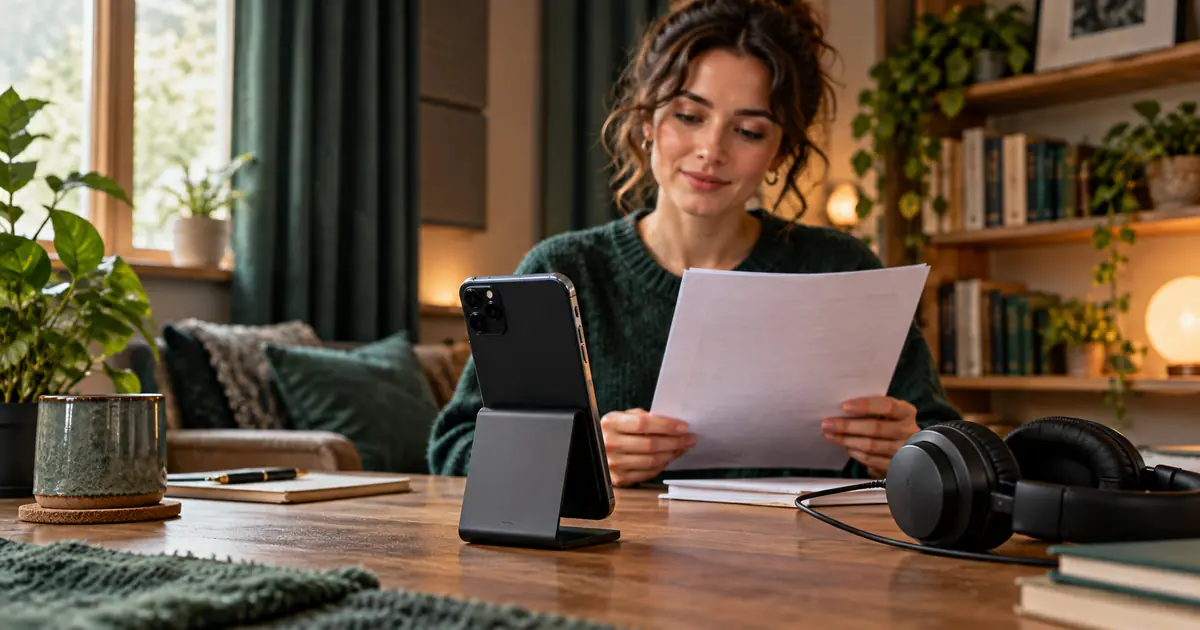

To record audio on an iPhone, open Voice Memos, tap the Record button, speak, and tap Stop. Rename the recording so you can find it later. When you need a separate audio file, select the recording, open its sharing controls and choose Save to Files.
That is enough for a quick note. For narration, an interview introduction or a reference recording, add one short test before the main take and one playback check after export. Those two checks catch problems that a moving waveform cannot: a distant voice, a rubbing case, a missing first word or a file that the next app cannot open.
Make and name a short first recording
- Find Voice Memos with iPhone Search if it is not on your Home Screen.
- Tap Record and say a short sentence at your normal speaking level.
- Tap Stop, play the recording and listen through headphones.
- Tap its name and replace a generic title with a useful one, such as
intro-test-01.
Apple's recording guide documents the basic controls and supported microphone options. The exact controls and available recording modes vary with your iPhone and iOS version. You do not need a particular newer mode to make a useful spoken recording.
Listen for the words rather than watching the waveform. A waveform proves that the app captured a signal, but that signal could include a fan, a distant speaker or handling noise. If you connected a headset or external microphone, make another short sample and confirm the sound before recording a long session.
Prepare the room and phone before the full take
Choose a quiet spot away from a refrigerator, ventilation outlet or open window. A furnished room with curtains and soft surfaces often gives you a more manageable recording than a bare kitchen. Make one change at a time and compare recordings; an attractive room is not evidence that it sounds good.
Support the phone so you do not have to grip it during the take, and keep its microphone openings clear. Put the script where you can read it without repeatedly turning away. If you use paper, arrange the pages before starting so you do not shuffle them under every sentence.
Start at a comfortable speaking distance and record a sample. Move a little closer if the voice is buried in the room sound; move farther away or slightly off the direct breath path if loud syllables sound rough or breath blasts dominate. There is no single distance that fits every room, microphone and speaker. The replay is the decision tool.
Tell anyone joining the recording what you are capturing and how it will be used. This guide covers intentional voice capture, not covert recording or phone-call recording. Set aside enough battery and storage for the session, reduce avoidable interruptions, and keep the phone where you can confirm recording is still running.
Use a three-take exercise to choose your setup
Read the same original practice script three times. It contains a name, a time, a number and several clear consonants, so it gives you more to inspect than “testing, one, two.” The details are fictional; substitute the actual approved script for a real project.
Welcome to the Cedar workshop. Our next session starts at nine thirty. Please bring a pencil, a notebook and two sample photos. Before we begin, check that the first and last words of this recording are clear.
For take A, use your initial position. For take B, move the phone slightly closer while keeping the room and speaking level the same. For take C, keep the better distance and change only one remaining issue, such as moving away from a noisy fan. If a setup produces rough distortion, do not deliberately repeat it for the sake of the exercise.
| Take | Single change | Listen for | Decision |
|---|---|---|---|
| A | Initial setup | Room noise, clarity and first word | Keep as reference |
| B | Phone slightly closer | Clearer voice without breath blasts | Prefer only if playback improves |
| C | One room or position adjustment | Consistent level and clean pauses | Select or repeat the best setup |
Download the recording and export log
Keep playback volume comparable while judging the takes. Louder can seem better at first even when the recording has more room noise. Pick the version in which every word is easy to understand and the voice remains consistent. Write down the chosen position so you can repeat it for a pickup tomorrow.
Record in manageable sections
Once the setup works, record the real script. Leave a little quiet space before speaking and after the final word. If you stumble, pause and repeat the whole sentence. A complete replacement sentence is easier to match than a single isolated syllable with a different rhythm.
For a long narration, name sections as you go, for example lesson01-intro-original and lesson01-step01-original. Avoid changing the phone position between sections unless the existing setup has a problem. A consistent ordinary room can be easier to edit than several takes made in very different spaces.
Replay a section before leaving the location. Listen to the beginning, a loud phrase and the ending at minimum; review the whole chosen take before delivery. Catching a dropped word while the script, speaker and room are still available is much easier than trying to repair it later.
Keep the original and trim a separate version
Before experimenting, use the recording's More menu and choose Duplicate. Rename the copy to identify it as an edit. Apple's duplication instructions show this route. Keeping a clearly named original also prevents confusion when a shorter draft turns out to have removed a necessary sentence.
Open the recording's editing controls and choose Trim. Move the handles around the section you want to keep, then play the selection before applying it. Trim keeps the selected section; Delete removes the selected section. That distinction matters. Use Save as New Recording where offered to retain the earlier version. Control placement can differ across iOS versions; Apple's editing reference shows the current sequence.
Do not cut directly against the first consonant or the last breath simply to remove all silence. Listen to how the start and finish feel. If a mistake sits in the middle, decide whether a clean new sentence or a new short take is simpler than trying to construct an unnatural phrase from fragments.
Compare any cleanup effect with the original before keeping it. A quieter background is not a win if the voice becomes thin or words lose their endings. More advanced cleanup belongs in a separate step; the speech-cleanup guide explains how to evaluate that handoff.
Save a file and check it outside Voice Memos
Select the chosen recording, open More and Share, then choose Save to Files and a destination folder. Apple's export instructions say the default export is M4A. Newer sharing options can preserve editable layers or effects in QuickTime Audio instead. For an ordinary handoff, check the receiving app's supported formats before selecting an editable export.
Open the saved file from Files, not just from Voice Memos. Confirm its name, duration, opening words and final sentence. Then import that same file into the intended editor if one is involved. A recording that plays in its original app has not yet proved the recipient's workflow works.
If the destination needs MP3 or WAV, convert a copy with an appropriate audio converter. Renaming .m4a to .mp3 does not convert audio. Converting a compressed source to WAV also does not restore detail that was never captured. Keep the original and make only the format change the next step requires.
For a client or collaborator, include the script version and explain whether the file is original, trimmed or processed. The voiceover delivery workflow covers naming, timing and recipient requirements in more depth.
Know when to record again
- The voice sounds far away: make a closer test and compare. Increasing playback volume also raises the noise already in the recording.
- Loud words crackle or break up: change the capture setup and record again. Lowering the level afterward does not undo damage already captured.
- You hear taps or scrapes: stabilize the phone and check that clothing, hands or the support are not rubbing against it.
- The export will not open: confirm the actual file format and export option. Test a short standard export before troubleshooting a long recording.
- The wrong sentence is missing: return to the original or duplicate rather than repeatedly trimming the only surviving copy.
How QuestStudio helps
A clean, intentional recording is useful input for a later voice workflow. In QuestStudio Voice Lab, choose the relevant workflow and inspect its current reference-file requirements before uploading your own recording or one you have permission to use. The available file picker accepts common audio types including M4A, but model-specific length, size and reference requirements still apply.
If your goal is a voice reference, use the separate voice-cloning sample guide to judge suitability and consent. A short test recording is a capture check, not a promise that it meets every cloning model's needs. If you only need to send a voice memo, the checked export is already a complete result.
Frequently asked questions
Which app do I use to record audio on an iPhone?
Voice Memos handles ordinary voice recording. Open it, tap Record, speak, tap Stop and rename the take. Replay a short sample before a longer session.
How do I save a voice memo as a separate file?
Select the recording, open its sharing controls, choose Save to Files and select a folder. Open the saved file afterward to confirm that it plays and contains the intended take.
Does Voice Memos export MP3?
Apple documents M4A as the default export, with other editable options on supported versions. If the receiving app requires MP3, convert a copy; changing the filename extension is not a conversion.
What is the difference between Trim and Delete?
In the trimming interface, Trim keeps the audio enclosed by the handles and removes the rest. Delete removes the enclosed section. Preview the selection and retain an original before editing.
Can I use this recording for a voice model?
Possibly, if it is your voice or you have the necessary permission and the file meets the chosen model requirements. Capture quality, format, duration and reference rules matter; a short test alone does not establish suitability.
Check the file before the next step
Choose a clean take and check the current upload requirements before continuing with a permitted voice workflow.
Hero: AI-generated editorial illustration. The practice exercise and worksheet are original teaching materials, not a measured device or software test. Official instructions checked October 27, 2026.