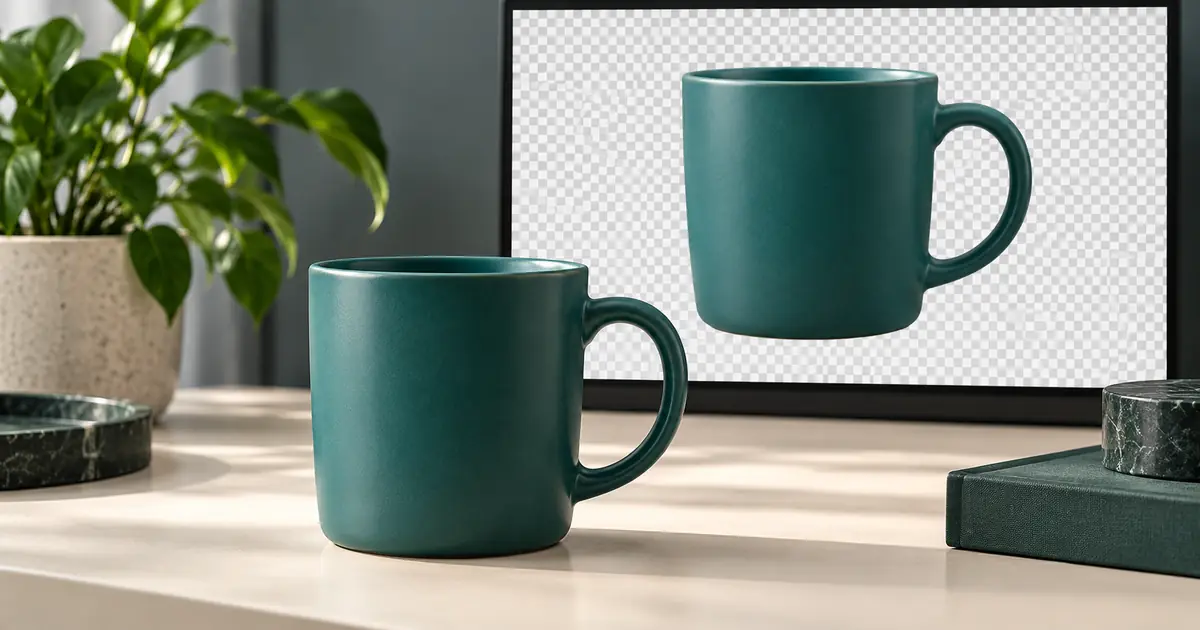

To remove a background in Photoshop, select the image layer, unlock it if needed, and run Remove Background. Then inspect the resulting mask, repair any missed areas and export a PNG if the background must stay transparent. Keep a PSD copy so you can revise the mask later.
The first click is only part of the job. A mug handle can retain a patch of the old backdrop, and a cutout can look clean in Photoshop but arrive with a white rectangle in another app. This desktop workflow takes you from the original photograph to a checked delivery file. It uses a simple product exercise, with separate guidance for delicate edges.
Start with an original and a working copy
Open the photograph and save a working PSD under a new name. In the Layers panel, duplicate the image layer and name the copy Cutout working. Keep the untouched layer underneath, rename it Original reference, and hide it. An intact original makes it much easier to spot a missing handle or a shaved-off edge.
For a first exercise, photograph a plain mug against a contrasting background. Use a sharp image with the whole handle visible. The opening inside the handle gives you a useful test: the object can be selected correctly around its outside while still containing unwanted background inside.
Decide what you are delivering before editing. A transparent cutout for a designer, a product on a white page and a composite on a new scene are three different files. If the brief asks for transparency, a white fill is not a substitute. If it asks for a grounded product photograph, a floating cutout may not be the final answer either.
Run Remove Background on the correct layer
- Select Cutout working in the Layers panel. Confirm that the photo layer is active and unlocked.
- Open Photoshop's Discover panel with the search icon or Help > Photoshop Help.
- Choose Browse > Quick Actions > Remove Background.
- Inspect the layer and the canvas before making another change. Keep the original reference layer hidden while checking transparency.
This is the path in Adobe's current background-removal instructions. Depending on your workspace, you may also see Remove Background in the Contextual Task Bar or Properties panel. The Discover route gives you another way to find the action when your workspace does not resemble a tutorial screenshot.
Do not confuse Remove Background with the Remove tool. The latter is intended for removing unwanted objects and filling their space. Here, the desired output is the subject with transparent surroundings, not a newly filled scene. If the old background still appears, check whether your untouched reference layer is visible underneath before running the action repeatedly.
Read the mask before you paint
A layer mask controls which parts of its layer are visible. White reveals the image, black hides it, and gray allows partial visibility. Click the mask thumbnail beside the photo thumbnail before using a brush. Adobe's mask-editing guide explains the thumbnail border that identifies the active target.
For the mug exercise, the body and handle should remain visible while the space outside the mug and the opening inside the handle are hidden. If you see the old cream backdrop inside the handle, paint that unwanted area black on the mask. If you accidentally hide part of the handle itself, paint white to reveal the original pixels again.
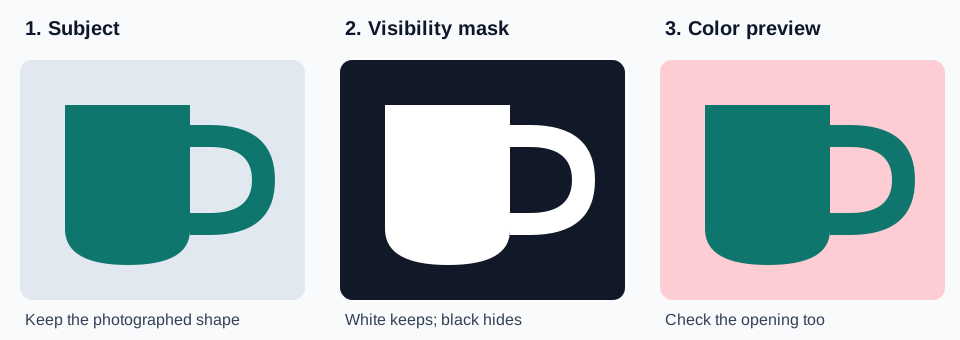
Work locally with a brush small enough for the detail you are repairing. A large correction across the entire object may hide the problem at one edge while changing another. Stop periodically and compare against the untouched photo. The aim is to preserve the photographed object, including its proportions, rather than make a visually tidy but inaccurate outline.
Check hard edges and soft edges differently
Open Select and Mask when you need a clearer view of the boundary. Its On Black and On White previews help reveal different problems, as described in Adobe's selection-refinement reference. Inspect against the destination color too. A border that disappears against cream may be obvious on a dark green design.
With a hard-edged mug, look for the original contour and smooth curvature. With hair, fur or a fuzzy sleeve, some partial transparency is expected. Do not apply the same aggressive edge treatment to both. If hair already looks cut out with scissors, removing more of its boundary is unlikely to restore the missing strands. Use the dedicated hair-halo repair workflow for that more detailed problem.
Check once at a close viewing scale and again at the intended display size. The close view helps locate an error; the normal-size view helps judge its actual effect. Avoid spending an hour changing isolated pixels that will never be visible while overlooking a clearly misshapen handle.
| Area | Pass condition | If it fails |
|---|---|---|
| Handle opening | New background shows through; handle remains intact | Repair the opening locally on the mask |
| Outer curve | Shape matches the source photograph | Reveal lost detail or hide remaining backdrop |
| Rim and highlights | Actual mug detail is preserved | Compare with the original before removing pale pixels |
| Light and dark previews | No obvious leftover outline at delivery size | Identify whether the problem is mask position or background color |
Save the editable master, then check the PNG
Save the PSD with the original and working layers. For a flat cutout, use File > Export > Export As, choose PNG, and retain transparency. Hide temporary preview backgrounds before exporting. Adobe's transparent-background guide identifies PSD and PNG as formats that can preserve transparency. JPEG does not retain an alpha channel.
Open the exported PNG as a new file and place it over a contrasting background. Do not approve the delivery solely from the still-open PSD. Check that the canvas dimensions are correct, the handle hole stays open, no test background is included, and the object has not been clipped by a tight crop.
Name the files so their roles are obvious, such as mug-cutout-master.psd and mug-cutout-transparent.png. If you also need a white-background version, export it separately and name it accordingly. A designer should not have to guess which “final” contains transparency.
Download the cutout inspection worksheet
The worksheet includes the mug exercise checks and blank rows for your own subject. Record the source filename, the area inspected, the correction and the exported filename. It is a compact handoff record, not a claim that every image can be cleaned automatically.
Fix the failure you can actually see
- Remove Background is missing: check the selected layer and its lock state, then try the documented Discover path. A text layer, empty layer or different workspace is not the same starting point as an unlocked photo.
- Painting changes the mug's color: undo and check the active thumbnail. You may be painting image pixels instead of mask visibility.
- The background looks white: inspect the layer stack and export. A white viewer canvas alone does not prove the PNG is opaque; place the file over a colored layer.
- Part of the product disappears: compare against the original. Pale highlights and white product surfaces are not automatically background.
- The product floats: background removal and shadow design are separate decisions. Use the product-shadow guide when compositing onto a surface.
If the source is badly blurred or the object blends into its backdrop, retaking the photograph can be more reliable than inventing a boundary. Keep an honest product shape ahead of a cosmetically perfect silhouette.
How QuestStudio helps
If you need a browser-based starting cutout, open QuestStudio's background-removal tool with a photo you are allowed to edit. Inspect the result with the same opening, contour and export checks. Automatic removal can provide a starting point; it does not replace the review needed for a difficult edge.
Stay in Photoshop when your project needs its editable masks and layer-by-layer correction. For a broader method choice, the general background-removal workflow explains the shared input and export decisions. Choose the route that produces the file you actually need, then verify that file in its destination.
Frequently asked questions
Where is Remove Background in Photoshop?
Select an unlocked image layer and open Discover through the search icon or Help > Photoshop Help. Choose Browse > Quick Actions > Remove Background. Some workspaces also expose the action in the Contextual Task Bar or Properties panel.
Why does the background still look white?
A white layer may still be visible underneath, or the file may have been exported with an opaque background. Test the exported PNG over a colored layer; the color of an image viewer alone is not a reliable transparency check.
How do I restore part of the subject?
Select the layer mask thumbnail and paint white over the area you want to reveal. Compare with the untouched original so the correction restores the actual object.
Can I save a transparent background as a JPEG?
No. Use a transparency-capable format such as PNG for the flat cutout, and keep a PSD for later mask and layer edits.
Should I use the same settings for hair and a product?
No. Hard product edges and fine hair need different judgment. Preserve the real contour, inspect on contrasting backgrounds and avoid applying a strong global correction to every edge.
Check the file before the next step
Start with a permitted source photo, then check the handle opening, outer shape and exported transparency.
Hero: AI-generated editorial illustration. The practice exercise and worksheet are original teaching materials, not a measured device or software test. Official instructions checked October 27, 2026.