
A music file arrives at 44.1 kHz, the video project uses 48 kHz, and the export panel offers both. Do you need to regenerate the music, change the project, or convert the file? Usually, the useful next step is to check the delivery requirement and let a proper sample-rate conversion preserve the timing.
For a new video project without a different client specification, I would generally start at 48 kHz. That is a practical compatibility choice, not a claim that every 48 kHz file sounds better than every 44.1 kHz file.
Sample rate counts samples over time
A 44.1 kHz file contains 44,100 samples per second per channel. A 48 kHz file contains 48,000. Sample rate describes the time sampling; bit depth describes the numerical representation of sample values. Bitrate, such as the setting used for compressed audio, is another property again.
YouTube's recommended upload encoding settings list 48 kHz audio. Check the current specification for your actual destination, especially when delivering to a client or a platform with a separate music workflow.
I would not change a successful music-only project solely because a video preset uses a different number. Keep a good source, meet the required deliverable, and avoid unnecessary back-and-forth conversions. If you are also deciding between integer and floating-point files, the 32-bit float explainer covers that separate question.
Conversion and reinterpretation are different operations
Proper resampling creates the samples needed for the new rate while preserving the intended duration and pitch. Reinterpreting the same sample sequence at another rate changes how quickly those samples play. Adobe's sample-type documentation treats those as distinct operations.
This matters because a file can display “48 kHz” and still be wrong. If someone only changed the rate used to interpret a 44.1 kHz sample sequence, the sound plays faster. A correct label is not enough; the duration and pitch must also make sense.
For ordinary imported music, I would use the editor's documented sample-rate conversion or automatic conforming process. I would not alter the header to force a match. Header correction is a diagnostic task for a file known to be mislabeled, not a shortcut for normal conversion.
Compare three original test files
I created a one-second, 440 Hz sine tone at 44.1 kHz. The second file was resampled to 48 kHz with FFmpeg. The third deliberately keeps the original samples but declares them as 48 kHz. These are synthetic tones, not music recordings or a listening-quality contest.
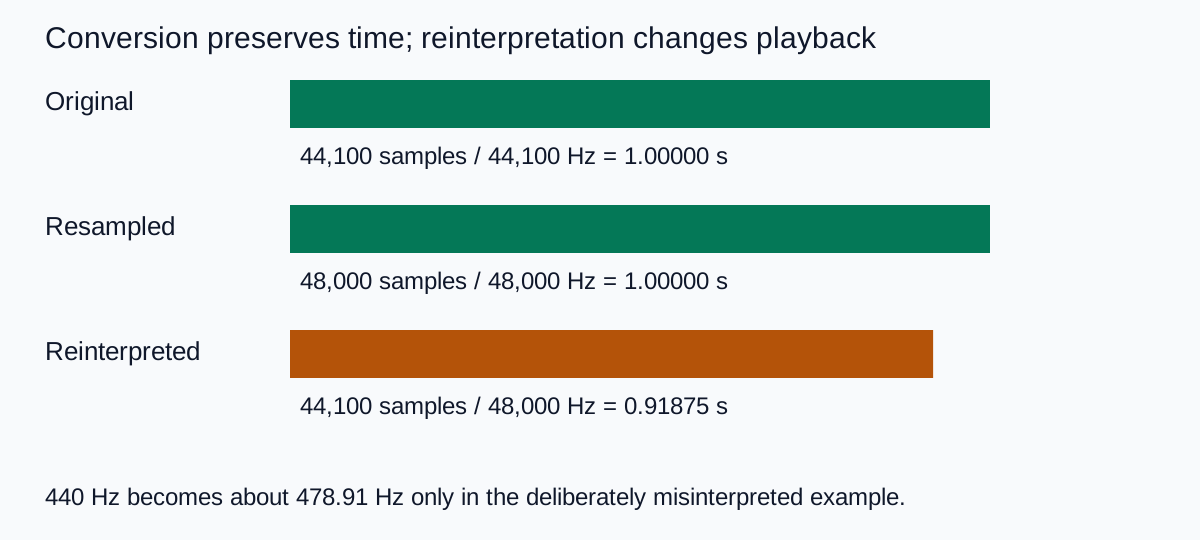
The arithmetic is straightforward: duration equals sample count divided by playback sample rate. For the wrong version, 44,100 ÷ 48,000 = 0.91875 seconds. Its frequency scales by 48,000 ÷ 44,100, turning 440 Hz into approximately 478.91 Hz.
The example proves the timing distinction for these files. It does not prove that all sync problems come from sample rate, or that a resampled recording gains detail it never captured. Use it to recognize the type of mistake before changing a real project.
Bring a music file into a video project cleanly
- Inspect the source properties. Record its sample rate, channel count, format, and duration. Keep the original file.
- Confirm the project's delivery target. Use the actual brief or platform specification rather than copying an unrelated preset.
- Import through the normal workflow. Let the editor conform or resample the file where supported. Avoid relabeling the source to make the numbers match.
- Check recognizable timing anchors. Compare a musical hit near the start and another near the end against the intended picture.
- Export a short representative section. Reopen it and confirm the duration, channel layout, and intended sound before exporting the full piece.
For a product reveal, mark the exact beat where the product first appears. Then mark a later event such as a logo hold or final cut. A start that matches while the ending drifts is a different problem from a constant offset throughout the video.
If the timing is still wrong after normal conversion, use the audio-sync diagnosis guide. Video frame-rate interpretation, edits, and source timing can also matter. Repeatedly switching between 44.1 and 48 kHz without identifying the cause can make the project harder to trace.
Do not use resampling as a quality upgrade
If the source has distortion, a poor performance, or heavy compression, converting it to a higher sample rate does not reconstruct the missing quality. I would spend the first effort on a better source and a clean edit rather than on a more impressive export number.
Likewise, a 48 kHz file can still have the wrong channel assignment, an accidental fade, or a clipped peak. Keep the sample-rate check as one item in the delivery review. It does not replace listening to the actual export.
When a collaborator requests a particular format, send the requested file and preserve your working master. Include the sample rate and channel layout in the handoff note. Do not assume that the filename alone communicates those properties.
Use the same discipline with AI-generated music
In QuestStudio Music Lab, focus first on generating a cue that fits the scene: mood, structure, and a useful ending. After downloading, inspect the actual output properties rather than assuming every model or format has the same sample rate.
I would keep the original cue, import it into the video project, and evaluate the intended cuts before making an export conversion. The music cue-sheet workflow helps document where the cue starts, what it supports, and which file the editor should use.
If the generation itself changes tempo or ends awkwardly, a rate conversion is not the creative fix. Choose another take or edit the structure. Changing playback interpretation to make a cue fit also changes the sound, so use a deliberate time-stretching workflow if that is the actual goal.
My default for a straightforward creator video
Start with a 48 kHz video project when the delivery brief does not specify otherwise. Keep source files at their original rates, convert properly when required, and confirm that the exported duration and musical anchors remain correct.
The important result is a file that plays the intended performance at the intended time. Choose the sample rate to support that result, then move on to the sound and the story.
Frequently asked questions
Should I use 44.1 or 48 kHz for video?
For a new video project without a different specification, 48 kHz is a practical starting point. Follow the client or destination requirement and use proper conversion for sources at another rate.
Does converting 44.1 kHz to 48 kHz change pitch?
Proper resampling preserves the intended pitch and duration. Reinterpreting the same samples at 48 kHz instead of 44.1 kHz plays them faster and changes pitch.
Is sample rate the same as bit depth?
No. Sample rate concerns samples over time. Bit depth concerns the numerical representation of sample values. Compressed audio bitrate is another setting.
Will 48 kHz make a damaged recording sound better?
A higher rate does not restore missing detail, fix clipping, or improve a poor performance. Start with the best available source and inspect the actual exported file.
Does a sample-rate mismatch explain every audio-sync problem?
No. Check whether the error is constant, gradual, or begins after an edit. File interpretation, video timing, and editing choices can also affect synchronization.
Technical references
Continue with a useful next step
 Video
AI Video Audio Out of Sync: Fix Offset and Timing Drift
Fix AI video audio sync with three timing anchors. Separate a fixed offset, growing drift, edit jumps, and incorrect mouth movement before changing the track.
 Creator Workflows
32-Bit Float Audio: What It Can and Cannot Fix
Understand 32-bit float recording without the hype. Separate file headroom from microphone overload, wireless dropouts and the audio sent to your phone.
 Music
AI Music Cue Sheet: Track Versions, Uses and Durations
Prepare an AI music cue sheet for an editor with exact filenames, used ranges and durations. Separate production tracking from rights records with a CSV sheet.
Hero: AI-generated editorial illustration. Supporting diagrams and exercises: QuestStudio.