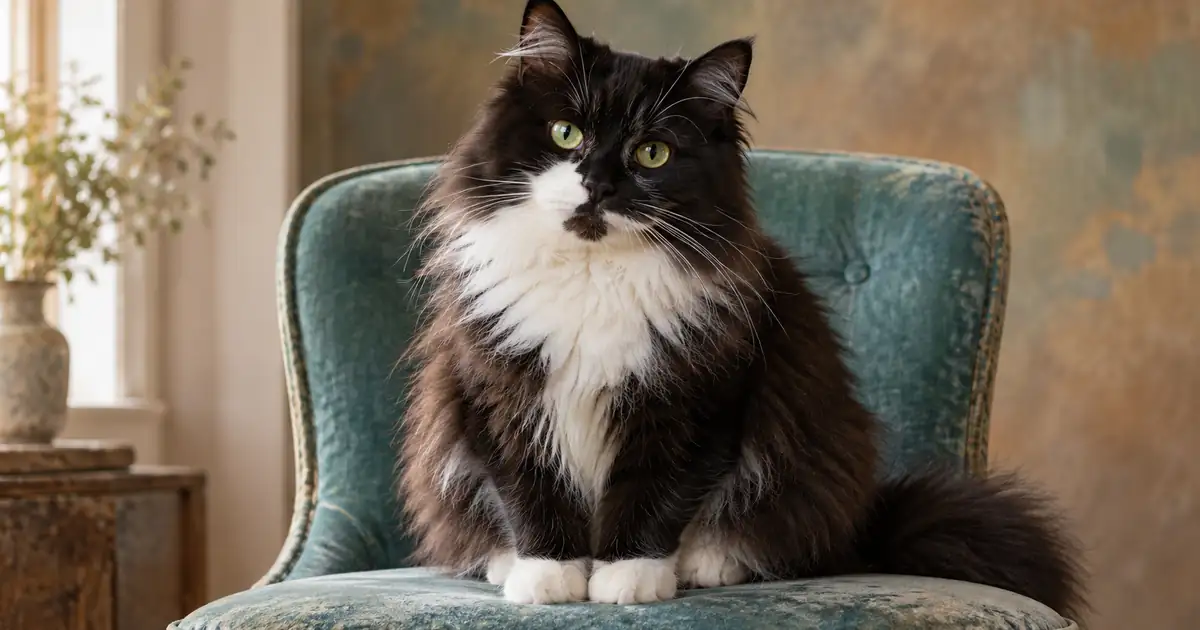

Changing a pet photo's background should not give your cat a different muzzle or turn your dog's uneven ear into a matching pair. Start with the actual photograph, protect the features that make the animal recognizable, and decide whether you need a cutout, a small cleanup or a completely different scene.
For an identity-sensitive edit, a conventional mask that retains the pet's original pixels is easier to verify than regenerating the whole animal. Generative editing can help explore a backdrop, but you still need to compare fur markings, eyes, ears, paws and collar details with the source.
Choose how much of the photograph needs to change
A cluttered corner does not always require complete background removal. Cropping out a laundry basket or simplifying one distracting patch can preserve the favorite chair, blanket or garden that makes the picture meaningful.
Use a cutout when you need the pet on a plain backdrop or inside a designed layout. Use a bounded background edit when the scene needs a modest change and the source gives the tool a clear subject boundary. Choose a more creative transformation only when redrawn fur and a stylized appearance are part of the intended result.
Write the decision before editing: “Keep this exact cat and chair; simplify the wall behind them.” That is a much clearer task than “make this pet portrait professional,” which could change the eyes, posture, coat and setting together.
For broader scene ideas, the pet photography prompt collection provides starting briefs. This guide focuses on preserving the pet you already photographed while changing the environment.
Make a small identity map
Pick several features you can check quickly in every candidate. For a black-and-white cat, these might be the uneven white muzzle patch, the dark stripe above one eye, the shape of the ear tufts and the dark tip of the tail.
Also note features that are easy to “improve” accidentally: a cloudy eye, a small scar, a folded ear, an older animal's gray muzzle or an irregular collar. These details may be part of the pet's real appearance. Do not let an automatic beauty adjustment quietly replace them.
You do not need a long anatomical inventory. A short map makes review faster and more concrete. Keep the original at a similar display size so the comparison does not depend on memory.
| Feature | What to preserve | Common editing failure |
|---|---|---|
| Muzzle patch | Its outline and side of the face | Patch becomes symmetrical |
| Eye region | Color, spacing and natural expression | Eyes become larger or unusually bright |
| Ears | Shape, tilt and visible tufts | One ear is rebuilt to match the other |
| Paws and tail | Count, position and existing crop | Missing fur is replaced with invented anatomy |
| Collar | Actual visible shape and accessories | New tag or decorative detail appears |
Use the pet background review sheet for your own features. The examples describe a fictional editing exercise, not a measured result from a particular model.
Start with a source that contains usable edges
Use the original image when available rather than a screenshot of a social post. Check focus around the eyes, ear tips and outer coat. Fine fur against a similar-colored couch can be difficult to separate even when the center of the face is sharp.
Do not expect a background remover to recover whiskers that were never resolved in the capture. A dark edge may contain genuine shadow, reflected background color or motion blur. Removing everything that looks soft can make the animal appear cut from cardboard.
If you can take another photo, keep the pet comfortable and use a simple setting with some tonal separation from the coat. Photograph at the animal's eye level where practical. A useful source does not require forcing a pose or placing the pet somewhere unsafe.
If a retake is impossible, choose a background that works with the available edge rather than rebuilding the animal around an ambitious scene. A restrained portrait may preserve more of the original than a sharply lit fantasy setting.
Protect the pet before generating a backdrop
Keep a copy of the source layer. Create the subject mask and inspect it before adding the new scene. Include the chair, blanket or other meaningful object if your brief says it must remain.
When a model supports a bounded edit, restrict the request to the environment. If the entire image is regenerated, treat every feature as potentially changed. A familiar-looking pet is not enough; compare the identity map.
The prompt sets an intention. It does not prove the animal remained unchanged. If the edit redraws the face, restore the original pet layer and work on the background separately.
Review the fur against three useful backgrounds
Before settling on a final color, inspect the cutout against a light background, a dark background and the intended backdrop. The first two are diagnostic views; the third tells you whether the edge works in its actual setting.
Look for different problems in each view. A pale fringe may become obvious on dark blue. Missing dark fur may be easier to notice on cream. On the final background, check whether the subject appears naturally separated or surrounded by an artificial outline.
Repair only the failed area. A broad feather setting can soften the whole animal while leaving the original color spill visible. A hard eraser can remove the spill along with the ear fluff. Work locally and revisit the source after each correction.
The hair-halo repair guide explains mask and color-spill diagnosis in more detail. The same edge principles help here, but the pet identity check adds a separate requirement: the coat pattern must still belong to the same animal.
Match the background to the existing light
Study the original light direction. If the cat's face is brighter on the left, a new scene with strong right-hand sunlight may feel inconsistent. A softly lit background is often more forgiving than a dramatic scene with sharply directional shadows.
Keep the camera relationship believable. A pet photographed from above may look awkward when placed on a floor seen from a low angle. Moving the backdrop or choosing a simpler setting can be more effective than trying to relight and reshape the pet.
Check contact with the chair or ground. Removing the original shadow can make the paws float. Adding a dark oval beneath the body does not automatically restore believable contact. Preserve the real contact where possible and keep any added shadow consistent with the retained light.
For difficult lighting, review the bounded photo-lighting workflow before making a second edit. Avoid changing fur texture and lighting simultaneously, because it becomes harder to tell which operation altered the likeness.
Inspect the exported image at its actual use size
Open the saved file outside the editor. If transparency is required, confirm that the file actually retains it instead of flattening onto a white background. Inspect the ears, whiskers and gaps between legs again after export.
For a profile image, test the final circular or square crop. For a print, check the intended composition and the print provider's current file requirements. Do not crop off an ear merely to enlarge the face, or interpret a higher pixel count as evidence that lost fur detail has been recovered.
If the image is intended to identify a real animal, preserve distinguishing features and avoid edits that could mislead someone about appearance. A creative keepsake and an identification photograph have different purposes.
How QuestStudio helps
Use Image Lab to explore one restrained background change from the source photo. Start with a simple backdrop and the identity map. Compare the candidate with the original before experimenting with a more elaborate setting.
Save one accepted portrait and its brief. If the workflow cannot retain the animal's features, keep the original subject pixels and finish the composite in an editor with explicit masking controls. The useful result is a recognizable pet in a cleaner scene, not the largest possible number of variations.
Frequently asked questions
Why does my pet look different after a background edit?
Some generative edits redraw more than the background. Compare markings, face shape and other identity features, and use a retained subject layer when exact appearance matters.
Should I remove every soft hair around the outline?
No. Soft fur and translucent edges can be natural. Diagnose leftover background color separately from genuine fine hair.
Which background is best for a black-and-white pet?
Test the actual photo against several restrained tones. Choose one that separates both coat regions without overpowering the face or conflicting with the source light.
Can AI restore whiskers missing from a blurry photo?
It may invent plausible detail, but that is not recovery of the original whiskers. Prefer a better source or a composition that respects the available detail.
Keep the reason you liked the photo
The expression, uneven markings and familiar posture matter more than an impressive new setting. Approve the pet first, then choose the background that supports it.
Try a pet background in Image Lab
Hero image: AI-generated editorial illustration. Examples are original planning exercises, not measured model tests.