
Two believable voices can still make an unbelievable conversation. The problem is often the space between the lines: one speaker sounds as if they have not heard the other, every response arrives after the same pause, or a replacement take changes the character halfway through the scene.
Audition the first character · Download the scene cue sheet
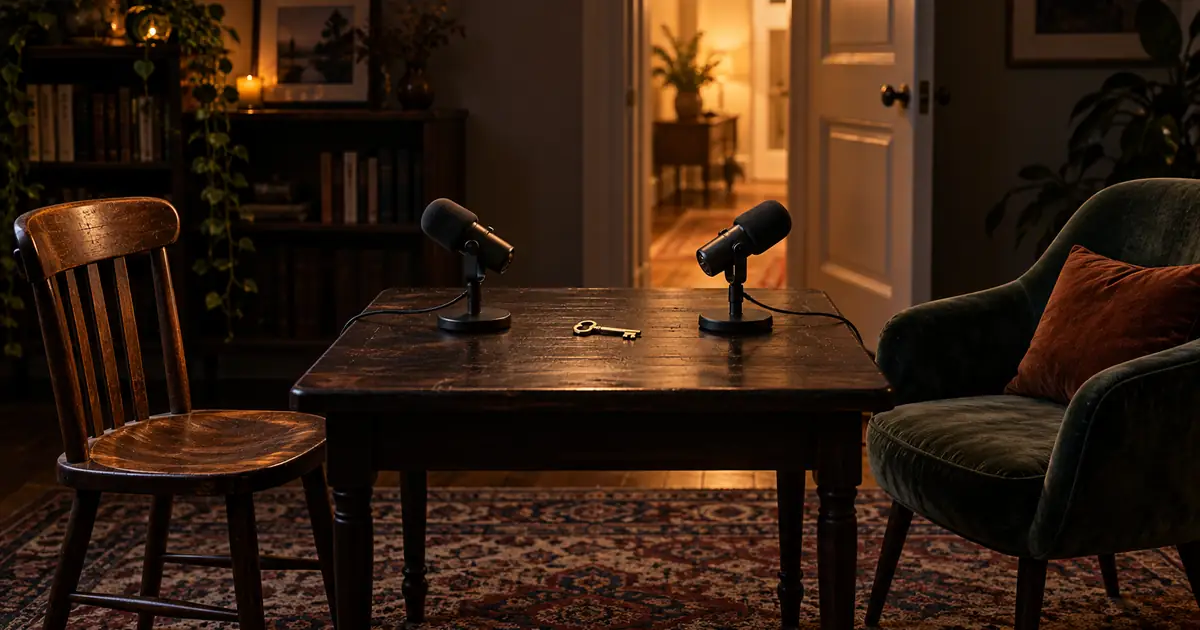
Sources checked September 14, 2026. The scene and editing exercise are original; they are not recordings from a model comparison. The hero is AI-generated. This guide focuses on audio rather than animated faces or lip-sync.
Pick the production method before formatting the script
A native multi-speaker generator can interpret several turns together. ElevenLabs' Dialogue mode documentation describes multi-speaker conversations using Eleven v3, with conversational pacing and expressive context. That is useful when the relationship between neighboring lines matters.
Other tools bind passages to selected voices and render them in sequence. SpeechGen's two-voice tutorial demonstrates assigning text to a second speaker and producing one audio file. Its voice-assignment syntax belongs to that system; do not paste it into a different generator and assume it has the same meaning.
A third method is to create separate clips and assemble them. That gives you direct control over a response gap or a single bad line, but you must maintain the cast and delivery yourself. Choose this route when editing flexibility matters more than getting one complete file immediately.
Write a scene where the speakers want different things
Here is an original six-turn scene. Mara is trying to leave without admitting she has misplaced a key. Jo has found it and wants her to slow down. The exchange should move from mild tension to recognition; neither character needs an exaggerated accent or a dramatic sound effect.
| Turn | Speaker and line | Intention | Reaction direction |
|---|---|---|---|
| 1 | Mara: “We need to go. Have you seen my coat?” | Keep the departure moving | Start with practical urgency |
| 2 | Jo: “Your coat is by the door. Your key is on the table.” | Reveal that Jo understands the real problem | Make the second sentence a gentle correction |
| 3 | Mara: “I wasn't looking for the key.” | Protect a little dignity | Answer quickly, without shouting |
| 4 | Jo: “Then why are you holding the spare?” | Offer one unmistakable clue | Let the question land |
| 5 | Mara: “Right. Give me a second.” | Accept the mistake | Leave room for realization |
| 6 | Jo: “Take two. We're early.” | Release the pressure | Finish warmly and simply |
The table is a directing sheet. Only the spoken words belong in a plain text-to-speech input. Keep speaker labels and production notes outside the spoken text unless the selected tool provides a documented way to encode them. Hearing “Mara, answer quickly” in the output is a formatting failure, not an acting failure.
Cast for contrast without turning people into caricatures
Choose voices that a listener can distinguish at normal volume. Contrast can come from pitch range, pace, vocal texture, or habitual energy. It does not require making one speaker extremely low and the other extremely high. Both should sound as though they belong in the same room and story.
Audition each voice on a neutral sentence and one line from the scene. A voice that sounds clear on an announcement may not handle an understated correction. Save the selected voice name, model, settings, and reference take before generating the rest of the dialogue.
Keep one approved line as a casting reference for each character. When repairing turn five later, compare it with Mara's earlier delivery rather than only with the rejected take. This helps catch a gradual change in accent, speed, or apparent character age across the scene.
Generate a small scene, then listen for the relationship
For native dialogue generation, assign each turn to the intended speaker using the tool's actual controls. Include the complete short exchange if supported. Listen for speaker swaps, invented filler, and whether the denial in turn three sounds connected to Jo's observation.
For separate generation, create one coherent turn at a time and keep the filenames orderly: 01-mara-take01.wav, 02-jo-take01.wav, and so on. Preserve clean beginnings and endings while avoiding unnecessary long silences. Generate alternatives only for lines with a specific problem.
Do one listening pass without reading the script. Can you tell why Mara reacts? Does Jo sound helpful or accidentally hostile? A technically clean voice can still communicate the wrong intention. Write down the interpretation you actually hear before deciding which control to change.
Edit reactions, not equal gaps
Place each character on a separate track when working with individual clips. Audacity's multi-track guide explains how separate performances can be arranged, adjusted, and heard together. A comparable timeline editor works too; the essential feature is control over each clip's position.
Use a short gap before Mara's denial to suggest a quick defensive response. Allow more room before “Right” because recognition takes time. These are relative directions, not a universal millisecond formula. Listen at normal speed and move the response until the emotional cause and effect are clear.
If you want an interruption, create it deliberately. Start the second line before the first one ends, then check whether the important words remain understandable. Overlapping every exchange makes the scene tiring. A brief breath or unfinished word may create the desired energy with less confusion.
A single mixed file limits your ability to move one voice independently where speakers overlap. Keep separate source clips when the tool provides them. Do not assume a finished stereo file contains one character on each channel; stereo describes channels, not automatically separated people.
Repair one line without changing the room
Suppose Mara's “Right” sounds cheerful when the scene needs a sheepish realization. Keep the chosen voice and regenerate the complete fifth turn with a more restrained direction if the tool supports one. Match the new line's pace to the surrounding exchange before reaching for effects.
Compare its tone, background noise, and perceived distance with the old line. A dry, close replacement can sound pasted into a roomy scene. Work on the voice clips first, then use consistent ambience across the conversation so every new take does not require a different room sound.
Keep music low enough that it does not hide quiet responses. Listen to the end of turn six through an ordinary speaker; the warm release is the point of the scene. If only the loud opening survives, the mix has changed the story.
Keep a handoff that another editor can understand
Save the script version, cast choices, approved takes, and a cue sheet with the order of turns. Label any deliberate overlap or unusual pause. Export a full scene for review while keeping the editable project and individual clips available for changes.
Check the exported file from beginning to end. Look for a missing first syllable, a clipped final word, an unexpected long tail, or an accidentally muted track. Those errors can appear during assembly even when every generated clip sounds fine on its own.
Start with the part you can hear and judge
QuestStudio Voice Lab can help audition individual character lines. Generate Mara's opening, decide whether the performance communicates urgency, and then build Jo's response. Assemble the resulting tracks in an audio editor; this workflow does not imply a native two-speaker control in Voice Lab.
Once the audio works, you can plan visuals around it. Adding faces before the conversation is settled creates more things to regenerate when a pause or line changes. A clear audio scene is a useful, reviewable deliverable by itself.
Frequently asked questions
Can one AI tool generate both speakers?
Some tools support native dialogue or voice assignment across multiple turns. Check the tool's documented speaker controls and export options. Other workflows require generating separate lines and assembling them.
Why does my dialogue sound like two separate narrations?
The turns may have mismatched intentions or mechanically equal pauses. Direct each response in relation to the previous line, keep casting consistent, and edit the reaction timing while listening to the complete exchange.
Should I put speaker names inside the text?
Use the tool's supported speaker-assignment controls. For ordinary single-voice text-to-speech, keep names and directing notes outside the spoken input so the model does not read them aloud.
Does this tutorial generate a talking-head video?
No. It produces a two-speaker audio scene. Lip-sync and multi-character video require separate visual production steps after the dialogue is approved.