
To cancel Canva Pro, use the billing route that actually manages the subscription: Canva, Apple, or Google Play. Check the receipt first, complete the cancellation flow, and save the confirmation and effective end date. Deleting the app is not the same as canceling the plan.
Before the paid access ends, make a practical handoff of the designs you still need. Preserve editable sources, finished exports, and notes about assets or features that may need attention later. This guide covers the cancellation route and that project handoff. It does not promise a refund or that every paid feature remains available on a free account.
Identify the subscription and its owner
Find the latest receipt or billing entry and record the account, plan, billing provider, and renewal date. A person can have more than one Canva account or belong to multiple teams. Canceling the wrong subscription can leave the unwanted renewal untouched.
For a team plan, establish who is authorized to manage billing and which shared work depends on the plan. Tell collaborators which source files and deliverables they need before the change. This is an account-management decision, not a reason to share passwords or remove people from their work unexpectedly.
If you cannot locate the subscription in the expected place, compare the receipt's account with the account currently signed in. An Apple purchase will not necessarily appear as a directly managed Canva subscription. A Google Play purchase may belong to another Google account on the same device.
Follow the correct cancellation route
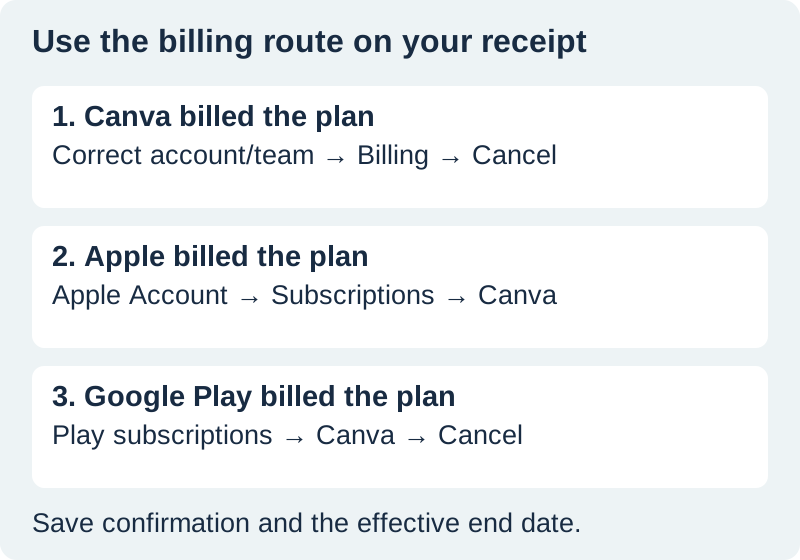
For a plan billed directly by Canva, enter the correct account and team, open settings and billing, and follow the cancellation controls through the final confirmation. Canva's plan cancellation instructions describe the current sequence and the transition to Canva Free. Paid access normally continues for the already-paid period; record the date shown for your subscription.
For an Apple-billed subscription, use the Apple account's subscription settings and select Canva. Apple's cancellation guide explains the device and web routes, including what to inspect when the subscription is missing. Confirm the account associated with the receipt.
For Google Play billing, open subscriptions under the relevant Google account, select Canva, and follow the cancellation steps. Google's subscription management instructions distinguish stopping renewal from uninstalling an app.
Do not stop at an offer to pause or change the plan unless that is what you intend. A pause may resume later. Read the final status and keep the confirmation in the same project record as the end date. If the result is unclear, contact the billing provider with the receipt and status message.
List the designs that still have a job to do
Make a short inventory before downloading everything indiscriminately. Start with active deliverables: a workbook that will be revised next month, a social announcement scheduled for next week, and a reusable illustration. For each, record what must remain editable and what only needs a finished delivery file.
A workbook needs an editable source for future corrections and a PDF for its recipient. A social announcement may need an image export plus the exact approved wording. A supporting illustration should retain its original source image and usage record outside the layout.
Download the design exit inventory. Its sample rows are fictional. Replace them with your actual projects and assign a named owner or role to every unresolved item. “Someone should save this” is not a completed handoff.
Preserve sources and exports as different deliverables
Keep the editable design link with the correct account and team information. Then export the finished file in the format required by its destination. Open that export and verify the important details before marking the row complete.
A PNG or JPEG does not preserve the original editable text and layout structure. A PDF can preserve a useful page presentation without behaving like the original Canva project. Do not describe an exported file as a fully portable source unless you have tested the exact editing behavior you need.
For a workbook, check page count, reading order, links, and footer numbers. The workbook export audit provides a concrete map. For a social image, inspect text at phone size and compare any date or price with its approved source.
Give exports names that identify the approved version and destination. “Workshop-v3-reader.pdf” and “Workshop-v3-print.pdf” are more useful than two files called “final.” Keep a brief note if the versions differ in page selection, crop, or other delivery settings.
Flag paid dependencies before a future revision
Review fonts, stock media, templates, and features that the project depends on. The point is to know what might interrupt the next edit, not to assume that cancellation erases the design or automatically makes every past use invalid. Check the relevant terms and the current editor's behavior for the assets you actually used.
If a project needs repeated future exports, make a working copy using assets and features available in the intended future workflow. Compare it with the approved original. Replacing a font can change line breaks and push text into an image; replacing a photograph can alter the meaning of a product announcement.
Do not remove watermarks or flatten a paid element to evade an access restriction. Choose a properly licensed replacement or resolve the required access. Record the replacement source so the next editor does not have to repeat the investigation.
For generated supporting artwork, keep the output and its creation record. QuestStudio's Image Lab can help make a new illustration, but it does not transfer Canva features, preserve a proprietary layout, or establish rights to unrelated third-party material.
Verify the handoff and the cancellation separately
Run two final checks. First, can the intended person open the design source and finished files? Second, does the billing provider show the cancellation and effective date you intended? A successful file download does not confirm cancellation, and a cancellation email does not prove that the workbook export is complete.
Keep the record until the transition is settled. If a later charge appears, compare it with the account, subscription, renewal date, and receipt you recorded. Follow the provider's support and refund process for the actual transaction rather than assuming that cancellation automatically reverses a prior payment.
If you are still deciding whether to leave, use the creator subscription audit to compare actual use and output. Once the decision is made, the task here is operational: stop the intended renewal and leave the creative work usable.
Frequently asked questions
Will canceling Canva Pro delete my designs?
Canva's cancellation documentation describes a transition to Canva Free with designs retained. Paid capabilities may change. Preserve and verify the sources and exports your current projects require.
Does uninstalling Canva cancel the subscription?
No. Complete cancellation through the provider that manages the subscription and retain its confirmation.
Why can I not find a cancel option in Canva?
Check the account, team, billing permissions, and receipt. The subscription may be managed through Apple or Google Play rather than directly through Canva.
Does cancellation automatically give me a refund?
No. Stopping renewal and requesting a refund are different processes. Use the billing provider's policy and support route for your specific transaction.
Is an image export enough for future editing?
Usually not if you need editable text or layout elements. Preserve the design source and test the future editing workflow, alongside the finished delivery file.
Build a reusable source illustration
Use Image Lab for an original supporting visual, then keep the downloaded source with your project.
Hero: AI-generated editorial illustration. Original teaching materials and documented feature research, checked October 31, 2026. Examples are labeled where synthetic or hypothetical.