

Canva supports automatic page numbers through dynamic text in supported design types. Add the numbering, choose where it appears, and check the exported workbook after every structural change. The visible number on a page and that page's position in a PDF are related, but they are not always identical.
This guide uses an original six-page workbook plan to show the checks that matter: an unnumbered cover, consistent placement, a reordered section, and a final export review. The diagrams are planning references rather than Canva screenshots. The feature instructions are based on Canva's documentation checked October 31, 2026.
Decide what your page numbers mean
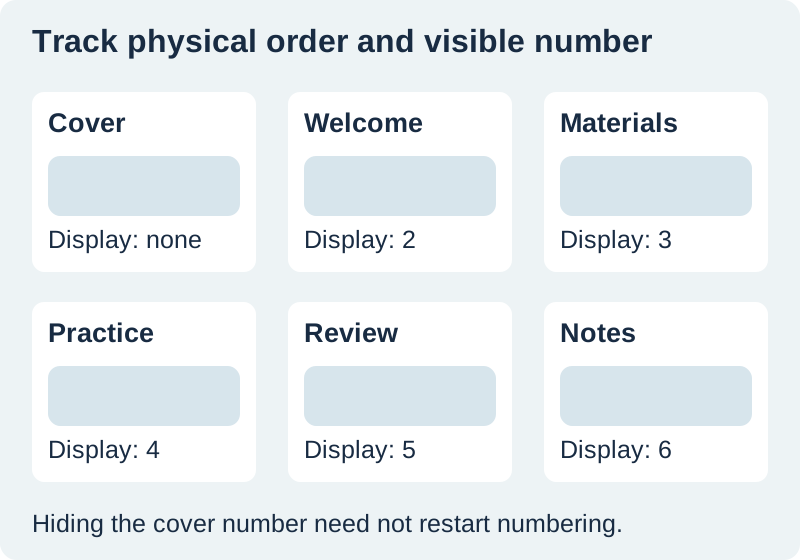
Before adding a footer, list the pages in reading order. Our fictional workbook contains Cover, Welcome, Materials, Practice, Review, and Notes. We want the cover to have no visible number and the remaining pages to display their position in the document: 2 through 6.
That is one numbering scheme, not a universal rule for workbooks. A different publication might start its first lesson at page 1 after several introductory pages. Write down that requirement explicitly. Hiding the cover's visible number does not, by itself, prove that the next page restarts at 1.
Keep three fields in the page map: export position, page name, and expected displayed number. The name makes the map useful after a reorder. “Materials should follow Welcome” is easier to verify than remembering that a particular thumbnail used to occupy the third slot.
Add automatic numbering in a supported design
In Canva's desktop editor, open Text, find Dynamic text, and choose Page numbers. Select the number format, choose the pages that should show it, and apply the result. Canva's automatic numbering documentation describes number-only and more descriptive formats, along with controls for sharing the formatting across pages.
The same documentation excludes some design types, including Docs, Whiteboards, Sheets, and Websites. If you cannot find the option, check the design type before hunting through unrelated menus. A paginated printable workbook and a continuously flowing document may use different editing behavior.
Style one representative page before applying its properties to the rest. Choose a font, size, color, and position that stay readable without competing with the lesson. Then inspect pages with different backgrounds; a footer that works on white may disappear over a photograph.
Give the number a stable place
Use a consistent footer region rather than placing the number wherever the current page happens to have an empty corner. Leave enough space between the number and nearby content that it reads as navigation. A footer squeezed against a worksheet answer line can look like part of the exercise.
For a workbook that may be printed and stapled, inspect both the binding edge and the outside edge. Do not put essential information so close to either edge that ordinary trimming or a printer's non-printable area removes it. The exact allowance belongs to the intended printer or production specification.
Keep the page number separate from a long legal notice, a website address, or a decorative slogan. Those elements have different reading jobs. If you need several footer items, establish their order and test the combined footer at actual print size before duplicating it across the document.
Use dark text on a quiet light surface when it suits the design. Our readable pastel palette guide provides measured color pairs for soft backgrounds. A pale gray number on a pale pastel page can look elegant in the editor and vanish on a printed copy.
Make one deliberate reorder and inspect the result
Dynamic numbering is intended to respond to structural changes, but your content still needs a review. Duplicate the design or use a practice copy, move the Materials page after Practice, and compare the displayed numbers with the new reading order. Then return the pages to the intended sequence.
This short test answers two questions: does the numbering behave as expected, and are any written references now wrong? A sentence saying “use the checklist on page 3” is ordinary body text. Do not assume that changing the order automatically rewrites such a sentence.
Search for phrases such as “page,” “see,” and “continue” when a workbook contains internal directions. Replace unstable page references with meaningful section names where that makes the instruction clearer. If a numerical reference is necessary, check it against the final exported file.
A hidden page deserves the same attention. Decide whether it should be excluded from delivery, retained as a private note, or included without a visible number. Inspect both the editor's page selection and the actual PDF. A number that looks skipped may reflect an intentionally excluded page or an accidental export omission.
Audit the exported workbook, not just the editor
Download the six-page numbering worksheet. Fill its observed column while reading the exported PDF from beginning to end. Do not fill that column from memory or from editor thumbnails; it should record what the recipient will open.
First check the page count and order. Then compare each visible number with its expected value. Finally inspect placement and legibility. These are separate checks: all six pages can be present while one footer is clipped, or every footer can look consistent while the Materials page is missing.
Read any page references in context. A correct reference to page 4 is still unhelpful if the export's viewer shows a different numbering convention and the page itself carries no visible label. Where confusion is likely, add the section title to the instruction.
Open the PDF on a second screen or device if that resembles the recipient's workflow. For print delivery, print at the intended scale and inspect the footer. A fit-to-page setting can change margins and apparent type size. Record the export settings with the approved file so that a later revision can be compared fairly.
Keep later revisions easy to check
After approval, save the page map beside the exported workbook. When a new lesson arrives, update the map first, add the page, and repeat the count, order, numbering, and reference checks. You do not need to redesign the footer each time the content changes.
If the workbook includes a production checklist, the Canva table workflow explains how to keep cell content readable. If saving becomes uncertain during a long revision, use the Canva recovery workflow before closing the only recent copy.
QuestStudio can help prepare a supporting image before you place it on a workbook page. Keep that illustration separate from page numbers and instructions. Generated artwork should not become the source of essential navigation text.
Frequently asked questions
Does Canva have automatic page numbers?
Yes, supported designs can use page numbers through Dynamic text. Check Canva's current documentation for your design type and device if the option is unavailable.
Does hiding the cover number make the next page number one?
Do not assume that it does. Choose your intended numbering scheme, record the expected values, and inspect the actual result. Visibility and numbering sequence are separate questions.
Will written references update when I move a page?
Do not rely on ordinary body text updating automatically. After a reorder, check every instruction that points to a page number and compare it with the exported document.
Why is a number missing from the exported PDF?
Check whether the page was included in export, whether numbering was enabled on that page, and whether the text is clipped or blends into its background. Compare the source and exported page directly.
Should I inspect the workbook at full zoom?
Use close inspection to find clipping, then review at the actual reading or print size. Large editor zoom can hide the fact that a footer is too small for practical use.
Prepare a clean workbook illustration
Reframe a supporting image in Editor Lab before placing it in your workbook.
Hero: AI-generated editorial illustration. Original teaching materials and documented feature research, checked October 31, 2026. Examples are labeled where synthetic or hypothetical.