
To add narration with Canva AI Voice, open your design and find Generate AI Voice in the Elements audio section or open AI Voice through Apps. Enter the script, pick the language and voice, and generate the track. Place it where the line should start, then play the design and reopen the final video export to make sure the audio made it into the file.
Start with one slide or short segment. A voice that sounds good in a sample may rush a product name or run over the last frame when you use the real copy. A short test gives you time to fix the script before generating every line.
Write to the picture before picking a voice
Decide what each slide needs the viewer to hear. Say the important thing once. If the picture already shows three steps, use the voice to explain what to look for rather than reading every on-screen word. Read the line aloud with a timer. Count a beat for a pause, especially when a slide changes or shows a detail that needs attention.
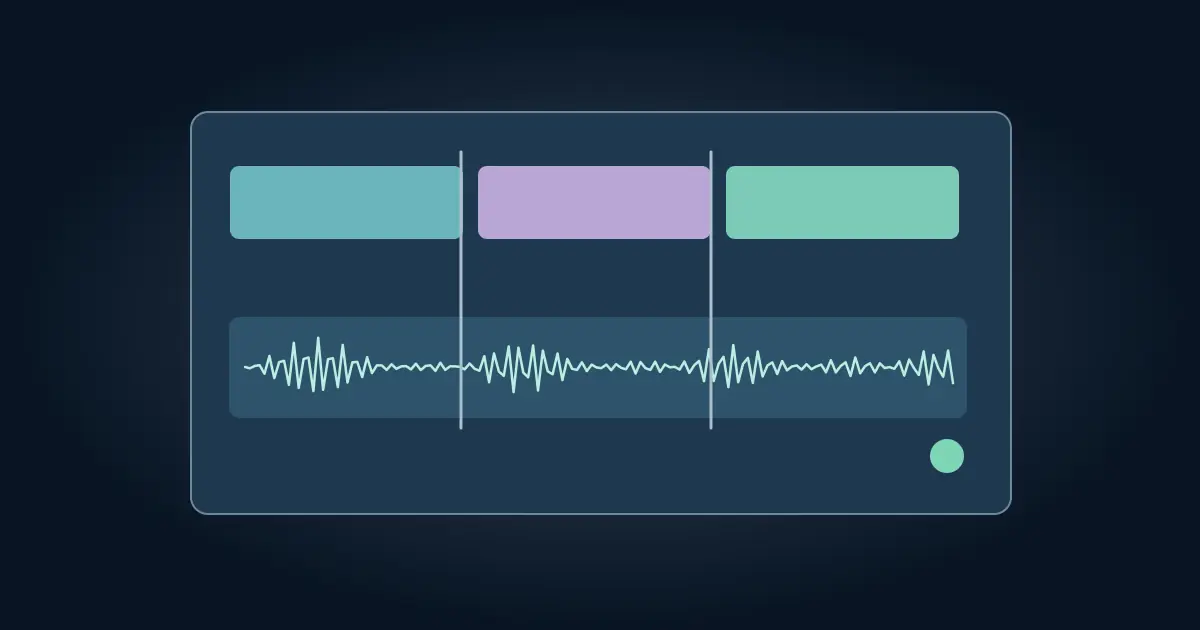
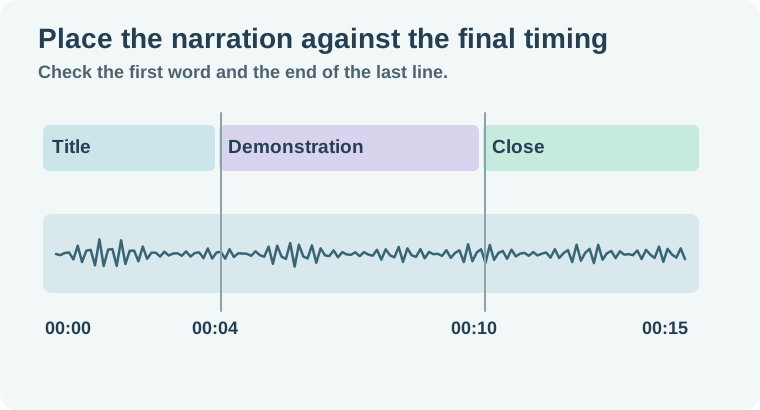
For a 15-second example, use a four-second title, a six-second detail, and a five-second close. The title can name the topic, the second slide can explain one action, and the close can give one next step. Keep each line separate while testing. If the middle changes, you can regenerate that line without replacing the opening and closing.
Write numbers and abbreviations in the form the voice should read. Test a real company name or product term first. Keep the spoken wording separate from any approved on-screen spelling so the visual text remains accurate.
Generate and place the track
Canva's AI Voice help describes the native voice control and where the generated track appears. On desktop, use the audio section in Elements or the AI Voice app. The exact entry points can depend on the design and editor. Generate one approved line and locate it in the audio timeline.
Move the voice segment so the first audible word lands after the intended visual starts. A waveform can include a little lead-in silence, so play it instead of aligning only by the clip's left edge. If the line is too long, shorten the copy or give the slide more time. Trimming the audio at the end can cut off a consonant even when the remaining waveform looks small.
For a deliberate pause, try punctuation or place two shorter segments separately. Compare how the result feels with the slide transition. A useful short gap should help the viewer connect a word to the picture.
Walk through the three-slide proof
On slide one, play from the beginning. Listen for the first word over any music. On slide two, check the product name and the specific action the picture illustrates. Pause at the cut to slide three. If the second line continues into a different subject, move it earlier, revise the words, or extend that slide.
On the closing slide, let the last word end before the video cuts off. Leave enough time for a useful on-screen instruction to register. Play the full 15 seconds without stopping. If the result feels rushed even though every line fits, remove a less important phrase.
Keep any music on a separate track. Compare the speech alone and with the music. The music-under-voice guide offers a simple comparison when the words are audible at the start but get buried under a later accent.
For a line that lands over the wrong shot, mark the first meaningful word and the matching visual frame. Compare the start of the audio clip with that word. If the line begins with half a second of silence, you can move or trim the lead-in while preserving the first consonant. When you cannot fit both the action and the spoken explanation, keep the action on screen longer and listen again at normal playback.
Verify presentation and file playback separately
If you plan to present in Canva, preview in the actual presentation mode you intend to use. A timeline preview is useful while editing, but the audience may encounter autoplay, a manual advance, or different audio settings. Try the first slide on the device you will use. If you share a playable design, check the recipient's access and play it in a separate viewer session.
If you deliver a video, select a video download format such as MP4 where supported and reopen it in a player. Check start, finish, and one middle transition with sound. A static export has a different job. Keep text readable using the Canva text guide, especially if the same design also needs to work without audio.
For a narrated project that another editor will maintain, keep the approved script, the editable design, and the exported proof. If you make a pronunciation change, record what changed. The voiceover file delivery guide explains how to keep a draft read separate from the approved export.
How QuestStudio helps
Use Voice Lab to audition an alternate narration or a shorter version of one difficult line. If your project uses that audio, import the approved file into the design and compare it with the same timing checks. The worksheet works for a native Canva voice and an imported read.
Finish by opening the exact artifact you plan to send. Play the first word, the most crowded transition, and the last instruction.
Download the canva narration timing sheet.
Frequently asked questions
Where is Canva AI Voice?
Canva documents access from the Elements audio area and through Apps. Open a supported design and look for AI Voice.
Can I use separate lines for each slide?
Yes. Separate segments make it easier to adjust placement or revise one line.
Why is the final word missing?
Check whether the audio clip extends beyond the slide or video duration. Revise the line or extend the picture.
Does a presentation preview prove the MP4 has audio?
Verify the downloaded MP4 separately in a media player. Its playback is a separate check.
How can I test a pronunciation?
Generate the exact name or phrase in one short segment, listen, and adjust the spoken script before producing the full voiceover.