
To add a text box in a Canva design, open the text controls, add a text element, and replace the sample wording with your approved copy. Then check the box width, line breaks, placement, and downloaded result. The important outcome is editable text that remains accurate and readable after export.
Canva has different editors for designs, documents, and other formats, so the route visible on your device can vary. This guide explains the text-box task and the checks around it. The original layout examples are authored diagrams, not Canva interface screenshots or proof of an in-app experiment.
Choose the right text object for the editor
In a standard visual design, use the Text controls to add a text box or a suitable heading style. Select the object and edit its wording. In a Canva Doc, text behaves as document content, and the current add-and-edit-text instructions describe contextual insertion controls. Follow the section for the design type you are using rather than expecting every screenshot from an old tutorial to match.
Before making layout adjustments, confirm you are editing text rather than a photograph containing letters. A flattened image does not become editable type because you click the lettering. If necessary, return to the source copy and add real text above an appropriate background. Keep the text layer separate until the delivery format requires flattening.
Keep an authoritative copy sheet beside the design
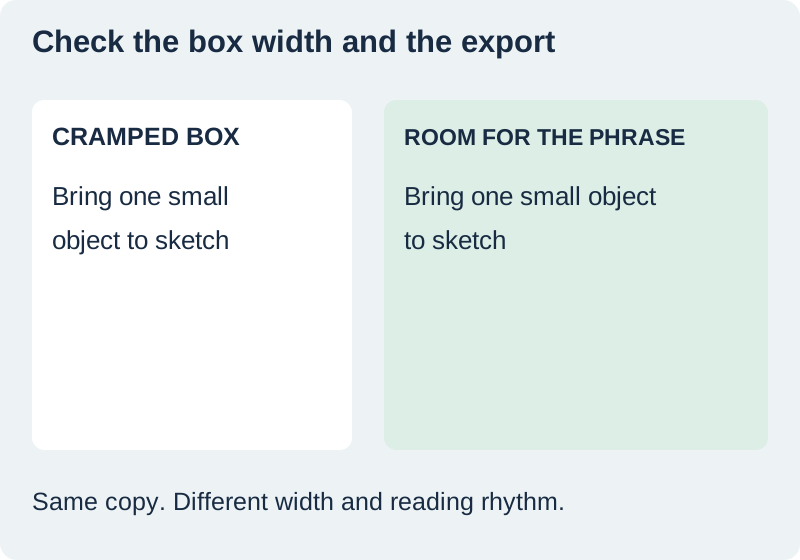
Our fictional announcement has three fields: “Open Studio Evening,” “Bring one small object to sketch,” and an approved booking address. The exercise omits an actual date and URL so nobody mistakes it for a real event. In your own project, keep those exact fields in a copy sheet and resolve unknowns before export.
Paste or type the title, supporting line, and details into separate text objects when that makes the reading order easier to control. Do not split every word into its own box just to force a layout. Too many tiny objects make revisions fragile, especially when the event date or title length changes. Group information by its actual role.
Set the width before forcing line breaks
A box’s width affects wrapping. Font size affects the visible letter size, and the controls you drag can change different properties depending on the object and editor. Watch what actually changes. Canva’s text-box resizing guidance is the current reference for that behavior. Do not assume a gesture in one editor has the same effect in every design type.
For the supporting sentence, try a comfortable width before inserting manual breaks. A forced break may solve today’s title while creating an awkward result after the copy changes. When you do choose a manual break, make it at a meaningful phrase boundary. Keep a date, amount, or short booking address together when possible so the information remains easy to scan.
Make the reading order visible
Use a small number of text styles with clear jobs. The title should be easy to identify, supporting copy should explain it, and the action should be findable. Increase space between groups before adding more decorative effects. If all lines compete equally, the reader must decide the hierarchy you should have designed.
Contrast needs to work against the actual background underneath the letters. A dark heading may read well on a pale surface but disappear over a shadow in the photograph. Move the copy, simplify the crop, or add a suitable solid backing. Our pastel palette guide includes measured examples of dark readable type on light backgrounds.
Keep exact wording editable through revisions
A designer may receive a late change from “one small object” to “one non-fragile object.” That small edit can alter a line break and push text beyond the intended area. Replace the wording from the authoritative copy sheet, then inspect every affected box. Do not approve an old export merely because the new wording looks correct in the editor.
If an AI image already contains a plausible sign or label, decide whether that lettering belongs in the final communication. Generated words should not compete with the approved event details. Use the image text accuracy workflow when the source itself contains lettering, and prefer an editable route for information that must remain exact.
Review a phone-size export before releasing it
Download the intended static or document format, then open the saved file in a separate viewer. Inspect the complete composition at the size a reader will see. A poster that is legible only while zoomed in may fail as a small social image. The smallest required details deserve their own check, not just the large title.
Compare each required string with the copy sheet. Look for missing words, clipped endings, wrong punctuation, and changed line breaks. Check that the background still leaves enough room around the text. If you export multiple pages, inspect the selected pages and page order too. Preserve the editable source so correcting a spelling error does not require rebuilding the design from a flattened image.
How QuestStudio helps prepare space for type
Editor Lab can help reframe a supporting image before you add the exact wording in Canva. The image should support the message while leaving a calm area for type. This is different from asking an image generator to create final event copy inside the picture. Keep the approved words under direct editorial control.
Use the worksheet to record the text roles, exact strings, intended format, and export checks. Save a revision note when the copy changes. The task is complete when the delivered file matches the source, the reading order is clear, and another person can edit the next version without reconstructing your layout choices.
Download the original practice worksheet
Frequently asked questions
Why can I not edit letters inside a photograph?
They are pixels in the image, not a live text object. Use the original editable source or rebuild the wording as real type.
Should I use one text box for everything?
Use separate boxes where they help control distinct information roles, but avoid splitting every word into a separate object.
Why did the wording wrap after a revision?
Changes in copy length, font, size, or box width can change wrapping. Recheck the affected area and export.
Can I verify readability only in the editor?
Open the downloaded file and inspect it at the intended viewing size as well.
Where should exact event wording be stored?
Keep an approved copy sheet separate from the layout and compare each required string before release.
Prepare the background behind your text
Use Editor Lab to reframe the image so the final layout has room for editable text.
Hero: AI-generated editorial illustration. Original teaching materials and documented feature research, checked November 1, 2026. Examples are labeled where synthetic or hypothetical.