
Canva normally saves changes automatically, but a visible edit is not the same as a confirmed synchronized copy. If saving looks interrupted, preserve the open session, inspect the save status, and identify which version actually contains your latest work. Do that before refreshing, signing out, or replacing the design with an older version.
There are three different recovery problems: an edit that has not synchronized, a design whose content changed, and a design that appears to be missing. This guide separates those cases and gives you a recovery record to keep the investigation focused. It uses documented behavior and an original fictional example, not a test of a particular Canva account.
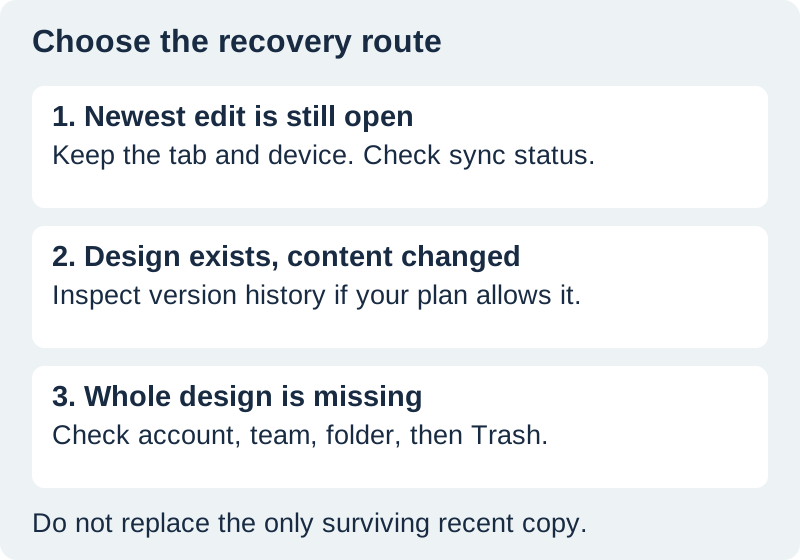
Keep the newest visible copy available
Suppose you have just revised the final two pages of a workshop workbook. The revised title and illustration are visible, but the save indicator is unresolved. Start by recording the design title, URL, account, team, device, and exact status message. Note one specific recent change that distinguishes this copy from the older one.
Leave that tab or app open while you investigate. If you can safely copy newly written text to a local file, preserve it there. A screenshot can document layout and wording, but it is not an editable backup. An export, if available, can preserve appearance while still omitting the editable structure.
Avoid making several competing copies on different devices immediately. That can produce a second problem: no one knows which version contains which edits. Name each copy by its actual state, such as “workbook before caption correction,” rather than calling every file “final.”
Check synchronization before assuming data loss
Look at the connection and save state in the editor. Confirm that the browser or app has a working connection, then allow it to complete synchronization. Canva's connection troubleshooting guidance is the relevant starting point when the editor reports that it is reconnecting.
After a confirmed save, compare the specific recent change with a fresh view where doing so will not close your only unsynchronized session. Use the design URL and correct team. A similarly named duplicate can make a successful save look like a failure.
Do not judge the entire document from a thumbnail. A preview may not show the paragraph, footer, or image you changed. Open the relevant page and inspect the actual content. If someone else is editing, establish which change each person made before restoring or overwriting anything.
Treat prepared offline access as a separate workflow
Current Canva documentation describes offline access prepared while online. It is device-specific, applies to existing designs, and has feature limits. An ordinary network interruption does not establish that your design was prepared for that workflow.
For a prepared offline design, keep the session available until the changes synchronize after reconnection. Canva warns against actions such as signing out, refreshing, or closing while unsynchronized offline work remains. Follow the current instructions for your device rather than assuming that every file is already in the cloud.
Before planned travel, test the intended design and permitted actions with noncritical material. Record where the local copy lives and what indicates that synchronization has completed. A rehearsed offline workflow is easier to trust than discovering its limitations while a client deadline approaches.
Do not assume that every media import, collaboration feature, or design action works offline. Prepare the supporting assets beforehand, and keep approved source images outside the design as well. That separate source folder can save reconstruction time even when it cannot recover the complete page layout.
Use version history when the design exists but changed
If the document opens but contains the wrong content, inspect its history. Canva documents File → Version history, with options to preview an earlier state and restore it or make a copy. Access depends on permissions and plan; Canva Free does not include version history. See the official version-history requirements before relying on it.
Choose a version by the content you can verify, not only by its timestamp. An earlier timestamp may contain the correct layout but lack a later factual correction. Write down what you need from each state. In the workbook example, the previous version might have the correct illustration while the current one has the corrected lesson title.
When the interface offers a copy, use that option to inspect the candidate without immediately replacing the current working design. Compare the two pages that matter and preserve any newer valid edits. Restore only after you understand what that action will replace.
If you lack access, involve the design owner or an authorized editor. Do not share account credentials to bypass permissions. Ask for the specific version or an authorized copy, and state the visible change you are trying to recover.
Check account and location when the whole design is missing
A missing design is not automatically a deleted design. Confirm the account email, selected team, folder, and original design link. If a collaborator shared the file, access may have changed. Record any permission message rather than repeatedly searching by a vague title.
Then inspect the appropriate Trash location and Canva's deleted-design recovery instructions. Availability is time-limited and depends on the item's state and access. Version history inside a surviving document and recovery of a deleted document are separate routes.
If recovery still fails, assemble a concise support record: design link, account/team, last known good state, device, status message, and approximate time of the problem. Include only the information needed to identify the failure. A clear sequence is more useful than “Canva lost everything.”
Reconcile the workbook without losing valid edits
For our fictional workbook, write two requirements: page five must retain the revised lesson title, and page six must regain the approved illustration. Compare the current copy with the available earlier version. If neither contains both, preserve the useful content from each and build a new reviewed copy.
Reopen that reconciled copy after synchronization. Check the title, illustration, page order, and any internal references affected by the repair. Export a fresh PDF and compare those exact locations again. The workbook page-number audit helps catch structural errors introduced during recovery.
Download the design recovery record. Keep observed facts separate from guesses: “page six illustration missing” is an observation; “the connection deleted it” is a hypothesis until evidence supports it.
Keep source assets outside the recovery problem
After recovery, keep the approved export, editable design link, and supporting source files together in a project record. The creative asset versioning guide covers that broader handoff. It complements Canva's save behavior rather than replacing it.
QuestStudio can prepare an image correction or a replacement supporting illustration. Download and retain that result before placing it in a larger layout. It cannot recover a missing Canva account, restore private version history, or confirm that an unsynchronized session has saved.
Frequently asked questions
Does Canva automatically save every visible change immediately?
Canva uses automatic saving, but connection and synchronization state still matter. Check the editor's status and verify a specific recent change before treating it as safely synchronized.
Should I refresh when saving seems stuck?
Preserve the newest open copy first. In particular, Canva warns against refreshing or closing unsynchronized offline work. Check the relevant connection guidance before taking an action that could discard the session.
Can Canva Free users restore version history?
Canva's current documentation does not include version history in Canva Free. Check your plan and editing permissions; do not assume that the feature is available in every account.
Is a downloaded PNG a complete backup?
No. It preserves a rendered appearance, not the original editable page structure. Keep the design source link, supporting files, and an export appropriate to the deliverable.
Can QuestStudio recover a deleted Canva design?
No. Use Canva's account, permissions, history, and deleted-design recovery routes. QuestStudio can help prepare replacement artwork, but that is a new asset rather than recovery of the original design.
Keep a separate source asset
Prepare image corrections in Editor Lab and download the result alongside your design source record.
Hero: AI-generated editorial illustration. Original teaching materials and documented feature research, checked October 31, 2026. Examples are labeled where synthetic or hypothetical.