

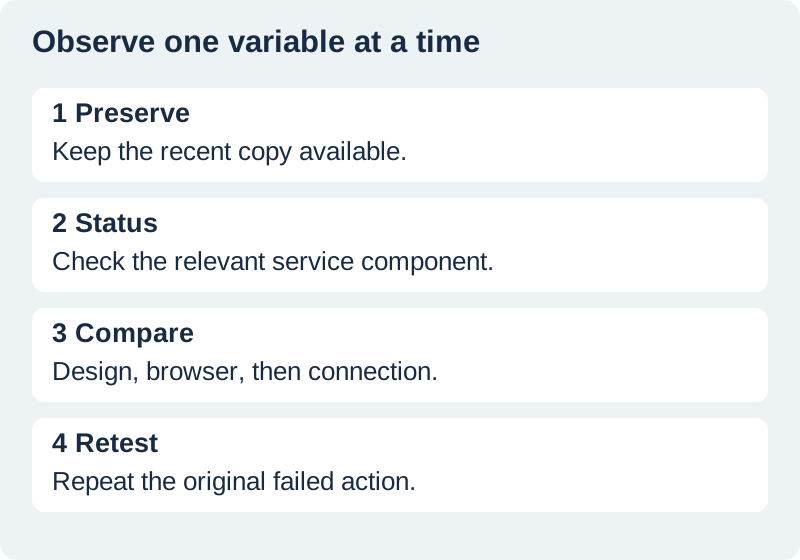
When Canva is not working, first identify what failed: access, loading, editing, saving, or download. Check Canva’s official service status, then compare a small test across the affected design, browser, and connection. Preserve recent work before resetting anything. One changed variable at a time gives you evidence you can act on.
This is an evergreen troubleshooting method, not a live outage monitor. A status page can change after you read this article. The example incident log is fictional and demonstrates how to narrow a problem; it is not a record of a measured Canva outage or a tested account failure.
Protect the recent work before troubleshooting
If the affected design is still visible, note the latest change and whether it shows as saved. Keep that session available until you understand the recovery risk. A browser reset that removes the only unsynchronized copy can turn a loading problem into a lost-edit problem. Do not close an active session merely because another tab is blank.
Use the separate Canva saving and recovery guide if the main question is which version contains the latest work. This article focuses on isolating access and performance failures. Record the design title, account or team, approximate time, exact error text, and the action that triggered it. Avoid recording private design content unnecessarily.
Check the official service component
Open Canva Status and look for a reported incident related to the failed action. A download incident and a login incident affect different jobs. Read the update time and the affected component. A search result saying “operational” may be an older capture, so open the current status page rather than relying on its snippet.
If Canva reports a relevant incident, preserve the project and follow the updates. Repeatedly clearing local data is unlikely to repair a provider-side incident. If no incident is listed, continue the local checks. Absence of a posted incident does not prove your device is at fault; a narrow or newly developing issue may not be reflected yet.
Define the smallest reproducible failure
Write a statement that another person could follow: “The home page loads, but design A remains blank after opening it in browser B.” That is more useful than “Canva is broken.” Note whether another existing design or a simple new test opens. Avoid changing the important client file to create the comparison.
In our fictional example, the home page and a small test design work, while one large presentation fails during export. That evidence points toward a design-specific or export-specific investigation. It does not prove the presentation is corrupted. Large media, a particular page, or a service issue could still be involved. Record what succeeded and failed without jumping ahead to a diagnosis.
Compare the browser without erasing its state
Check that the browser is current and supported. Canva’s performance troubleshooting discusses connectivity and browser compatibility. Its white-screen guidance also addresses browser updates and JavaScript. Use the instructions for the symptom you actually have.
Try a separate supported browser or an isolated session where appropriate, keeping the original session intact. If the comparison works, inspect differences such as extensions, cached state, or settings. A successful private window is a clue rather than a diagnosis: it can change several variables at once. Be deliberate about signing into the same account and team so you are comparing the same access permissions.
Compare the connection and project scope
A different reliable connection can help distinguish a local network problem from a wider issue. Follow your organization’s network rules and avoid disabling managed protections indiscriminately. Note whether the same action works on another connection, not merely whether the Canva home page opens. A home page test does not exercise a large media upload.
If one design is the problem, inspect a copy or a small export range where the current editor supports it. Record whether the failure follows a particular page or asset. If all designs fail only on one device, note that pattern. The aim is a short matrix of observed results, not a long sequence of resets that nobody can reconstruct.
Use disruptive steps only with a recovery plan
Clearing cache, signing out, reinstalling an app, or resetting site data can remove useful state and require access credentials. Confirm that the important work is saved or preserved and that you can sign back in before taking those steps. Follow the current official instructions for the affected app. Do not treat every data category in a browser reset dialog as interchangeable.
If the problem persists, send support a concise reproduction path, time and timezone, browser or app version, error text, and comparison results. Redact private content. A log such as “same design fails on two devices; smaller designs download; status checked at this time” gives support a stronger starting point than a screenshot of an unexplained spinner.
How QuestStudio helps while you isolate the failure
If the project needs a separate image preparation step, Editor Lab can help you continue that bounded task. Keep the Canva design and its original source assets available. Exporting or preparing a source elsewhere does not guarantee that a Canva incident is resolved or that an editable design has migrated successfully.
Finish by testing the original failed action again and opening the resulting file. Log the working condition and any unresolved limitation. Do not mark the incident solved just because login succeeds when the original problem was download. Use asset versioning to preserve the recovered source and approved export.
Download the original practice worksheet
Frequently asked questions
Does this page tell me whether Canva is down right now?
No. Open Canva’s current official status page and check the component and update time.
Should I clear browser data first?
Preserve recent work and confirm account access first. Use less disruptive comparisons before resetting state.
What if only one design fails?
Record that scope and compare a small test or copied project where supported. It narrows the investigation without proving a specific cause.
Does a private window prove an extension caused it?
No. It changes multiple conditions. Treat success as a clue and compare settings methodically.
When is the issue resolved?
When the original failed action works and its resulting file or saved state is checked, with remaining limits recorded.
Prepare a separate source asset
Use Editor Lab for a separate image task while you investigate access, keeping your original Canva design available.
Hero: AI-generated editorial illustration. Original teaching materials and documented feature research, checked November 1, 2026. Examples are labeled where synthetic or hypothetical.