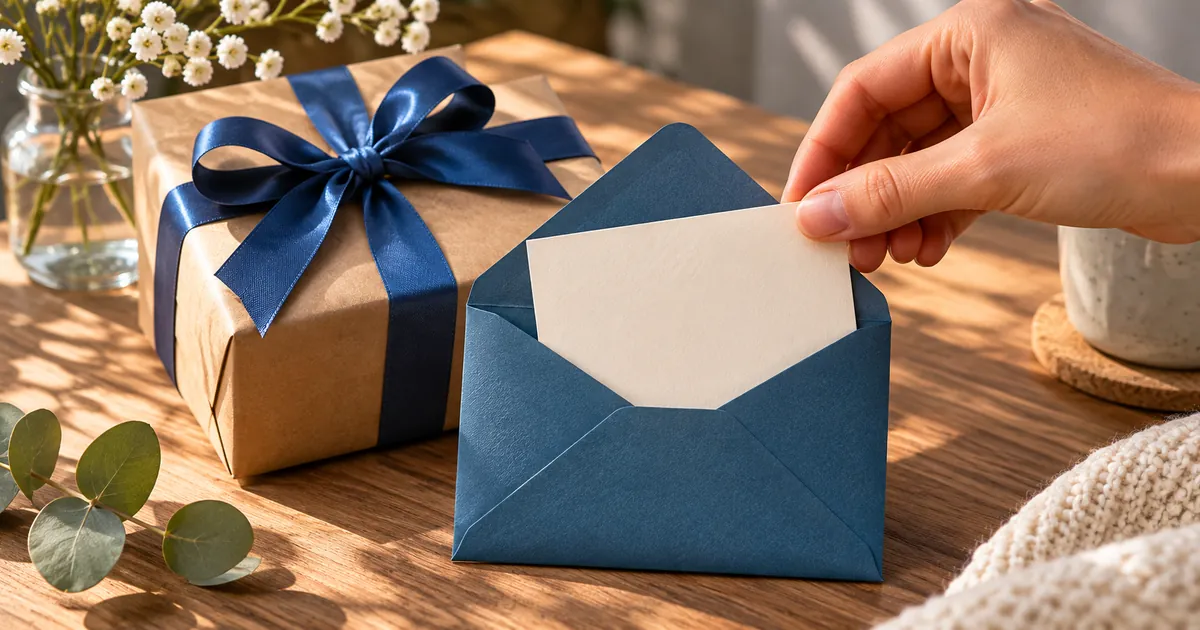

A gift message demo should show customers where to type a message and how it will look inside the package. Record a test order using invented names. Match the screen recording with footage of the actual printed or handwritten card. Include a case your team sees in support, such as a long line going onto the next row or a message that only applies to one item in a mixed basket.
Jump to the Video Lab example or download the worksheet.
Map what happens from the text box to the package
Follow a sample message through the real order system. It may be saved as an order note, a line-item field, or an option controlled by a plugin. Check exactly where it appears to fulfillment staff and which printer or handwriting card they use. A storewide note may work for a buyer sending everything to one person. Separate item fields are necessary when your workflow supports distinct notes for individual gifts.
Ask a coworker to place a sample order using only the instructions you plan to publish. Save the order summary and the printed output. If your store supports only a single note per order, use that language in the demo and on the product page. Be especially careful in shops with two packaging options. A message might appear on a packing slip for one option and a small blank card for another.
For the demo, make a fictional message like “Mara, hope the first chapter is a good one. Enjoy your trip! From Kit.” Choose short names that are easy to read in a caption. Use a deliberately fake order and keep unused tabs, browser profiles, and real mailing labels out of the capture.
Use a long message to find the real limits
Enter a short note first. Then check a message at the allowed limit and one beyond it. If the interface accepts newlines and emoji, print a note that uses both. Some field counters and printers handle special characters differently. Confirm which behavior your own store supports. If you can't print emoji reliably, show a short instruction near the box and use the same explanation in the video caption.
Inspect the card at the size it will ship. A host might say “you can use three lines” while the note looks different after a narrow label printer wraps it. If names or the closing get cut off, shorten your on-screen example and update the field hints or order processing separately. The video should show an actual result customers can reproduce, especially for line breaks and punctuation.
| Test | Record in checkout | Confirm on printed card |
|---|---|---|
| Short message | One line and sender | Correct sender and punctuation |
| Line break | Two lines submitted | Wrap and blank line behavior |
| Limit case | One character over limit | Visible validation or expected handling |
| Mixed basket | One message and two gifts | Which packaging receives the note |
Capture the handoff in one short sequence
Start the screen recording just above the gift-message field. Show the control that reveals it, then hold briefly on a short message and where the checkout confirms it. Record a clean screen proof with the cursor parked away from important text. Move straight from the on-screen example to the printed card being slipped into the parcel. A short dissolve can break the link between typing and packaging. A direct cut to the matching words makes the result easier to follow.
Frame the physical card so the first and last lines remain visible. Use a spoken line or caption over the browser capture if customers need instructions, and keep captions off the fields themselves. Watch muted once for readability. If your demo needs more time, shorten the packaging footage before trimming the control customers are trying to find. The screen recording narration guide can help align the words to the controls.
Verify the sample with someone who packs orders
Show a version to fulfillment and ask them to identify what type of order it depicts. Give them the test order and compare the printing steps to the video. A cropped browser field and a real printed note should tell the same story. Have a shopper do the same check from a phone, where the field may sit inside a collapsed cart section or on another step.
Decide what will trigger a new cut. A checkout theme refresh, new card size, different character limit, or switch to line-item messaging can change the demo. Store the original screen capture, print proof, and edit file together. For a small change, replace the affected screenshot or caption and re-export the existing footage.
Make the demo usable without a screen recording
Keep a three-step text version near the video. Name the item page or cart where the field appears, state the packaging that gets the note, and show one sample. Add a contact route for a note that needs a correction after purchase, using the policy your support team applies. A returning customer may only need that last line. Add a photo of the test card with a short description if the clip is streamed or slow to load. Store the text steps and video version together in the same review document.
How QuestStudio helps
Use QuestStudio Video Lab to try an atmospheric shot of the blank envelope or closed gift box, if you want a brief opening. Film the real order screen and printed card so the proof remains legible and accurate.
Vertical closeup using my blank envelope and kraft gift box photo as the exact reference. Soft light moves gently across the edge of the envelope. Keep the paper texture, ribbon, and proportions stationary. Hold focus on the empty envelope. No hands, readable message, logos, or new objects.Keep the shot below two seconds in the demo if it slows down the answer. The viewer came to find the field and see the card. A simple still works if the motion produces visual distractions.
Try it with your own material
Print the test card before recording the polished demo. Once you can match the field, order, and card, put the short clip near the instructions where a gift buyer is deciding how to personalize the order.
References
Frequently asked questions
Can I show an actual customer gift message?
Use a fictional order. Record the whole path from that one order so viewers can see that the store produced the displayed result.
Do I need to mention character limits in the video?
Show a short example and display any relevant limit near the real field. Add the limit to editable copy so you can update it if the card or software changes.
Should I show the field on desktop or mobile?
Record the experience customers are most likely to use and test both before claiming the steps match. If the field is in a different place on each, use two short versions.
How do I show multiple gifts?
Test a mixed basket and state which note goes with which item. Demonstrate separate notes only if your actual packing and checkout flow support them.
Related guides
 Voice
AI Voiceover for Screen Recordings: Match Every Step
Match AI voiceover to screen recordings. Map each instruction to an action and result, fix pauses and keep interface labels, captions and revisions aligned.
 Video
Gift Bundle Packing Video From One Overhead Setup
Film a gift bundle packing video that proves what ships. Follow a timed overhead shot list, keep styling props separate, and verify the finished box on mobile.
 Image
AI Product Photo Approval Checklist: Review Before You Publish
Check AI product photos against the exact SKU, work through a missing-component example, and use a downloadable approval log before publishing the final image.