

Google Docs voice typing turns live speech into editable text. Open a document in a supported browser, choose Tools → Voice typing, select the appropriate language, and start the microphone. Speak a short passage, stop, and correct it before dictating the next section.
For a creative script, the useful result is an accurate draft you can revise. Voice typing is not the same job as importing a prerecorded interview or generating a narrated audio file. This guide uses an original practice passage and a correction map; the example errors are deliberately constructed, not measured recognition results.
Confirm the browser and input
Google's voice-typing help, checked October 31, 2026, lists current Chrome, Edge, and Safari versions. It explains that the browser controls the speech-to-text service and sends text to Docs. A managed organization's administrator can disable the feature.
Check the microphone at the operating-system level, then confirm the browser's permission and selected input. A headset may be connected for playback while the computer still uses its built-in microphone. Start with a short neutral sentence so you can tell whether the intended source is working.
Use an environment appropriate for the material. For client or sensitive content, confirm the allowed workflow before dictation. Do not assume that being able to open a document means every browser-based speech service is approved for that content.
Outline the script before speaking
Write three bullet points: what the viewer needs, what action you will demonstrate, and what result they should recognize. This gives the dictation a path without making you read a polished essay into the microphone.
For a small product-photography tutorial, the outline might be: place a card beside the lamp, keep it out of the camera's view, and check the reflection on the bottle. Each point corresponds to a visible action or result. That makes the draft easier to edit into narration later.
Prepare a small glossary of names, products, file extensions, and unusual terms. Keep their approved spelling beside the document. If the script contains an address, measurement, or model number, plan to verify it character by character after dictation.
Dictate one complete thought at a time
Open a document where you can edit, choose the voice-typing command, and start the microphone when ready. Speak at a comfortable pace. Do not rush to keep the microphone active continuously; stopping between sections makes review easier.
Try the original practice passage below. Its color, measurement, direction, and negative instruction create useful checkpoints. Read the words as intended, then compare the captured text with the source. Record your actual result separately.
Place the blue card beside the lamp. Leave a gap of fifteen centimeters. Do not cover the bottle label. Turn the card slightly to the left, then check the reflection before taking the photograph.
Use punctuation commands supported for your selected language, or add punctuation afterward. Keep editing commands separate from words intended for the script. Google documents English-language conditions for its voice editing commands; do not assume that every command works in every dictation language.
If a command appears as ordinary text, stop and remove it before continuing. Repeating the same instruction louder can produce more unwanted words rather than correcting the document.
Correct meaning before style
Read the draft once for factual meaning. Check negations first: “do not cover” and “cover” give opposite instructions. Then verify quantities, units, names, left/right directions, and the order of actions.
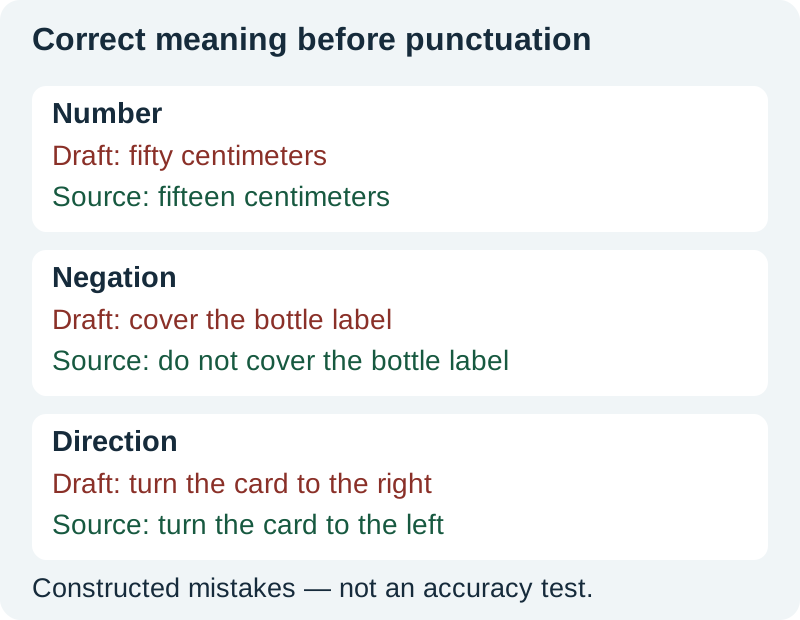
Only after meaning is correct should you smooth the phrasing. Remove false starts, repeated sentences, and references such as “over here” that will not make sense without the picture. Preserve the author's intended voice rather than turning every sentence into formal prose.
For the sample, a concise revised version might be: “Set the blue card fifteen centimeters from the lamp. Keep the bottle label clear. Turn the card slightly left and check the reflection.” That is an editorial rewrite with the same intended instructions, not a claim that the shorter version is always preferable.
Use three short review passes
Pass one: accuracy. Compare the text with the source, glossary, and actual task. If a fact is unclear, leave a visible note and resolve it instead of guessing.
Pass two: spoken clarity. Read the paragraph aloud. Break long sentences at meaningful action boundaries. Expand an abbreviation if the listener will not recognize it. Put the main instruction before an optional explanation.
Pass three: picture fit. Match each instruction to a visible action or image. If the script says “check the reflection” before the relevant surface appears, adjust the script or shot order. The screen-recording narration workflow explains this alignment for software tutorials.
Download the practice passage and correction log. The log separates the intended wording, observed wording, correction, and reason. That keeps a recognition error distinct from a deliberate writing improvement.
Troubleshoot the input path
If the microphone does not respond, verify the device, operating-system access, browser permission, and document editing access. If the menu is unavailable in a managed account, check the organization's feature settings. Do not begin by changing unrelated document formatting.
If recognition is inconsistent, test a short passage closer to the microphone in a quieter setting and confirm the selected language. Compare one change at a time. A long paragraph recorded under different conditions will not tell you whether the microphone adjustment helped.
If only names or specialized terms fail, use the glossary and correct them explicitly. A general dictation system may not know the intended spelling of a project name. For a recurring script, search the document for every occurrence after the first correction.
Use the right route for an existing recording
This workflow captures live speech through the browser's microphone path. It does not describe a direct audio-file upload into the voice-typing command. Playing a recording through speakers introduces another capture stage and can make source quality and attribution harder to track.
For an interview or meeting file, choose a transcription workflow designed for that input and preserve the original audio. The recording-to-transcription guide covers capture, file handling, and correction. Keep speaker labels and timestamps only when the actual tool and review process support them.
Do not silently replace a transcript with a rewritten summary. A script adapted from an interview may be appropriate, but label that editorial transformation and keep the source available for checking.
Create an approved script version
Once reviewed, save a clearly named script version with its date and intended use. Separate production notes from words to be spoken. A narrator or speech generator should not accidentally read “insert close-up here” as part of the finished lesson.
Keep pronunciation notes for names and technical terms beside the script. If a reviewer changes a number or direction, update every dependent caption, slide, and narration request. The voiceover delivery guide helps organize the resulting files.
How QuestStudio helps
After correcting and approving the draft, use Voice Lab to explore narration. Dictation creates text from your speech; narration creates speech from your text. Keeping those stages separate makes it easier to catch an error before it becomes polished audio.
Frequently asked questions
Where is voice typing in Google Docs?
In a supported desktop browser, open an editable document and choose Tools → Voice typing. Confirm the language and microphone, then start and stop capture with the microphone control.
Can I upload an MP3 through voice typing?
This guide covers live microphone dictation, not a direct MP3 upload feature. For an existing recording, use a workflow designed for file transcription and retain the source audio.
Why do spoken commands appear in my document?
The command may not be supported in the selected language or context, or it may have been recognized as ordinary speech. Stop, correct the text, and check the current command requirements.
Should I fix punctuation or factual errors first?
Fix meaning first, especially missing negations, numbers, units, names, and directions. Then improve sentence boundaries and spoken clarity.
Are the illustrated mistakes from an accuracy test?
No. They are deliberately constructed examples showing high-impact errors to check. Use the practice passage and log to record your own observed output.
Turn an approved script into narration
After correcting the text, use Voice Lab to explore a narrated version. Live dictation and generated speech are separate steps.
Hero: AI-generated editorial illustration. Original teaching materials and documented feature research, checked October 31, 2026. Examples are labeled where synthetic or hypothetical.