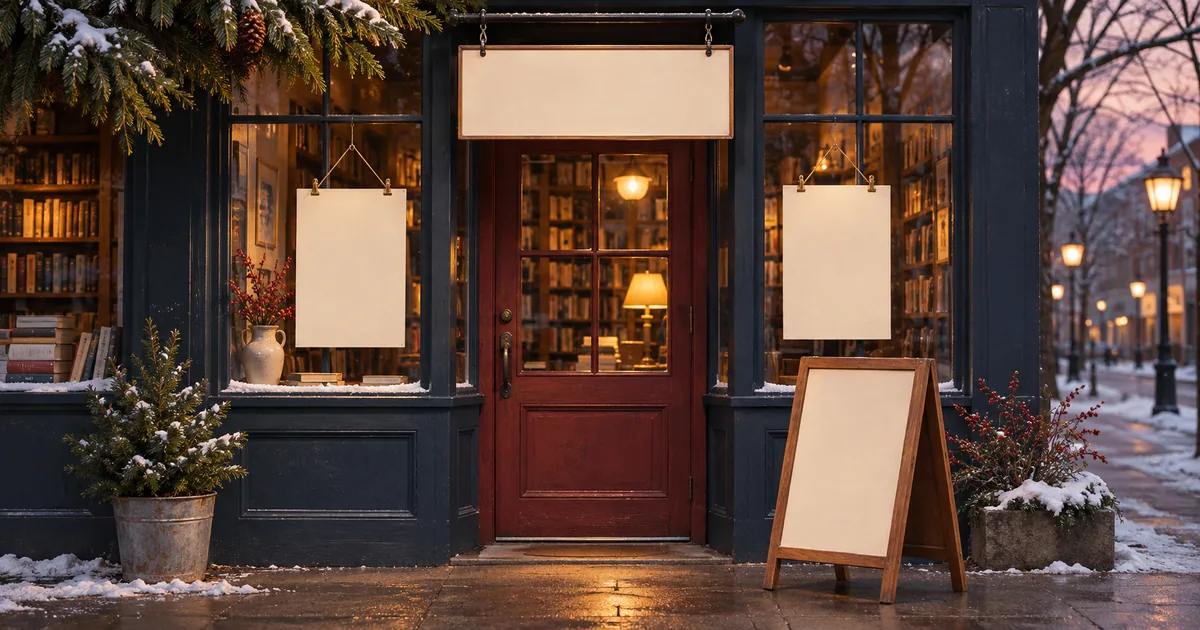

Start a holiday hours graphic with a list of exceptions to your regular schedule. Put the date beside each change, spell out whether you're closed, and tell customers when normal hours resume. Build one source for the hours, then copy it into your door sign, social graphic, and online listing. That cuts down on the most frustrating failure: one channel says the store is open while another says it's closed.
Jump to the Image Lab example.
Confirm the hours before opening a design app
Ask the person who manages the schedule to confirm the hours for each location. Have the dates in front of you while you make the list. A short note like “closed Thursday, open late Friday” is easy to misunderstand if a coworker copies it two weeks later. Write the weekday, month and day, and status on the same line. Where a shop opens for pickups only, say exactly that and specify how customers can arrange them.
Consider a fictitious one-location bookshop called Cedar Street Books. Its owner approves Thursday, November 26 as closed, Friday, November 27 as 11 a.m. to 5 p.m., and Saturday, November 28 as a return to regular hours. A pickup appointment on Friday is an operational exception, so the owner confirms how it works before anyone advertises it. Save the agreed hours, the approver, and the time they were confirmed in a short note the staff can see.
If two locations differ, make one sign per location and put the neighborhood or branch name at the top. On a shared social account, show both locations in separate cards with their names repeated in the captions. A two-column image often looks fine on desktop and too dense in a phone feed.
Build a date-first layout people can scan
Use a single headline such as “Holiday hours.” Make the changed dates the next thing the eye sees. The sample below is short enough to put on a plain paper door sign or inside an image. Keep the location name and regular-hours return date readable at the same size you'll display it.
Cedar Street Books
          Holiday hours

          Thu, Nov 26     Closed
          Fri, Nov 27     11 a.m. to 5 p.m.
          Sat, Nov 28     Regular hours resume

          Check our store page for updates.
Use spacing or a thin rule to mark each row. Give “Closed” a full word instead of relying on a red dot or a dash. If you put a decorative photo behind the layout, place the schedule on a solid panel. Phone screenshots, black-and-white prints, and social compression can all make text on a textured background harder to read. A quieter picture makes the schedule easier for a reader to confirm.
Make the caption useful on its own. Paste the same schedule in text and add the link to your location page if appropriate. That gives readers an accessible version they can copy or zoom, and a live place to check again if you have to make a last-minute change.
Prepare a storefront photo for the sign
If you want the graphic to look like your shop, start with a straight-on exterior photograph. Use it as the reference and simplify areas where the schedule will sit. Add the hours as separate editable text in your layout.
Open the example in QuestStudio Image Lab.
Portrait 4:5 editorial photograph using my uploaded storefront photo as the reference. Retain the real doorway, windows, building materials, street number, and recognizable details. Add warm interior light and subtle winter atmosphere. Leave a plain dark area low on the right for an editable hours card, with the entrance clear. Keep the composition readable on a phone. No generated hours, new lettering, logos, or altered signage.Compare the result with the real door and street number. Use a tight crop or your original photo if an edit changes something a customer would use to recognize the location. Keep the sign panel empty in the image export so you can swap dates without regenerating the storefront.
Check the image where people will read it
Open the social export on a phone without zooming. Ask someone who hasn't seen the draft to answer two questions: “Are you open Thursday?” and “When can I visit Friday?” If they look in the caption before they answer, check whether the font size, contrast, or alignment is hiding the dates in the graphic. A line such as “weekday hours may vary” can't replace the schedule they came for.
Print a draft and tape it inside the window where the final sign will go. Stand outside at the distance of a customer approaching the door. Check it with glare on the glass and at the time lights usually go down. If a reflection cuts through the schedule, move the sign to a lower pane or choose darker text on light paper. Check that you can point to the reopening date without searching through smaller copy.
Give one person responsibility for replacing the image when normal hours return. Update your owned store page, the business listing, and your pinned social post from the approved schedule. Write a reminder with the exact files and pages to update. Reopen each public surface as a visitor and compare it with the door sign. This is especially helpful if a Friday staffing change affects only one of the three surfaces you planned to publish.
Handle an exception that changes after the design is done
Run one rehearsal before the real holiday. In the bookshop example, suppose Friday now ends at 3 p.m. because of a staffing change. Open the master schedule and change that row once. Export the replacement card, print the new version, then open the listing and social post to make sure neither still says 5 p.m. If your account permits editing the caption but keeps the old picture, publish a replacement and point the old post to the latest version where possible.
Keep the lines that change together. If a Friday appointment can be booked only during store hours, the pickup line and the hours row need to be checked as a pair. A note on the shop page can carry a longer explanation than the graphic, but someone looking only at the door needs a clear next action. Save one plain-text schedule next to the artwork so the person working the counter can see the same wording without opening a design file.
Use the same master layout for the next holiday. Clear the old dates and closure labels before entering the new ones. If the background still fits, keep it and proof only the details that changed. A customer should be able to find the relevant date even if the picture arrives in a group message with no caption.
Use your actual storefront photo to make a clean background. Keep the hours in an editable layer you can reuse for the next holiday.
Create a QuestStudio accountFrequently asked questions
What should a holiday hours graphic include?
Show your location, dates, hours or closure status, and when regular hours resume. Add pickup instructions if customers need them.
Can I use the same graphic on social media and my door?
Use the same schedule. Check the door sign at its printed size and the social version on a phone. Repeat the schedule in your caption.
How should I handle different branch hours?
Make a separate card for each location. Put the branch name near the top and check that each card links to the correct location page.
Can AI generate the hours graphic for me?
AI can prepare the photo or background. Add the schedule as editable text and check it against the approved hours before publishing.
Related guides
 Product Ads
Black Friday Ad Creative Checklist for Small Stores
Build Black Friday ad creative from one real product photo. Plan the offer, make feed and vertical layouts, and check price, product, and checkout details.
 Image
AI Image Fact-Check Workflow: Verify Before Publishing
Verify an AI image and its caption before publishing. Use a worked claim ledger to separate supported facts, invented details, and questions that need evidence.