
Start a Black Friday ad with one item, one approved offer, and one action. Use a real product photo and leave room for the price and deadline. Make a feed and vertical version once you can verify the offer on the product page and at checkout. That gives a small store two assets it can publish without having to reconcile different promises.
The worked example uses a fictional shop selling an olive canvas zip pouch. The details are there to show what to check. Replace them with the actual item, price, eligibility, and dates you can honor.
Fill in the offer before designing the ad
Open the product page and write down the exact item the shopper should see. A promotion for the olive pouch can get confusing if the link opens a collection of three sizes or if it lands on a black pouch that costs more. Pick one supported variant for your first graphic and send the click to the page where that variant can be purchased.
| Decision | Example | Check before export |
|---|---|---|
| Product | Olive canvas zip pouch, regular size | Verify the photo, selected color, and product description match. |
| Offer | Sale price of $18 for the pictured pouch | Check the actual price and any required code from a visitor's cart. |
| Deadline | The store's approved end time | Use the same time zone in the graphic, product page, and scheduler. |
| Action | Shop the olive pouch | Open the final link on a phone and find the correct variant. |
Write the ad headline the way a customer would read it on a phone. “Olive canvas pouch · $18” tells people what the item is and what it costs. Put the specific qualifier next to the price if the offer depends on it. A shopper who has to search the caption for a required code may assume the advertised price applies automatically. Test the checkout path you actually describe.
Keep the offer, product photo, and copy in a short ad creative brief. When someone corrects the date or replaces a sold-out color, that brief gives you the information to update every crop from the same source.
Make a base image you can reuse across placements
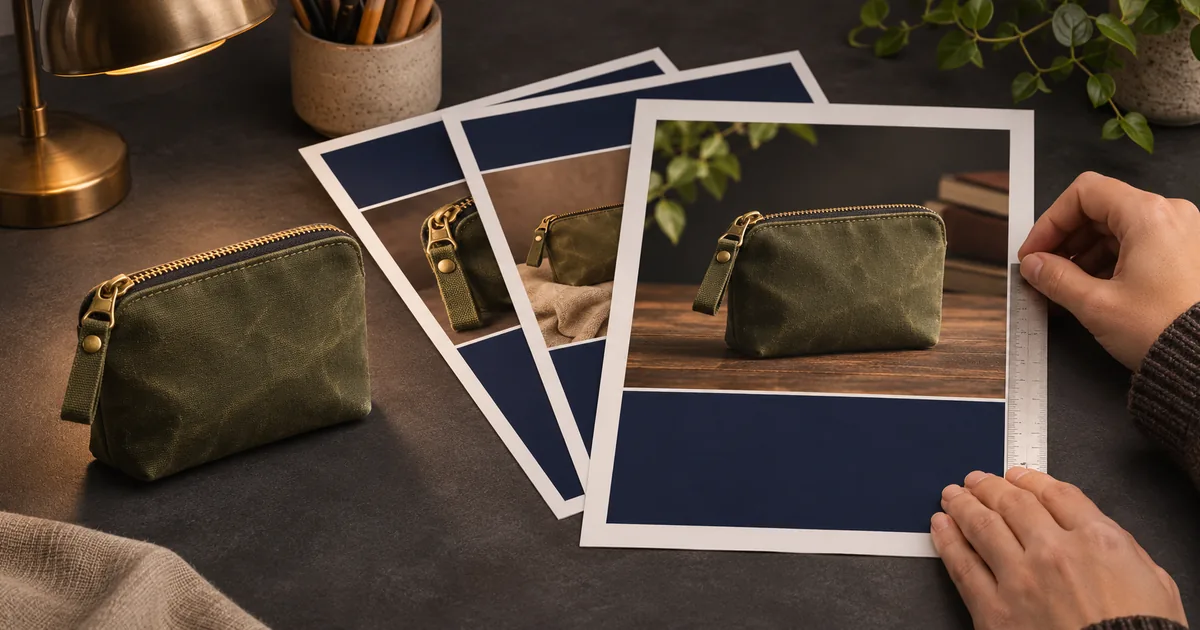
Choose a sharp original photo of the product at the angle you want to sell. For the pouch, a three-quarter view makes the shape and zipper visible. Leave room around the product so you can crop it without cutting off its pull tab. Compare your starting image with the listing photo shoppers will see after they click.
Use AI to explore the setting and lighting. Keep the product photo as the reference and add the offer in an editable layout after you choose a frame. Try this starting prompt in QuestStudio Image Lab or use the QuestStudio workflow for product promotions.
Portrait 4:5 ecommerce photo for a sale graphic. Use my uploaded product image as the reference. Preserve the pouch's olive waxed-canvas color, seams, brass zipper, shape, and short fabric pull. Place the single pouch on a matte charcoal surface with a slight warm side light and a soft grounded shadow. Frame the product below center with clear space above and enough room around each edge for alternative crops. Plain dark background, no letters, prices, badges, or new objects.Inspect the model output side by side with your source before adding copy. In this example, check the front seam against the original, count the zipper pulls, and confirm the color still looks olive. If the pouch turns leather-like or gains a second zipper, simplify the setting request or choose a reference-friendly model and compare again. Keep the approved file and source photo together so the next person can see what changed.
Prepare a feed version and a vertical version
For a portrait feed graphic, try a 4:5 canvas with the product in the lower half and enough quiet space for a headline above. On a 9:16 version, bring the offer and product closer to the middle. Open the placement preview where you intend to post it, because navigation and captions can cover parts of a vertical asset. Adjust the layout before you resize the product.
Export each version with its destination in the name. Open the exports again on your phone in the size a viewer will see. Can you read the price without pinching? Can you tell which product the price applies to? If either answer is unclear, bring the headline and product closer together or reduce competing elements. When the deal is the point, a decorative background needs to leave enough contrast for the short line that carries it.
If you want a second concept, hold the product, price, and link steady and change one part of the visual. Compare a charcoal background against a warm tabletop while keeping the framing close. Save edits independently so an actual price change can be applied to both. The ad creative testing guide shows how to keep the comparison interpretable.
Run the same checkout test a buyer will run
- Open the exported ad and confirm that it shows the correct product, price, and any necessary deadline.
- Open the link as a signed-out visitor. Choose the exact variant and verify the offer on the listing and in the cart.
- Check your start and end times against the campaign schedule. Set an owner to replace or retire the export when the offer ends.
Decide what you will change when the pictured variant sells out. For the olive pouch, name the person who pauses the creative and the page they should check first. If you switch to the black pouch, update the photo, color name, price, and link together. Then reopen the published placement to confirm that the new export is the one a buyer sees. A short list of active crops and their destinations makes this fix easier while orders are coming in.
Keep a version of the layout with the price layer editable. You can adapt it to another approved weekend offer without asking an image model to redraw the product or rebuilding the crop. Save the product image separately as a reusable asset.
Bring your actual product photo into QuestStudio. Make one background and check the product before building the rest of the promotion.
Create a QuestStudio accountFrequently asked questions
What should go on a Black Friday sale graphic?
Show the product, the approved offer, and one action. Add a deadline or exclusion if it changes what the customer can buy. Check the graphic against the linked page and checkout.
Can I use AI to create a Black Friday product ad?
Yes. Use your real product photo as a reference, generate the setting or layout, and keep the final price, sale conditions, and call to action editable.
How many versions should a small store make?
Start with one feed crop and one vertical crop of the same offer. When you have a reason to compare creative, change one element at a time and keep the product and landing page consistent.
What should I inspect when AI edits a product photo?
Compare the result with the source. Review the silhouette, materials, color, logo or label, functional parts, and what the buyer receives. A clear background with an inaccurate product needs another pass.
Can this checklist work for Cyber Monday?
Yes. Duplicate the layout with the approved Cyber Monday offer, then check the dates, eligible products, and checkout again. Export the updated assets and retire expired versions.