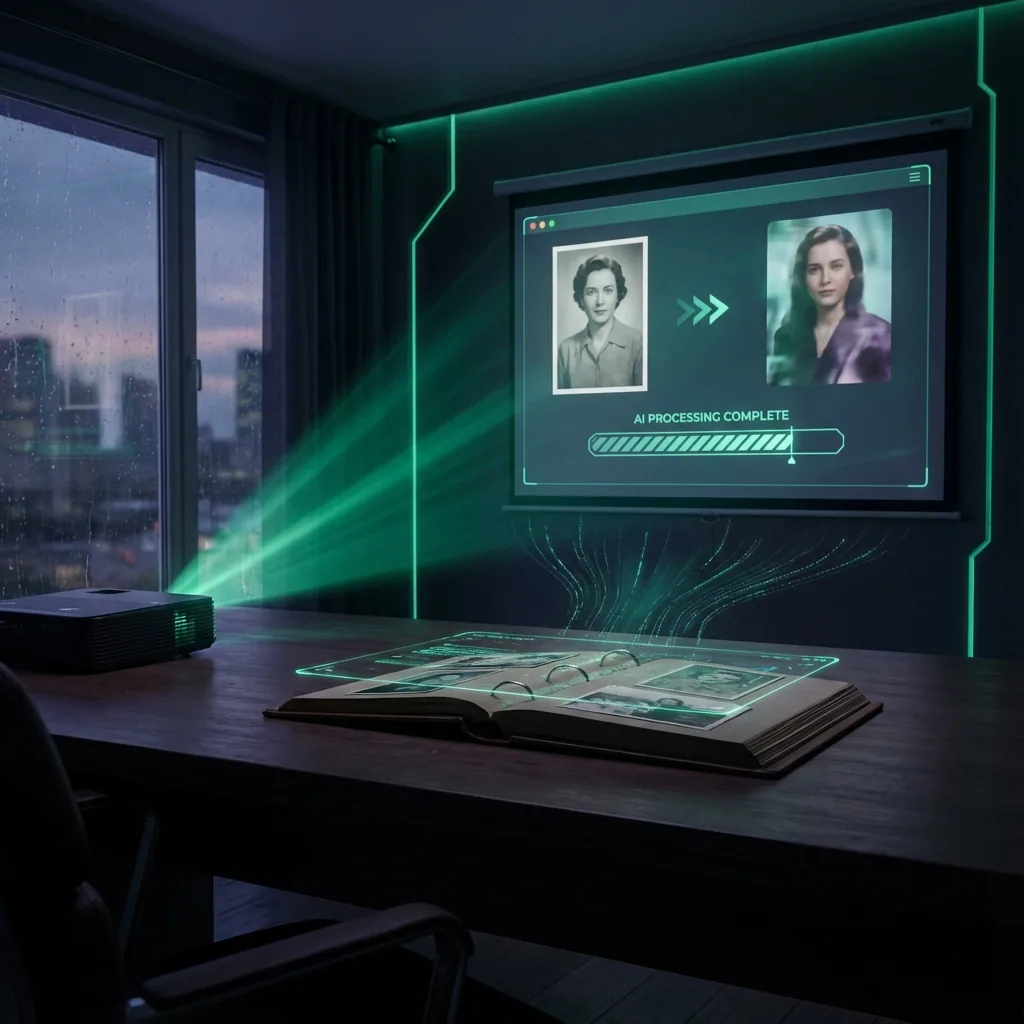
Image to video AI generation - cinematic motion presets and professional camera moves in QuestStudio
Image to Video

Image to Video AI
(Photo to Video)

Turn a still image into a realistic motion video with cinematic camera moves, subtle facial motion, and smooth parallax. Save prompts, compare results, and build reusable assets in QuestStudio.

Erick By Erick
Dec 28, 2025

Examples of Image to Video AI

Cinematic Push In

Portrait

Slow dolly in, shallow depth of field, soft key light, natural skin texture, subtle blink, slight hair movement, realistic motion, 24fps.

Product Ad Motion

Product

Smooth turntable motion, soft studio lighting, clean reflections, gentle camera orbit, crisp focus, premium commercial look, 24fps.

What is Image to Video AI?

Image to Video AI turns a single image into a short video by generating realistic motion. It can simulate camera movement, add subtle environmental motion (like wind or water flow), and create a more cinematic feel without needing complex video editing software.

This is ideal for:

  • Creators making Reels, Shorts, and TikToks
  • Product sellers making quick ad clips
  • Marketers creating scroll stopping content
  • Anyone who wants b-roll from still images

Image-to-Video vs. Text-to-Video

Image-to-Video

Perfect when you need exact control over the subject. If you have a specific product photo or character, image-to-video preserves the details while adding motion. You control the composition, lighting, and subject identity before the video generation starts.

Text-to-Video

Best for total creative freedom or creating scenes from scratch where specific details matter less than the overall vibe. It creates entirely new visuals from your words, which is great for storytelling but harder to control if you need a specific product to look exactly right.

How to Turn a Photo Into a Video

1

Upload your photo to the Video Lab

PNG or JPG works best. Ensure the subject is clearly visible.

2

Choose a motion preset

Select from options like push in, orbit, parallax, or handheld.

3

Paste a prompt template

Use one of our presets below to guide the AI's imagination.

4

Generate & Compare

Pick an aspect ratio (9:16, 16:9, 1:1) and generate. Save your favorite prompts to a folder.

Recommended Output Settings

  • Aspect Ratio: Use 9:16 for Reels/TikTok, 16:9 for YouTube, 1:1 for general social.
  • Duration: Start with 3–6 seconds for the most stable and realistic motion.
  • Faces: Use "Micro Motion" to avoid warping facial features.
  • Landscapes: Use "Parallax Depth" to separate foreground from background.
  • Best Inputs: Sharp image, clear subject, good lighting, minimal clutter.
  • Avoid: Text-heavy images if you want a photorealistic result.

Models, Privacy, and File Handling

Supported Models

QuestStudio integrates the latest industry-leading models, giving you the power to choose the best engine for your specific creative need. Currently supported models inside the Video Lab include:

Quality Assurance

All generated videos are watermark-free and delivered in high resolution suitable for professional use.

Privacy & Security

Your uploads are used securely solely for the purpose of generating your output.

Copy Ready Prompt Templates

Use these templates as a starting point, then adjust the mood and movement.

Portrait Realism

Natural Portrait

"Subtle blink, slight head micro movement, gentle hair motion, soft key light, natural skin texture, realistic motion, shallow depth of field, 24fps, cinematic."

Fashion Look

"Clean studio lighting, soft rim light, gentle camera push in, realistic fabric motion, high end editorial, 24fps."

Product Ads

Premium Commercial

"Smooth camera orbit, soft studio reflections, crisp focus, clean background, premium commercial look, 24fps."

UGC Vibe

"Handheld feel, slight imperfections, warm indoor lighting, casual lifestyle vibe, natural motion, 24fps."

Best Results Checklist

  • Use high resolution images when possible.
  • Keep faces well lit for portraits.
  • Use subtle motion if you want realism.

Common Mistakes

  • Face looks warped: Reduce motion strength, use micro motion prompts.
  • Flicker: Reduce complexity, avoid rapid camera moves.
  • Looks fake: Remove "hyper" terms, use "natural lighting".

Image to Video AI FAQ

How long should my video be?
Short clips usually look best. Start with 3 to 6 seconds and expand once you find a style you like.
What aspect ratio should I use?
  • 9:16 for Reels and TikTok
  • 16:9 for YouTube
  • 1:1 for general socials
Does it keep the same person identity?
It can, but results depend on the input photo quality and motion strength. Subtle motion typically preserves identity better.
Can I save prompts and reuse them?
Yes. QuestStudio is built for saving prompts, organizing them in folders, and comparing results across models.

Ready to create?

Start generating videos from images today.

Open Image Lab