

Place Instagram Reel captions in a clear part of the picture where they avoid the speaker's face, important actions, and the app's controls. A lower-middle position can be a useful starting point, but check every shot and preview the final video on a phone. There is no single position that works for every composition and viewing state.
This guide concerns words displayed over the video, not the written description beneath the post. The diagrams are original planning illustrations. They are not Instagram screenshots or a pixel-accurate map of the current interface. Use them to find potential collisions, then test your actual clip in the destination app before sharing.
Identify which caption layer you control
Captions burned into an exported video are part of the picture. You can place them precisely in your editor, but viewers cannot move or turn off that rendered text. A caption track displayed by a player is separate from the picture and may be affected by player settings and supported styling.
The W3C caption guidance notes that positioning and styling support varies between players. That is a reason to inspect the delivered result rather than assuming that the layout shown in an editor will appear identically everywhere.
Before editing, write down whether your final clip uses rendered text, a native caption feature, or both. If you use both, check for duplicate words and competing positions. Lancaster University Students' Union's Instagram caption tutorial also highlights contrast and the risk of embedded and automatic captions overlapping. Treat its interface steps as one documented workflow, and check the controls available in your current app.
If you still need a tool for generating or correcting the transcript, use the caption-generator comparison. Placement comes after the words and timing are good enough to review. A perfectly positioned spelling error is still an error.
Compare a collision with a clearer starting position
Give the caption room to remain visible
Collision to avoid
Starting point to test
The first layout makes the caption compete with the lower interface area. The second moves the words into open picture space and keeps them away from the illustrated subject. Neither drawing can establish the exact space available on your phone, with your text size, account, and current viewing state.
Start by identifying the essential visual information in the shot. For a talking head, that usually includes the face and relevant gestures. For a tutorial, it may be a button, a tool, a measurement, or a product label. Reserve that information before deciding where the caption should sit.
Then look for a reasonably quiet background area large enough for the longest phrase. If every part of the picture carries essential detail, revise the framing or create an intentional text area. Shrinking captions until they fit between objects can make them technically unobstructed but practically unreadable.
Test the longest cue before styling the whole clip
A short opening line can look excellent while a later name or explanation wraps into three crowded lines. Find the longest representative cue and place it in the most difficult shot. Solve that combination before applying the style across the entire video.
Use a consistent text size, line spacing, and background treatment as a starting point. A solid or sufficiently opaque backing can protect contrast against changing footage. Check the lightest and darkest moments, not only the frame visible when you opened the editor.
Break lines at useful phrase boundaries. Keep names and tightly connected words together when possible. Read the cue aloud while watching it at normal speed, then watch silently to judge whether the meaning can be followed through text alone. If it cannot, revisit timing or wording accuracy rather than immediately adding animation.
For a practical exercise, use the original phrase “Keep the original recording. Save a separate edited copy.” Make one cue with the first sentence and another with the second. Try both in a quiet shot and a visually busy shot. The point is to compare legibility, not to impose those exact line lengths on every video.
Download the phone-preview worksheet Download the editable layout study
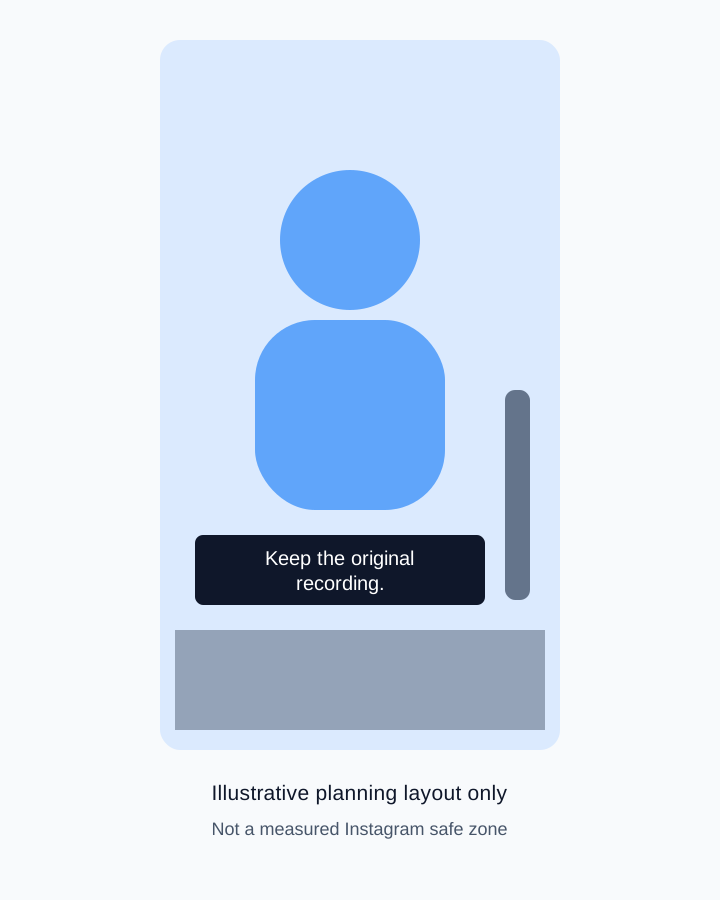
Watch the whole shot for collisions
A caption can avoid a face on the first frame and cover it when the speaker leans forward. A hand can enter the text area during a demonstration. Play the complete shot, especially the moments with movement, instead of approving a single screenshot.
When the composition changes, choose whether to keep the caption in one stable location or move it for that section. Stability helps viewers know where to look. A deliberate move can protect an important action, but repeated jumping makes reading harder. Use changes to solve a specific obstruction.
Check transitions between shots as well. A caption placed safely over one background may cross a bright object after a cut. If the same phrase spans the cut, review its full display interval. An editor's selected frame does not show all the visual conditions that cue will encounter.
For interviews, a wide shot cropped to portrait can create new conflicts around faces and labels. The video podcast workflow shows why the portrait version needs its own composition. Positioning captions cannot rescue a crop that has already removed the important action.
Run a phone preview with a written pass or fail
- Export a short representative segment that includes the longest cue and the busiest shot.
- Open the file on the phone at normal viewing size and watch it without zooming.
- Check the draft or available destination preview with interface controls visible.
- Inspect the opening, longest cue, moving subject, and final call to action.
- Check any additional caption layer for duplicates or conflicting placement.
- Record the device, app version if available, viewing state, and specific correction needed.
A useful pass statement is concrete: “All words remain visible in this preview, the face and measurement stay clear, and the longest cue is readable at ordinary speed.” A failure should identify the moment and collision, such as “at six seconds the hand covers the last line.” That tells the editor what to change.
Keep the preview step separate from publishing. You do not need to share an unfinished clip publicly just to discover that a caption covers a face. Use the review options available in your workflow, and inspect the processed result whenever the destination provides one.
The worksheet includes an unfilled device-review column because this guide does not claim a current Instagram phone test. Its diagrams are preparation aids. Record your own observations rather than copying a generic “safe” label into the final approval.
Repeat the placement check for each destination
A portrait video file can be reused across services, but the surrounding controls and presentation can differ. Keep the clean master and make destination-specific versions when necessary. Do not assume that a successful Reel preview establishes that the same text placement works in another app.
Separate the video caption layer from the post's written caption and from promotional graphics. A large headline, subtitles, a lower-third name, and a call-to-action badge can all compete for the same small area. Decide which information must appear at the same time and remove redundant layers.
If the clip also uses music, review intelligibility and caption timing after the final mix. The Instagram music workflow distinguishes native audio choices from music already baked into a video. Keep track of which version you actually previewed.
Approve content and placement together
Before delivery, check names, numbers, negation, and meaningful sound cues. A neat subtitle track containing only dialogue may omit context needed by viewers who cannot hear the audio. The SDH guide demonstrates that difference with an original scene.
Save the approved video, editable project, caption text, and review note. If you change the crop, title overlay, or final timing later, reopen the placement check. A prior approval applies to the version that was actually inspected.
Keep the visual treatment restrained. A stable caption with strong contrast and sensible timing can communicate more clearly than multiple animated labels. Add movement only when it supports comprehension and survives the ordinary-speed phone preview.
Frequently asked questions
Where should captions go on an Instagram Reel?
Start in clear picture space, often below the face and above lower controls, then inspect every shot in a phone preview. Move the captions when necessary to protect essential visual information.
Is there one exact safe-zone rectangle for every Reel?
This guide does not claim one. Treat templates as planning aids and verify the actual clip with the current interface and viewing state.
Are these diagrams screenshots of Instagram?
No. They are original illustrations of possible collisions. Their shaded regions are not measured platform specifications.
Why do two sets of captions appear?
The video may already contain rendered text while a player or native feature displays another track. Inspect the layers and settings in the actual playback workflow.
Should I make captions smaller to avoid a face?
First try a clearer position, better phrase breaks, or a different crop. Making text too small can solve an overlap while creating a readability problem.
Build a clip with room for captions
Plan a supporting shot in Video Lab with space for readable text, then position and check the captions in your video editor and destination app.
Hero: AI-generated editorial illustration. Original teaching materials and documented feature research, checked October 29, 2026. Examples are labeled where synthetic or hypothetical.