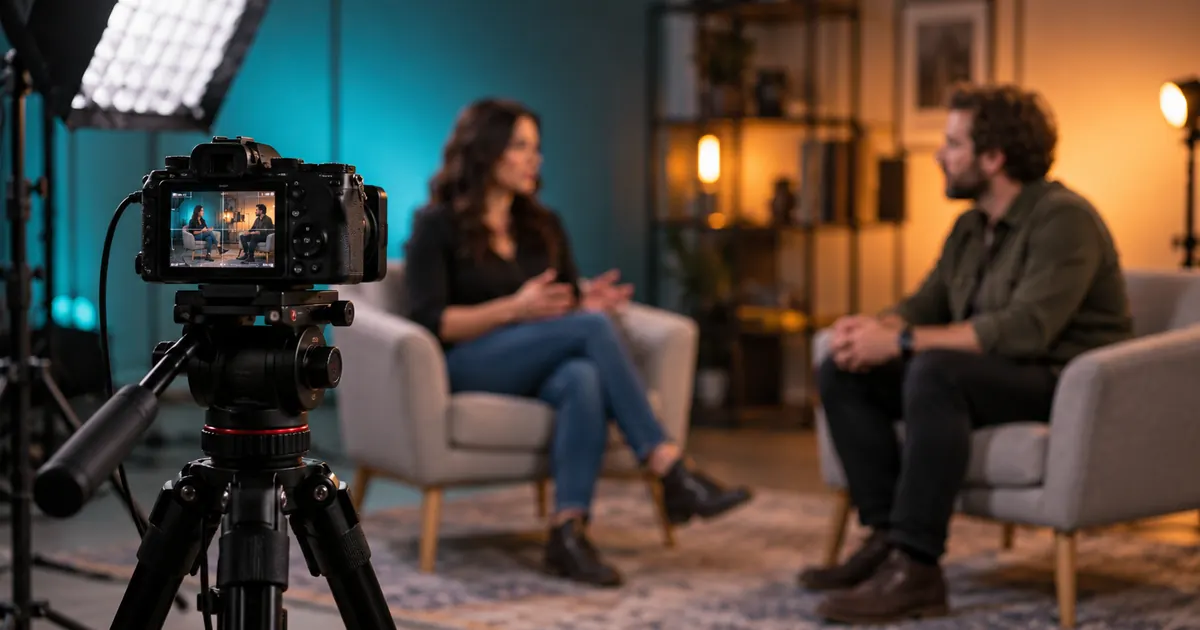

To make a video podcast, record a conversation that works as audio, frame the people and any useful visual material, align the sound with the picture, and check separate exports for the places you will publish. Start with a short rehearsal that completes this whole path. It reveals more than a shopping list for cameras.
A video version adds opportunities to show an object, reaction, or demonstration. It also adds decisions about framing, lighting, synchronization, captions, and delivery. Keep the first setup small enough that you can repeat it for the second episode without rebuilding the room.
Choose what viewers need to see
Write a one-sentence reason for making this episode visual. An interview about a handmade object might show the object in use. A decision clinic might compare two layouts. If the episode is entirely a spoken reflection, a stable single-camera view can be enough; constant cuts do not create useful visual information by themselves.
Use the episode-format guide to define a listener question and a concrete outcome. Then mark which moments need a close view, a shared view, or a separate demonstration. This creates a shot plan tied to the conversation rather than a collection of attractive but irrelevant angles.
Our fictional rehearsal asks how to improve a distant-sounding workshop introduction. The host asks one question, the guest explains a microphone-position test, and the host summarizes the next action. Record a permitted short exchange of your own before attempting the full episode. The downloadable technical clip below is synthetic; it does not substitute for that human rehearsal.
Make the audio path dependable first
Place a suitable microphone close enough to capture each speaker clearly and listen to a test through headphones. A beautiful wide shot can hide a microphone too far from the person. Check the actual recording, including a quiet sentence and a louder response, rather than judging only the input meter.
For two people in one room, separate microphones and separately recorded tracks can make corrections easier. Confirm that the interface and recording application support the inputs and routing you intend to use. For remote interviews, confirm how each participant's local files are captured, uploaded, and recovered after an interrupted call.
The three equipment setups explain those signal paths. Keep the microphone decision separate from camera purchases. If a simple phone camera provides an acceptable picture, improving placement and room sound may be the more useful first change.
Agree on recording and publication with the participants before starting. Ask everyone to avoid notification sounds and unnecessary movement near the microphone. Record a short spoken identification of the session and take, then leave a clean pause before the conversation begins. These small habits make files easier to match later.
Plan a wide episode and a separate portrait crop
A portrait clip is a new composition
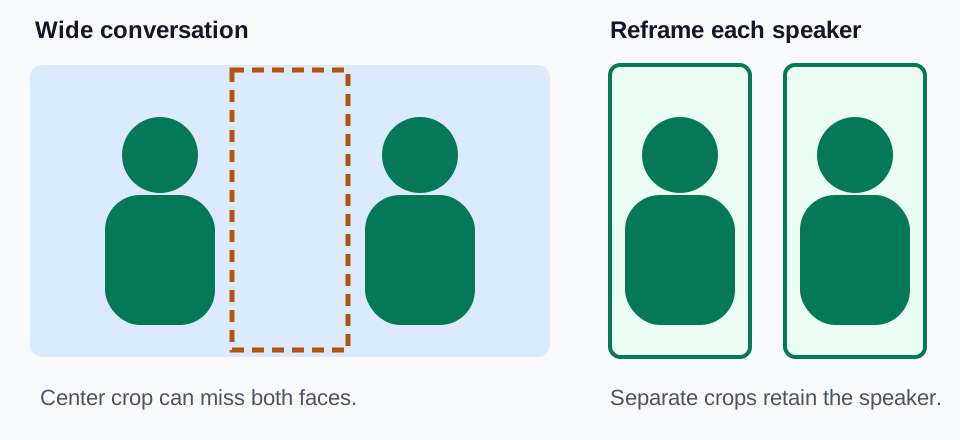
Keep the camera near an intentional eye line and leave room for natural movement. Check the edges for distracting objects and accidental crops. If a participant demonstrates something with their hands, make sure that action fits in the frame. A clean face shot is not enough when the subject is below the bottom edge.
For a two-person wide view, test where each face lands in the planned portrait version. Do not assume that a center crop will work. A separate close view, a deliberate split layout, or a portrait-specific pickup may preserve the conversation better than cutting away half a person's face.
Make a short test with the intended light, seating, and camera settings. Watch for changing exposure, distracting focus shifts, and a bright window behind the speaker. Keep a simple setup note or reference photograph so the next session can reproduce the approved arrangement. Record the actual settings rather than copying another creator's unexplained numbers.
Use visible and audible events to check synchronization
If sound is recorded separately, include a clear event both the camera and microphone capture, such as a visible clap. Align that event in the editor, then inspect a later speech moment. One correct event at the beginning does not establish that a long recording remains synchronized throughout.
Our original ten-second calibration file places a light patch and a short tone at one second and nine seconds. It has no interview, camera footage, or hardware performance claim. Use it to practice locating picture and audio events in your editor and to check what happens after an export.
Download the synthetic sync clip Download the production worksheet
At 30 frames per second, three frames represent one tenth of a second. If you deliberately shift the audio three frames, note the direction and then restore it. This is an exercise in measurement, not a recommended tolerance for real dialogue. Browser playback and audio hardware can add their own delay; inspect the actual timeline and exported file when diagnosing a problem.
Record an early, middle, and late event in a longer rehearsal. A similar error at every event suggests an offset; an error that grows suggests a different timing problem. The sync and drift guide covers that diagnosis. Avoid repeatedly nudging the soundtrack until one isolated moment looks right.
Edit for meaning before making promotional clips
Build the full conversation first. Remove material that does not serve the episode's question, preserve the speaker's meaning, and repair obvious interruptions. Use camera changes to show a reaction or useful detail. A cut every few seconds is not automatically an improvement.
Listen to the edit without looking at the screen. If a person says “this one” while holding two objects, an audio listener may need a short identifying phrase. Then watch without sound to locate visual confusion and places that need accurate captions. These passes examine different parts of the experience.
Choose a short clip that contains its own question and answer. Add enough context for someone who has not watched the episode. Do not cut away a qualification that changes the speaker's claim. Review names, numbers, and the caption text against the final cut, especially if the clip begins partway through a sentence.
Make the portrait crop after the clip's story is settled. Reposition the frame when the active speaker changes, check hands and objects, and keep captions clear of faces and destination controls. Our Reel caption placement checklist provides a practical preview sequence.
Treat each publishing destination as a separate handoff
YouTube's podcast documentation describes a podcast as a playlist whose episodes are videos. It directs creators to keep full episodes in that podcast playlist; supporting Shorts are a separate format and do not appear in YouTube Music as podcast episodes. Organize the full show and promotional clips accordingly.
Spotify's video publishing guide supports MOV, MPG, and MP4 uploads and documents its own encoding recommendations. Its hosted video workflow makes the video available on Spotify while supplying audio through RSS. Do not infer that uploading video to one service delivers the same video everywhere.
Other hosts and destinations may use different delivery paths. PRX's Dovetail video FAQ, for example, explains a separate Spotify upload process. Confirm the behavior of your actual host before promising that one upload handles all versions.
Keep a delivery row for the full video, audio-only episode, caption file, and each promotional clip. Record the filename, duration, aspect ratio, destination, and reviewer. Open every final export in a separate player and check the beginning, a middle speech moment, and the ending. Then inspect the destination's processed preview before publishing.
Save a production recipe you can repeat
Retain the source recordings, project, approved exports, caption files, and setup note. Label the clip exports with their destination and version so the landscape episode cannot be confused with a portrait teaser. Keep the approved audio-only file even if the video platform can derive audio automatically.
After the rehearsal, write down the single most disruptive problem and fix it before adding equipment. Perhaps the guest's microphone was rubbing against clothing, the portrait crop lost the demonstration, or captions were based on an old edit. A repeatable workflow grows from resolving those observed failures.
Frequently asked questions
Do I need several cameras for a video podcast?
No. Start with a stable view that shows the information viewers need. Additional cameras are useful when they solve a specific framing or demonstration problem.
Does a video upload automatically distribute video through RSS?
Not necessarily. Hosts and destinations have different delivery paths. Check each service and verify the version viewers actually receive.
Can I turn a wide two-person shot into a portrait clip?
Sometimes, but a center crop may lose both speakers. Plan separate crops, a split layout, or a dedicated portrait recording and inspect the result.
What does the calibration clip prove?
It provides known synthetic picture and sound events for practicing timing checks. It is not a camera, microphone, editor, or platform benchmark.
Should captions be created before or after the edit?
Create or update the final captions against the settled edit. Later cuts can invalidate timings and change the context of a captioned phrase.
Prepare a supporting visual
Use Video Lab for an appropriate supporting shot, then record real participants and assemble the episode in your chosen editor.
Hero: AI-generated editorial illustration. Original teaching materials and documented feature research, checked October 29, 2026. Examples are labeled where synthetic or hypothetical.