

JSON prompting means organizing a request as named fields and values. It can make a creative brief easier to review, copy, and pass between tools. Start with the same facts you would put in a plain-language brief, then add structure where another person or program needs it.
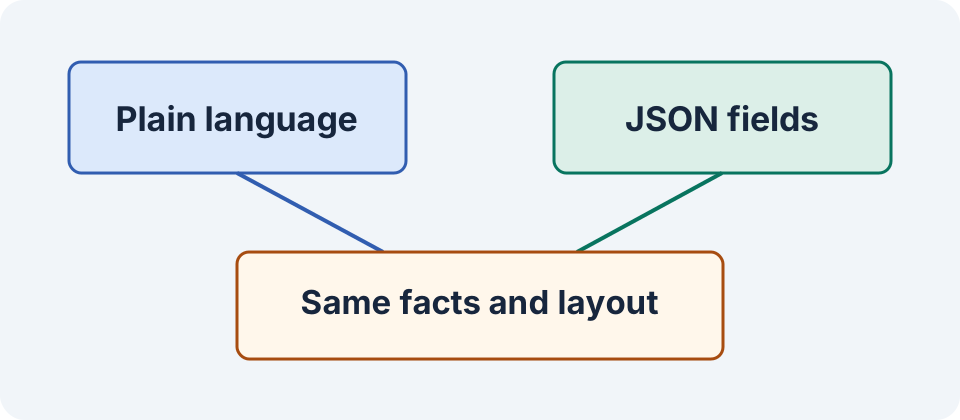
For one image, a few clear sentences may be enough. For several variants with the same required facts, named fields give reviewers a consistent place to find the output, constraints, and approved claims. The two briefs below describe the same fictional product shoot.
Write the decision before choosing a format
The job is to create a vertical supporting image of a sage travel pouch. The label, seam, and zipper remain as photographed. The scene uses a light background with room at the top for editable copy. The evidence is an approved source photo and a note that only the pouch is included. Those facts matter in either format.
Here is the plain-language version. “Create a vertical supporting image using the approved sage pouch photo. Keep the label, seam, and zipper as shown. Use a light background and leave space at the top for copy. Show the pouch by itself. Ask about any unclear product detail before adding it.”
This version fits a one-off creative conversation. A designer can read it quickly, ask about the backdrop, and revise the image. For a batch with four product colors and three layouts, review gets easier if the team has the same fields for each version. Separate the description of the job from the facts that must survive revision.
Write the same brief as valid JSON
{
  "task": "Create a supporting product image",
  "reference": "approved-sage-pouch-front",
  "layout": {
    "orientation": "vertical",
    "background": "light",
    "copy_space": "top"
  },
  "preserve": ["label", "seam", "zipper"],
  "included_items": ["pouch"],
  "unknown_details": "Ask before adding"
}
Use quotes around keys and strings, keep lists inside brackets, and leave off the trailing comma after the last property. The example describes a brief that someone can pass to an editor or tool. A file name inside the request identifies a reference. Attach the approved image through the application’s actual file input if the model needs to see it.
The layout object is convenient for review. Its fields are preferences until the receiving tool implements them. A field such as "orientation": "vertical" can express the composition, while the application’s aspect-ratio control determines the requested dimensions where that control exists. Check the exported shape and visual crop at the end.
Separate parse, shape, and factual checks
First, parse the result when your workflow needs JSON. An extra paragraph or a code fence may be fine to a reader but fail a parser that expects a raw object. After parsing, check the shape. Are the keys present, are the values the expected types, and did the response add a field you never approved?
Next, review the contents. A valid object can say "included_items": ["pouch", "strap"] even though the strap is absent from the approved brief. A correct field name and value type are useful signals for your workflow. Compare the values and the image with the source photo and listing to catch an invented accessory.
In an API that supports a schema-constrained response, define the output shape in the actual request configuration. For example, OpenAI documents Structured Outputs for schema adherence and a separate JSON mode for valid JSON with edge cases your application handles. Handle incomplete or refused responses before using the result. Keep a factual review step for any generated claims. OpenAI’s Structured Outputs documentation.
Prepare a brief someone else can revise
Use field names that explain the decision. A field called keep may leave a reviewer wondering whether it covers the whole source. preserve with a short list identifies the exact features they should check. Put verified details and creative options in separate fields so the next editor can change the background without reopening decisions about the product.
Keep revisions small. If the next variant puts copy space at the bottom, edit that field and record the reason. Reuse the same approved reference and included-item list. Give the reviewer both versions and ask them to confirm the one intended change before reviewing the new composition.
Compare the formats with a small repeatable test
Save the same approved reference and the same acceptance criteria for both runs. In one draft, give the plain brief. In the other, give the JSON brief. Use comparable settings and preserve the same output task. Save each result with its format and version, then review the orientation, label, seam, zipper, and included items.
If you see a difference, identify what changed before attributing it to the format. A new detail, different reference, or updated setting can alter the result. In a single pass, you can verify whether each output meets this job. For a format preference across a repeatable workflow, compare several representative tasks with the same rubric.
Use the brief parity and review sheet to record the two attempts. The context and instruction guide explains how to resolve conflicting sources first. Use the asset versioning workflow to keep the approved input tied to its output.
Frequently asked questions
Does JSON prompting guarantee better images?
It gives you a consistent structure for the brief. Compare outputs against the same source and acceptance criteria to decide which format serves your workflow.
Does a JSON key activate a model setting?
Use the application’s documented input or setting for that behavior. A key inside prompt text can communicate a preference.
When should I choose a plain-language brief?
Use prose when a person needs to read, revise, or discuss a small request quickly. Use fields when the task needs a repeatable form or a software handoff.
Is valid JSON enough for automation?
Parse it, validate its expected shape, and check the meaning and facts before using it in the next step.
Can I put a file name in the prompt instead of attaching a file?
The name can identify your source. Provide the actual file through an input the receiving application can access when the task depends on its contents.
Organize an approved brief
Use Prompt Lab to keep the brief and revision notes together. Review the output against the same facts whichever format you choose.