
For a clear OBS screen recording, choose exactly what you want to capture, route each sound once, and inspect a short saved file before recording the full lesson. A moving preview and bouncing microphone meter are useful signs, but they do not prove that the exported recording contains the right picture and audio.
This workflow is for a first software tutorial, not a livestream. It uses OBS's documented setup controls and an original recording test sheet. The diagrams explain a proposed configuration; they are not screenshots of an OBS session or claims that every computer supports identical capture options.
Plan a one-minute recording test
Choose a harmless demonstration that includes the actions your real tutorial will use. Open a menu, type a short label, scroll a page, and show a result. Use sample content so private notifications, client names, or account details do not enter the recording.
Decide whether the lesson needs microphone narration, application sound, both, or neither. Also decide whether your face needs to appear. A webcam overlay should clarify the lesson rather than cover the control the viewer must see.
Save a small checklist before opening settings. It should name the intended capture, required sounds, output folder, and the condition that counts as a successful test. For example: “The menu text is readable, my voice is clear, the example app sounds once, and the saved file opens in my editor.”
Start with the recording configuration
OBS provides an Auto-Configuration Wizard under Tools. Use the recording-oriented choice for this task, then inspect the settings it recommends. The official quick-start guide explains scenes, sources, audio meters, and the importance of a test recording.
A scene is the arrangement you record. Sources supply its picture and sound. Name the first scene for the task, such as “Tutorial capture,” and keep it simple. You can add more scenes later when you have a reason to switch layouts.
Choose a working canvas and output size that preserve readable interface text. If you record a large monitor and shrink the entire image into a small video, menus may become illegible. Increase the demonstrated application's zoom or capture a focused window rather than asking viewers to decipher a tiny desktop.
Select the capture source deliberately
On Windows and Linux, OBS documents Display Capture and Window Capture for desktop or individual-window capture. On macOS, it documents the macOS Screen Capture source. The available methods and permissions depend on the operating system and OBS version.
Use a window-focused route when it captures the complete task and reduces unrelated content. Use display capture when the demonstration genuinely crosses applications or system dialogs. Test menus and pop-up windows: a clean main window is not enough if the important dialog disappears in the saved video.
Fit the source without stretching it. If the source and canvas have different proportions, decide whether to crop, leave space, or change the canvas. A stretched application window makes circles oval and text unpleasant. Check all four edges of the preview for clipped menus.
Route each sound into the recording once
Begin with the microphone alone. Speak at normal presentation volume and check that the intended device responds. If the laptop microphone moves while your headset microphone does not, fix the input selection before adding filters.
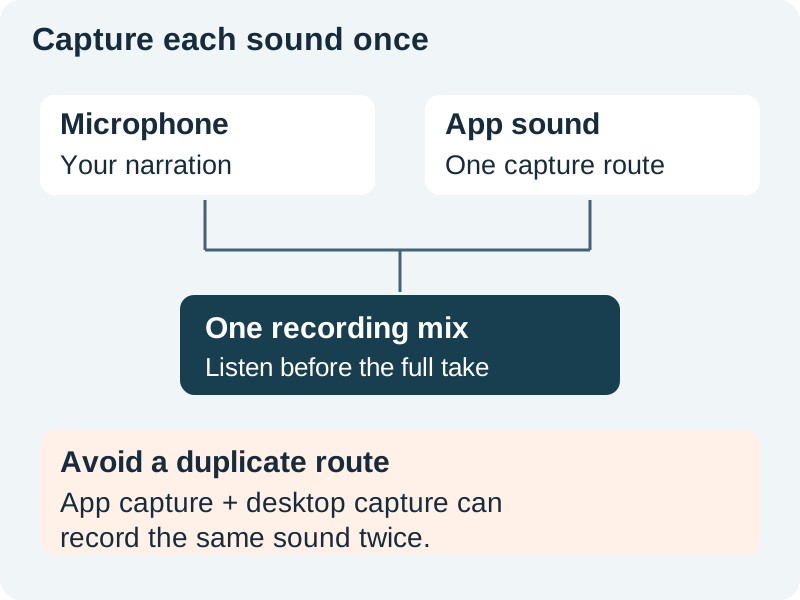
Next, play the application's test sound. Add the appropriate capture route for your system and verify it in the saved file. If you capture application audio separately, check whether a broader desktop route is also capturing it. Duplicate paths can create echo, a hollow tone, or an unexpectedly loud result.
Use headphones when monitoring sound. Loudspeaker playback can enter the microphone and create a second acoustic copy even if the software routing is correct. Turn off unnecessary monitoring paths and compare one source at a time if the mix sounds doubled.
For an advanced project, separate microphone and application tracks can help editing. First confirm that the editor imports them and that the normal playback mix contains the intended audio. A player that opens only one track can make a multitrack recording seem silent or incomplete.
Choose a recording format and location
Set an output folder you can find, with enough free space for the session. Record a few seconds and locate that file before committing to a long take. This catches accidental saving to an unfamiliar folder or a nearly full drive.
The OBS standard recording guide recommends MKV for resilience to an ungraceful stop and documents File → Remux Recordings for producing an MP4 copy. Follow the options available in your version and confirm that your editor accepts the result.
Remuxing changes the container without being a new quality-enhancing edit. Keep the original recording until you have verified the working copy. If the editor still rejects the media, inspect the video and audio codecs rather than repeatedly changing the filename extension.
Record and review the complete test
- Start recording and wait a moment before beginning the demonstration.
- Say the test name and speak a sentence at normal volume.
- Open the menu and dialog needed by the lesson.
- Play an application sound if the real tutorial needs it.
- Scroll or move an object at the speed you expect to demonstrate.
- Stop recording and open the saved file outside OBS.
Watch at the size your audience will use. Read the smallest necessary label, listen to the quietest spoken words, and inspect the transition into and out of the test. Check the beginning and ending for accidental silence or a cut-off sentence.
Use the recording test sheet to record what actually happened. If you change a setting, repeat the same short test. That is faster to diagnose than recording a different two-minute sequence after every adjustment.
Diagnose the symptom before changing everything
A black capture suggests a source, permission, or capture-method issue. A correct picture with no speech suggests input selection, mute state, or track assignment. Choppy motion suggests workload or capture/output settings. Treat these as starting hypotheses and confirm them through a short recording.
If text is unreadable, start with framing and application zoom. Increasing bitrate will not make text large enough to read after a severe downscale. If the sound is distorted, reduce overload at its source; a quieter distorted recording is still distorted.
When playback struggles, simplify the scene, close unnecessary applications, and compare a lower output workload. Record the original settings so you can undo the experiment. The editing workload guide explains why a hardware label alone does not identify the bottleneck.
Prepare the recording for editing
Keep the source file, a note of the scene and audio setup, and the tutorial outline together. Give the take a name that identifies the task and revision. Record any moment that needs a pickup instead of relying on memory.
If you add narration later, align each instruction with the visible action and result. Our screen-recording voiceover guide owns that timing job. This article's deliverable is a clear capture that gives the editor reliable material to work with.
How QuestStudio helps
Use QuestStudio for a supporting image, short illustrative clip, or narration draft where those assets improve the lesson. Record the real software interface in OBS. Generated pictures should not stand in for proof that a menu, feature, or export actually works.
Frequently asked questions
Should I use Display Capture or Window Capture?
Use the narrowest source that captures the complete task. A window-focused capture can reduce distractions; display capture may be necessary for a workflow crossing applications. Test required dialogs and menus.
Why does the recording have an echo?
Check for duplicate software capture paths and speaker sound entering the microphone. Mute or isolate one route at a time, then compare a saved test recording.
Is a moving microphone meter enough to prove sound is recorded?
No. It proves a signal reaches that meter. Track assignments, mute settings, and playback behavior still matter. Open the saved recording and listen.
Why record MKV and then make an MP4 copy?
OBS recommends MKV to reduce the risk of losing the whole recording after an ungraceful stop. Its remux feature can produce an MP4 container for compatible editing workflows. Verify the resulting file before discarding anything.
Does this article include an OBS benchmark?
No. It provides documented setup guidance, an original routing diagram, and a repeatable test plan. Your capture options and performance depend on the actual system and OBS version.
Plan one supporting visual
Use Video Lab for an optional supporting clip. Capture your actual software demonstration in OBS.
Hero: AI-generated editorial illustration. Original teaching materials and documented feature research, checked October 31, 2026. Examples are labeled where synthetic or hypothetical.