
A video editing laptop should be chosen for the footage you actually edit, the effects you use, and the files you must deliver. A powerful-looking specification can still feel slow with an awkward codec, a crowded system drive, or a demanding multicamera timeline.
Start with a small representative project before choosing a machine. Record its source format, resolution, frame rate, layers, and export requirements. Then compare the editor's published requirements with a repeatable playback and export trial. This guide supplies a planning method, not a ranking of laptops we have benchmarked.
Describe the project before the hardware
“I edit 4K” leaves out most of the workload. A short sequence of intraframe clips behaves differently from several streams of highly compressed footage with noise reduction. A simple social cut may spend more time waiting for media to download than rendering an effect.
Write down the camera or source application, codec, bit depth, resolution, frame rate, and typical clip duration. Add the number of simultaneous video layers and any effects that must play in real time. Include the applications that stay open beside the editor, such as a browser, image editor, or audio application.
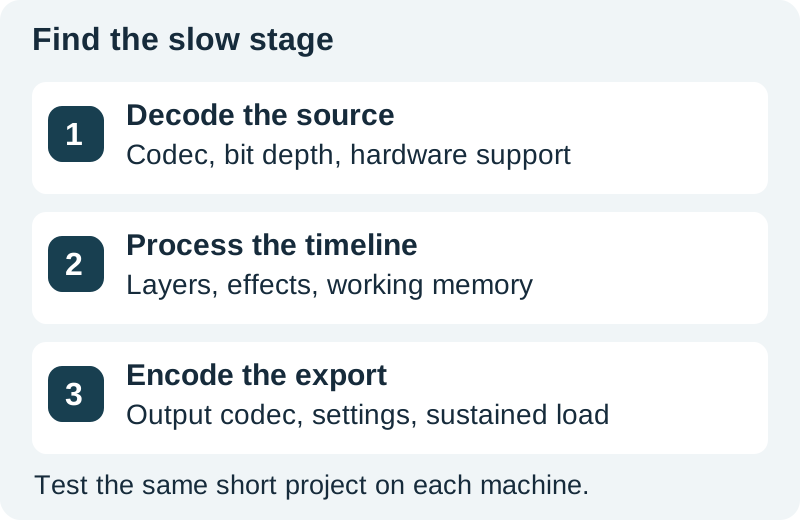
Separate three activities: downloading or generating media, editing it locally, and exporting a finished file. Cloud generation does not automatically require an expensive local graphics card. Local decoding, effects, and encoding are different workloads. A browser can submit a generation job successfully on a machine that struggles to edit the downloaded result.
Use current requirements as a starting point
On October 31, 2026, Adobe's Premiere requirements distinguish minimum installation requirements from recommended editing specifications. Its Windows recommendations include 16 GB RAM for HD, 32 GB or more for 4K and higher, and 8 GB GPU memory. The macOS table uses different unified-memory recommendations. Read the table for your platform and application version rather than combining entries from different columns.
Those figures do not promise smooth playback for every project. They establish a documented reference. If you use a different editor, open that vendor's requirements and check its supported operating systems, drivers, plug-ins, and media formats before comparing prices.
On a laptop with soldered memory, a cheap configuration may become a permanent constraint. On an upgradeable machine, confirm the supported capacity and whether an upgrade affects the warranty. Do not assume that two laptops with similar model names have the same internal configuration.
Ask whether the source decodes efficiently
Resolution is only one part of playback. Codec profile, chroma sampling, bit depth, frame rate, and hardware support can change the amount of work required to display each frame. A file extension such as MP4 identifies a container, not the complete encoding details.
Bring an original file from your camera or screen recorder to a trial. A retailer's generic demo reel is not a substitute. Scrub through the clip, play a difficult section, then add the same correction and title you normally use. Record whether the preview drops frames and whether audio remains synchronized.
If a single source clip struggles before effects are added, test an appropriate proxy or optimized-media workflow. A proxy is a lighter editing copy linked to the original. It can improve responsiveness, but it costs time and storage to create and must be managed correctly. Verify that the final export uses the intended original media.
Separate system memory from graphics memory
System RAM supports the operating system, applications, media buffers, and project data. Dedicated GPU memory supports workloads performed by the graphics processor. Unified-memory systems share a pool rather than exposing the same separation. Adding two numbers from a specification sheet is not a reliable comparison between architectures.
Watch the actual workload during a trial. If the system repeatedly moves data to disk while several applications are open, closing unnecessary applications is a useful diagnostic. If one particular effect becomes slow while a plain cut plays well, investigate that effect and its acceleration support.
Prefer a balanced machine that handles your recurring project over one impressive headline component. A large GPU cannot rescue every CPU decoding bottleneck, and ample memory does not guarantee that a poorly supported plug-in will run efficiently.
Budget for working media and copies
Storage capacity should cover source media, proxies, cache, previews, exports, and working revisions. The operating system and applications need space too. A laptop advertised with a certain drive size will not have all of that capacity free for projects.
For a hypothetical video stream averaging 100 megabits per second, thirty minutes uses about 22.5 decimal GB before audio and container overhead: 100 ÷ 8 × 1,800 ÷ 1,000. That arithmetic estimates one source stream. It does not include duplicate cards, proxy files, or independent backups.
Use the storage planning sheet to replace the example with measured files. Keep an independent backup; spare space on the same working drive is not a second copy. For portable media, the external SSD workflow explains connection and file-management checks.
Run the same short trial on each candidate
Build a project you can carry between machines: one representative clip, one title, one color adjustment, and a short sequence with your usual number of layers. Include a difficult section rather than choosing the easiest footage you own. Keep the editor version and project settings consistent.
- Open the project and check that every source relinks correctly.
- Play and scrub the same section at the same preview quality.
- Repeat with proxies if that is part of your normal workflow.
- Export the same range with the same codec and preset.
- Open the result and inspect picture, sound, duration, and missing frames.
- Repeat after the machine has worked for a while, recording power mode and fan behavior.
Record observations in the editing-project trial sheet. Leave results blank until measured. A short export time is not a complete win if the output has a missing effect or the timeline becomes uncomfortable to use.
Check the screen, ports, and working environment
A display should make your controls and image visible at a comfortable size. For color-sensitive delivery, confirm the display's actual capabilities and your color-management workflow. A marketing phrase such as “creator screen” is not a calibration result.
List the equipment that must connect at once: media drive, card reader, monitor, audio interface, and power. Check the complete connection path, including cables and hubs. The USB-C hub guide covers why a connector's shape alone does not establish speed or display support.
Consider where you record narration. A machine that completes a demanding export quickly but produces audible fan noise beside the microphone may require separate recording and rendering sessions. Battery operation can also change performance. Test the mode in which you will actually work.
How QuestStudio helps
Use Video Lab to develop a supporting shot, then inspect the downloaded file in your normal editor. Include a representative generated clip in the trial alongside camera footage and screen captures. Keep cloud creation and local editing requirements separate so you buy for the work your laptop will perform.
Frequently asked questions
Is 16 GB RAM enough for video editing?
It can fit some HD workflows, but the answer depends on the editor, footage, effects, and other open applications. Compare the current vendor recommendations and test your own project before treating a memory figure as a guarantee.
Does every editor need a dedicated GPU?
No universal rule covers every editor and workload. Check the software's supported hardware and acceleration features. A supported integrated or unified-memory system can be useful for some projects, while demanding effects may need more graphics resources.
Will proxies reduce the quality of the final video?
Proxies are editing copies. A correctly configured workflow returns to the intended original media for final delivery. Check the export settings and inspect a short rendered sample before exporting the full project.
How much SSD storage should I buy?
Measure the source footage for a typical active project, then add proxies, cache, exports, applications, and working headroom. Plan an independent backup separately. The worksheet helps expose these categories instead of guessing from source footage alone.
Have these laptop configurations been benchmarked?
No. This is a requirements and trial-planning guide with dated vendor references. It does not claim measured performance for a specific laptop. Use the repeatable project sheet to collect those results yourself.
Build a representative test shot
Create a supporting clip in Video Lab and inspect its downloaded properties before adding it to your editing test.
Hero: AI-generated editorial illustration. Original teaching materials and documented feature research, checked October 31, 2026. Examples are labeled where synthetic or hypothetical.