

Quick answer: the safest way to restore an old photo with AI is to preserve the untouched scan, diagnose the damage, repair scratches and stains before sharpening, enhance faces gently, verify identity against the original, and upscale only after the restoration is stable. Colorization should be a separate optional step because AI predicts color; it does not recover historical color evidence that is absent from a black-and-white photograph.
A one-click photo restorer can be useful for light fading, noise, and soft faces. It becomes risky when a face is tiny, a tear crosses an eye or mouth, or a large part of the image is missing. In those cases, AI may create plausible detail that never existed. This guide shows where automation helps, where to slow down, and how to judge whether the result is still the same person and moment.
Try it with your own photo
Make one natural restoration pass first
Upload the cleanest scan you have, keep the original file, and compare faces at 100% zoom before accepting the result.
Open Photo RestorerPhoto Restoration Examples
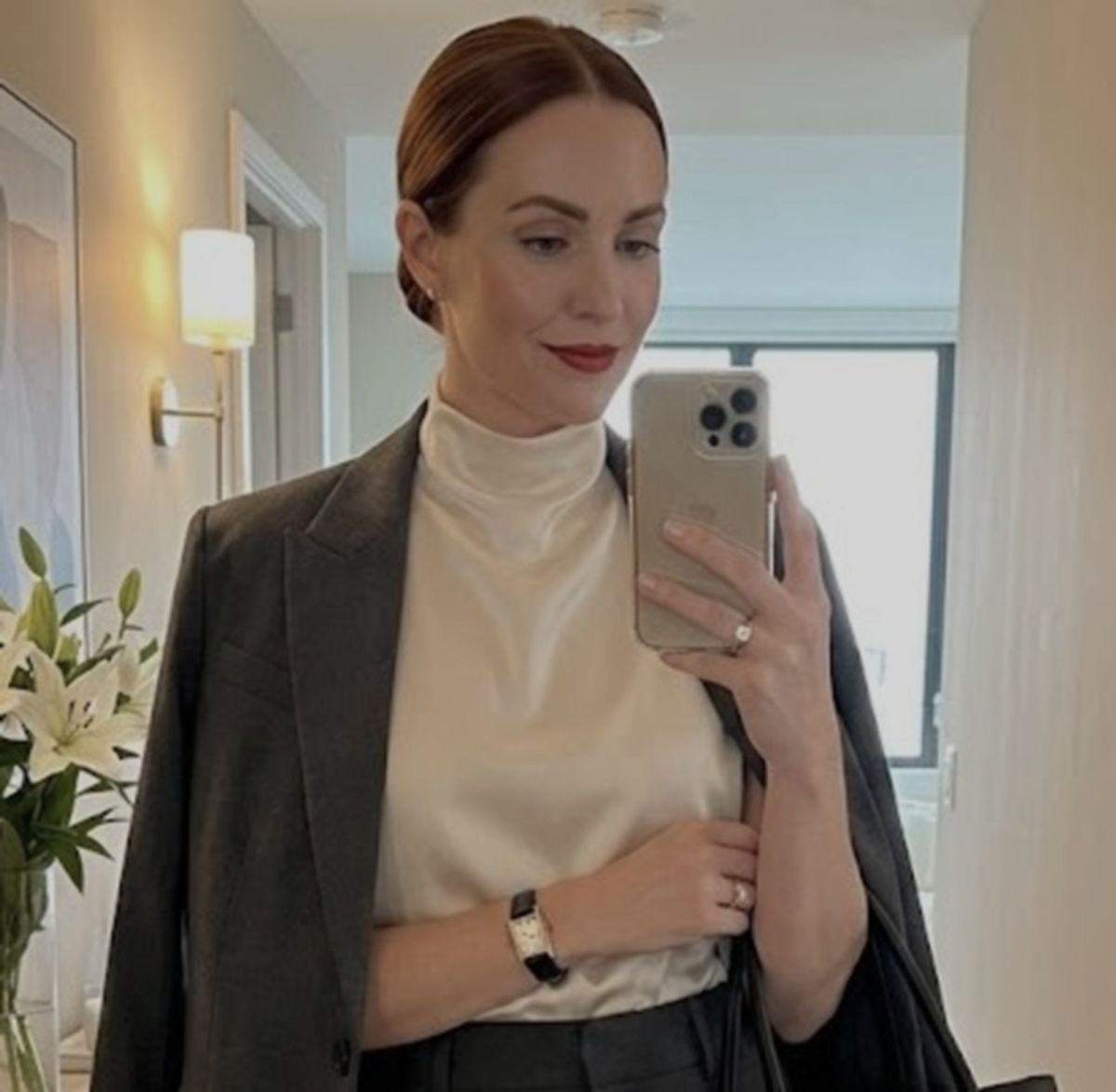

Old Family Photos
Reduce grain, fix softness, and improve clarity while keeping a natural look.
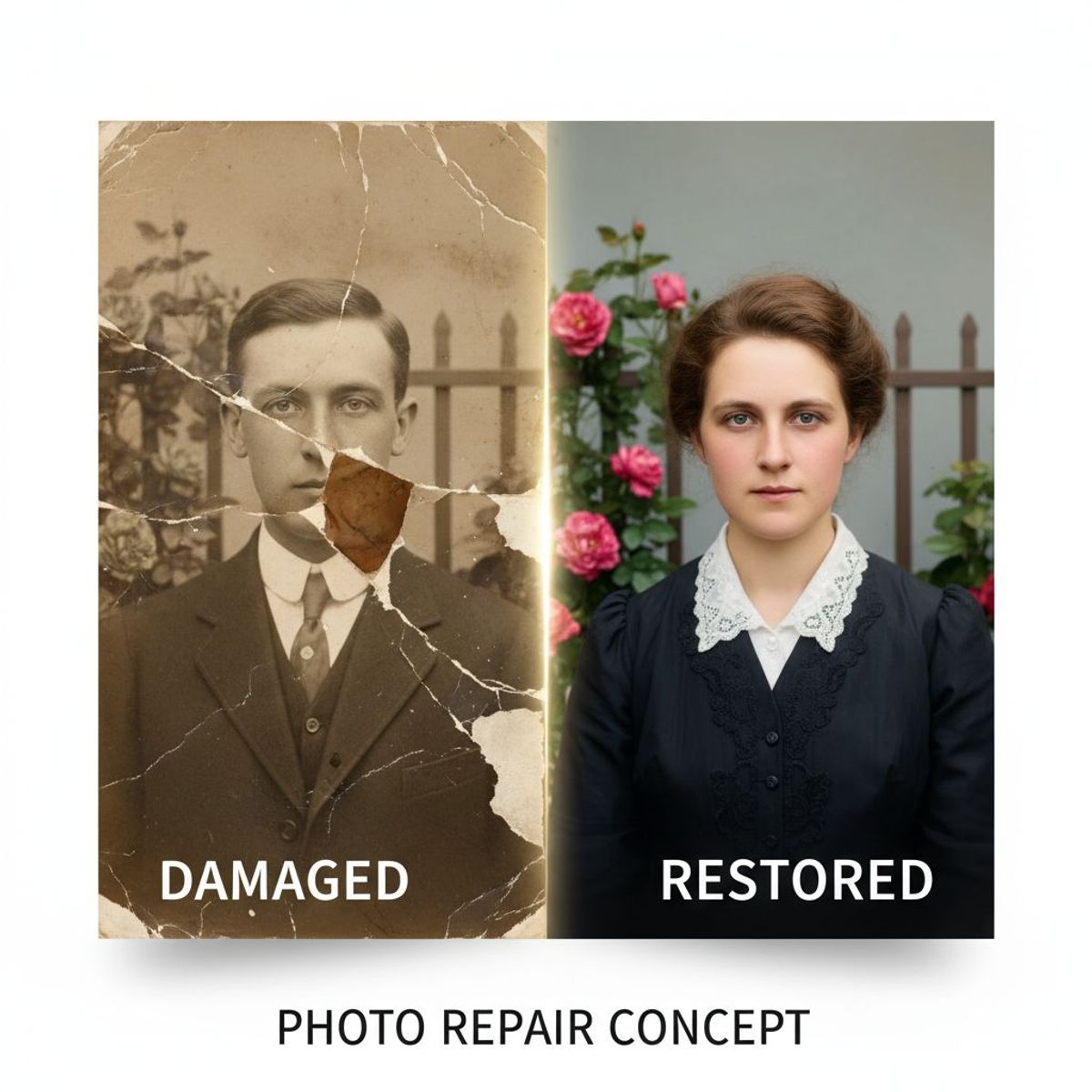
Face Enhancement
Sharper eyes and facial features without turning skin "plastic."
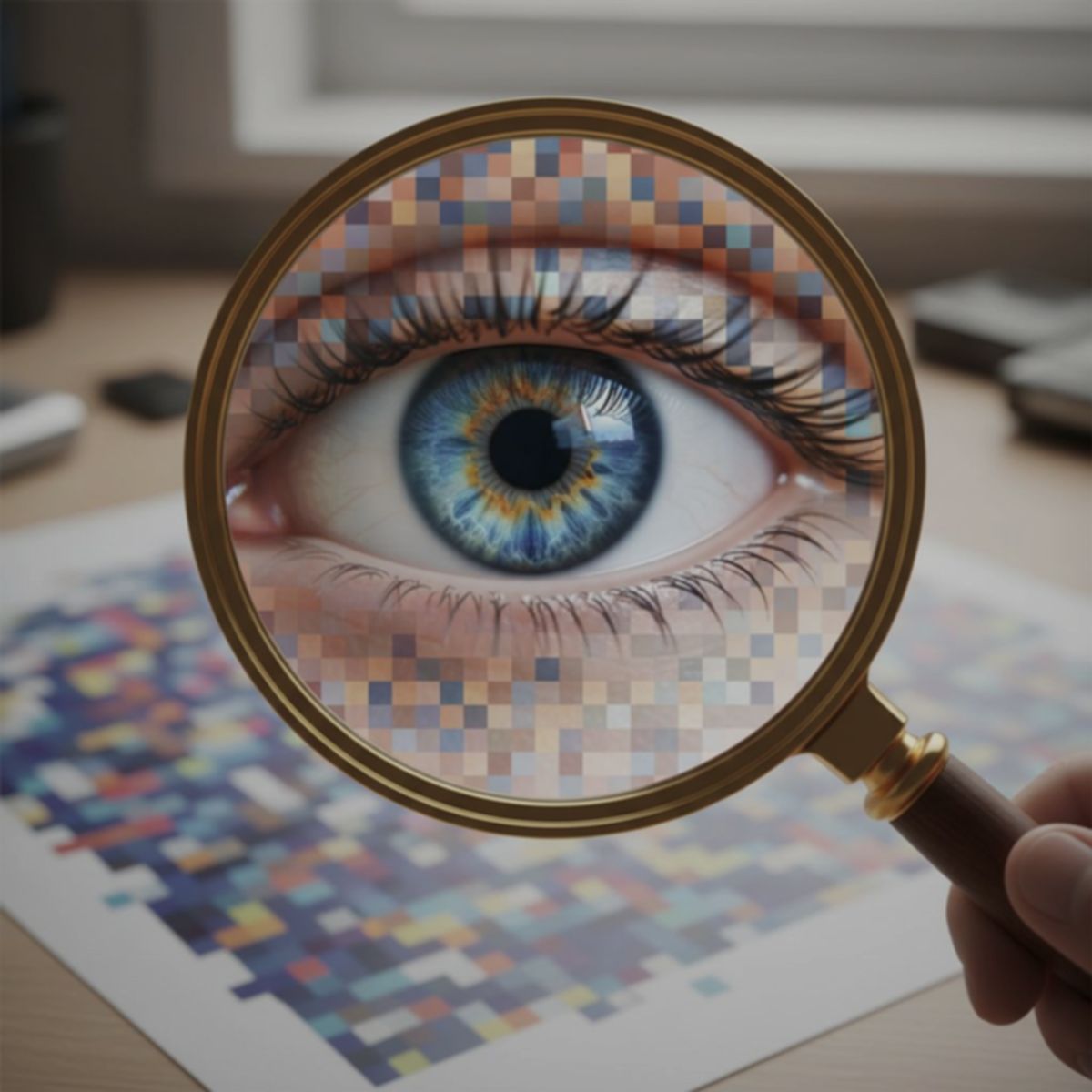
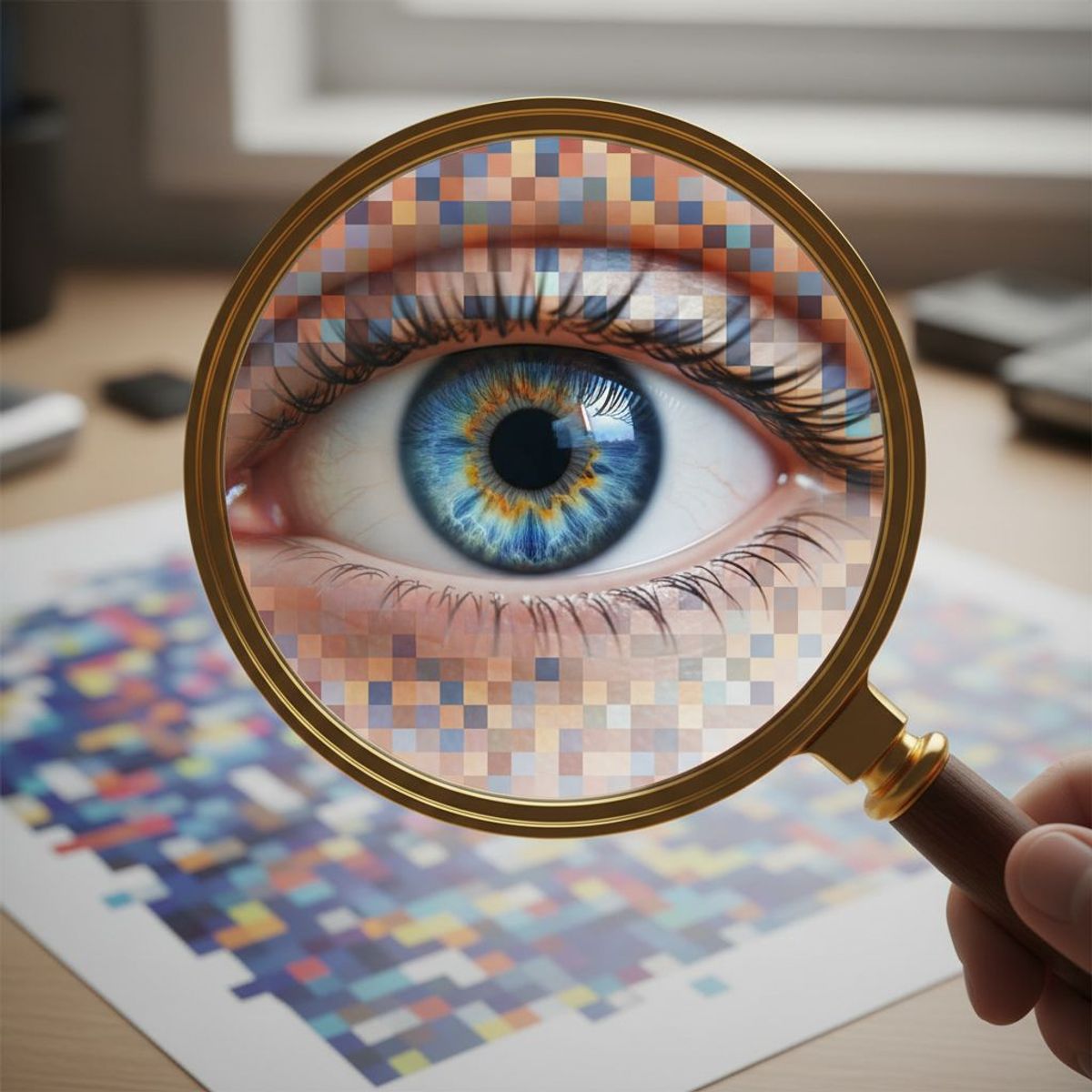
Scanned Prints
Clean up dust/noise and make scans look sharper and more modern.
Diagnose the damage before choosing a restoration method
“Old photo” is not one technical problem. A faded print, an out-of-focus snapshot, a cracked studio portrait, and a 200-pixel social-media copy require different repairs. Automatic tools perform best when the subject is still visible and the damage is repetitive. They become less trustworthy as the missing information grows.
| Damage | Safest first action | AI can help with | Main risk |
|---|---|---|---|
| Dust and fine scratches | Clean the scanner glass; scan again | Pattern detection and localized cleanup | Removing real lines such as hair, jewelry, or fabric seams |
| Fading or color cast | Set neutral black and white points | Contrast and gentle tone recovery | Modern-looking saturation that erases the period feel |
| Grain and scanner noise | Use the highest-quality source; avoid repeated JPEG saves | Denoising while retaining major edges | Waxy skin and flat clothing texture |
| Soft or small face | Locate another photo of the same person if available | Modest face-detail enhancement | Inventing a different eye, mouth, age, or expression |
| Crease or tear | Repair the line locally before global enhancement | Filling narrow gaps from nearby texture | Changing anatomy when the tear crosses a face or hand |
| Missing corner or subject area | Decide whether reconstruction is acceptable | Plausible visual completion | Creating fiction that looks like recovered history |
If your only file is a compressed screenshot, restoration may make it easier to view, but it cannot prove what the original detail was. Label reconstructed versions clearly and keep the source beside them. For family archives, fidelity is usually more important than maximum sharpness.
What is AI photo restoration?
AI photo restoration uses models trained on degraded and clean images to estimate how noise, blur, scratches, fading, and damaged regions could be repaired. Different operations solve different problems: denoising suppresses random texture, deblurring strengthens edges, inpainting fills damaged areas, face restoration predicts facial detail, and super-resolution creates a larger output.
The word restore can be misleading. A model does not retrieve lost pixels from the past. It produces a likely reconstruction from the surviving image and patterns learned during training. When damage is light, that estimate can look close to a careful manual repair. When information is absent—especially inside a face—the result can be visually convincing and historically wrong.
This is why restoration should be staged and reversible. Work from a copy, keep the original scan untouched, compare every stage, and stop when the photograph becomes easier to see without losing its identity. If the only problem is size rather than damage, use a dedicated image upscaling workflow after cleanup instead of asking one operation to repair and enlarge simultaneously.
How to restore an old photo with AI: the eight-step workflow
The order matters. Sharpening before scratch removal makes every scratch harder. Colorizing before tone repair asks the model to interpret a damaged image. Upscaling before identity is stable creates a larger, more convincing version of the wrong face.
-
Preserve the physical photo and untouched scan
Handle a valuable print by the edges and do not force a curled, brittle, flaking, or glass-mounted photograph flat. The U.S. National Archives digitization guidance recommends keeping the original after digitizing and avoiding scanner setups that could crush oversized material. For fragile items, use an overhead camera setup or a professional conservator.
Create a master scan and never edit over it. A lossless TIFF is ideal for an archival master; a high-quality PNG can be a practical working master. Make smaller JPEG copies for sharing, not for repeated editing. Give the files explicit names such as
grandmother-1948-master.tif,restoration-v1.png, andprint-5x7.jpg. -
Capture enough real detail
Clean the scanner glass and gently remove loose surface dust with an appropriate soft brush; do not apply household cleaner to the print. Scan the entire photograph, including edges, notes, and borders that may carry historical information. For an 8-by-10 print, 300 pixels per inch produces roughly 2,400 by 3,000 pixels. A smaller 4-by-5 print needs about 600 ppi to reach the same pixel dimensions. Those examples align with the National Archives' high-quality scanned-photo guidance.
Choose true optical resolution, not an interpolated scanner setting. Scan black-and-white photographs in grayscale or color—not one-bit black and white—so subtle tones survive. If the print is small or damaged, 600 ppi often gives more room for local repair. More ppi cannot reveal detail that the paper never held, so inspect a test crop before creating enormous files.
-
Crop and set orientation without erasing history
Rotate the scan so architecture and horizons are believable, but keep an uncropped master. Borders, studio marks, handwritten dates, and album corners may matter later. Make a separate presentation crop only after preservation details have been saved. If the photograph is skewed, correct perspective before face restoration so the model is not asked to enhance distorted geometry.
-
Repair scratches, dust, stains, and tears locally
Begin with narrow, repetitive damage where surrounding pixels provide strong evidence. Repair the largest distracting crease first, compare it with the original, then move to smaller spots. A scratch through a blank wall is low risk; a scratch through an eye, wedding ring, military insignia, or handwritten sign is high risk. Mask or edit those regions separately instead of applying aggressive cleanup to the entire image.
When a corner is missing, decide what the deliverable represents. A neutral crop preserves evidence. A reconstructed corner produces a plausible viewing copy. If you choose reconstruction, label it as reconstructed and keep the preservation master beside it.
-
Recover tone and reduce noise before sharpening
Restore faded black and white points gently, then correct obvious color casts. Preserve detail in white clothing, clouds, dark hair, and shadowed faces instead of stretching contrast until every area clips. Reduce scanner noise and film grain only enough to reveal the subject. Grain is not always damage; it can be part of the original photographic process.
After denoising, apply modest sharpening to meaningful edges such as eyes, lips, clothing seams, and architecture. Inspect at 100% zoom. Bright halos around faces or dark outlines around shoulders mean the sharpening is too strong. If your source is a genuinely out-of-focus exposure, no tool can recover precise focus information that was never recorded.
-
Enhance faces at the lowest useful strength
Face restoration is powerful because viewers notice faces first. It is also the step most likely to change identity. Start with the weakest pass that improves visibility. Compare eye spacing, eyelid shape, nostrils, mouth corners, jawline, hairline, age lines, expression, and head angle against the original. Do not judge only whether the new face looks realistic.
When the face occupies very few pixels, use another verified photograph of the same person as a visual reference for human review—not as permission to merge identities automatically. If the model creates an attractive but different face, keep the softer faithful version. Historical truth beats artificial sharpness.
-
Colorize only after the monochrome restoration is approved
Colorization is interpretation. An AI model can make grass green and skin plausible, but it cannot know a dress was navy, a car was burgundy, or a uniform patch had a specific color without evidence. Preserve a black-and-white or sepia version, then create a separate colorized derivative. Use family notes, surviving objects, location records, and period references when color accuracy matters.
Keep saturation restrained and preserve the original lighting. Color should follow object boundaries without bleeding into eyes, teeth, or background edges. Add a note such as “AI-assisted colorization; colors are interpretive” when sharing an archival or genealogical image.
-
Upscale, export, and print from an approved restoration
Upscale after scratches, tone, and identity are stable. Calculate the required pixels from the print size: a 5-by-7 print at 300 ppi needs about 1,500 by 2,100 pixels; an 8-by-10 needs about 2,400 by 3,000. Upscaling beyond the delivery need increases file size and may exaggerate invented texture.
Keep a lossless restored master, a colorized derivative if applicable, and a print-specific copy in the printer's requested color space and format. View the final file at normal size and 100% zoom, then make a small proof print. Screens can hide oversharpening, blocked shadows, and unnatural skin that becomes obvious on paper.
The safe order
Preserve → scan → orient → repair damage → restore tone → reduce noise → sharpen gently → verify faces → colorize optionally → upscale → proof and export.
Best Results Checklist
- Use the cleanest scan or file available.
- Start with light restoration, increase if needed.
- For faces: prefer "natural" enhancement.
- Restore first, upscale second.
Common Mistakes
- Plastic faces: Too much enhancement removes natural texture.
- Crispy edges: Over-sharpening creates halos and artifacts.
- Color issues: Old scans may need gentle color correction.
- Wrong order: Upscaling before restore amplifies noise.
How to sharpen an old blurry photo without inventing a new face
“Make it sharper” can describe three different problems. A low-resolution scan has too few pixels. Motion blur smears edges in one direction. Defocus blur spreads detail because the camera focused elsewhere. AI handles each problem differently, and the wrong treatment can create crisp-looking fiction.
If the scan is small
Rescan the physical print at a higher true optical resolution before using AI. This is the only option that can capture additional real information from the paper. If the physical photo is unavailable, apply light denoising and restoration first, then upscale to the size required for viewing or print. Compare the enlarged result with the source; pores, eyelashes, teeth, and fabric patterns that appear from nowhere are generated estimates.
If the image has motion blur
Look for doubled edges or streaks that share a direction. A mild deblur pass may consolidate those edges. Apply it locally to the subject rather than globally to a textured background. Strong motion blur often destroys the exact position of eyes and lips, so facial enhancement can shift the expression. Keep the less-sharp version if it preserves the person better.
If the camera missed focus
There may be no recoverable fine detail. Use restrained edge enhancement to improve readability, not to simulate a modern portrait. A result can be more pleasant without being more accurate. For genealogical or documentary use, label an AI-enhanced version and retain the soft source.
Use a three-view comparison
Review the untouched scan, the restored image, and a 50% blend between them. The blend makes shifted facial features, missing jewelry, altered text, and erased lines easier to notice. Also flip rapidly between before and after at the same zoom. If the face seems to “jump,” the restoration probably changed geometry rather than merely improving clarity.
The face-fidelity check: realistic is not the same as accurate
Face models are trained to produce plausible facial detail. They are not eyewitnesses. Score the restored face against the original before accepting it, especially when the photograph may be the only surviving image of someone.
| Feature | What to compare | Reject the pass when |
|---|---|---|
| Eyes | Spacing, tilt, eyelids, gaze, catchlights | Eye size, direction, or expression changes |
| Nose and mouth | Nostril width, lip shape, smile asymmetry | A neutral face becomes a smile or teeth appear |
| Face shape | Jaw, chin, cheek width, age | The subject looks younger, slimmer, or idealized |
| Identity marks | Moles, scars, wrinkles, glasses, hairline | Distinctive features disappear or move |
| Context | Head angle, lighting, nearby hands and clothing | The face no longer belongs naturally in the scene |
When one feature changes, lower the restoration strength or mask that area out of face enhancement. A faithful soft eye is better than a sharp invented eye. Save rejected passes too; they help explain why a later version was chosen.
Photo restoration prompts for instruction-based AI editors
Some editors use sliders; others accept natural-language instructions. A good restoration prompt names the damage, protects identity and composition, states what must remain unchanged, and separates restoration from colorization. It should not demand “8K,” a new camera, cinematic lighting, beauty retouching, or modern skin texture. Those instructions redesign the photograph.
Prompt 1: natural cleanup for a lightly damaged portrait
Prompt 2: repair a crease crossing the face
Prompt 3: recover a faded color print
Prompt 4: optional historically cautious colorization
Run damage repair first and colorization second. If the editor changes the face or composition, shorten the request and target one region. The most reliable prompt is not the longest; it is the one that makes the allowed edit and protected evidence unmistakable.
When an automatic AI photo restorer is not enough
Use manual editing or a professional restoration specialist when damage crosses important facial features, handwriting, uniforms, medals, legal evidence, or culturally significant objects; when emulsion is flaking; when a print is stuck to glass; when mold or water damage is active; or when the only image has major missing regions. A conservator addresses the physical artifact. A digital retoucher works on a scan. An AI tool only changes pixels in a digital derivative.
For heavily damaged photos, split the job into reviewable regions. Repair the background and clothing first, then handle faces and hands with stricter comparison. Keep a restoration log that records scan settings, tools, prompts, masks, and which areas were reconstructed. That documentation lets family members and future editors distinguish visible evidence from interpretation.
If the goal is simply a cleaner social-media image, a quick automatic pass may be enough. If the goal is genealogy, museum display, legal documentation, or the only portrait of a relative, choose preservation and transparency over speed.
Photo Restorer FAQ
If you want a moving version after restoration, follow the old family photo animation workflow. It uses a motion-permission map and whole-clip face review to decide whether subtle animation or a simple documentary pan serves the photograph.
Can AI restore very blurry photos?
Why do restored faces look fake sometimes?
Should I restore or upscale first?
Can I use this for scanned prints?
Can AI truly recover missing details from an old photo?
Should I colorize a black-and-white family photo?
When should I use a professional photo restorer instead of AI?
Sources and review standard
This workflow combines practical AI editing with preservation guidance from the U.S. National Archives on digitizing family photographs, its scanned-photograph resolution guidance, and the Library of Congress overview of archival masters and working copies. We also reviewed current automatic-restoration controls documented by Adobe Photoshop Elements.
The before-and-after examples on this page demonstrate possible cleanup, not a guarantee for every photograph. Damage severity, scan quality, face size, and the model used all affect the result. This article was substantially reviewed on August 9, 2026. If you want a broader editing workflow after restoration, see the AI photo editor guide; for realistic finishing without plastic texture, use the realism diagnostic.
Start With One Natural Restoration Pass
Upload a working copy, preserve the original, and compare facial identity before you upscale.
When the damage repair is approved, the AI photo colorization workflow helps you document palette evidence and keep the color interpretation separate from the preserved source.