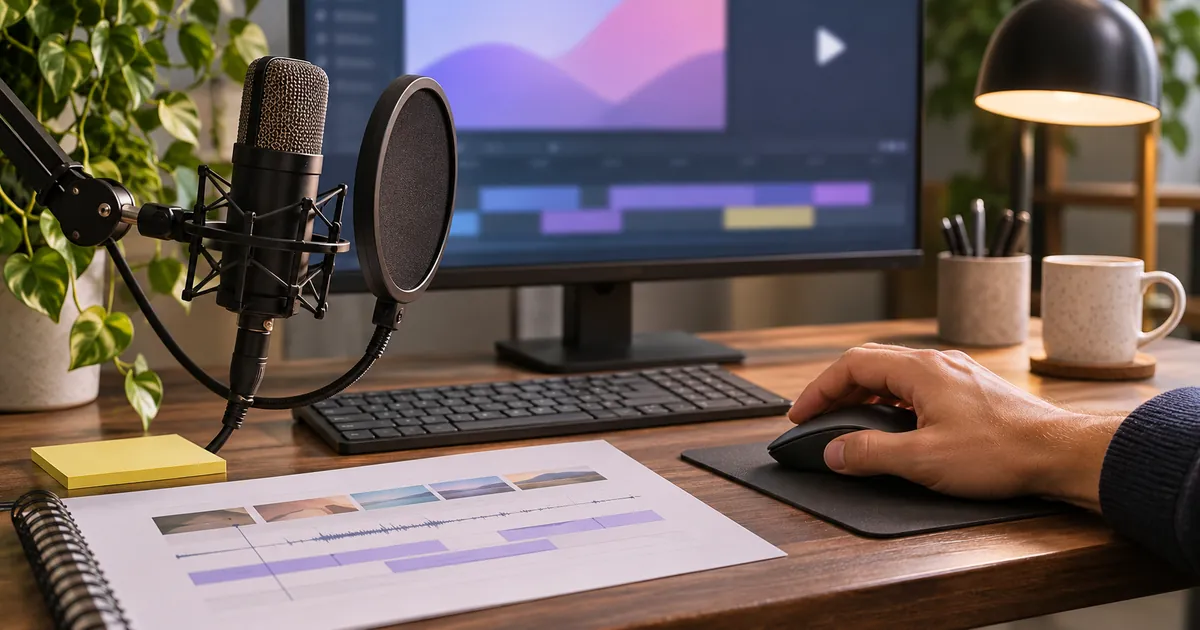

Time a voiceover pause before a software demo click by aligning three moments: the last word that identifies the control, the wait while the viewer locates it, and the visible result. Put markers on those frames before recording the voice. A half-second can be a useful starting point for a single, familiar action. Allow more time when the control is small, its label is new, or the video will be viewed on a phone.
Jump to the Voice Lab example or download the worksheet.
Break the action into what the viewer needs to know
Pick one action that changes the interface, such as opening an export panel or toggling a setting. Ask what the viewer must recognize first. If the control is labeled “Export,” show the button, cursor, and nearest context before the narrator reaches the word. A brief hold makes a clear target. If the word arrives while your edit is still showing the previous screen, the viewer has to remember it while checking the new clip.
Write an instruction and a result as separate lines. In a sample demo, the instruction says “Open Export at the top of the window.” The result says “The format list opens on the right.” Keep the second line back until the list is visible. A recording can make the waiting period look obvious to you because you know the interface, but a first-time viewer may need a little time to orient. Check a landscape and vertical phone view if the same demo will be cut for both.
Record the original click at ordinary speed. Give the cursor enough time to settle and leave a little handle after the result. When a button is unlabeled or only has an icon, use the caption or an editable arrow to show which one to look at without hiding a real tooltip. A raw recording with handles lets you decide in editing whether a short pause or a longer hold best explains the action.
Measure usable gaps instead of counting script words
Lay the source capture on a timeline and mark the final identifiable word, the first frame where the pointer is stable, the click frame, and the first readable result. Use the later of the word and the stable pointer when calculating the lead-in for the click. An example in a 30 fps edit could have the word end at frame 120, pointer steady at 123, click at 141, and first readable result at 153. The control has a usable hold of 18 frames, or six tenths of a second.
| Marker | Sample frame at 30 fps | What the editor checks |
|---|---|---|
| Last identifying word | 120 | The listener heard Export |
| Stable pointer | 123 | Control label visible and pointer settled |
| Click | 141 | 18 frames of usable lead-in from frame 123 |
| First readable result | 153 | Wait for the actual menu before describing it |
Have someone watch the beat at actual speed and point where they'd click. If they find it after the interface changes, start the pointer hold sooner or add more time. If a caption covers the control at 390 pixels wide, move the label or place the overlay in another band. Edit the spoken instruction as close to the original control text as practical. The viewer should be able to map “Export” to “Export” without translating a synonym under time pressure.
Keep the caption timing independent where possible. A crossfade may hold the old explanation over the new panel. Keep the final part of the shortcut or button label visible for a readable interval. Review the examples in the screen recording voiceover workflow when a longer sequence needs similar markers.
Adjust the picture or narration based on where the mismatch occurs
If the first line finishes after the click, move the narration earlier or add a still hold before the click. Use a frame where the cursor is already visible. Check for a changing timer, progress indicator, or dynamic preview that would stop unnaturally in a freeze. A real second capture with more pointer dwell is stronger evidence when a changing interface matters. For an internal draft, use a temporary freeze with a comment in the edit so a teammate knows where to replace it.
If a menu takes longer to open than expected, keep the picture running and delay the outcome line. A short gap may work with UI activity or a loading spinner. If the viewer will miss important feedback, call it out after it appears. Trim dead time between action groups where the state is settled. Fast-forwarding a long load can help if the elapsed time is unimportant and the edit clearly communicates that time has passed.
Compare the sound in muted and unmuted previews. Keep click sounds soft enough that the first word after the pause remains audible. A cursor sound can signal the action for an audio listener, while the visual change provides the result for someone watching muted. If a short click creates an extra apparent command, use one real feedback cue and remove the duplicate.
Run a teach-back before exporting
Show the clip to someone who has not seen the workspace. Ask them to identify the control and describe what happens as soon as it is used. If they can speak the name but point to the wrong toolbar, add a small visual cue or use a slightly wider crop. If they recognized the control and still missed the result, lengthen the hold on the outcome or use a second closer view that keeps the rest of the UI position obvious.
Check the same edit on a phone with sound off, captions on, and no ability to zoom. A desktop timeline can make a fine highlight appear visible when it is only a few pixels on the real device. Check that speech pauses correspond to actual target changes by watching with captions and audio together. Export a short test before delivering longer tutorials. The voiceover timing guide has additional timing patterns for other kinds of scenes.
Name the sample and save the marker list in the project. Review it after updating the interface or opening a new version of the app. If the target control moves, adjust the crop and actual pointer timing before reusing sound.
How QuestStudio helps
Render the two lines separately in QuestStudio Voice Lab when your project uses synthesized narration. Place both files on the actual demo sequence. The sample below combines the two lines for reference. Record them as separate takes or split them at the pause if both sides have room.
Open Export at the top of the window. The format list opens on the right.Move the result clip to match the final panel state and check it in context. Lengthen the pointer dwell or shorten incidental copy as needed. Keep your approved control name tied to the current screenshot so a future update can find the correct line.
Try it with your own material
Put four markers on one action and show it to someone cold. A viewer who can point to the correct control and describe what changes has enough information to repeat the demo in their own project.
References
Frequently asked questions
How long should the pause before a click be?
Start with roughly half a second for a clear control, then test the finished format with a new viewer. Use the marker after both the name and pointer are clear.
Should I freeze the screen?
A short stable hold can help when nothing else should move. Reshoot the click if a visible progress bar or animation would freeze abruptly.
Do captions need the same delay?
Give the caption enough time to read while keeping it aligned with the step. Move it away from the menu or control when it overlaps the action.
What if the result appears slowly?
Wait for the first useful result frame before describing it. Decide whether showing the wait teaches something or whether clearly trimming it helps.
Related guides
 Voice
AI Voiceover for Screen Recordings: Match Every Step
Match AI voiceover to screen recordings. Map each instruction to an action and result, fix pauses and keep interface labels, captions and revisions aligned.
 Voice
AI Voiceover Timing: Fit a 15, 30, or 60-Second Video
Fit AI voiceover to a video using a real timing budget, measured takes, careful script cuts, and pitch-preserving tempo changes only when they help.
 Creator Workflows
Where to Place Instagram Reel Captions: A Preview Checklist
Place Reel captions where viewers can read them. Compare illustrative layouts, avoid faces and controls, and use a phone-preview worksheet before sharing.