
To add audio to Google Slides, save an MP3 or WAV file in Drive, open the slide on a computer, and select Insert > Audio. Choose the file and set when it should play. Then open the shared deck with the intended viewer’s access and test the sound there.
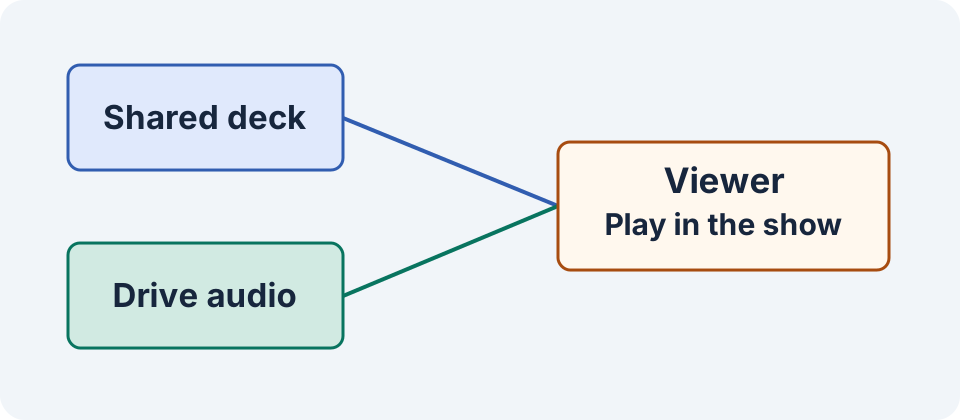
A presentation can open normally while its audio file still requires permission. Treat the slide deck and the source recording as separate parts of the handoff. If the audience has to request access during the presentation, fix the sharing path before delivery.
Prepare one clean file for the first slide
Start with a ten-second spoken introduction or a short music cue you can share with the intended audience. Give the file a name that connects it to the deck and slide, such as kit-demo_slide-01_intro_v2.mp3. Play it in Drive before inserting it. Check the start and end and make sure you chose the intended revision.
Upload the audio into a Drive folder the project can keep. If you work across multiple accounts, confirm that you are editing the deck in the account that can see the file. Where a team owns the deck and its source files, store them according to that team’s access policy. A folder change or a departure can affect who can open a source later.
Insert the file and set its playback behavior
Open the presentation on a computer and choose the slide that should play the clip. Use Insert > Audio and select the audio file from Drive. Select the resulting audio icon to adjust playback in the format options. Google documents Drive-stored MP3 and WAV for this insertion path. Google’s Slides media instructions.
Choose click-to-play when a presenter wants to introduce a recording. Choose automatic playback when the clip is the slide’s narration and should start during the show. For a clip that belongs to one slide, review the stop-on-slide-change behavior. For music intended to continue, review its start, end, and volume across the exact slides you will present.
Keep a visible control where a reader might need to replay the clip. Place it near a short caption, such as “Play the product introduction.” Where the chosen automatic behavior and controls allow the icon to be hidden, test the deck without it. Make sure the viewer can still tell which slide has audio and find any alternative text or transcript you provide.
Build a small deck that tests three decisions
On slide one, add an introduction that starts automatically during the show. Wait for it to finish and advance. On slide two, add a demonstration cue that starts when you click its control. Listen for whether it ends naturally or needs a trim. On slide three, leave the audio empty. That gives you a clear place to hear whether the prior clip continues unexpectedly.
Try the deck from the beginning and then from the middle. During a real presentation, someone may jump ahead or return to a slide. Verify what happens when the clip restarts, when you leave early, and when you reopen it. A single uninterrupted run can miss a problem the audience will encounter during questions.
Check permissions from the viewer’s point of view
When inserting or sharing media, Slides can surface suggestions about access to the source files. Review each proposed change and choose the audience that is appropriate for the material. The deck can have one audience while an audio file has another. A restricted recording should reach the intended recipients through the applicable sharing rules. Google’s Slides access checker announcement.
Use an authorized viewer account or ask the intended reviewer to test the link. Check the exact slide and file that will be presented. Open presentation mode, play the clip, and advance once. If you see a request for access, inspect the Drive file’s sharing controls and check which account the viewer is using. Repeat the test after making the appropriate change.
If the viewer can open the file directly but hears nothing during the show, inspect the slide’s audio playback setting, mute controls, and output device. Try one manual play action before changing several settings. An auto-start issue, a muted tab, and a file permission problem can look similar during a rushed rehearsal.
Hand off the deck with a playback note
Record the presenter’s expected action for each cue. For example, slide two might say “Click Play after introducing the demo.” Send that note with the rehearsal copy so the presenter can confirm the interaction without guessing. When you replace a clip, check the replacement’s permissions independently and repeat the viewer test.
Record the slide number, expected start behavior, file name, and viewer outcome in the Slides audio access checklist. Keep the exact deck and audio versions together. If you deliver another format, open that delivery copy in its own application and verify what happens to the audio. For someone who cannot hear or play the clip, include the important words as text or provide an accessible transcript.
For scripting, see the slide narration guide. For a recording you will import, the phone audio handoff workflow covers keeping an original take and checking it outside the recorder.
Frequently asked questions
What audio files can I insert into Google Slides?
Google documents MP3 and WAV files stored in Drive for the desktop insertion path. Play the source file and check the inserted clip during presentation playback.
Why can I hear the audio while the viewer cannot?
Check whether the viewer can open the underlying Drive audio file. Then verify that the viewer is using the intended account and that playback is enabled.
How can I start audio on a click?
Select the inserted audio and choose click-to-play in its playback options. Test the control during a presentation run.
How can I stop narration when I advance?
Review the clip’s stop-on-slide-change setting and test advancing while it is still playing. Record the expected behavior for the presenter.
Will my exported copy play the same audio?
Open the delivery copy in the application the recipient will use and test playback. Share the live deck or an appropriate separate media copy when that is the intended delivery.
Prepare one slide’s narration
Create an approved short clip in Voice Lab. Save the file and add it to your deck in Slides after reviewing the words and duration.