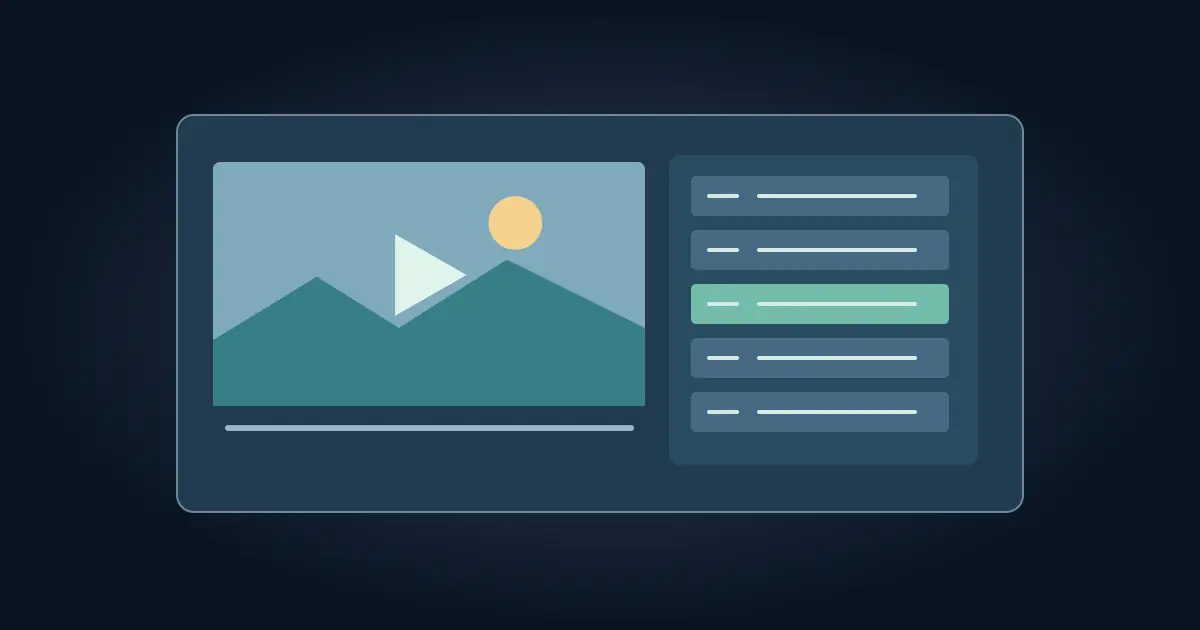

To add a video to Google Slides on a computer, open the intended slide and choose Insert → Video. Choose a YouTube video or a video from Google Drive, then insert it and position it. Use Format options → Video playback to check how it starts. Present the deck and test the slide with the account and device that will actually show it.
The two common problems are a video that will not play for somebody else and a video that starts at the wrong moment. Treat access and timing as separate checks. A perfect playback setting cannot fix a Drive permission error.
Choose the source your audience can open
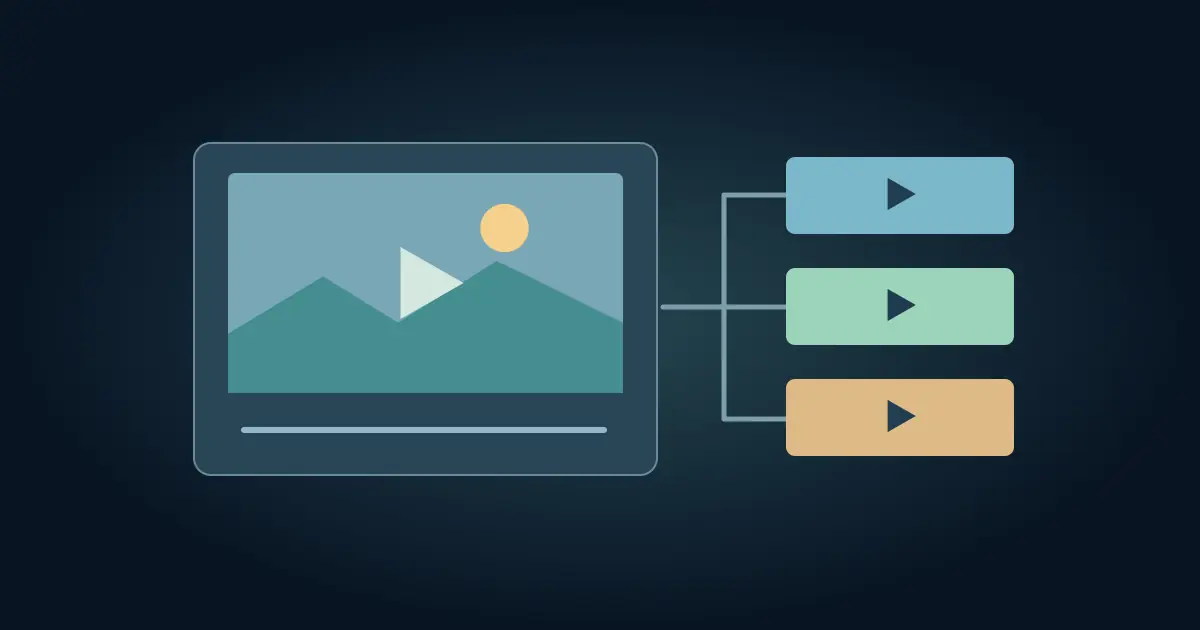
Use an approved YouTube link when the clip already lives there and your viewers can access it. Use Google Drive when you are working with your own uploaded file or a file shared by a collaborator. Google explains the insertion choices in its Slides video instructions. Select the actual video file or supported source rather than adding a clickable image and expecting it to play.
Make sure the Drive file can play before you insert it. Open it in Drive and try the section you will show. If Drive is still processing the video, wait until you can play it there before changing the deck. If the wrong version was uploaded, correct the source before inserting it. Record the revision in the handoff sheet, especially if two files have similar names.
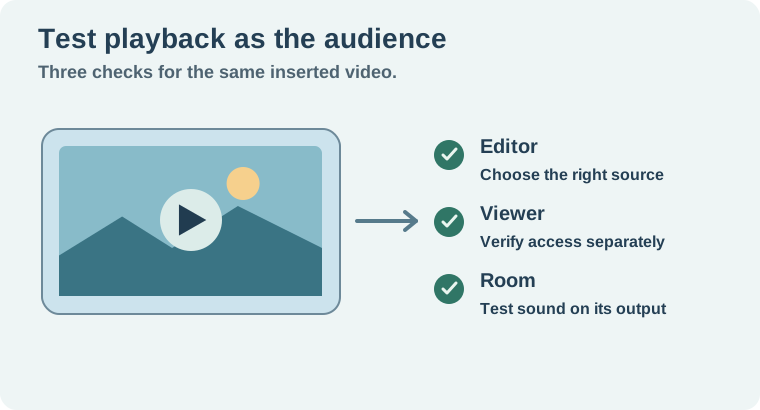
The slide and the video are separate items for access purposes. Give the intended viewers access through an approved sharing route and verify it in a viewer session. A clip may work while you are signed in as its owner and show an access error for the presenter. Keep private material on the appropriate restricted route rather than opening the file to everyone just to make the test pass.
Set the start behavior before rehearsing
Select the video, then inspect Video playback under Format options. Choose the available trigger that fits the talk. Start on click when the presenter should introduce the clip first. Choose automatic playback when the video must begin as soon as the slide appears. If the plan is to use the player's own controls, practice that in the slideshow instead of relying on the editor preview.
If the available controls let you set a start or end time, check both. Start a moment before the first useful action so the audience can orient itself. End after the result has registered. If the clip has a loud voice or abrupt transition at the chosen boundary, use a short approved edit instead of relying on a late pause click.
For a live talk, go to the slide before the video and advance exactly as you will on the day. Listen for sound from the presentation output. A clip can play in a laptop's headphones while the event output stays quiet. Separate background narration or an audio cue needs its own check. The Google Slides audio guide explains the separate media workflow.
Work through a five-slide handoff
Imagine slide three contains a short Drive demo, and slide five points to a longer YouTube reference. On slide three, the presenter explains the setup before clicking Play. On slide five, they decide whether to play the full clip or share its link. Use a different trigger for each job and record it in the notes.
Ask the presenter to open the deck from their own session and play slide three. A successful test means they can open the clip and hear the useful line. Then move past the slide and return to it. Decide whether the clip should replay from the beginning if a question sends you back. A quick rehearsal exposes this small timing problem before the room sees it.
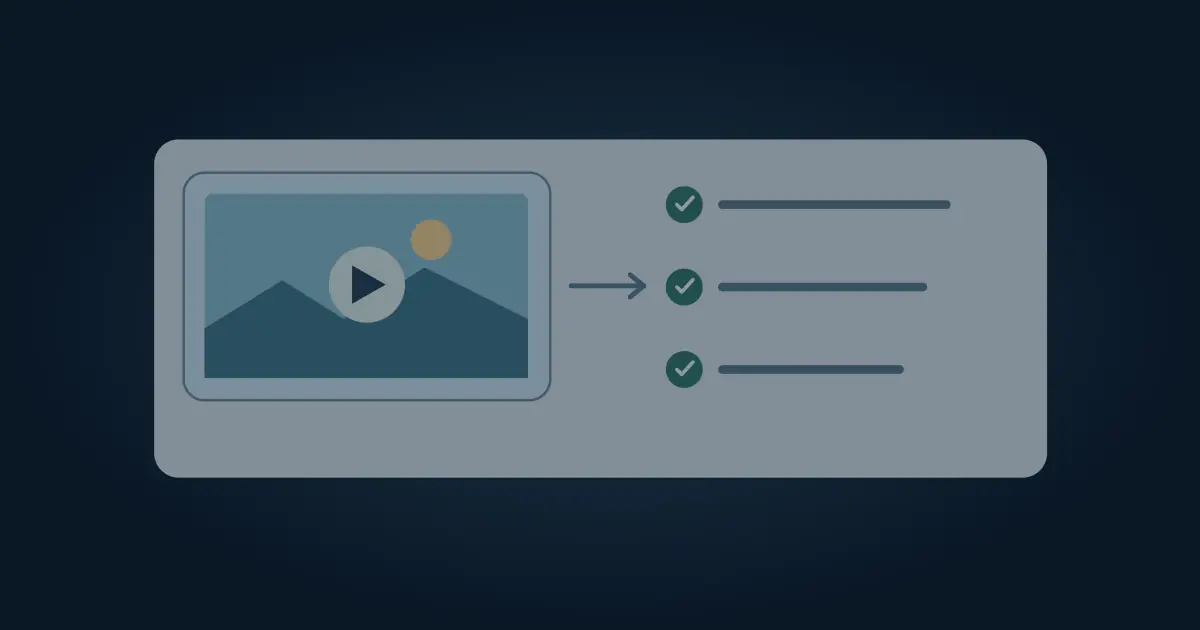
If slide five is meant to show a specific quote, verify it against the video's audio. Use the YouTube transcript guide to find the passage and check names or numbers. Include the timestamp with the backup link so a presenter can go directly to the useful part.
Keep a fallback that serves the slide's purpose
Choose a still that makes sense by itself and a descriptive link to the approved video. Use the still in a separate fallback slide or as a backup for a static handout. A PDF recipient may see a picture or link, so test the exact export you will send. If you need a rendered recording, play that file separately and listen for the inserted clip. The Canva video handoff guide describes a related test for a different presentation editor.
If the conference room or venue has limited connectivity, use an approved local playback plan and rehearse it on the room equipment. Do not make the talk depend on a link you have only tested from home. Write a sentence that explains the key moment if the video cannot play at all.
Make the audience check specific
For a workshop in a managed school account, test once as the presenter and once with the kind of account the audience will actually use. A video opening for an editor can still fail for a viewer who lacks Drive access. Write down which account performed each check and what that person could see. If the viewer needs only the deck, avoid widening the source video’s permissions beyond the intended group. Rehearse the backup path using the same display and speakers so you can switch without interrupting the session.
How QuestStudio helps
Use Video Lab to prepare a short supporting clip when the presentation needs a purpose-built insert. Keep the approved version in the deck and check it in presentation mode. The useful handoff is a file, a tested slide, and a fallback the presenter can actually use.
Download the google slides video handoff sheet.
Frequently asked questions
Can I add a video from my computer directly?
Upload your approved file to Drive, then insert it through the Google Drive option in Slides.
Why does the video play only for me?
Check access to the source video using the intended viewer's account. Deck access and video access are separate checks.
Can a video start automatically?
Check the available Video playback settings and test automatic playback in presentation mode.
Will my PDF play the video?
Prepare a still and a descriptive link for a static handout. Verify the actual PDF in its intended viewer.
What should I rehearse?
Advance from the preceding slide, check the trigger, hear the audio, and try the fallback once.