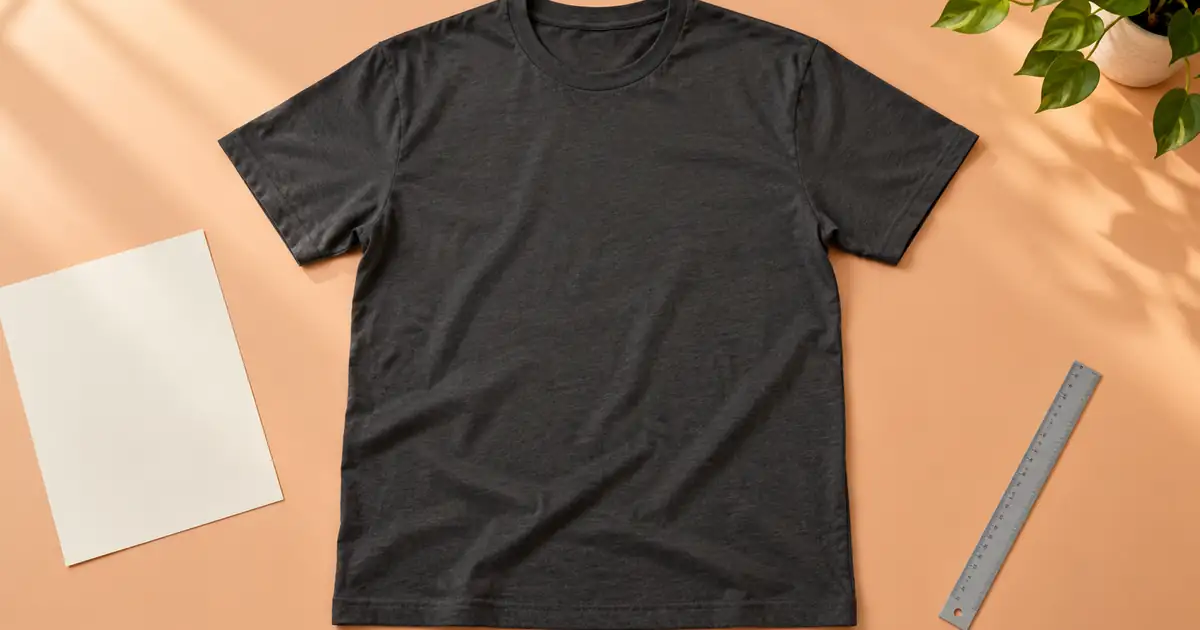

A T-shirt mockup has two separate jobs: show the garment attractively and show where the actual print belongs. AI can help with the first, but an appealing shirt scene can still change a letter, stretch an illustration, or place the print too close to the collar. Treat the artwork and garment as separate references throughout the job.
This workflow uses an original geometric design to make placement errors easy to inspect. It produces a presentation mockup and a supplier handoff, not a print-ready garment specification. Use the exact product template and a physical sample for production decisions.
Download the shirt placement worksheet and download the original example artwork. The artwork is a teaching asset, not a manufacturer's template.
Start with two references and one garment
Choose the actual garment model, color, and size before building the scene. A fitted women's shirt and a boxy unisex shirt can have different body proportions even when they share a size label. Do not use a generic silhouette as evidence of how the selected product fits.
Reference one is the garment photograph or supplier mockup. Reference two is the artwork file, with its intended proportions and transparent areas intact. Keep them separate until placement. A screenshot of artwork already printed on another shirt is a weaker master because it includes that shirt's folds, perspective, and lighting.
For a physical product, capture the garment's real front, back, collar, and material details. The apparel photography workflow covers that capture task. Here, the focus is the print: its location, size, orientation, and relationship to seams.
Open the selected supplier's product-specific file guidelines. Printful's file preparation guidance directs users to each product's requirements. Do not replace those specifications with a universal resolution or printable-area number copied from a different shirt.
Write a placement brief someone can measure
Record the artwork's visible bounding box, its intended physical width, and the reference point used for the top offset. “Centered on the chest” leaves several decisions unresolved. Centered relative to the garment body is different from centered relative to the photograph's canvas.
In an original hypothetical brief, the artwork's visible design is 22 centimeters wide and its top edge sits 8 centimeters below the bottom of the front collar seam. These are exercise values, not recommended placement measurements for every garment. Confirm allowable placement with the actual supplier and selected size.
Distinguish visible artwork bounds from transparent canvas bounds. An image file can contain a large empty margin above the design. If the editor aligns the file's top edge instead of the visible print, the design lands lower than the brief intended.
| Decision | Example entry | What to verify |
|---|---|---|
| Garment | Selected charcoal crewneck, size M | Actual supplier SKU and size |
| Print width | 22 cm across visible artwork | Product template permits it |
| Top reference | 8 cm below front collar seam | Same reference point in every view |
| Center reference | Garment body centerline | Not the midpoint of an off-center photograph |
| Artwork version | Circle and three bars, version 1 | Approved file, orientation, and colors |
Inspect an original artwork-to-mockup example

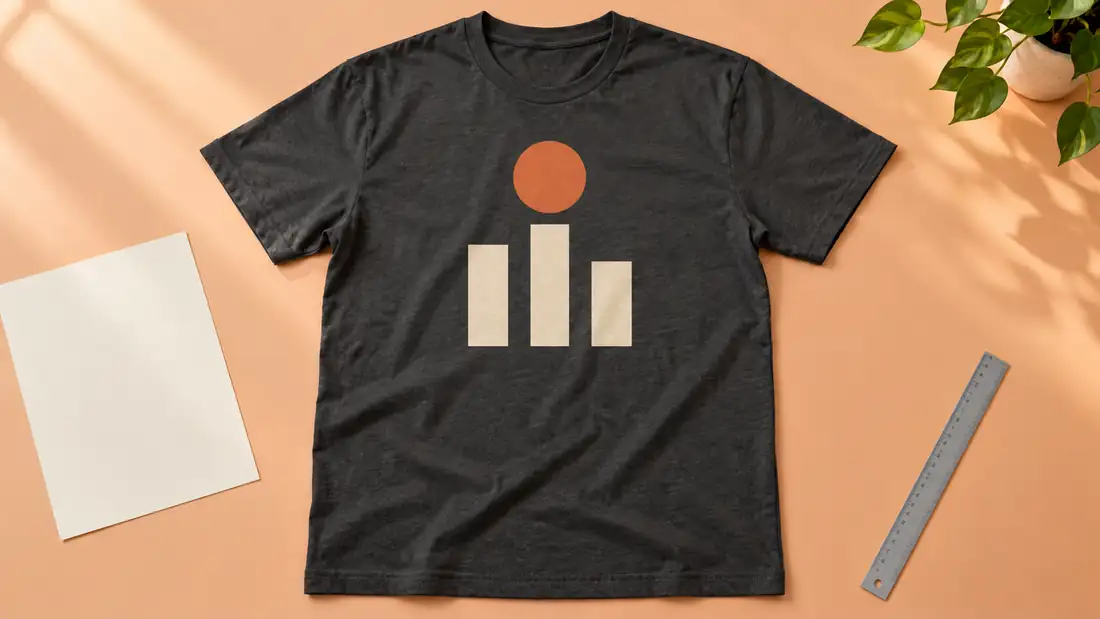
The mockup retains one orange circle and three bars. The middle bar remains tallest and the right bar remains shortest. Those are useful visual checks because an extra bar or reversed order would immediately fail the brief.
That visible agreement does not establish an exact transfer. The mockup adds fabric texture and lighting to the shapes, and no calibrated garment measurement appears in the scene. We cannot infer a 22-centimeter print width from the decorative ruler at the edge. This example passes the simple motif-count review; it remains a concept for placement, not a measured production proof.
Use reference 1 as the garment and reference 2 as the artwork. Place the orange circle and exactly three cream bars on the upper center front of the charcoal T-shirt. Preserve the bar order, artwork proportions, spacing, and transparent background. Keep the shirt shape and collar. Add no words, logos, extra motifs, or rectangular background behind the print. Show the entire garment for review.
Give the generator the separate files in the same order as the brief. If the result changes the design, return to the source file. Repeatedly editing a changed version can make the wrong design look more polished without bringing it closer to the approved artwork.
Use a controlled layer when accuracy matters
Place the approved artwork as its own layer in a suitable mockup or image editor. Scale it proportionally and keep a reference copy untouched. Align it to the garment body, then apply only the perspective needed for that particular view.
Adobe documents scale, perspective, distortion, and warp in its Photoshop transform guidance. These are controllable editing operations; they do not turn a scene into a supplier-approved proof. Use the supplier template for the actual printable region.
Keep the distinction between perspective and design distortion. A print on an angled shirt may appear narrower in the photograph. That does not mean the production artwork should be squeezed horizontally. Store the presentation transform in the mockup while retaining the original proportions in the artwork master.
For lettering, inspect every character against the source at full size. For a geometric mark, compare circles, gaps, bar order, and edge alignment. For an illustration, compare the focal details that identify the design. A realistic shadow should not distract from a missing part of the artwork.
Decide what happens across garment sizes
A fixed-width print and a proportionally scaled print are different production choices. If the same 22-centimeter design is used across several shirt sizes, it occupies a different fraction of each garment. If the supplier changes print size by garment size, record those dimensions explicitly.
Do not enlarge the print in every mockup merely to make it fill the same amount of the thumbnail. That can misrepresent the selected variant. Ask whether the production process uses one design size or several, and keep the mockup set consistent with that answer.
Make one front view per materially different placement. Add a back view only if the product includes a back print or the garment detail needs showing. A blank back should stay blank; an AI-generated second logo can accidentally turn a decorative view into a different product offer.
For a lifestyle scene, retain the chosen garment color and construction. Do not imply that a generative model has performed a fit simulation. The photograph can show a styling idea, while a real sample and size information answer questions about the product.
Package the artwork and presentation separately
Deliver the approved artwork master, the supplier-ready file prepared to its actual template, the layered presentation source, and the final mockup export. Include the placement worksheet with SKU, size, visible print width, top reference, and artwork version.
Open the exported artwork on both light and dark backgrounds to check transparency and unwanted edges. Open the mockup at thumbnail size to confirm readability, then at full size to inspect the design. Those views answer different questions and both belong in the review.
Order or inspect a physical sample before treating the mockup as evidence of printed color, hand feel, or exact placement. Record any changes from that sample in the next version of the brief. A digital scene cannot reveal how ink and fabric behave together.
If you are choosing how to create the surrounding scene, the product mockup model guide covers that decision. The mug placement guide handles a different surface, where the handle and wrap direction become the main orientation checks.
Frequently asked questions
Can a prompt guarantee that my logo stays unchanged?
No. Compare the result with the approved source. When exact artwork matters, retain it in a controllable layer rather than relying on a newly generated interpretation.
Is the example print placement a universal recommendation?
No. The 22-centimeter width and 8-centimeter offset are hypothetical brief values. Use the selected garment's actual template and supplier guidance to decide the production placement.
Why does transparent padding affect placement?
The file boundary may extend beyond the visible design. Aligning the outer canvas instead of the artwork's visible bounds can shift the print lower or farther sideways than intended.
Should every shirt size use the same artwork width?
That depends on the actual production choice. Record whether the print width stays fixed or changes by size, then make each mockup reflect that choice.
Is the mockup the file I send to the printer?
No. The scene is a presentation asset. Send the separate artwork prepared to the supplier's product template, along with the agreed placement information and any requested proof.
Explore the shirt's setting
Use Image Lab to explore a garment scene, then retain the approved artwork in a controllable layer for the final placement review.
Hero: AI-generated editorial illustration. Original teaching materials and documented feature research, checked October 30, 2026. Examples are labeled where synthetic or hypothetical.