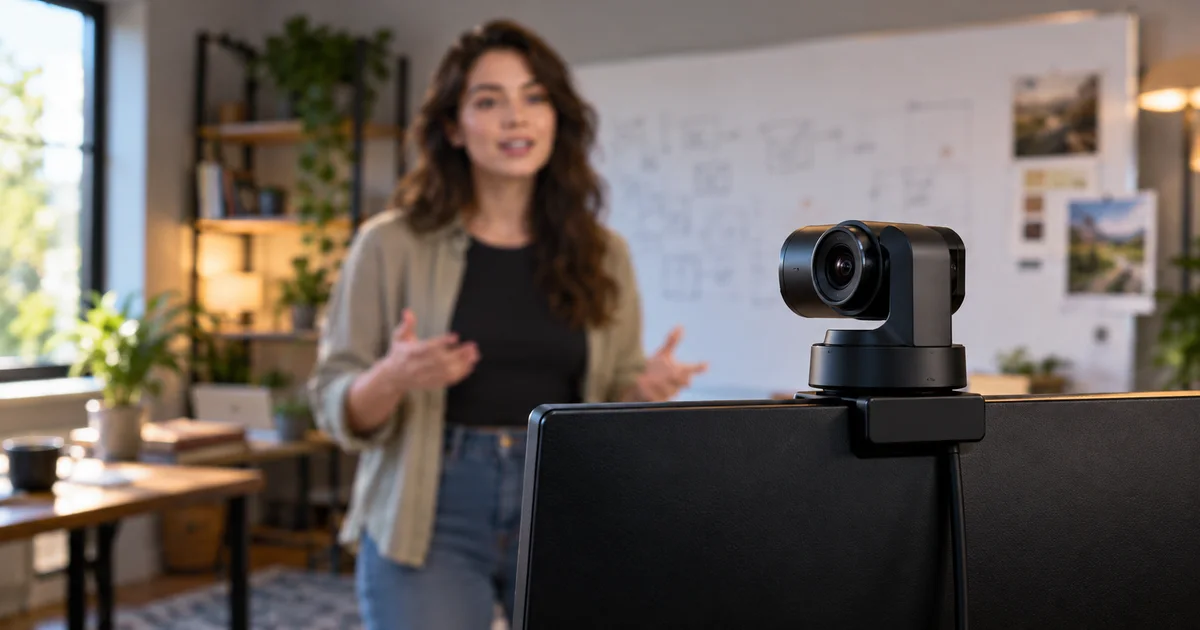

An AI tracking webcam is worth considering when you move while teaching, demonstrating a product or presenting alone. If you stay seated in one place, better lighting and a sensible camera position may solve your problem without a motorized camera. Start with the shot you need, then choose the tracking system.
Download the practical worksheet
Original blank CSV worksheet. Add your own observations; it contains no invented test results.
Choose by the shot, not the AI label
For a creator who changes position around a desk, our research shortlist is the OBSBOT Tiny 2 Lite and Insta360 Link 2 Pro. The Tiny 2 Lite is an older model to consider when its current offer is meaningfully lower. The Link 2 Pro is worth comparing when presentation controls and its larger sensor matter to your work. These are conditional choices, not a claim that either wins every webcam test.
Mechanical tracking moves the camera on a gimbal. Digital auto-framing crops an existing image. Both can keep a face centered, but a crop cannot see beyond the lens's original view. A motorized camera also has a physical turning limit. Decide whether you need to lean around a desk, stand beside a board, or show something below the monitor before paying for movement.
A webcam follows a person; it does not automatically make a lesson understandable. Your hands, demonstration object and writing may need a different composition from your face. Plan one seated shot and one demonstration shot. If switching between them is the real problem, saved framing controls may matter more than continuous tracking.
Two models, two buying cases
| Model | Consider it for | Check before buying |
|---|---|---|
| OBSBOT Tiny 2 Lite | Motorized tracking at a lower current total cost | Older generation, software controls, gesture behavior and mounting clearance |
| Insta360 Link 2 Pro | Moving presentations and a larger-sensor option | Exact Pro model, app compatibility and whether you need the gimbal |
| Your existing fixed camera | Seated calls and screen-share narration | Can lighting, eye-level placement and a tighter background fix the shot? |
The Tiny 2 Lite specifications list a two-axis gimbal and a half-inch sensor, with 4K at 30 frames per second or 1080p at 60. Those are different recording modes: a listing that mentions both 4K and 60 fps does not establish 4K at 60 fps.
Insta360's Link 2 and Link 2 Pro comparison explains the Pro generation's larger 1/1.3-inch sensor. Keep Link 2 Pro, Link 2C Pro and the older Link 2 separate while comparing offers. Similar names do not mean identical movement controls.
Check OBSBOT Tiny 2 Lite on Amazon (paid link)
Check Insta360 Link 2 Pro on Amazon (paid link)
What published reviewers actually support
James Bentley's PC Gamer review of the Tiny 2 Lite praised its tracking and autofocus while describing some AI extras as inconsistent. That supports a practical buying question: do you need dependable framing, or are you paying for effects you may turn off?
Adam Juniper's Digital Camera World review of the Link 2 Pro described smooth head tracking, while noting that the camera eventually loses a person moving beyond its turning range. These are those reviewers' observations in their setups. They are not QuestStudio measurements, and they do not establish how either camera handles your lighting or software.
Use reviews to identify an acceptance test rather than importing someone else's overall score. If gestures caused surprises in a review, include normal hand movements in your own check. If low-light samples look appealing, compare the review's lighting and exposure with the room you actually use. A bright face with motion blur is not necessarily a useful presentation image.
Check the complete camera-to-viewer path
The camera, USB connection, capture application and delivery platform each impose limits. A local recording may preserve detail that a video meeting compresses away. Confirm which resolution and frame rate your actual application accepts, then check the saved file or recipient view. Do not judge the whole system from the manufacturer's preview window.
Connect directly to the computer first. A crowded hub can introduce a problem that looks like a bad camera. After the direct connection works, add the hub and other accessories one at a time. Keep the camera's supplied cable available as a known reference. Our USB-C connection guide explains why plug shape alone does not settle speed or compatibility.
Look at the monitor mount from the side. The camera needs clearance to move without striking the display, shelf or cable. A large display can place a webcam above your natural eyeline; a low laptop may put it below your face. Adjust placement before using tracking to compensate for a poor starting angle.
Keep audio separate in your decision. A webcam's microphone may be adequate for calls, but distance and room reflections still matter. For narration, compare the USB microphone buying guide before replacing a camera solely because the recording sounds hollow.
Run this one-room acceptance check
Download the worksheet and choose the actual application you intend to use. Make a short private recording rather than beginning with a public stream. Keep the room lighting consistent across the following checks, and save the settings with the file so a later firmware change does not erase your reference.
- Seated frame: speak normally, lean forward, look sideways and use ordinary hand gestures. Watch for unwanted zooms or composition changes.
- Standing frame: move to the place where you demonstrate. Check that both your face and the useful object remain visible.
- Recovery: leave the frame briefly and return. Note whether tracking reacquires you without a distracting search.
- Manual fallback: turn tracking off and set a fixed shot. Confirm that you can recover a stable frame during a call.
- Delivery: review the saved output at the size your audience sees, including captions and a screen-share layout if used.
Mark each result pass, adjust or unsuitable, with a timestamp. A failure does not immediately require a return: moving a light or changing tracking sensitivity may help. But if your essential presentation position remains outside the useful frame, the camera does not fit the job regardless of its headline resolution.
How QuestStudio helps after capture
Use Video Lab to create a short supporting visual for a presentation, using a model and controls suited to that task. Keep your real webcam footage as the factual presenter recording. A generated insert can illustrate an idea, but it should not impersonate a recorded demonstration or change what a product actually does.
Plan that insert before recording the introduction. Leave a natural pause where it belongs, and keep the same topic and intended screen shape. The asset versioning workflow helps keep the approved presenter take and generated supporting clip associated without overwriting either source.
Frequently asked questions
Do I need a 4K webcam for video calls?
Not necessarily. Check the application's delivered resolution and how large your face appears. Lighting, framing and reliable focus can matter more for a small meeting tile.
Does AI tracking always move the camera?
No. Some systems crop digitally. Confirm whether the exact model has a motorized gimbal and what its turning limits are.
Is the Tiny 2 Lite the newest OBSBOT model?
No. It is an older option in this shortlist. Consider it only when the current offer and required features make sense compared with newer alternatives.
Can I leave tracking on while showing a product?
Try it privately first. A face-following mode may frame the person well while cropping the object. A fixed demonstration shot may be clearer.
Sources and further reading
Sources and product details checked October 25–26, 2026. Hero: AI-generated editorial illustration of generic equipment, not a product test photograph. Worksheet and decision framework: QuestStudio.