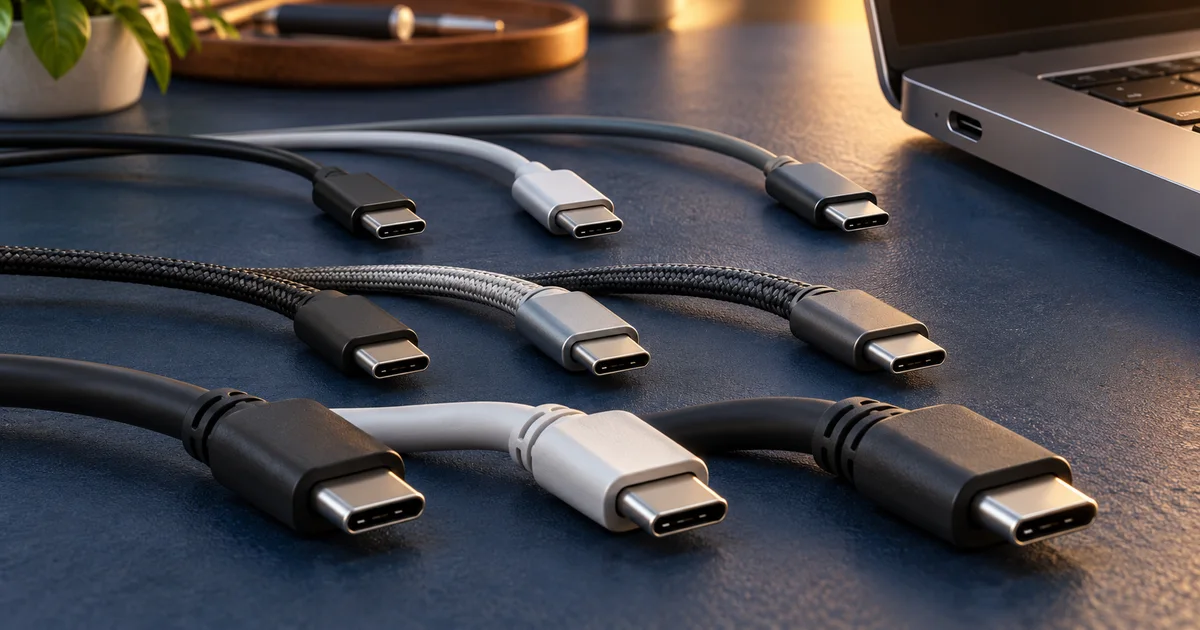

USB-C tells you the shape of the connector. It does not, by itself, tell you the cable's data speed, charging power or ability to carry a display signal. For a camera, microphone or external SSD, check the whole connection rather than choosing a cable because the plug fits.
Research note: this guide uses the official sources linked below and original practical checklists. It contains no Amazon affiliate links. We have not independently tested the equipment or certified vendor claims.
Download the practical worksheet
Original blank CSV worksheet. Add your own observations; it contains no invented test results.
Ask four separate questions
A useful connection description answers four questions: does the plug fit, what data mode is supported, how much power can the chain provide, and can it carry the display signal you need? A cable can answer one question well and still fail another.
The USB-IF language and packaging guidelines distinguish the USB Type-C connector from USB data and power capabilities. That distinction is the foundation of this guide. Avoid using “USB-C speed” as though every product with that connector has one shared speed.
For example, a cable supplied mainly for charging may move files much more slowly than the cable supplied with a fast SSD. A cable capable of high power does not necessarily support the data mode needed for that drive. Conversely, a data cable's speed label does not establish that your charger can power a laptop at its desired rate.
Write the intended job before troubleshooting: copy a camera card, edit from an SSD, connect a webcam, power a light or drive a monitor. You will otherwise compare specifications that solve different problems.
The slowest compatible part sets the useful path
| Part | What to identify | Common mistaken assumption |
|---|---|---|
| Computer port | Exact supported USB or display modes | Every matching port on the laptop is equivalent |
| Hub or adapter | Upstream and downstream capability, shared bandwidth | A fast host makes every attached hub fast |
| Cable | Data rate, power rating and supported uses | A wattage label proves data speed |
| Device | Required interface and power behavior | The device always reaches its advertised maximum |
Think of compatibility as a shared mode all necessary parts can use. A faster number on one part does not upgrade the others. Keep the manufacturer's exact language in your notes, especially when similar names describe different generations or lane arrangements.
The external SSD buying guide uses this distinction for the Samsung T7 Shield and T9. A T9's USB 3.2 Gen 2x2 maximum is relevant only when the host and connection support that mode. Do not infer it from a USB-C socket or another high-speed logo alone.
Power labels answer a power question
The USB-IF cable power-rating guidance describes markings for power capability. A power rating is a ceiling for an appropriate connection, not a command that forces every device to draw that much.
The charger, cable and device must support a suitable power arrangement. A laptop may charge slowly from a small charger even through a high-rated cable. A light may require a particular USB Power Delivery mode rather than accepting every phone charger with the same connector.
Read the actual device instructions. If a manufacturer specifies a voltage/current profile or a particular adapter, keep that requirement in the connection card. Do not substitute a visually similar supply based on connector shape. Stop using damaged cables or loose connectors; troubleshooting speed is not a reason to keep an unreliable physical connection.
For a powered hub, check whether its advertised charging figure refers to incoming power, power passed to the computer, or power available at a peripheral port. Those numbers can describe different parts of the product.
A monitor adds another compatibility layer
A USB-C monitor connection needs a supported video path at the computer, cable, adapter and display. Some ports provide data and charging without the display mode you need. A cable that copies files successfully is therefore not a complete monitor compatibility test.
Start with the display and computer documentation for the resolution and refresh rate you intend to use. Then verify the cable or adapter against that mode. If a dock combines displays, storage and other peripherals, check its limitations rather than assuming each function can run at its independent maximum simultaneously.
When a display fails but charging works, that does not prove the display is broken. It may simply show that one capability negotiated while another is unsupported. Record which functions work and which fail; this is more informative than writing “USB-C not working.”
Troubleshoot one component at a time
Begin with the simplest documented route: the device's supplied cable directly into a compatible computer port. Keep important source files intact while testing. For a storage device, copy a representative folder rather than moving your only original.
- Identify the device: record its full model and required connection mode.
- Identify the host: record the exact computer port, not just the laptop family.
- Establish a direct baseline: use a known suitable cable without the hub.
- Add one component: introduce the hub or adapter and repeat the same task.
- Save the outcome: record the working route and the specific failure, including an application setting where relevant.
If a webcam works directly but fails through a hub, first investigate the shared connection and power arrangement. If a microphone appears in the operating system but not in the recording, check the application's selected input. Physical connection, device detection and successful capture are separate stages.
Our tracking webcam guide covers camera delivery modes, while the phone microphone guide covers receiver and app compatibility. A cable purchase should follow the diagnosis rather than replace it.
Build a connection card you can reuse
The downloadable worksheet has fields for the job, host port, cable markings, intermediate device, peripheral and observed result. Fill one row for each working chain. Photograph or label your own cables in a way that remains readable without covering connectors or stressing them.
For a fictional editing example, the job is copying a folder from a portable SSD. The host supports a documented 10 Gbps USB mode, the cable supports at least that mode, and the drive supports it too. The record establishes a compatible path; it does not claim the copy will run at the theoretical signaling rate.
For a second example, the job is powering a light. Data speed may be irrelevant, but the required power profile is essential. Keep that cable's label separate from the SSD cable even if both work for ordinary charging. The card prevents a future assistant or collaborator from guessing based on appearance.
Recheck the card after replacing a dock, changing the computer or updating a workflow. Do not discard the old successful setup record until the new one has completed the real task. A tidy drawer is useful; a documented working connection is more useful.
How QuestStudio fits the next step
Once the capture or transfer path works, use Video Lab to create a short supporting clip from an appropriate brief or permitted reference. Keep the downloaded result with its source and settings. The cable guide handles the physical file path; it does not promise a faster cloud generation.
Before buying anything, identify one missing capability in the chain. If you cannot name it, finish the connection card first. That small exercise often narrows a confusing accessory search to a specific, verifiable requirement.
Frequently asked questions
Does USB-C mean USB 3?
No. USB-C describes the connector. Read the separate data specification for the cable, host and device.
Does a 100W or 240W cable guarantee fast file transfers?
No. Power capability and data capability are separate. Check both when both matter.
Why does my cable charge but not drive a monitor?
Charging and video use different capabilities. Confirm the supported display mode across the computer, cable, adapter and monitor.
Can a hub slow down an SSD?
Yes. The hub's upstream connection, supported modes and shared use can limit the storage path. Compare with a direct connection.
Should I replace every USB-C cable?
No. Identify and label the cables that already meet your jobs. Replace a cable when a specific capability or physical condition requires it.
Sources and further reading
Sources and product details checked October 25–26, 2026. Hero: AI-generated editorial illustration of generic equipment, not a product test photograph. Worksheet and decision framework: QuestStudio.