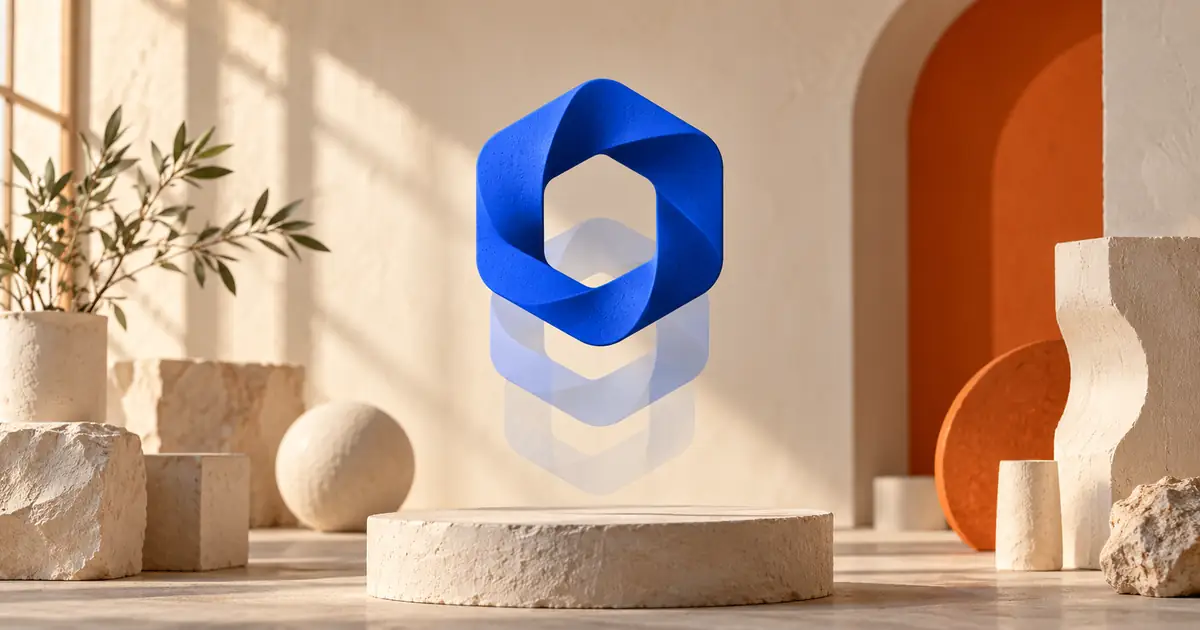

A logo animation should end with the same mark you approved at the beginning. If the symbol stretches, the name changes, or the edges wobble, an impressive reveal has created a different identity. The reliable starting point is a clean logo layer and a small number of deliberate movements.
Quick answer: animate the approved artwork's position, scale, rotation, or opacity in an editor, keeping its proportions locked. Give the finished mark time to be read. If you use generated motion, create the surrounding scene separately and composite the original logo over it.
This workflow uses an original fictional geometric mark and a three-second rendered example. It teaches a repeatable handoff, rather than ranking animation tools or promising that a prompt will preserve exact geometry.
Choose the destination before the effect
Write down where the animation will appear. A video outro needs a finished video file. A website may need an implementation that responds to layout and motion preferences. A presentation needs something that plays reliably in the actual presentation software. These are different deliverables even when the artwork looks identical.
For a video, record the frame size, frame rate, background, duration, and whether the logo sits over another shot. Ask for the final destination's accepted format before spending time on an effect. An animation that only works inside the designer's project is not a finished delivery.
Keep the purpose modest. A mark appearing over a product demonstration might need half a second to arrive and a short hold. A standalone identity film can take longer. Neither requires making the viewer wait through a long intro before the promised tutorial begins.
Prepare one approved source
Use the editable vector master if you have it. Keep the symbol, wordmark, and optional descriptor on clearly named layers. If your editor needs a raster image, export a transparent PNG at a size appropriate for the composition. Check that the artwork has no accidental white rectangle or cropped edge.
Do not enlarge a tiny screenshot of the logo and expect clean outlines. Rebuild or obtain the source first. Our logo-system guide covers developing and cleaning up the identity before this motion stage.
Place the mark on both a light and a dark background. Look for pale fringes, stray pixels, broken counters, or a symbol that disappears without its original backdrop. Keep the exact brand colors and wordmark spelling in a reference file beside the project.
For practice, download the original geometric SVG mark. It contains simple shapes and no fonts or linked images. It is a fictional teaching example, not a commercially cleared identity. Use your own approved artwork for a real brand.

Build a three-second motion plan
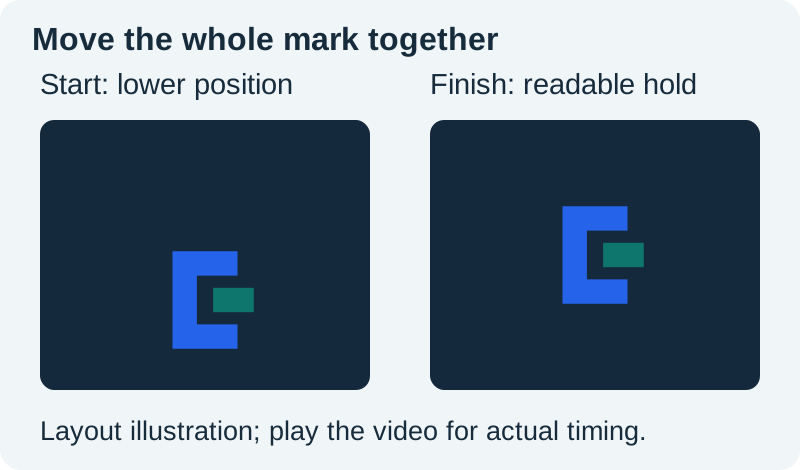
Start with one movement. In our example, the mark rises a short distance during the first 0.6 seconds, slows into its resting position, and stays there through the end. Nothing bends, redraws, or regenerates the symbol. The downloadable timing sheet records the same plan.
A short entrance, then a readable hold
Download the motion sample · Download its timing sheet
In your editor, put the artwork at its final position first. Add a position keyframe there, move earlier in the timeline, and place the artwork slightly lower. Apply an ease-out curve if the editor supports it, then watch the arrival at normal speed. The goal is a controlled stop rather than a bounce that distracts from the mark.
Work backward from the approved final frame. This makes the final size and alignment intentional. If you begin with a dramatic movement and try to stop it somewhere attractive, the ending can become an afterthought.
Move the layer without deforming the design
Uniform scale changes width and height together. Nonuniform scale changes their relationship and can make a circle oval or a wordmark look stretched. Lock the aspect ratio whenever you resize the logo, and avoid independent width and height animation unless the identity was explicitly designed for that treatment.
Group the symbol and wordmark when they should move together. Put the group's anchor point somewhere deliberate, usually near the visual center for a simple entrance. An unexpected anchor position can make a small rotation swing the mark across the frame.
For a code-based SVG implementation, MDN's transform reference explains how transforms apply to an element and its children. Keep the original paths unchanged and animate the containing group when the intended effect is movement of the complete mark.
Check the smallest version in which the animation will be seen. Fine strokes may shimmer during motion even when the large preview looks clean. Reduce the movement, increase the rendered size before final downscaling, or simplify the approved small-size variant. Do not silently modify the main identity to fix one delivery format.
Use generated motion around the mark
A generated shot can supply moving light, atmosphere, material, or a product environment. It is a less reliable place to require exact lettering and geometry throughout every frame. A single attractive ending does not tell you what happened in the middle.
Separate the tasks. Generate the background without a logo, then overlay the approved mark in the editor. Keep enough contrast and empty space for the symbol. If the background moves behind a thin wordmark, add a restrained panel or choose a calmer section of the shot.
When an effect genuinely requires the mark to transform into another object, label it as a creative interpretation during review. Show the original and final identity side by side. Approve the intermediate deformation deliberately instead of treating it as an unnoticed model error.
For a broader decision between generative scenes and editable animation, see the animation workflow comparison. Keep this project focused on a usable logo delivery.
Review more than the first and last frame
Watch once at normal speed without touching the controls. Ask whether the movement feels purposeful and whether you can identify the mark before the clip ends. Then inspect the arrival frame and a few frames immediately before it.
- Shape: the silhouette, holes, spacing, and proportions remain consistent.
- Position: the mark settles on its intended alignment without a one-frame jump.
- Edges: there are no halos, clipped tips, or obvious stair-stepping at the delivery size.
- Readability: the wordmark stays legible on the actual background.
- Ending: the last frame holds long enough for the next edit or transition.
Review with sound muted before adding a sting. Audio can make a weak visual transition feel more complete than it is. Once the movement works alone, a short sound can support the arrival without masking it. Our sonic-logo guide handles that separate audio decision.
Export for the real background and player
Do not assume that saving a file with an MP4 extension preserves transparency. Our practice MP4 deliberately includes a pale background. If the recipient needs transparency, agree on an alpha-capable codec and container that their software can import, then test a short export over a contrasting background.
Keep a flattened delivery version for its intended background and the editable source project. Give each file a useful name that identifies the version, frame size, and background treatment. A recipient should not need to guess which of six files called final is the approved one.
Open the exported file outside the editor. Check runtime, beginning and ending, edge quality, audio if present, and the actual crop. For a website, provide a static fallback and respect reduced-motion preferences. A decorative identity should not require motion to communicate the brand.
How QuestStudio helps
Use Video Lab to explore supporting motion and Image Lab when you need a background direction. Keep the approved logo outside that generation step, then assemble the two layers in your editor. The useful deliverable is the exported composition with its source artwork and timing notes, not merely a compelling generated preview.
Frequently asked questions
Can I animate a PNG logo?
Yes. A sufficiently large transparent PNG can be moved, scaled uniformly, or faded as a layer. It does not provide the separately editable paths of a vector master, so avoid excessive enlargement and inspect the edges.
How long should a logo animation be?
Choose the duration for its placement. The original example here lasts three seconds, with a brief entrance and a longer hold. That is a practice plan, not a universal rule for intros, ads, or websites.
Why does my logo look stretched?
Check whether width and height were scaled independently, whether the sequence has the intended aspect ratio, and whether an effect deforms the layer. Compare the final frame directly with the approved source.
Should I generate the logo animation entirely with AI?
Use that approach when interpretation is acceptable and review every frame. For exact brand geometry, a more controllable workflow is generated background motion with the original logo composited separately.
What should I send with the finished animation?
Send the agreed playback file, a static fallback, the approved artwork, and a short note identifying dimensions, timing, background treatment, and version. Include editable project files when that is part of the handoff.
Plan the supporting motion
Explore a background shot in Video Lab, then composite your approved logo separately in an editor.
Hero: AI-generated editorial illustration. Original teaching materials and documented feature research, checked October 31, 2026. Examples are labeled where synthetic or hypothetical.