
Make a Black Friday email GIF with a first frame that works as a still. Choose one movement that helps explain the product, export a short loop, and keep the sale copy and button in live email text. Test a real send from your email tool before you schedule the campaign. Some clients can show just the first frame of an animation, so start with the image you would send if you had room for only one.
Jump to the Video Lab example.
Decide what should move and what should stay still
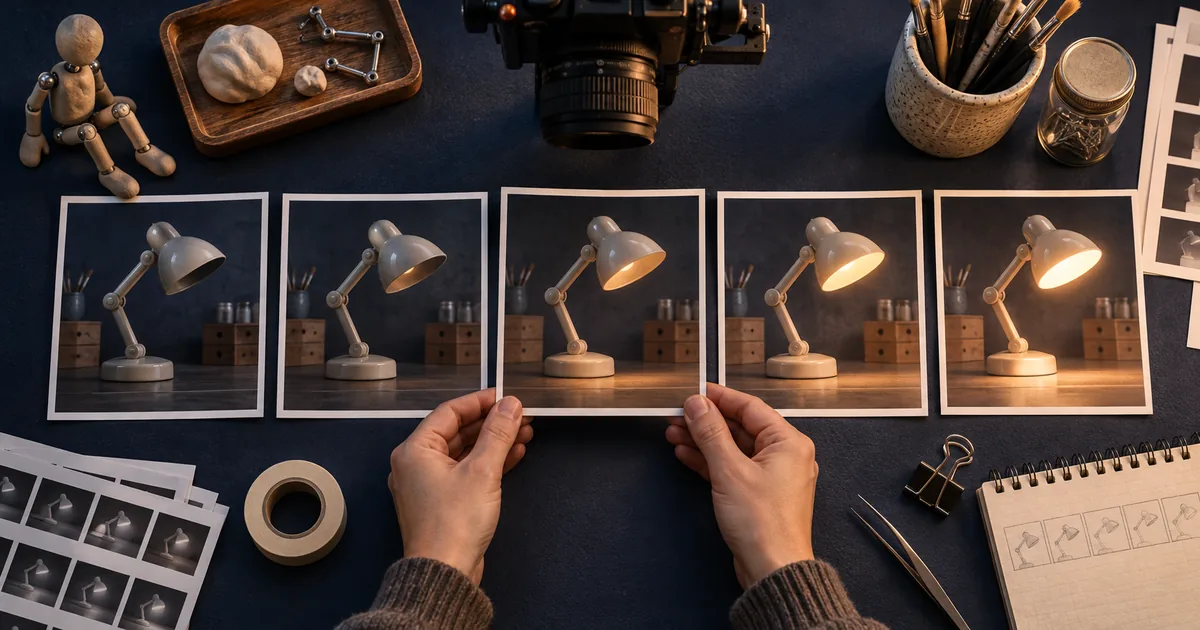
Use a real product photo with a clear angle and enough room for the planned movement. A fictional store selling an ivory desk lamp wants to show its warm light in a Black Friday email. The movement can be the light turning on. The lamp, cord, switch, and tabletop can stay in the same place. That gives the reader an immediate reason to see the second frame and lets the original photo do most of the work.
Write a one-sentence brief for the action. “The lamp goes from softly lit to fully lit while the camera holds” is specific enough to evaluate. A complicated rotation, zoom, and lighting change all in two seconds make it harder to see if a shade or cord changed shape. If the object itself moves, decide which point the camera should follow and which parts of the product should remain visible.
Set up the email around the motion instead of placing important terms inside the loop. Write the item name, approved offer, and button beneath the image. If you include a sale end date, put it with the offer. A reader who opens the email with images disabled can still see what the message is about and where to click.
Build a first frame you would send by itself
Choose a starting image where the product is already visible. In the lamp example, use a softly lit angle with the shade, stem, and base clear. A dark room with a tiny lamp in the corner would give the animation a dramatic reveal, but it would make the static fallback hard to understand. Some versions of Outlook can show just the first frame. Mailchimp recommends giving that frame enough information to work independently. Mailchimp's Outlook rendering guide.
| Part of the loop | What the reader sees |
|---|---|
| Frame one | The lamp on the desk with a soft glow and its silhouette fully visible. |
| Middle | The lamp gets brighter. The camera stays in the same position. |
| Hold | The warmer pool of light remains long enough to register. |
| Restart | The light returns to the opening brightness with the lamp still in place. |
Export a still of frame one separately. Open it with the subject line and email text beside it. Check whether your coworkers know which product is on sale before showing them the animation. If they need the final frame to make sense of the object, go back and fix the first frame.
Animate one small motion from your photo
Open your own lamp photo in an image-to-video workflow. Try a single change in brightness and choose a supported duration. Trim the result to the shortest useful motion in the editor you already use.
Open the example in QuestStudio Video Lab.
Square image-to-video product clip based on my uploaded ivory ceramic desk lamp photo. Lock the camera, crop, shade shape, base, cord, table, and background. Make one gentle change as the lamp grows slightly warmer and brighter, hold that state, then settle back to the initial glow. Keep the first image readable and the lamp visible at every point. No new objects, price text, logo edits, fast flashes, pans, or zooms.Watch the clip once at normal speed and then pause at the opening, midpoint, and end. Compare the shade shape, placement, base, and background with the source. Reject a clip that adds a second switch, changes the material, or makes the lamp appear to have a feature the product doesn't have. Start from the same approved frame for the next attempt.
Export the loop and test a real email
Use an editor or converter you already trust to export the short clip as a GIF. Work from a crop close to the width in your email. If the result is large, try fewer frames, a shorter action, or a smaller displayed size before compromising the first frame. Keep the finished still as an alternative if the loop is difficult to load or distracting in the email. Mailchimp's email GIF guidance.
Send the actual draft to a phone and a desktop inbox. Open it once with images on and once with images hidden if your test client supports that. Confirm the product name and button still make sense. Check the GIF's first frame and follow the button in the test email. A good loop can't repair a link that opens the wrong lamp or a price that differs from the cart.
Save the motion clip, compressed GIF, first-frame still, and tested email together. Record the product variant and the final destination link. That makes it possible to replace the old offer in a later sale without reconstructing what was sent. The Black Friday ad creative checklist has a separate review for matching the checkout offer.
Make two versions that let you isolate what motion adds
Prepare a still email that uses the opening frame and a motion email that uses the loop. Use the same item, copy, button, and destination in both. This is a useful local review even if you send only one version. Open both on a phone. If you can tell immediately that the lamp has a warm effect in the still, motion may be there mainly for attention. If the loop shows how the light changes while everything else remains steady, it has a visible job.
Try a simple export inspection. Pause on the first frame. Is the photo still clean after compression, especially around the lamp shade and the light on the tabletop? Then watch for a harsh jump when the loop resets. If you see a flash, shorten the change in brightness or choose a start and end at a closer light level. A loop people can glance at comfortably works better than a sudden flash.
Check the image's alternative text in the email editor. Use a simple description such as “Ivory desk lamp casting a warm glow.” Put the price and deadline in the surrounding text. Then send the test again to make sure they still read alongside the caption.
Bring one product photo into Video Lab. Check the first frame and the one motion you plan to keep.
Create a QuestStudio accountFrequently asked questions
Will an animated GIF play in every email client?
Support varies. Some clients display only the first frame. Check a test send and make the first frame useful as a still image.
Should I put the sale price inside the GIF?
Keep the approved price and the purchase link in the email's editable text. That way readers can still act if the animation is unavailable.
How can I make the email GIF smaller?
Shorten the loop, reduce the number of frames, or export closer to the width you will display. Check that the first frame is still clear.
Can I start with a single product photo?
Yes. Choose an angle that shows the item clearly and plan one small change. Compare the finished clip with the real photo before sending.
Related guides
 Product Ads
Black Friday Ad Creative Checklist for Small Stores
Build Black Friday ad creative from one real product photo. Plan the offer, make feed and vertical layouts, and check price, product, and checkout details.
 Image
One Product Photo to an AI Ad: A Complete Worked Example
Turn one product photo into an AI-assisted ad. Review a rejected background edit, compare two downloadable videos, and reuse the timeline and approval sheet.