
Cancel CapCut Pro through the account or billing provider that sold you the subscription. Apple, Google Play, and a direct CapCut purchase are different routes. Before the paid period ends, preserve your source media, editable project, and approved export separately. A finished MP4 is useful, but it is not a complete backup of an editable timeline.
This guide explains the documented billing routes checked November 1, 2026, and provides an original project-preservation worksheet. No subscription was canceled to research it. Your account's current renewal and expiration information should control the final decision.
Identify who is billing you
Start with the purchase receipt or subscription record. Check which account was used and whether the purchase was made through Apple's App Store, Google Play, or CapCut directly. The device you edit on today does not establish where you originally subscribed. A person can edit on Windows while an earlier mobile purchase remains managed by a mobile store.
Do not infer the billing provider from a payment-method logo alone. A wallet used at a web checkout is not automatically an app-store subscription. Match the order to the actual subscription record, including the account and renewal date. If you maintain several accounts, avoid canceling a different plan merely because it has a similar name.
| Purchase route | Where to manage it | What to verify |
|---|---|---|
| Apple App Store | Apple Account subscription settings | Correct Apple Account, CapCut entry, expiration status |
| Google Play | Google Play subscriptions | Correct Google Account and current billing period |
| CapCut web or desktop purchase | CapCut account subscription or billing area | Matching order and renewal-management option |
CapCut's platform purchase guidance explains that mobile subscriptions are managed through Apple or Google, while desktop purchases lead to the web purchase route. Use that distinction to locate the right record rather than repeatedly searching the editing timeline for a cancellation control.
Cancel through the matching route
For an Apple-billed purchase on iPhone, open Settings, tap your name, choose Subscriptions, select CapCut, and follow the cancellation controls. Apple's cancellation instructions also explain how to find the purchase when the subscription is missing. An expiration message or absence of a cancellation button can indicate that renewal is already canceled; read the current status instead of trying to cancel repeatedly.
For a Google Play purchase, sign into the Google Account that holds the subscription, open its subscriptions area, select CapCut, and follow Cancel subscription. Google Play's guidance states that uninstalling an app does not cancel its subscription. It also distinguishes ordinary cancellation from payment-plan obligations, so check the terms attached to the actual purchase.
For a direct CapCut purchase, sign into the matching CapCut account and locate the subscription or billing area for the order. Review the renewal-management option and the resulting status. The official materials do not establish one universal sequence of button labels for every web or desktop layout, so avoid relying on a screenshot from a different region or account type.
If that route does not expose a working cancellation option, use CapCut's cancellation-support page. Keep the receipt, account login method, platform, and relevant status available for the support request. Do not send passwords or one-time codes as proof of ownership.
Check the date and the confirmation
Allow time before the renewal deadline. CapCut's renewal-notice guidance says cancellation should happen at least 24 hours before renewal. Apple also gives advance-cancellation guidance for trials. Use the applicable purchase record and provider instructions, particularly when local time zones or trial terms make the deadline easy to misread.
After following the cancellation route, check whether the record now shows an expiration date, renewal turned off, or another clear confirmation. Save the confirmation for your records. A closed dialog, an uninstalled app, or a missing desktop badge does not by itself establish that recurring billing stopped.
Cancellation and a refund are separate questions. Do not assume that stopping renewal reverses a past charge. Review the billing provider's current refund process and the terms for your order if that is also your goal. This tutorial does not determine refund eligibility or promise a particular outcome.
Preserve three different kinds of files
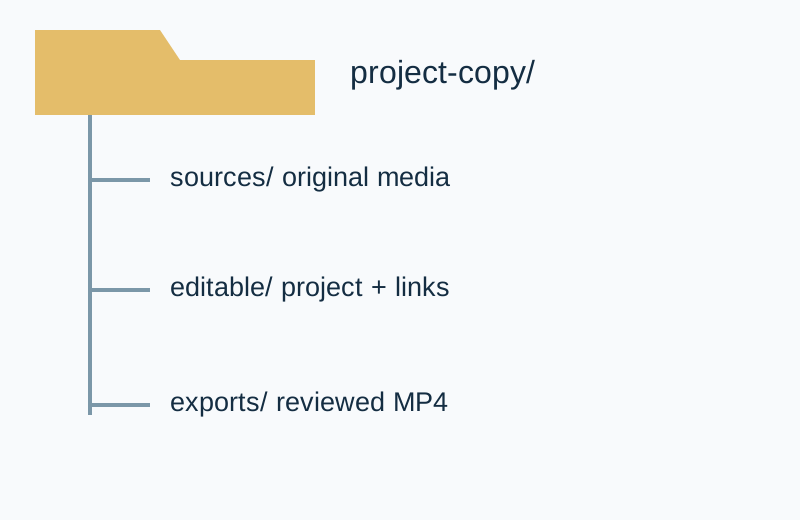
The first category is source material: the video, audio, images, fonts, and other assets your timeline relies on. A project may link to those files in their original location. Copying only a project file can leave it unable to find its media later. Record the sources and check their locations before cleaning up folders.
The second category is the editable project or supported project package. Use the application's available save, duplicate, or project-management route and check what it actually includes. A folder that exists is not yet a verified backup. Open the preserved copy in a suitable environment and confirm that its expected media and tracks are available.
The third category is the approved rendered export. Keep the final MP4 or other delivery file, review notes, and a small manifest that identifies its source project. An export lets you show the finished work even when a future edit becomes inconvenient, but it cannot restore all original layers, caption timing, effects, or source quality.
Check paid dependencies before the period ends
Inspect the specific project for premium effects, fonts, templates, music, storage, or other dependencies that could matter to a later revision. Do not assume every saved timeline remains exportable with exactly the same settings after access changes. The available controls and dependencies should be checked on the project you need to retain.
Create a simple preservation record with an item name, local or cloud location, dependency, backup status, and reopen result. The downloadable manifest includes a fictional short-video example and blank rows. It separates “copied” from “opened and checked,” which prevents a backup checklist from becoming a list of untested assumptions.
If you replace a paid effect or asset, make the change in a separate project version and compare the export. Watch the transitions, caption layout, audio, and ending. Preserve the earlier approved export so you can see what changed. Do not erase the only known-good version while testing a different route.
Plan the next edit around the actual task
The creator subscription audit helps decide which tools are worth retaining based on finished work. This guide covers carrying out a CapCut exit and preserving the files. Keep those decisions distinct so a billing change does not accidentally become an unplanned media migration.
For new source footage, Video Lab can support the relevant generation task. For a focused image correction, review the available editing tools. These are production destinations, not a promise to import or reconstruct a CapCut project. Keep the editable timeline in a compatible editor.
Finish the preservation review with a dated note: renewal status checked, source files copied, project reopened, final export reviewed, and unresolved dependencies listed. That gives the next editing session a usable starting point and keeps the billing confirmation separate from the creative backup.
Frequently asked questions
Does deleting CapCut cancel Pro?
No. Manage the subscription through its billing provider. Uninstalling an app is not proof that recurring billing stopped.
Where should I cancel if I use several devices?
Follow the original purchase route shown by the receipt or subscription record, not the device you happen to be editing on.
Does cancellation automatically give me a refund?
No. Refunds follow a separate process and depend on the purchase terms and billing provider.
Is my exported MP4 a complete project backup?
No. Preserve the original media and editable project separately if you need to make future revisions.
Can QuestStudio reopen my CapCut timeline?
This guide does not claim CapCut project import or timeline reconstruction. Use a compatible editor for the project and the relevant Lab for new media tasks.
Plan the next footage task
Use Video Lab when you need new source footage. Preserve the editable CapCut timeline in a compatible editor; a generated clip does not reconstruct a project.