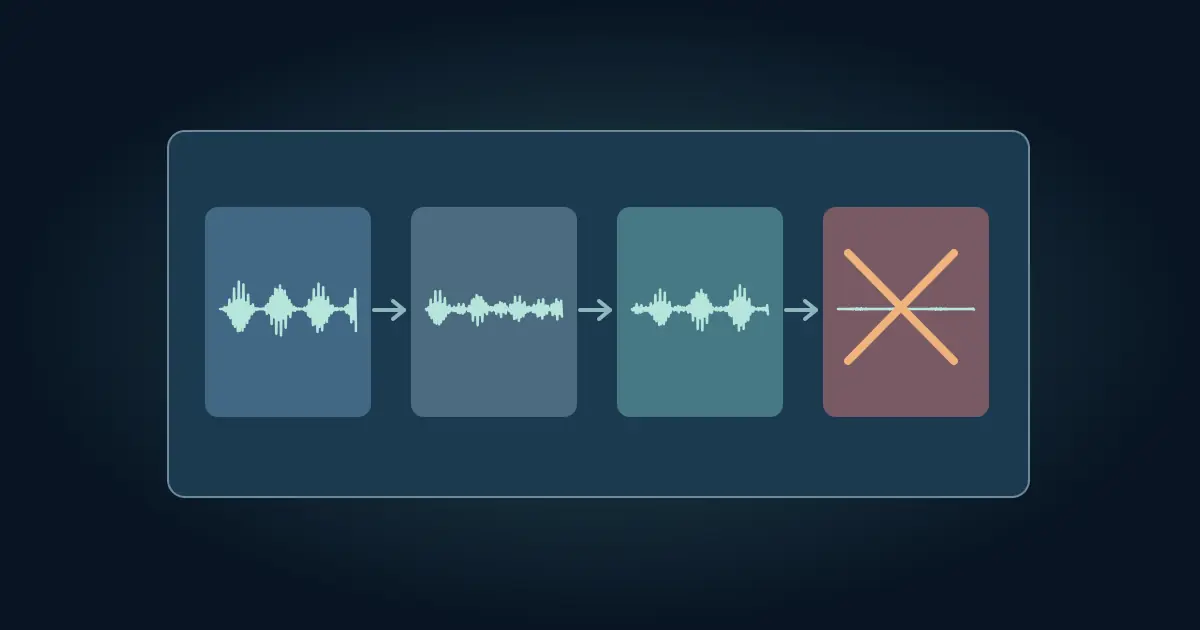

If CapCut has no sound, open the original clip in a separate player first. Then check the same moment in the CapCut timeline, including clip volume and mute settings. Finally export a short proof and play it outside CapCut. The first place where the sound disappears tells you where to work.
Missing music, a silent preview, and a silent posted video can look like the same issue. They often have different causes. A three-second test is faster than changing settings on an entire edit and hoping one of them helps.
Confirm there is sound in the source
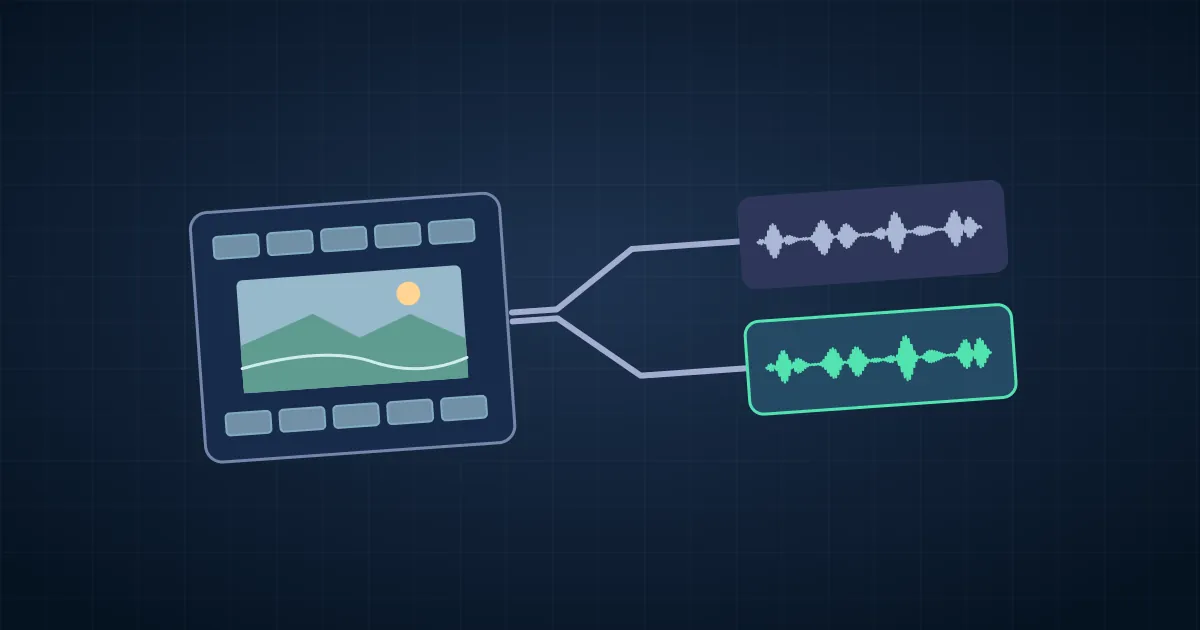
Open the exact file you imported and play the part where you expect sound. Try headphones or a second player if the file appears silent. A screen recording may have captured video without the microphone or system audio. A camera file can have multiple audio tracks, with the needed voice on a different stream.
If another player exposes a track selector, listen to each relevant track. The audio extraction guide explains how to identify which stream contains the intended sound. If the source has no usable audio, choose the approved recording or separate sound file before making changes in CapCut.
Add one short known-good audio clip to a duplicate project or an empty test timeline. Choose audio you can play outside CapCut. If that clip plays while the original does not, investigate the original file or import settings. If both fail, check the timeline controls and your playback device before changing the source.
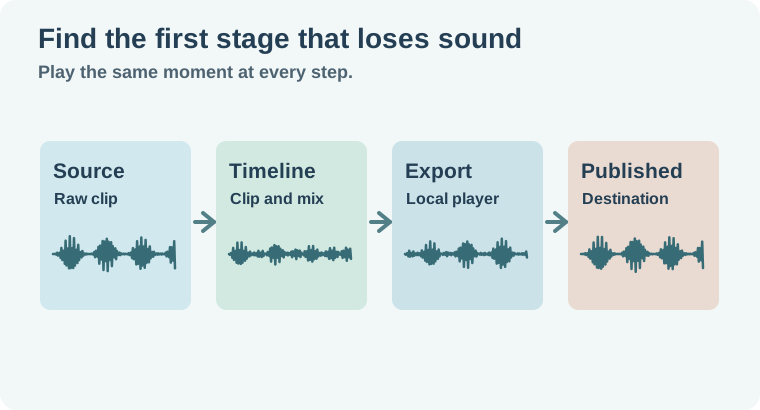
Check the exact timeline section
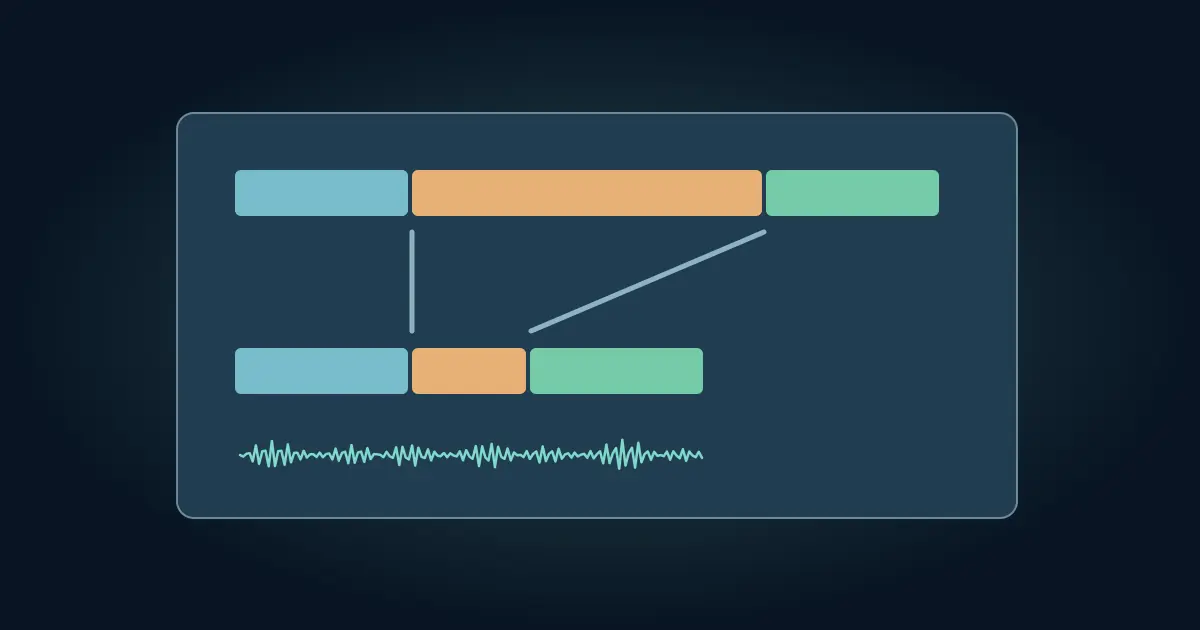
Move the playhead to the affected moment. Select the audio or video clip and inspect its volume in the available controls. Check whether the clip or track is muted and whether a keyframe or fade has reduced the level near the playhead. Look at the position of a separate music track. A cue can be on the timeline and still end before the place you are previewing.
CapCut's sound troubleshooting help describes checks for volume, silent inputs, device playback and the selected timeline range. If the editor shows audio activity but you hear nothing, test the device output with another app. Check whether the system moved sound to a Bluetooth device, display or headphones. If one project is silent while a clean test project plays, compare the project state before reinstalling anything.
If sound disappeared after a speed change or a split, inspect the modified part first. A detached track may be in a different place or muted. Follow the CapCut speed and audio guide to recheck separate narration and music against the revised edit.
Export a proof and play it away from CapCut
Choose a short range that should contain both picture and sound. Export with the intended video and audio settings. Play the file in an external player, starting just before the expected cue. If the exported file plays while the editor is silent, focus on preview or output routing. If the export is silent and the timeline is audible, check the export path and which tracks or range it includes.
When only one track disappears, make a new proof with that track isolated. This can help you distinguish low mix level from missing audio. Keep the original project before changing the mix. If the missing part is actually present but shifted out of place, the audio sync diagnosis covers alignment and drift.
When the timeline and export disagree, use one recognizable test sound. Place it alone in a short duplicate project and export that project with the same settings. If the test sound exports correctly, return to the original and check the affected clip, timing and audio mix. If the test also fails, try the same source in a second local player and inspect the settings that affect the output. This saves you from editing tracks that were never part of the failure.
Separate a local result from a posted result
If the local proof has sound and the published video does not, compare the same timestamp on both. Check the platform's playback controls and any notice about the music. Availability of music can depend on the source, account or destination. Keep a local proof and use audio approved for the actual publishing route.
For a fictional workshop short, suppose the narration plays throughout, but a song never enters at second four. First play the source song, then check that its CapCut clip covers second four with its level up. Export seconds three through seven. If it plays locally and disappears only in the posted player, you have narrowed the problem to delivery or playback rather than the edit.
How QuestStudio helps
Use Music Lab to make a separate candidate bed if the original music is unsuitable for the intended destination. Keep it on its own track and compare the result against the same section. Solve the silent timeline or export first so the replacement audio can be checked on a working path.
Save the short proof that showed the failure and the one that fixed it. That gives you a reference if sound disappears again after a later edit.
Download the capcut audio fault isolation sheet.
Frequently asked questions
Why does the original video have no sound either?
Check for another audio track and confirm what the recording actually captured. If there is no usable sound, supply the intended source.
Why is the timeline silent while the export plays?
The preview or device output may be the issue. Test playback in another app and check the selected output device.
What if only music is missing?
Check whether the music exists at the playhead, whether it is muted, and whether the local export contains it.
Why is the posted video silent but the local file works?
Check the destination player and any platform notice about the audio. Compare the same timestamp in both versions.
Do I have to export the entire edit to test this?
Use a short proof around the affected moment. Then verify the full export after the correction.