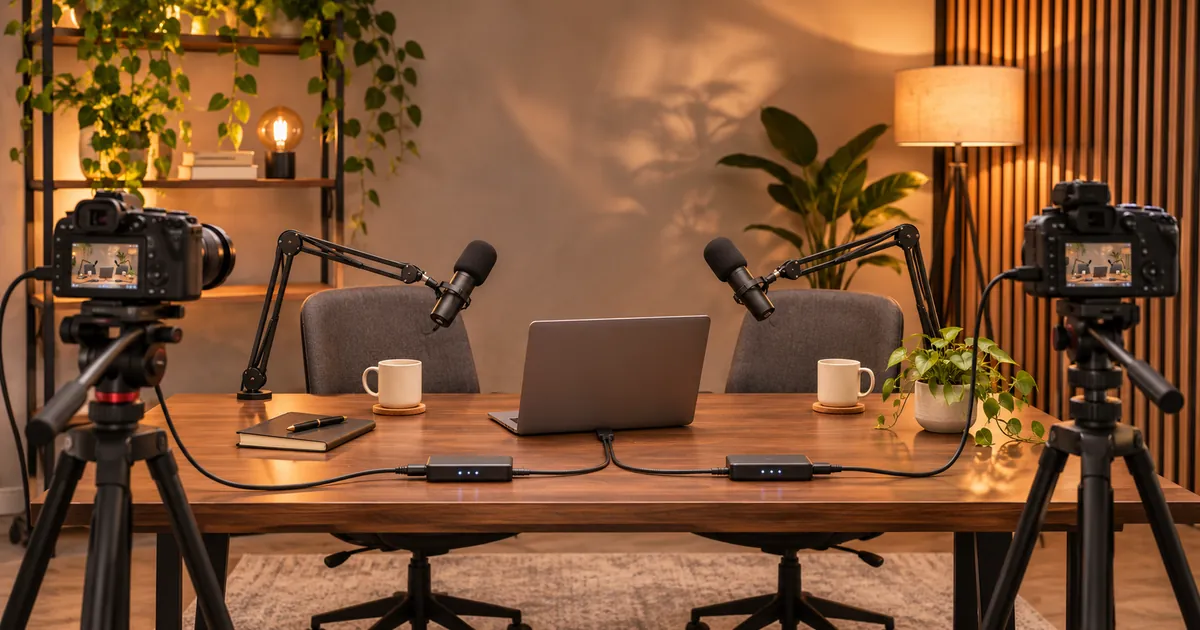

Two HDMI cameras need two working paths into your recorder if you want to switch them live or display them together. An Elgato Cam Link 4K serves one HDMI feed. Before buying two, verify that the host can give each device the USB connection Elgato specifies. If you only need both angles in the edit, check whether recording one or both cameras internally would meet the job.
Gear to consider
We may earn a commission if you buy through these Amazon links.
Elgato Cam Link 4K
For one supported HDMI feed per device
Buy for the verified feed. Add a second only if the computer can support Elgato's separate-root-hub arrangement and the rehearsal stays stable.
Choose what needs to reach OBS
Give each camera a role. A wide angle can cover the entire conversation and recover a missed cut. A close angle can show a host, a guest or the object on the table. For a live layout, both feeds need to be present when you switch. For an edited episode, one camera can record internally while the wide is recorded in OBS, or both can record internally while OBS handles a room reference or live preview. Mark how each camera will be synced and powered.
Confirm that both models can output clean HDMI in the intended recording mode. Remove focus boxes and status overlays through the camera's settings, then test sleep behavior, continuous power and operating temperature. A device that showed a clean picture during a short call might stop during a full episode. Pay particular attention to the manufacturer instructions when internal recording and HDMI output are used together.
Check the USB topology before buying
Elgato's two-device guide explains that two Elgato USB 3 capture devices need separate USB 3 root hubs. Two connectors on the outside of the laptop can lead to the same hub. A dock connected to one upstream port can place multiple devices on the same path. Inspect the host the way the guide describes, verify the supplied connection, and leave room for your interface and storage.
The MMORPG.com Cam Link hands-on review and similar demonstrations are useful for seeing how one mirrorless camera appears as a webcam. A review of a one-camera setup only establishes that setup. Elgato's frozen-video troubleshooting is more actionable for two feeds. Start with a common mode such as 1080p30 if both cameras and capture paths document it. Increase resolution only after the initial rehearsal is repeatable.
| Production plan | Fit | Verify first |
|---|---|---|
| Two inputs in OBS | Live scene switching and two-up layouts | Independent USB root hubs and a long test |
| One input plus in-camera recording | Edited episodes with a safe wide shot | Card capacity, power and an audible sync event |
| External HDMI switcher | Hardware switching into one host feed | Outputs and whether individual angles are recorded |
| One well-framed camera | Solo episodes or limited host connections | A recording that covers every speaker cleanly |
Keep one audio clock in the live mix
Use a dedicated interface or one verified input as the main speech path in OBS. Mute unused capture audio in the live mix so voices aren't doubled. Keep a camera scratch track when your post-production process needs it. Label sources by role, such as Camera A wide or Camera B guest, and verify each label by briefly covering its lens before changing scenes. This saves time when the capture devices have similar names.
Record a visible clap or another sharp common event. Play the test back and check lip sync on both angles. Check again near the end of a session-length rehearsal. A fixed offset can be handled differently from drift over time. When a picture freezes, test each device individually, then repeat with both and watch for contention around ports, storage and power. Start your first live episode with the fallback scene visible in the project.
Make the backup part of the rehearsal
Use the camera streaming capture guide for the single-source compatibility test. Keep the OBS audio track guide nearby if you need a main mix and editing stems. Record a rehearsal with the live mix and independent camera fallback running. Disable one feed and continue the conversation. Verify afterward that the wide and the audio stayed usable and that you can cut around the missing angle.
Put the date, recording format and planned session length in the notes. If you start at a console, let someone else run the fallback for a few minutes without guidance. Check whether they can find the wide shot and keep the conversation moving. Then read back the file from the drive you will actually use. Confirm that both start and end play correctly and that the recording contains speech during the interrupted section.
Distinguish the live switch from the edit
A normal OBS recording of your switched scene is useful for publishing quickly. If you want to reshape the conversation in post, plan where the individual source files will be written before the first session. An internal recording can provide a clean isolated angle even if that camera is shown in the live mix. Agree on matching base frame rates where your equipment allows it, then check a long clip in your editor. Note any drift or interrupted camera file before locking your workflow.
Plan your angles in QuestStudio
Sketch the wide and close compositions before moving the stands. Video Lab can help storyboard intro, main conversation and cutaway frames. Give each beat a purpose and build OBS scenes around the angles you can support for the full recording.
Frequently asked questions
Does one Cam Link capture both cameras?
It takes one HDMI input. Use a separate path for each angle you need simultaneously or use a compatible external switcher when one switched output meets the production plan.
Can I put both capture cards on one powered hub?
Extra USB power does not create a new root hub. Follow Elgato's guidance and verify the topology with both devices in the test.
Do both cameras have to be the same?
They can differ if each produces a supported clean signal and both hold the format you need. Check matching exposure and color, power, sleep and alignment.
Is 4K essential for a video podcast?
Choose the delivery format and crop needs first. A verified 1080p setup can be a sensible starting point for a two-camera production.
Buy the capture path your host can support
Buy one Cam Link for one verified camera feed. Add a second only after confirming separate root hubs and the software's behavior with both feeds. If you use internal recording for the second angle, reserve the budget for independent audio and a dependable rehearsal.
Download the setup checklist (CSV)
Ready to check the listing?
We may earn a commission if you buy through these Amazon links.
Elgato Cam Link 4K
Sources and further reading
Affiliate disclosure
As an Amazon Associate I earn from qualifying purchases. Recommendations draw on product documentation and the external tests linked above. The hero is an AI-generated setup illustration.
Continue with a useful next step
 Video
Capture Cards for Cameras: Check the Whole Recording Path
Connect a camera to your computer with the right HDMI capture adapter. Check clean output, USB support, Cam Link revisions, audio sync and a real recording.
 Creator Workflows
OBS Separate Audio Tracks for Mic and Desktop Sound
Set up separate mic and desktop audio tracks in OBS. Keep a combined preview mix, test the isolated tracks and fix missing or doubled audio before editing.