
A capture adapter can turn an existing HDMI camera into a computer video source, but only when the camera, adapter, USB connection and recording app agree. Before buying, check whether your camera already offers a USB webcam mode that meets your needs. If it does, an HDMI adapter may add complexity without improving the finished video.
A product to consider
Check the fit below, then select Buy on Amazon for the current offer and buying options. We may earn a commission from this paid link.
Elgato Cam Link 4K
For one compatible camera with clean HDMI output
A compact HDMI-to-USB capture option for a creator who already owns a suitable camera. Check the supplied hardware revision: 4K60 requires the latest model and MJPEG. HDMI cable and camera power are separate setup requirements.
Download the practical worksheet
Original blank CSV worksheet. Record your own setup and observations.
Begin with the camera you already own
Write the exact camera model, the recording application and the result you need. A seated course introduction, a live product demonstration and gameplay capture are different jobs. You may want a reliable 1080p presenter feed rather than the highest advertised number on the box.
Check the camera manufacturer's supported webcam method first. Some cameras offer a direct USB video mode or official webcam utility. Verify its operating-system support and output limits. If that path produces a clear, stable image for your destination, keep it as a baseline before buying an HDMI device.
If you do not already own a suitable camera, compare the complete cost with a dedicated creator webcam. A capture adapter is one part of the setup. Camera power, lens choice, HDMI cable, mounting and extra setup time also count.
What a capture adapter actually does
The adapter receives a video signal from the camera and presents it to compatible software on the computer. It does not improve the original focus, lighting or lens. It also does not guarantee that a meeting service will transmit the full resolution the adapter can accept.
Keep three specifications separate: the camera's HDMI output, the adapter's supported capture modes and the application's saved file. A camera might record one format internally while outputting a different one over HDMI. Confirm the external-output settings in the camera manual.
A gameplay capture card may include HDMI passthrough so a display can receive a separate output. A compact camera adapter does not automatically provide that feature. Elgato's camera-adapter comparison is useful for understanding these different jobs. Choose by the required signal path, not the shared word “capture.”
When Cam Link 4K is a reasonable choice
Elgato Cam Link 4K is a conditional option for one compatible HDMI camera feeding a computer. Its appeal here is the straightforward camera-to-USB role. We have not measured its latency, thermal behavior or performance in QuestStudio testing, and we do not rank it above every competing device.
The name spans hardware revisions. Elgato's supported-source documentation lists 4K at up to 30 fps for the older capability set and adds 4K at up to 60 fps for the latest model, using MJPEG above 30 fps. A shared listing name or an older review is not proof that a particular unit supplies the newer mode.
If 4K60 is essential, verify the offered revision and your application's compatible format before ordering. For a normal presenter shot, a stable 1080p mode may be sufficient. Decide using your delivery needs rather than paying for a mode that your software or audience will never receive.
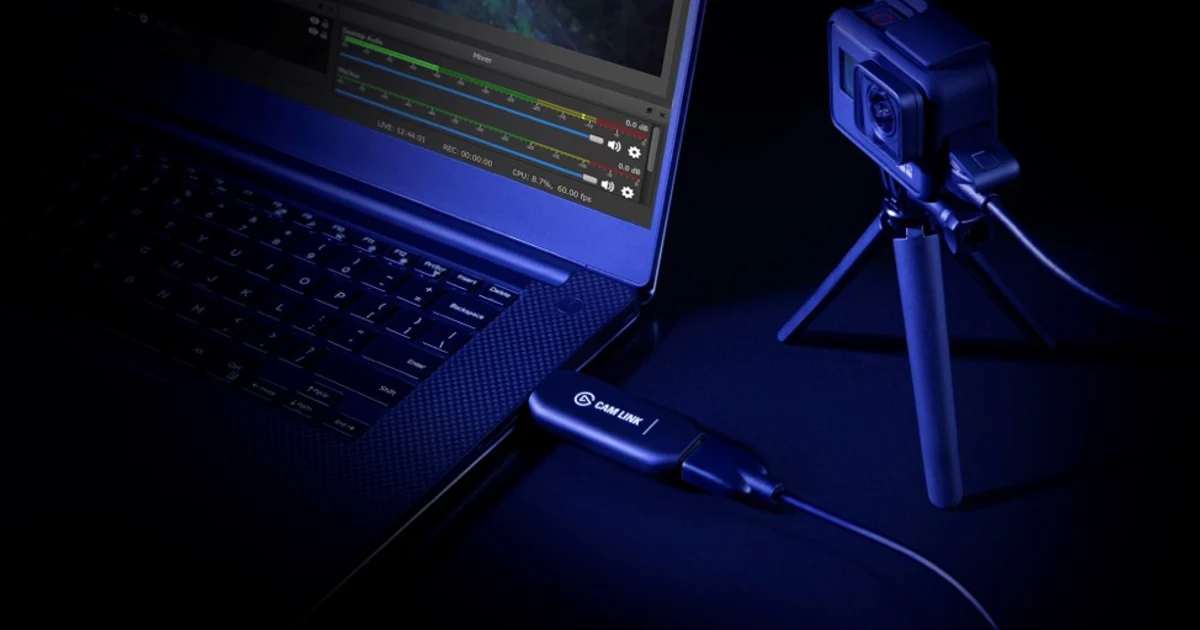
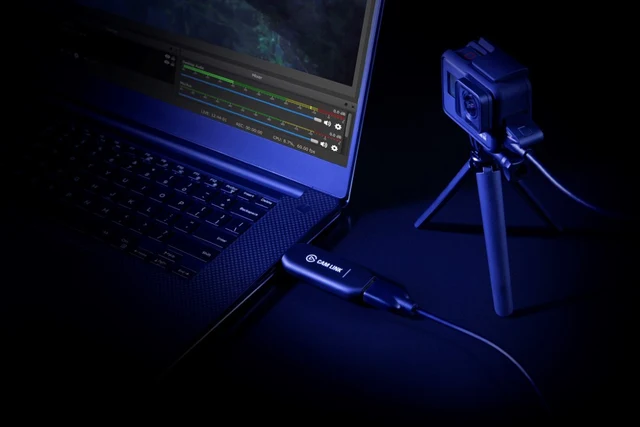
The product card shows an official launch setup photograph. It illustrates the connection, not a QuestStudio test or the contents of your order. The linked purchase is the capture device; the photographed camera, laptop and tripod are separate.
Check clean HDMI, power and physical fit
Elgato's camera compatibility checklist calls for HDMI output with overlays disabled. That is “clean HDMI”: the signal should not permanently include focus boxes, menus or battery icons. The adapter cannot reliably remove those overlays after the camera has placed them in the video.
Use the camera's manual to identify its HDMI connector and supported cable. Mini HDMI, micro HDMI and full-size HDMI are different connectors. Leave enough cable slack to avoid pulling on the camera socket, and use a supported mounting arrangement. The current Cam Link product information states that an HDMI cable is not included.
Check whether the camera supports continuous operation and an appropriate external power source. A camera can appear to work during setup and then stop during a long recording. Do not disable protective thermal behavior or substitute an undocumented power adapter to force longer operation.
Cam Link expects an unencrypted HDMI source. Protected video from another device is not a compatibility problem to solve by bypassing its protection. For this guide, the intended source is your own camera output.
Prove the USB and software path
Begin with a direct connection to a documented USB 3.0-capable port. A connector adapter changes physical fit; it does not upgrade the host's capabilities. Use the USB-C speed guide to record the host, adapter and hub instead of relying on port color or shape.
In your recording application, select the capture device explicitly and choose a supported resolution and frame rate. Then save a short local file. A working preview is encouraging, but the saved file is what exposes dropped motion, incorrect dimensions or an audio source that was never selected.
Add other peripherals only after the direct baseline works. If trouble begins when a hub, webcam or external drive joins the setup, simplify the connection again. Keep notes about which combination fails. That is more useful than buying a second capture adapter without identifying the bottleneck.
Run a private recording acceptance check
Use the worksheet to record your exact setup and perform a short rehearsal before a paid presentation or public stream. Save the sample and its settings so you can repeat the check after software or firmware changes.
- Picture: show a face, readable card and moving hand. Check focus, overlays, framing and motion in the file.
- Audio: select either camera audio or your intended external microphone. Make one visible hand clap to inspect synchronization.
- Duration: rehearse for the length relevant to your task, watching for camera shutdown or instability.
- Destination: check the receiving application or a private call. Local capture quality and delivered quality are separate results.
- Recovery: record how to select the correct source again after a normal reconnect.
If audio is early or late, check the application's synchronization controls and repeat the clap test. Avoid guessing an offset from someone else's setup. For a separate narration microphone, the USB microphone guide covers source quality and placement. A capture adapter does not repair room echo.
Build around real footage
Keep the genuine presenter recording as the factual source. Use QuestStudio Video Lab for a separate supporting visual when the explanation benefits from one. For example, a recording about a creative process can include an illustrative transition, while the actual software demonstration remains a screen recording.
Label the source files and generated assets clearly. Review the final export for audio sync and accurate product behavior, especially where an insert covers a cut. This makes the capture purchase part of a useful production workflow rather than a promise that more equipment automatically makes better content.
Frequently asked questions
Do I need a capture card for every camera?
No. Check the camera’s supported USB webcam mode first. HDMI capture is useful when that path better meets your output and software requirements.
Can every Cam Link 4K capture 4K60?
No. Elgato specifies 4K60 for the latest hardware model, using MJPEG above 30 fps. Confirm the offered revision and supported application format.
Does clean HDMI mean no sound?
No. Clean refers to removing visual overlays. Whether HDMI audio is available and selected depends on the camera and software settings.
Is an HDMI cable included?
Elgato’s current Cam Link 4K product information says it is not. Choose the correct camera-end connector and a suitable cable for the required mode.
Will this improve AI video generation speed?
No. It changes how real camera footage reaches your computer. It does not accelerate QuestStudio’s cloud generation.
Sources and further reading
Sources and exact product listings checked October 27, 2026. Images: credited manufacturer press material, not QuestStudio test photographs. Original decision framework and worksheet: QuestStudio.
Affiliate disclosure and research approach
As an Amazon Associate I earn from qualifying purchases. If you buy through paid links, QuestStudio may earn a commission at no extra cost to you. See our editorial and affiliate policy.
This is a research-based guide using linked manufacturer documentation and clearly attributed published reviews where available. We have not tested this equipment hands-on. The worksheets are original exercises for your observations, not published test results.