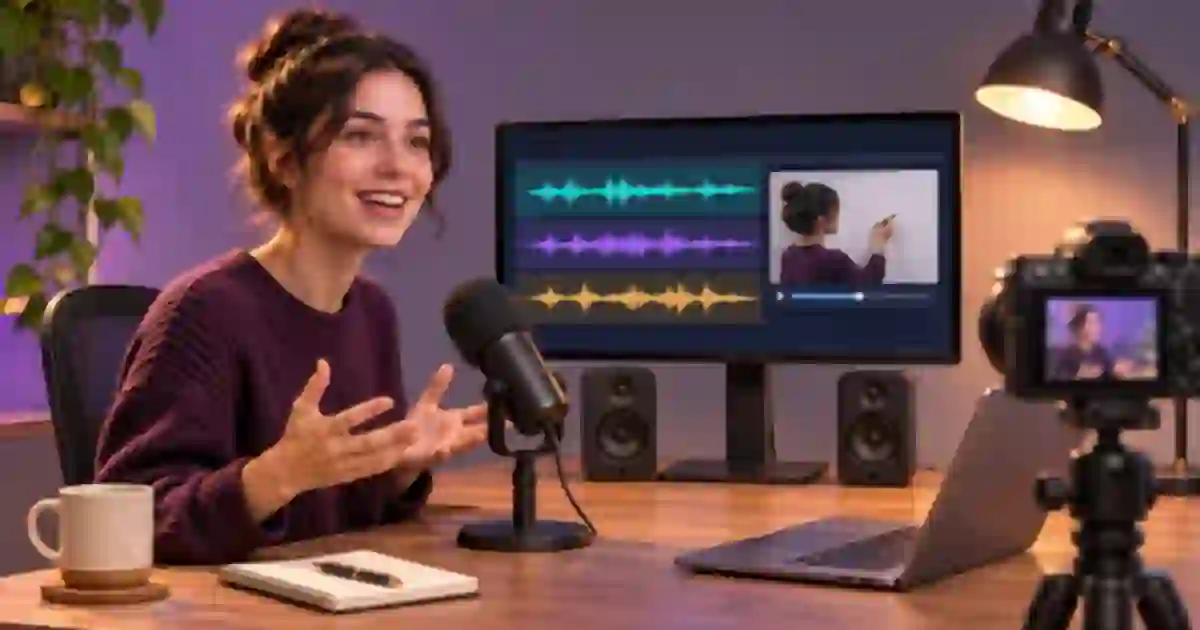

For an OBS tutorial where I need to edit narration and computer sound independently, I recommend three recording tracks. Put a combined listening mix on track 1, the microphone by itself on track 2, and the application sound by itself on track 3. The combined track makes the file easy to preview. The isolated tracks give the editor separate controls.
My gear pick for this setup
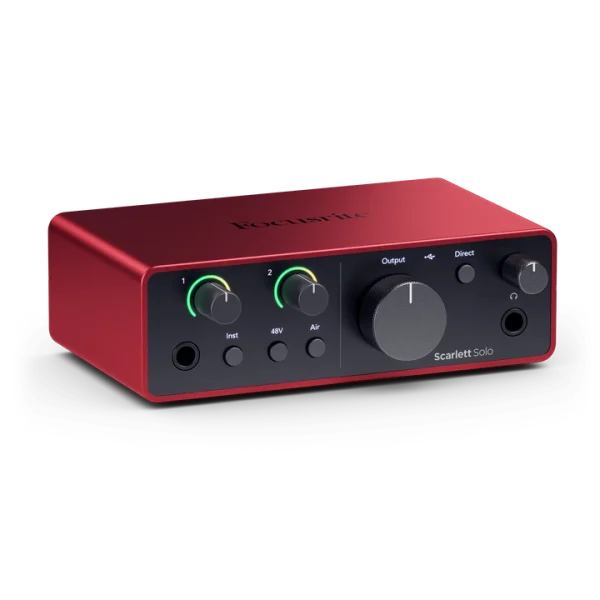
Focusrite Scarlett Solo, 4th generation
A dedicated microphone source for OBS
I’d use the Scarlett Solo as a separate source if your narration mic uses XLR. OBS creates the recording tracks. Your existing USB mic can serve as the mic source if it already sounds clean.
Plan which sounds belong in the file
Start with a simple scene and decide which sounds the viewer needs. For a tutorial that demonstrates an editor, I want the narration and a short sound from the editor. I want notifications and unrelated browser tabs out of that recording. If your platform and OBS setup support capturing an individual application, select the one you need. Otherwise, close unrelated sound sources and capture the intended desktop output. Avoid adding both a global capture and a per-application capture for the same sound unless you have deliberately routed them to avoid duplication.
Confirm the microphone source before planning tracks. Speak one short line and verify that only the intended mic meter moves. Play a computer sound while staying quiet and verify that the computer audio meter moves. Use headphones if speakers would leak into the microphone. With the right sources on the mixer, routing takes only a few assignments and you have a clear test for each one.
Assign the three tracks in OBS
Open the advanced audio properties from the Audio Mixer. For the microphone source, select tracks 1 and 2 and clear 3. For application or desktop audio, select 1 and 3 and clear 2. In the recording output settings, enable the same three tracks using a recording mode and container that support multiple tracks. The exact labels can vary with version and output mode. Follow the official OBS guide for the current controls and screenshots.
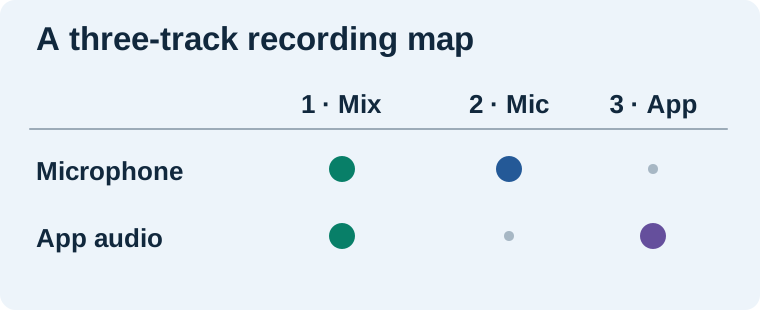
Source assignment and recording output are separate. I check them both whenever a file arrives with one audible track. If track 2 is assigned to the microphone but disabled for recording, it will be missing from the exported file. If a track is enabled with no source assigned, it can be silent. In a typical video player you may hear only the default track at first. Import the recording into your editor or use a player with a track selector to inspect the individual tracks.
Record a short test with a recognizable sequence
I use three audible moments. Say “voice only” for a few seconds with no computer audio. Then stay quiet and play a short permitted system or application sound. Finally, speak while the application plays. Stop and open the recording. Track 1 should contain all three moments. Track 2 should contain the two spoken moments, plus any room background picked up by the mic. Track 3 should contain the application sound in the second and third moments.
Use a recording container your editor accepts. OBS’s guide recommends MKV for conventional recording because it is more resilient to interruptions, with remuxing available for workflows that require MP4. Remuxing changes the container without mixing the tracks together. Verify that your chosen editor imports the resulting tracks before recording the full project. Where an editor opens only the default track, check its import options and the file with a player that can select the audio streams.
Diagnose doubled or missing audio
| Symptom | First place I check |
|---|---|
| Voice plays on the desktop-only track | Check desktop capture for microphone monitoring or loopback. |
| Computer sound plays on the mic-only track | Check track assignments and speaker bleed into the mic. |
| The imported edit sounds doubled | Mute the combined track when you use the two isolated tracks. |
| One track is missing | Check both its source assignment and the recording track list. |
Save the routing notes with the recording template. A new interface, app or scene collection can change which source receives the sound. Repeat the short test after a change. The complete OBS screen recording tutorial covers scene setup and a capture rehearsal. The USB microphone guide helps if your recording setup needs a separate voice source.
Keep replacement narration on its own track
In the edit, keep the isolated application track intact and put any approved replacement line on a separate lane. If you use Voice Lab, audition the new line against the picture and the existing app audio before exporting. For the final mix, listen once with the reference track muted and check that narration and interface sounds are present at the intended moments. I keep the source recording because a later recut may need the original timing and separated sound.
When an editor makes the isolated tracks available, label them immediately. Use names such as Reference Mix, Narration and Application. Save a copy of the project before muting the reference track. Clear names help a second editor check that a missing sound was deliberately removed instead of accidentally lost during import.
Test what each exported track actually contains
I label the three parts of the rehearsal in my notes as voice, desktop and both. Import the file into your editor and solo track 2. You should hear the words in the first and third parts. Solo track 3 next and listen for the application sound in the second and third parts. If you hear both sources on every track, return to the source assignments. If you see only track 1, check the recording settings and then the import path. Once the isolated tracks are confirmed, keep a screenshot of your own OBS settings for that scene and record the track map in the worksheet.
Download the screen recording workflow worksheet (CSV)
Frequently asked questions
Does OBS create three audio files when I enable three tracks?
The standard recording workflow can store multiple audio streams in one video file. Import or extract the desired tracks in a compatible editor or tool.
Why do I only hear one track in my video player?
Many players play one selected audio stream at a time. Use a track menu or an editor that shows all recorded tracks to check the rest.
Why does my edit sound louder or doubled?
If the combined reference track plays alongside the isolated tracks, both sources may be heard twice. Mute the reference mix while editing the separated audio.
Do I have to capture all desktop audio?
Use an application-specific capture where your platform and setup support it. Verify that the sound enters the mixer through the intended source only.
Sources and further reading
Affiliate disclosure
As an Amazon Associate I earn from qualifying purchases.
Continue with a useful next step
 Creator Workflows
OBS Screen Recording: Capture a Clear First Tutorial
Set up an OBS screen recording with a deliberate capture source, clean microphone routing, and an export check. Use a short test plan before your full tutorial.
 Voice
USB Microphones for Voice Cloning and Clean Narration
Choose a USB microphone for narration and voice-clone samples. Compare Shure MV7+ and RØDE PodMic USB, then check room noise, monitoring and processing.
 Voice
How to Record Room Tone for Cleaner Voiceover Edits
Record room tone with your voiceover mic and use it to smooth narration cuts. Learn what to capture, where to crossfade and how to check a repaired pause.