
To change a YouTube handle on desktop, open YouTube Studio, go to Customization, then Profile, edit the Handle field, and publish the change. The channel name is a separate field in the same profile area. Choose which identity you intend to change before updating graphics and links.
The official route was checked on November 1, 2026. No live account was renamed for this guide. The worked example is a fictional channel moving from Linden Frame Notes to Linden Frame Studio, with illustrative handle strings that have not been checked for availability.
Name and handle answer different questions
The channel name is the display identity. The handle is the unique identifier used for the channel’s handle presence. Treat them as separate entries in your change plan. A visual rebrand may affect both, while a correction to a display name may not require the same set of link changes.
YouTube’s profile-management guidance says names and handles can each be changed twice within a 14-day period. It also notes that a name change can take a few days to appear across YouTube and removes the verification badge. Review the current instructions and the consequences relevant to your channel before publishing the change.
Do not confuse the channel name with the Google Account name. The official guide distinguishes those identities. If your aim is to update a creator channel, check that you are editing the intended channel profile rather than changing an unrelated account field.
Prepare the new identity before opening the controls
Write the exact intended channel name and handle in a small approved record. Include capitalization for the display name, the handle string you want to request, and the person responsible for the decision. A spelling change made during the final click-through can leave the artwork and links based on a different version.
For the fictional example, the display name changes from Linden Frame Notes to Linden Frame Studio. The illustrative handle changes from @LindenFrameNotes to @LindenFrameStudio. These strings are teaching examples only. Their presence here does not mean they are available, belong to the same real channel, or should be adopted by a reader.
List the reason for the change in one sentence. The fictional channel is expanding from short notes into practical studio tutorials, so the new identity should support that scope. Avoid changing the name simply because a new graphic looks attractive. The identity needs to remain understandable when spoken in a video introduction or shown beside a small avatar.
Follow the official desktop route
Sign in to the intended channel in YouTube Studio. Open Customization, then Profile. For a display-name change, edit the name field. For a handle change, use the Handle field. Review the exact text and any account feedback before selecting Publish. Use the official handle guidance if you need to check naming rules or handle behavior.
This article does not reproduce a fake account screen or claim that a particular handle was accepted. The route comes from current official documentation. Your account may show feedback about the requested string or other conditions; read that feedback instead of assuming the fictional example will pass.
Record the accepted identity after the change. If the requested handle is unavailable, stop and approve a new string before updating every external reference. A near-match chosen in a hurry can be difficult to say, spell, or maintain consistently across the rest of the brand.
Make a dependency ledger for the rebrand
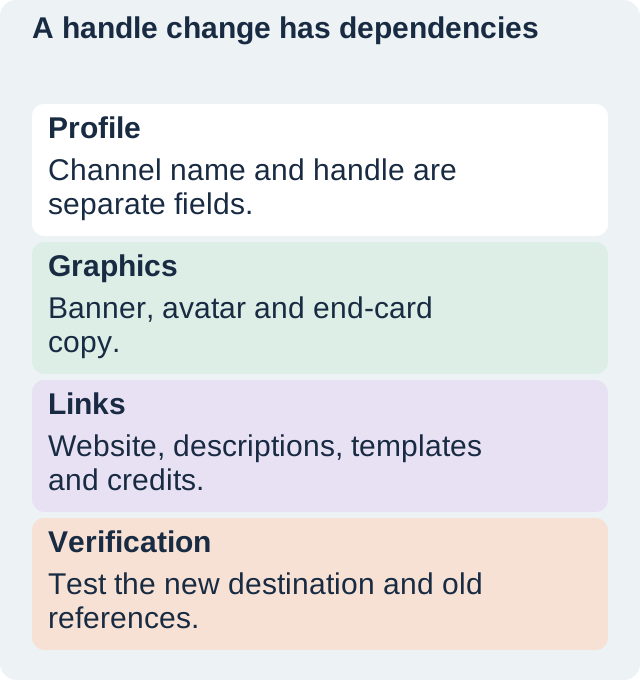
The useful checklist reaches beyond the profile. Include the channel banner, avatar source file, end cards, video description templates, website links, social profiles, media kit, and reusable credits. Record where each old string appears and whether it should change. Not every historical mention needs to be rewritten, but every current navigation link needs an intentional decision.
Assign one owner and one verification result per surface. “Website updated” is vague if a footer link still uses the old handle. A stronger record identifies the page or component, the new destination, and the result of opening that exact link. Keep unresolved items visible until someone checks them.
| Surface | Fictional change | Verification task |
|---|---|---|
| Channel profile | Notes → Studio | Confirm the intended profile shows the accepted identity. |
| Banner and end card | Replace the old display name | Inspect the final export and editable source. |
| Website channel link | Use the accepted channel destination | Open the exact link from the published page. |
| Description templates | Update recurring current references | Check the template and a new draft using it. |
| Credits and media kit | Apply approved name and link | Review the distributed file version. |
Update graphics from editable sources
A profile change does not rewrite a banner image or a video end card. Open the editable source, replace the approved text, and export a new version. Check the result at the size where viewers will see it. Long names can alter line breaks or push important content toward a crop boundary.
Use the YouTube banner safe-area guide for the banner layout and the profile-picture workflow for the avatar. Keep the artwork concept and exact name text as separate decisions. An image model may help create the visual direction, while the final identity string should remain editable and checked.
For the fictional rebrand, a blue avatar concept might stay recognizable while the banner title changes. That is a design option, not a rule that every rebrand needs a new avatar. Preserve useful visual recognition when it still serves the channel, and document which files were intentionally retained.
Test links as a viewer would encounter them
Open the current channel link from the website, a description template, and any other important public entry point. Check that it leads to the intended channel rather than simply confirming that a page loaded. Compare the visible identity and content with the accepted record.
Keep a list of old references that remain in historical videos or files. If an old on-screen end card cannot be edited, decide whether a description update or another current reference is appropriate. Do not claim the whole rebrand is complete while the highest-use navigation path still confuses viewers.
A delayed display update is different from a broken external link. The official guidance notes that a name can take time to appear across YouTube. Record what changed, where it is visible, and which surface still needs another check. Avoid repeated edits just because one view has not updated immediately.
Troubleshoot without changing unrelated account details
If a handle request is rejected, read the specific account message and the official handle rules. Check the exact characters you entered and whether the requested identity is available. Do not assume changing the Google Account name will solve a handle problem. The fields serve different purposes.
If the profile is right but the banner is wrong, repair the graphic source and export. If a website link is wrong, update that link and retest it. If a collaborator uses an older media kit, send the accepted current file through your normal communication process. Each defect belongs to a different part of the dependency ledger.
Before a second identity change, check the current change limits and approve the replacement string. A temporary guess can consume a permitted change and create more cleanup. It is usually easier to investigate the shortlist before publishing than to repair several rounds of public references afterward.
How QuestStudio helps prepare replacement artwork
Use Image Lab for an original channel-art concept that fits the approved identity. Keep exact lettering in an editable design step and review the final banner or avatar at its actual crop. The artwork should make the channel recognizable without depending on tiny text that disappears in a small display.
Finish with the accepted profile identity, the current graphic exports, tested navigation links, and a dated ledger of remaining references. This guide leaves all real accounts unchanged. Use the fictional worksheet to plan your own rebrand before making a live profile decision.
Download the original practice worksheet
Frequently asked questions
Where do I change a handle on desktop?
The checked official route is YouTube Studio, Customization, Profile, then Handle and Publish.
Is the channel name the same as the handle?
No. They are separate profile fields and may affect different parts of your identity and links.
How often can I change them?
The official guide checked on November 1, 2026 says each can be changed twice within a 14-day period. Verify current guidance before acting.
Were the example handles checked or changed?
No. They are fictional illustrative strings, and no account was renamed.
What should I check after the profile update?
Inspect the accepted identity, exported artwork, current website and description links, templates, and any remaining high-use references.
Prepare the replacement channel artwork
Use Image Lab for a new visual concept, then apply the approved identity consistently across the channel assets.
Hero: AI-generated editorial illustration. Original teaching materials and documented feature research, checked November 1, 2026. Examples are labeled where synthetic or hypothetical.