
For a YouTube banner, use a 2560 × 1440 pixel canvas and keep the important text in the center. YouTube currently lists a 2048 × 1152 minimum, a 16:9 ratio, and a maximum file size of 6 MB. Its documented text-and-logo safe area is 1235 × 338 pixels at that minimum size.
The difficult part is keeping the channel name readable when the image is cropped. A banner can meet the upload dimensions and still lose its message on a phone. This guide includes an editable original template and a practical crop review, with the documented dimensions separated from our own conservative working guides.
Keep the three measurements separate
The full canvas supplies the background. The safe area protects the essential message. The file-size limit controls the uploaded file's weight. Increasing one does not automatically solve the others.
| Measurement | Current guidance | Design decision |
|---|---|---|
| Minimum canvas | 2048 × 1152 pixels | Do not start smaller |
| Recommended canvas | 2560 × 1440 pixels | Use for the editable master |
| Safe area at minimum | 1235 × 338 pixels | Protect text and logos centrally |
| Maximum file size | 6 MB | Check the actual export |
The source is YouTube's channel-branding guidance. The same image can appear differently across displays. Its upload preview and your actual channel are the final checks for a particular design.
Use the template as a working layout
Download the editable banner template. It contains a fictional Cedar Workshop identity, a broad background, and two center guides. Open it in a vector or layout editor that supports SVG. Replace the sample wording and artwork with your own approved channel identity.
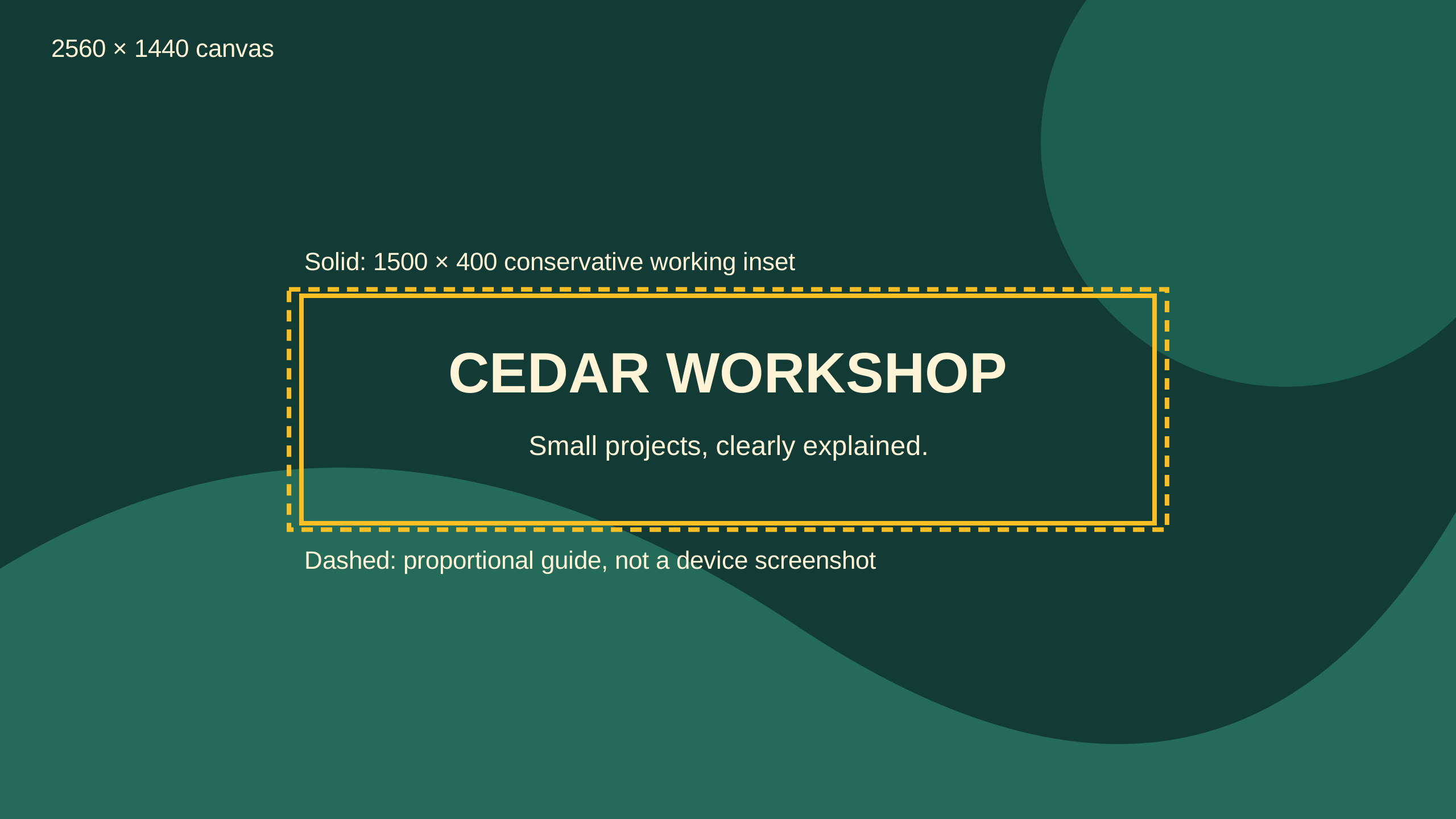
The dashed guide is a proportional calculation, not another official measurement: 2560 ÷ 2048 = 1.25; 1235 × 1.25 = 1543.75; 338 × 1.25 = 422.5. The solid 1500 × 400 guide is our more conservative working inset. Neither replaces checking the current upload preview.
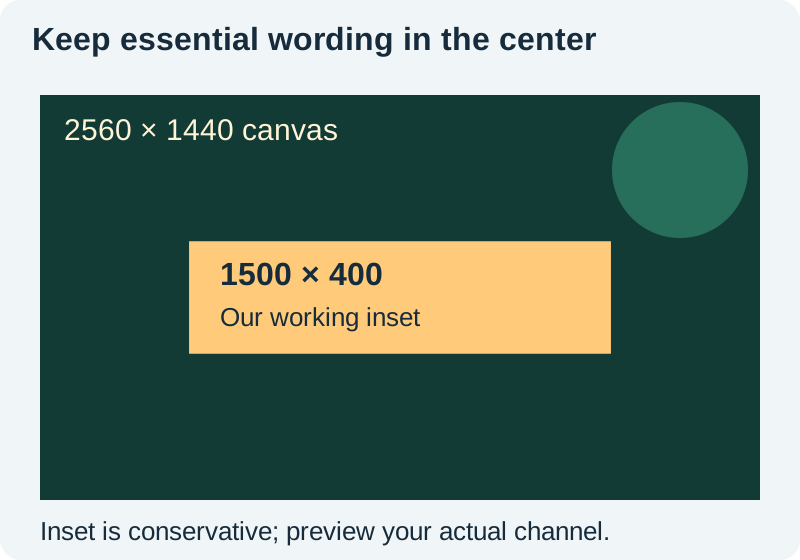
Some guides use a slightly different rounded safe-area number. Avoid treating a few edge pixels as usable text space. Place the channel name comfortably inside the center, leave room around tall letters, and test the actual design. A generous inset is easier to maintain when the name or tagline changes.
Choose one message for the center
A banner should help a new visitor recognize the channel and understand its focus. Start with the channel name and, if needed, one short explanation. Do not add a dense schedule, several social handles, a paragraph of promises, and a tiny call to action just because the source canvas looks large.
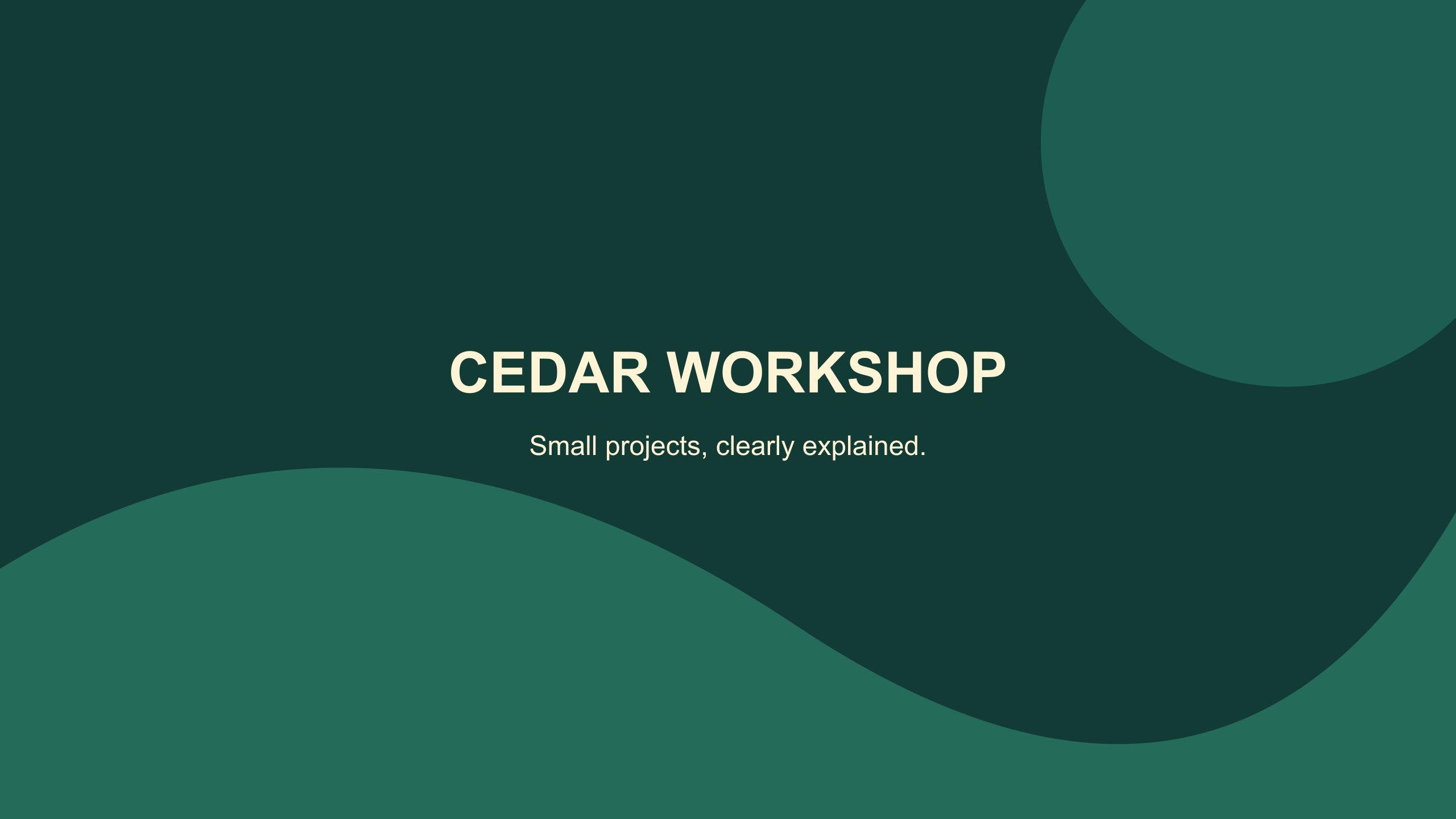
For the fictional Cedar Workshop example, the message is “Small projects, clearly explained.” That tells the viewer what to expect without claiming a result the channel cannot prove. The name is larger than the supporting line, and both are centered within the conservative inset.
Keep the hierarchy useful at a glance. If the tagline cannot survive a small preview, shorten it or remove it. Reducing every font size to fit more content usually defeats the point of having a banner.
Build a background that survives cropping
Choose a scene with flexible edges. A landscape, workshop surface, or broad abstract texture can lose outer areas while retaining its atmosphere. A tightly framed face, a product label at the far edge, or a row of equally important objects is less forgiving.
Keep contrast behind the name steady. Busy branches or bright highlights can run through the letters when the image is cropped. Add a quiet color field or reposition the artwork if needed. Check the text against the brightest and darkest parts beneath it, not just the average background color.
For AI artwork, generate a background without lettering. Add the channel name as editable text afterward. That makes spelling, font size, alignment, and later updates controllable. Our website hero-image workflow offers related guidance on leaving clear space around a message.
Compare the complete design with its center
The example below uses the same original artwork twice: once as a full canvas and once through the conservative center inset. These are teaching crops, not screenshots from YouTube devices. The center crop demonstrates why peripheral decoration must be expendable.
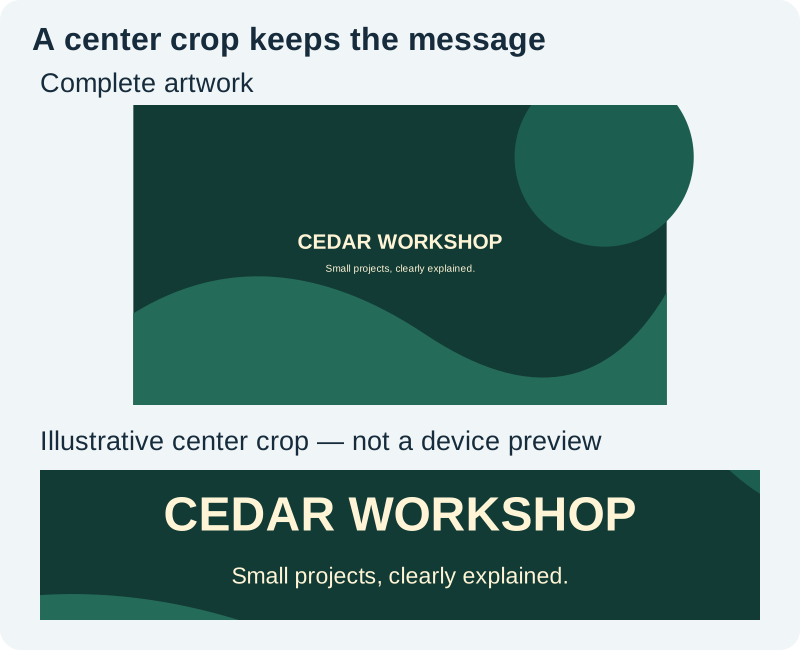
Temporarily hide all layers outside the inset while editing. Can someone still identify the channel and read the important words? Then restore the full canvas and inspect whether the surrounding art feels intentional rather than like a narrow strip pasted onto a large rectangle.
Keep the banner and avatar separate. The profile-picture guide handles a tiny circular identity. Repeating its entire design in the banner can waste space without improving recognition. Shared colors or a related visual motif are often enough.
Export a clean file and inspect it
Save the editable master first. Hide the guide layers, export a supported image, and open the exported file outside the editor. Confirm the pixel dimensions, file size, text, and absence of guide labels. An SVG working file is useful for editing; it is not the upload format assumed by this workflow.
The downloadable clean PNG example shows how the fictional artwork looks without guides. Use it as a teaching reference, then export your own identity. If your design is too large, reduce unnecessary texture or adjust compression while checking letter edges and gradients.
Do not repeatedly resize a compressed copy. Return to the master, make a deliberate export change, and compare the new file. Keep filenames clear enough to distinguish the editable source, preview, and final upload.
Review the channel, not only the editor
In YouTube Studio, use the banner controls under channel customization and inspect the provided previews before publishing your change. Afterward, review the channel on a phone and in narrow and wide desktop windows. Add a TV check if that audience matters to you.
Use the crop-check worksheet to record whether the name, tagline, and artwork survive each view. If a problem appears, change one thing in the master, export again, and repeat the affected checks.
A successful upload proves acceptance of that file, not readability. Ask someone unfamiliar with the design to read the channel name and explain its subject without zooming. Their confusion is more useful than a perfect-looking full-size canvas.
How QuestStudio helps
Use Image Lab to explore a background direction with room around the center. Finish the typography and guides in a layout editor. Keep the approved background, editable master, and tested export together so future channel updates preserve the same crop discipline.
If approved artwork needs more room around its subject, explore reframing or expansion in Editor Lab. Review the new edges before placing editable channel text in your layout editor; expansion does not establish the final safe area.
Frequently asked questions
What size should my YouTube banner be?
Use the recommended 2560 × 1440 pixel canvas. The official minimum is 2048 × 1152 at 16:9, with a file size no larger than 6 MB. Keep important content centered and check the upload preview.
Why is my banner cut off on mobile?
The full image is cropped for different displays. Important wording placed near an outer edge may disappear. Move it into a generous center inset and review the channel on the actual device.
Is 1500 × 400 an official safe area?
No. It is the conservative working inset used by our template on a 2560 × 1440 canvas. YouTube documents a 1235 × 338 text-and-logo safe area at its minimum canvas size.
Can I upload the SVG template directly?
Use the SVG as an editable working file. Hide its guides and export an image accepted by the current upload dialog. Confirm dimensions and file size in the exported file.
Should the banner include every social account?
Usually a clear channel name and short focus statement are easier to read. Use the channel's dedicated profile links for destinations instead of filling the banner with small handles.
Prepare a wider background
Use Editor Lab to explore reframing or expanding approved artwork, then add the channel name and guides in your layout editor.
Hero: AI-generated editorial illustration. Original teaching materials and documented feature research, checked October 31, 2026. Examples are labeled where synthetic or hypothetical.