

A green-screen composite can fail in three different ways: the background remains visible, parts of the subject become transparent, or green light remains on an otherwise solid edge. Those problems need different corrections. Increasing one slider until the green disappears often removes hair, fabric, or motion detail too.
Work in this order: improve the source, inspect the matte, remove unwanted color spill, and then match the subject to the new background. The original edge diagrams below explain those decisions. They are simplified teaching illustrations, not measured results from a named keyer or a claim that real hair is easy to recover.
Fix the capture before the filter
Light the background evenly and keep the subject separated from it where the room allows. A dark wrinkle and a bright hotspot are different colors to the keyer, even if both belong to the same green cloth. A subject standing close to the screen also receives more reflected green light.
Light the person for the intended scene rather than making the face green with the backdrop. Inspect shoulders, hair, glasses, and shiny objects. Clothing similar to the key color may disappear with the background. If that color is essential to the subject, reconsider the screen color or capture method before recording.
Record a short movement test, not only a still pose. Turn the head, move a hand, and cross the edge of the frame. Motion blur and fine detail reveal problems that a paused, well-lit frame can hide. Keep an unmodified copy of the source so later adjustments remain reversible.
Understand what the matte is doing
A matte describes transparency. In a typical grayscale matte view, white represents retained foreground, black represents removed background, and gray represents partial transparency. A good matte is not necessarily a perfectly hard silhouette: soft hair edges and motion blur may need intermediate values.
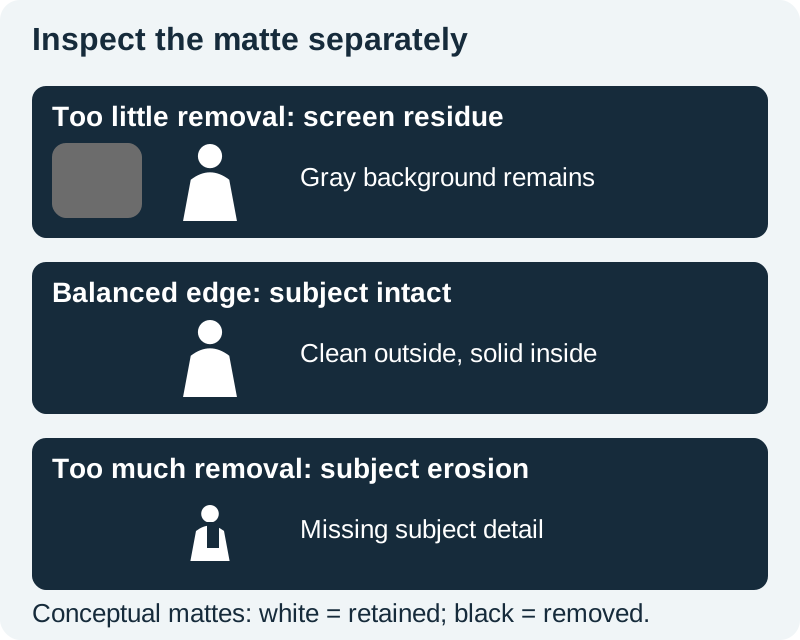
Inspect the subject's solid center first. A jacket or cheek should not become see-through because you wanted to remove a difficult patch of screen. Then inspect fine edges at a useful magnification, followed by the complete moving shot at normal viewing size.
If the keyer has a matte preview, use it alongside the composite. A busy replacement background can hide a damaged matte. Temporarily placing the subject over flat light and dark backgrounds makes holes, halos, and edge chatter easier to notice.
Adjust one control for one problem
The OBS Chroma Key Filter reference distinguishes Similarity, Smoothness, and Key Color Spill Reduction. Similarity changes how broadly colors are removed; Smoothness changes the softness of the transition; Spill Reduction targets remaining traces of the key color. Other editors may use different names.
Start with the key color and a conservative threshold. Increase removal only until the main background separates. If one corner remains dirty while the subject starts disappearing, stop increasing the threshold. That is a sign to address the uneven source, isolate the unwanted corner, or use a more local correction.
Adjust softness after the basic separation works. Too little can create a harsh cutout. Too much can create a translucent fringe or a soft glow. Compare at delivery size; a large preview can encourage polishing details that will not survive export while missing a visible whole-frame mismatch.
Save the initial and revised settings with the source clip. A preset is a starting point for similar material, not a universal solution for every green screen, camera, or lighting arrangement.
Separate green spill from transparency
Green spill is unwanted color reflected onto the foreground. A shoulder can be fully opaque and still look green. Removing more pixels from the matte may make that shoulder thinner without correcting its color.
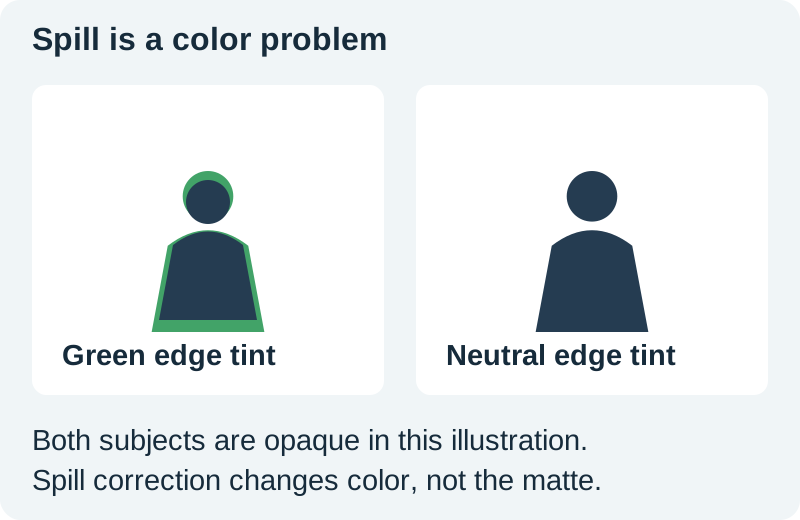
Use spill suppression carefully and compare nearby skin or fabric colors. Excessive correction can introduce an unnatural opposite tint or drain a deliberate green object. The Kdenlive spill-removal documentation describes this as compensating for screen color reflected onto the subject.
If you have to push correction hard across the whole image, consider whether the capture is recoverable at the required quality. Reshooting a short segment with better separation may be faster than repairing every frame. Keep that decision tied to the delivery size and importance of the shot.
Choose a background that fits the camera
A clean key can still look pasted on. Compare camera height, horizon, light direction, color temperature, and focus. A person filmed from eye level will look odd against a background photographed from a very low viewpoint unless the perspective is deliberately designed.
Choose the background before final edge polishing. A dark room may expose a pale fringe that was invisible on a bright test plate. A sharp, busy background can make soft foreground edges conspicuous. Keep the scene coherent rather than hiding every problem with blur.
If using an AI-generated background, treat it as a plate that must fit the real capture. Ask for the required perspective and light direction, then inspect straight lines and the space around the subject. The background-replacement workflow covers related matching principles for still products; moving people require an additional temporal review.
Review the edge through movement
Play the entire shot at normal speed. Look for an edge that shimmers, pulses, or changes thickness. Pause at the beginning, fastest movement, and end, but do not approve the sequence from three attractive still frames alone.
Inspect hands, hair, and semi-transparent objects separately. The motion may temporarily blend the subject with the screen. If the source lost that detail through blur or compression, the keyer cannot reliably reconstruct it merely by raising quality settings.
Use the keying review sheet to compare the same timestamps against light, dark, and intended backgrounds. Record the visible defect and the smallest relevant change. This prevents a sequence of untracked slider adjustments from becoming the only record of your work.
Check the export and handoff
Decide whether the recipient needs a finished composite or a foreground file with transparency. Those are different deliveries. A normal flattened video contains the background you rendered; it does not automatically retain an editable alpha channel.
For a transparent handoff, agree on a supported codec and container with the recipient, render a short sample, and place it over two backgrounds in the receiving editor. Confirm the alpha interpretation and look for bright or dark fringes. Do not assume a transparent preview means the exported format preserved it.
For a finished composite, inspect the actual output for edge breakup, compression noise, color shifts, and synchronization. Keep the original footage, key settings, background plate, and approved export together. Our short-video finishing workflow helps organize the rest of the edit.
How QuestStudio helps
Use Image Lab to explore a background plate that matches the shot's perspective and light. Use your external editor for chroma keying and compositing. The useful result is a reviewed moving composite, not a generated background alone.
Frequently asked questions
Why does my subject disappear when I remove green?
The key may be removing colors that belong to the subject, or its threshold may be too aggressive. Inspect the matte and reduce the removal before correcting remaining background areas more locally.
What is the difference between a halo and green spill?
A halo can come from transparency, edge softness, or alpha interpretation. Spill is unwanted green color on the foreground. Inspect opacity and color separately rather than assuming both need a stronger key.
Can AI background removal replace a green screen?
It is a different separation method with its own failure modes. Compare the actual moving result, especially hair, hands, and occlusions. Neither method guarantees that missing source detail will be recovered.
Should I blur the replacement background?
Only when it fits the intended camera and focus. Blur can reduce distractions, but it should not substitute for a sound matte, correct perspective, and plausible lighting.
Are the diagrams results from a tested video filter?
No. They are original conceptual illustrations showing residue, erosion, and spill. Use the review sheet to document results from your own footage and editor.
Build a suitable background plate
Use Image Lab for a background concept that matches your camera angle, then key your real footage in an external editor.
Hero: AI-generated editorial illustration. Original teaching materials and documented feature research, checked October 31, 2026. Examples are labeled where synthetic or hypothetical.