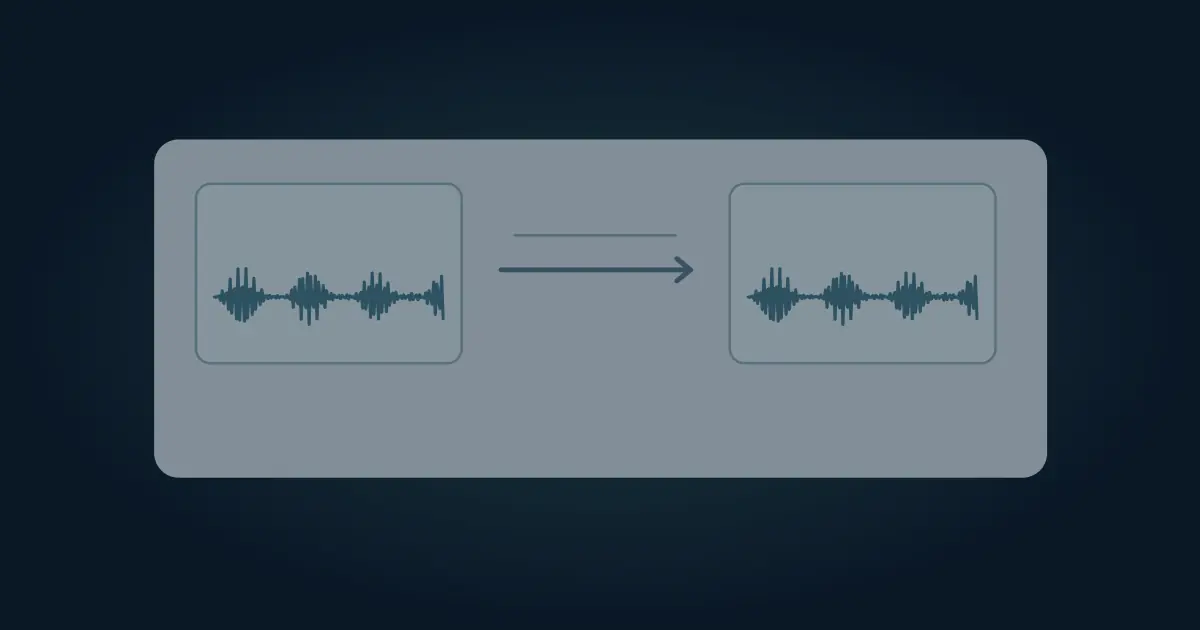

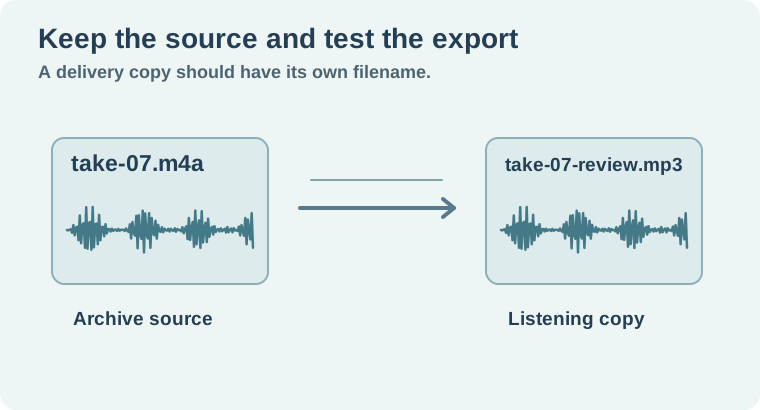
To convert an M4A file to MP3, open it in Audacity and choose Export Audio, then select MP3. If Audacity cannot import the M4A, install or configure its supported FFmpeg import library. With FFmpeg at the command line, select the intended audio stream and encode it as MP3. Keep the M4A and give the exported listening copy its own filename.
Changing the extension alone leaves the encoded audio unchanged. M4A is a container that often holds AAC and can also hold other audio, such as ALAC. MP3 is a different encoding. A conversion creates a new file with a new audio stream.
Decide what the MP3 is for
Use MP3 when a recipient asks for it or when you need a portable listening copy. If you are passing an edit between production tools, check whether the next editor wants the original or an uncompressed working file instead. Converting an already compressed M4A to MP3 applies a further lossy encode. It can make the recording easier to deliver, but it cannot recover detail lost in the source.
Write down whether the recording needs to stay mono or stereo. A voice memo often uses one channel, while an interview or music file may rely on two. Preserve the source layout unless the recipient needs a different one. Play both channels when they matter. A file can contain two channels while one is silent, or have different voices in each.
If the source is an iPhone recording, the iPhone audio recording guide covers saving and sharing the original take. If the input is a video container, follow the video audio extraction guide first and decide which stream is actually the source you need.
Export from Audacity
- Import the M4A and listen to the opening. If the format fails to open, use Audacity's FFmpeg installation instructions for your system.
- Confirm you have selected the intended track or full project. Remove any accidental test clip before exporting the mix.
- Choose Export Audio, select MP3, and set the destination, channels, and quality options required for delivery. Audacity explains the current workflow in its export audio manual.
- Use a clear name such as
take-07-review.mp3. Check any title and artist tags that the recipient will see, then reopen the result in a different player.
If you trim the recording first, verify the boundary in the new file. A silence at the start might be an intentional sync reference or simply a pause before the first line. Keep an untrimmed master when another editor needs to align it.
Convert a file with FFmpeg
Use this example with a build that includes the LAME MP3 encoder. It selects the first audio stream and creates a distinct MP3 output:
ffmpeg -i "take-07.m4a" -map 0:a:0 -c:a libmp3lame -q:a 2 "take-07-review.mp3"The mapping limits the output to the chosen audio stream. The quality option selects a variable-bitrate MP3 setting rather than a fixed bitrate. If your recipient needs a fixed bitrate, confirm the requested setting and use the corresponding encoding option. The FFmpeg documentation covers stream selection and codec options.
If your player shows an unexpected duration, listen through the first and last useful events. Encoding and playback metadata can display small differences. A large difference calls for checking whether the export used a partial range or the wrong stream. Tags and artwork can also transfer differently depending on the route. Reopen the file in the intended player if those details matter.
Verify a real handoff
Suppose a collaborator wants a listening copy of a recorded workshop intro. Keep take-07.m4a as the source and convert it to take-07-review.mp3. Play the first word, the quietest useful line, and the last word. Compare them to the original at a similar volume. If the MP3 lost an ending because you exported only a selection, fix that before deciding anything about sound quality.
Open the file properties and confirm the audio format. Then check which name or title shows in a media library. An old title tag can appear even when the filename is right. Record the file and intended use in the worksheet so nobody accidentally edits from the listening copy. For a clean cut or a metadata revision on an existing file, see the MP3 editing guide.
Check the converter against a known file
We ran the command above on a four-second synthetic recording named Workshop intro. FFmpeg identified the original as mono AAC at 48 kHz and the exported file as mono MP3 at the same sample rate. The duration displayed as four seconds for each, the title tag carried over, and FFmpeg decoded the output without an error. In a real handoff, write down any difference that could affect the recipient. For a spoken track, that means missing words, changed channels, or an unexpected title in the media library. A music track can also reveal changes around cymbals or other high-frequency transients. Compare the same moment in both files at similar volume, then keep the original alongside the approved delivery copy.
How QuestStudio helps
Use Voice Lab to audition a separate pickup if the original recording needs a revised line. Keep the pickup on its own track and compare it against the approved take. Choose the final delivery format after the edit is settled, then verify the actual file you send.
Download the m4a to mp3 delivery check.
Frequently asked questions
Can I rename M4A to MP3?
Renaming changes the extension. Export or encode a new MP3 file to change its format.
Why does Audacity say it cannot open my M4A?
Check whether its FFmpeg import library is installed and recognized for your system.
Will converting improve audio quality?
It changes the delivery format. It cannot restore detail that the source encoding discarded.
Should I delete the original after converting?
Keep the source if you may need to edit or export again.
How do I verify the MP3?
Open it separately, inspect the format and tags, and listen to the opening, quiet passage, and ending.