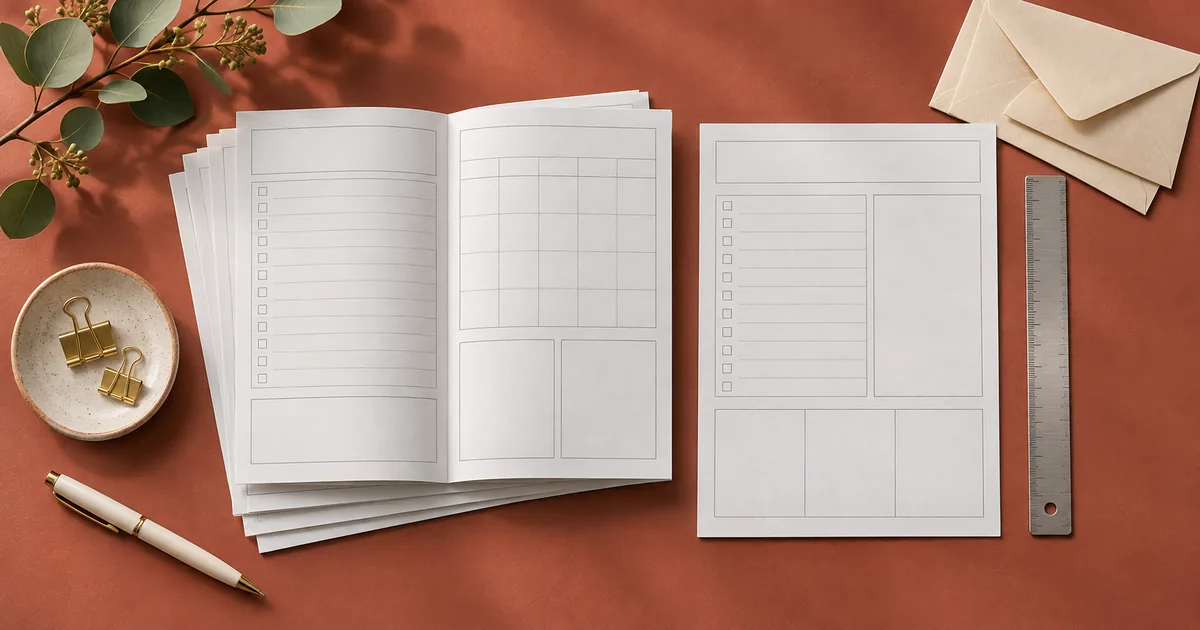

To create a printable digital product in Canva, choose one job for the page, design it at the intended paper size, and export a PDF. Print the exported file before you package it. Then open the package as a buyer would and confirm that the correct files and instructions are easy to find.
Design for the moment the buyer uses it
Start with a product you can describe in a sentence. The example here is a weekly market-prep sheet for a craft seller. The buyer prints one page, lists what to pack, records what has been counted and leaves room for a pen note. That purpose determines the layout better than a list of decorative elements.
Pick the distribution type first. A printable PDF puts the final layout in the buyer's hands. An editable template adds a requirement for the correct copy or template access and any resources the buyer needs. An on-screen worksheet that can be filled on a computer has different expectations from a printed sheet. If you plan to promise interactive form fields, test for actual fillability in the delivered file before using that description.
Write the product promise before making a large set. “One printable market-prep checklist, in US Letter and A4” is a scope a buyer can understand. A bundle with multiple sizes, editable links and several versions needs clearer navigation. Design one usable proof first and expand only after it works.
Lay out the first size with real sample content
Set the canvas to the intended paper before placing content. US Letter is 8.5 by 11 inches. A4 is 210 by 297 millimeters. Their aspect ratios differ, so scaling the whole page changes the apparent space available for writing. For the prep sheet, place a narrow headline, a date field, rows for Item and Count, and a wide box for notes.
Add a realistic example entry such as “two spare card-reader cables” and compare it with the available column width. Remove the example entry from the production page when the buyer needs a blank form. Keep a filled sample as a separate preview if it explains how the sheet is used. Test the smallest label and faintest rule on an ordinary printer with the lighting available at the buyer's desk.
Allow for the page edges the printer may not reach. In the sample, leave at least 12 mm of design margin as a conservative starting choice and confirm it against your actual print. A decorative border can survive a small printer shift if it sits well inside the page. A checkbox close to an unprintable edge can disappear even when the PDF looks fine on screen.
Make a second size and check the exports
Create a separate A4 layout or adapt your first layout into an A4 canvas. Check notes space and column widths again. A vertical page can look balanced after resizing and still compress the wide box where a buyer writes. Reflow the layout if needed so the functional space survives at both sizes.
Canva documents its PDF download choices. Pick the option appropriate for your file and intended printing path, then verify the paper dimensions on the saved PDF. Leave crop marks and bleed off an ordinary home-print file unless your design and instructions genuinely require them. If a commercial printer requests bleed or a specific format, follow that printer's specifications and deliver a file meant for that job.
Print each version at actual size on matching paper where possible. Compare a short marked line to a ruler while proofing if scale matters. A 50 mm reference is easy to measure, and a few millimeters can tell you that print scaling was applied. Mark whether the print dialog used actual size or a fit option. If you include scaling guidance, describe what you observed on paper.
Package what the buyer actually downloads
Use filenames that say what each file does. For the worked example, include market-prep-letter.pdf, market-prep-a4.pdf and print-instructions.txt. Put the names of both paper sizes near the start of the instructions. If the platform delivers a ZIP, unzip it into a new folder and open both PDFs there. This catches odd naming, extra draft files and broken paths early.
Keep the listing preview separate from the actual product. A photograph or mockup can show how the page looks in use, while the product PDF should contain the clean functional layout. If the download contains a template link, include the steps the buyer needs to reach their own copy and test with a separate permitted account. Check the source design's sharing settings and avoid handing out edit access to the master.
Review any third-party material and the publisher's current use terms before packaging it, especially when including editable assets or policies that can change. Canva's help center provides a starting point for the kinds of designs it covers. Keep a record of the source for fonts, illustrations and photos you use. Use a different asset if you cannot confirm how it can be delivered.
Run a cold download test
Send the proposed package to a reviewer or open it from a browser profile that has no shortcuts to your source files. Ask them to identify the correct PDF for their paper just by looking at the package. Check for a stray proof mark, a cropped bottom line or a text label that takes two attempts to read. Then print one page. If the workflow relies on a special viewer setting, put that in the instructions.
After a revision, increment the package version and repeat the checks for every file you changed. A corrected A4 layout is useful only if the final package actually contains it. Open the packaged copy and record the result alongside the date of the proof.
Practice and verification
| File | Expected paper | Print setting | Proof check | Package check |
|---|---|---|---|---|
| market-prep-a4.pdf | 210 × 297 mm | Actual size | All fields clear and within page | Opened from extracted download |
How QuestStudio helps
Create a decorative concept or listing-preview art in Image Lab if it adds something to the product. Assemble and proof the actual printable page in your layout editor. Keep functional type and measurements in the design so you can verify them independently of the artwork.
Frequently asked questions
Can I sell a PDF I made in Canva?
Check the current terms for your design and each asset you include. A finished printable and an editable template can have different delivery and use requirements.
Should I download PDF Print or PDF Standard?
Choose the option for the intended destination and compare the actual file. For a printable product, verify physical dimensions, clear text and a home-printer proof or the printer's requested specifications.
Can buyers edit a PDF by default?
A printable PDF does not necessarily include fillable or editable fields. Open the delivered file to verify any interactive capability you promise.
Do I need to offer US Letter and A4?
Offer the sizes your buyers need. When you include both, make them easy to distinguish and proof each one on matching paper.
Do I add bleed to a home printable?
Usually a simple home printable has useful content inside generous margins and needs no bleed. Follow an actual print provider's requirements when there is a commercial print job.
Before you deliver
Finish one file that someone can print correctly before expanding the product. Verify both paper sizes, the instruction file and the version a buyer receives.
Sources
Related QuestStudio guides
 Image
Canva Page Numbers: Check a Workbook Before Export
Add page numbers in Canva, choose which pages show them, and check the exported workbook. Use an original page map to catch skipped or repeated pages.
 Image
How to Design a Shirt in Canva and Check the Print File
Design a T-shirt in Canva, prepare artwork to the printer’s actual size, and check contrast, placement, and the exported file before approving a proof.
 Creator Workflows
Best AI Tools for Etsy Sellers in 2026: Build a Smaller Stack
Choose a lean AI tool stack for Etsy research, listings, product images, mockups, and operations without paying for overlap or unused automation.
Hero image created with AI. Practice materials by QuestStudio.