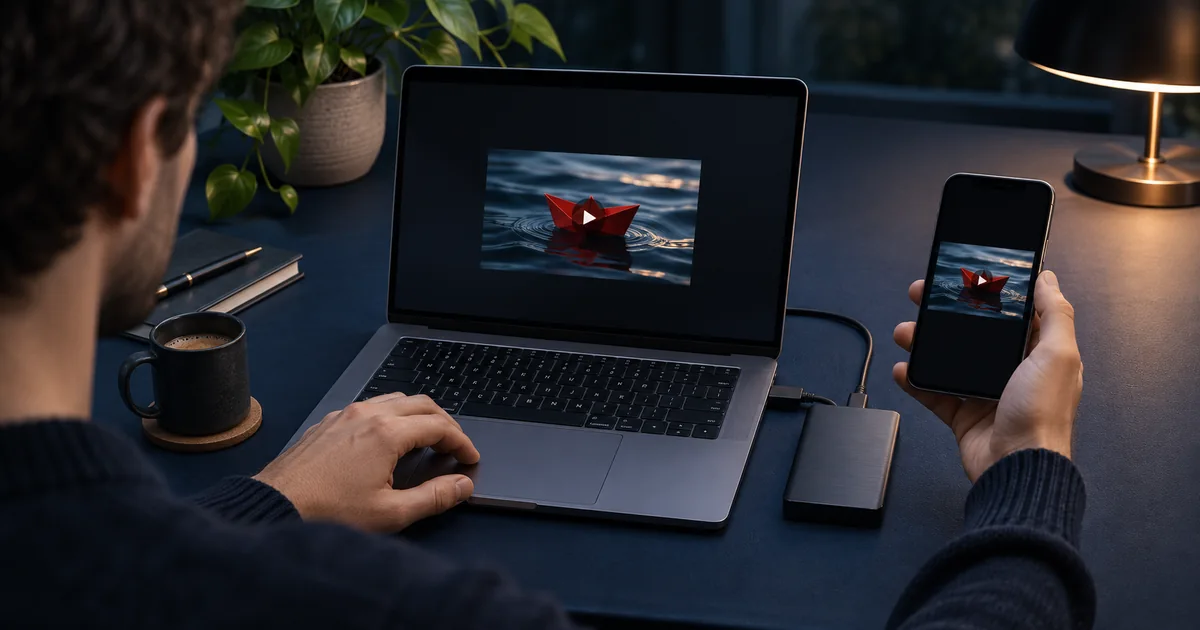

CapCut can retain an editable draft as you work. To verify that your latest changes were saved, reopen the project on the device or in the space where you expect to use it. A draft reopened locally and a cloud copy reopened on a second device are two different checks. A finished MP4 is a third asset.
Identify the copy you expect to recover
Start where you last edited. Check the app surface, account, personal or team space, and the name of the draft you edited. Record one detail from the last good edit, such as a corrected subtitle or a two-second trim. A thumbnail can look identical across copies even though one is behind by several edits. A recognizable checkpoint is a better comparison.
If a project opens from local drafts, that tells you this installation still has access to the edit and its media. It gives you a result for this device. It tells you nothing about the second device until you verify the corresponding cloud copy there. CapCut documents both working with saved projects and uploading drafts to its cloud. Check the screen for a completed upload in the relevant space before relying on it.
Keep the editable draft, the source assets and the last approved export in view as you troubleshoot. The draft carries the project state. The source folder contains the media you may need to relink or rebuild. The export gives you a playable version that you can share or reference immediately.
Run a two-minute checkpoint on a throwaway draft
Choose a non-sensitive five-second clip. Create a disposable project and name it DRAFT-CHECK-01. Add a title that reads “First checkpoint” and trim the last second. Close the editing view in the usual way, return to the project list and open the named draft again. Verify both the text and the shortened end. A changed title alone would be a weaker test if the trim was the work you needed to protect.
Now update the wording to “Second checkpoint.” If you use a cloud space, upload or move the test draft using the option you see in that space. Wait until the progress indicator resolves. Open the appropriate space from the second device while signed into the expected account and look for “Second checkpoint.” Confirm the clip plays as well as the text loading. This tests the path you want to rely on without risking an active deadline.
Keep a brief record of which device, login and space succeeded. On a real edit, use a meaningful revision name and choose a visible checkpoint that is already part of the approved work. If you need to make an artificial change just to test persistence, do it in a duplicate or temporary project.
Work through a missing or outdated draft in order
First, return to the most recent editing device. Check personal and team spaces, then local drafts where the app offers them. If you have logged in with more than one method, compare the account identities. A logged-in session and the account that owns the draft may be different. If two copies appear, open both and compare the checkpoint before deciding which to continue.
Next, check cloud upload status on the source device. Large media, limited space or an interrupted connection can leave an old remote copy available while newer changes remain local. CapCut's upload help covers stalled progress. Keep the known-good project and media accessible while you diagnose it. Repeated uploads under the same name can make it harder to tell which copy someone else opened.
If the timeline loads with missing media, you may still have the edits. Confirm the source file is present and readable before looking for an older draft. Check whether external storage is connected and whether a folder or filename changed. Use your app's relink option when available. If media is absent altogether, a project entry and thumbnail give you limited recovery options.
Protect the newest version before changing devices
Export the current approved version with a revision number. Then copy the original media, audio assets, graphic files and any licenses or notes you need to recreate the edit. Keep the folder names stable so you can identify a missing source from its filename. Back up a project package or cloud draft when the offered workflow makes it possible, and reopen it while the source copy is still available.
For example, if Workshop-v04 opens on your laptop and the office tablet shows Workshop-v03, record v04 as current. Save v04's exported reference and confirm the media inventory. Then sync or share the correct editable copy and make a recipient check. Continuing work on both devices while the recovery is unresolved can produce two valid timelines with conflicting edits.
Before you uninstall an application, clear storage, reset a device or remove an account, test the exact recovery path you plan to use. A project list entry is one sign. A playable latest timeline with the needed clips is better evidence. When the second copy cannot be confirmed, keep the source installation intact while you secure an alternate copy of the work.
Separate a device problem from a project problem
A fresh test draft that saves and reopens suggests the installation can persist at least a simple project. If the active edit still fails, look for project-specific issues such as missing source media or a different workspace. If the fresh draft also fails, narrow the issue to that app surface, account or storage condition and use the support route with the results of both tests.
Write down exactly what failed. “The laptop reopened the title and trim, the web space opened the previous title, and the MP4 played through to the end” gives someone a place to start. “It did not save” hides which copy or action needs attention. Share the smallest non-sensitive reproduction you can use to demonstrate the difference.
Practice and verification
| Project | Expected checkpoint | Local reopen | Second device | Source files | Reference export |
|---|---|---|---|---|---|
| Workshop-v04 | Correct venue subtitle at 00:12 | Confirmed on source laptop | Still v03 on tablet | Copied to source archive | v04 MP4 plays |
How QuestStudio helps
Video Lab gives you a place to create replacement shots or additional footage for your edit. Download the versions you select and record their filenames alongside the project. The draft recovery check belongs in the editor that owns the timeline.
Frequently asked questions
Does CapCut save when I close the editing screen?
CapCut can retain a draft. Reopen it from the same device and workspace and look for your latest identifiable edit before relying on it.
Does autosave also upload my project to the cloud?
A local draft and an uploaded cloud draft have separate states. Check the upload in your space and reopen the project on the destination device.
Can I recover an editable project from an MP4?
The MP4 provides a flattened picture and sound reference. You would need a separate project copy or would have to rebuild the edit from source assets.
My project opens but the clips are missing. Was it saved?
The project state may have survived while the media no longer resolves. Check source paths, connected storage and media permissions.
Should I clear CapCut storage if drafts are missing?
Secure and verify any accessible draft, source files and exports first. Diagnose where the expected project lives before changing the installation.
Before you deliver
Reopen one identifiable revision before you rely on it. If you are moving devices, confirm the same checkpoint on the destination and keep a separate copy of the media and approved video.
Sources
Related QuestStudio guides
 Video
Cancel CapCut Pro and Keep Your Editing Files
Cancel CapCut Pro through the billing provider you used. Check renewal status and preserve source media, editable projects, and exports as separate deliverables.
 Creator Workflows
AI Creative Asset Versioning: Know What Was Approved
Version AI creative assets with source lineage, prompts, model settings, rights, review status, destination variants, and a clear approval record.
 Video
Is CapCut Safe for Client Work? Review Your Media Route
Review CapCut for a specific client-media workflow. Distinguish local editing, cloud storage, AI processing, permissions, and policy limits before importing files.
Hero image created with AI. Practice materials by QuestStudio.