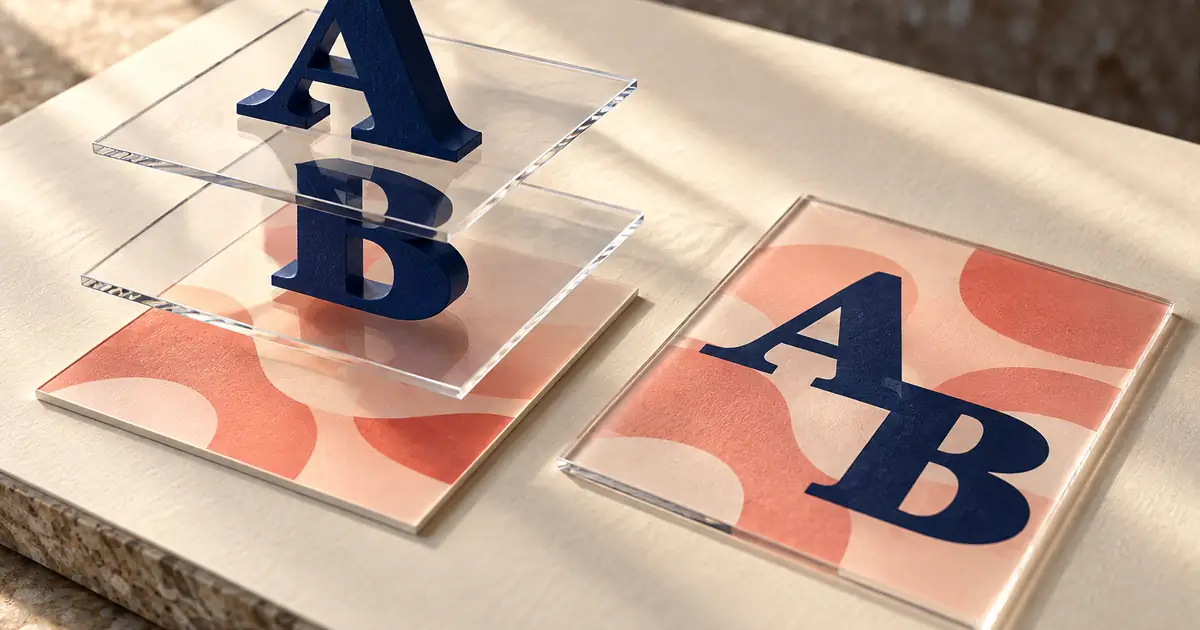

To edit text in Photoshop, first check whether the words are still on a live type layer. If they are, select the text, replace the copy, and commit the change. If the letters exist only as pixels in a flattened image, you need the editable source or a reconstruction on a new type layer.
That diagnosis is more useful than repeatedly clicking a word that cannot be selected. This guide follows a fictional studio announcement from “STUDIO OPEN” to “OPEN STUDIO,” with a separate date line that must remain unchanged. The practice artwork is original; the Photoshop controls are documented instructions rather than a claimed hands-on application test.
Find the layer that actually contains the words
Open the Layers panel and identify the layer associated with the visible text. A live type layer has a type indicator. A layer named “headline” is not sufficient evidence by itself: someone may have rasterized it while keeping the old name.
Toggle visibility carefully if you need to locate the right layer. If several versions occupy the same position, you may be editing one while another remains visible above it. Record which layer contains the approved copy before making changes.
If the text is inside a Smart Object, inspect its contents. The object may contain editable type, another embedded file, or only a flattened image. A Smart Object preserves an encapsulated source, but its presence does not automatically turn pixel lettering back into editable text.
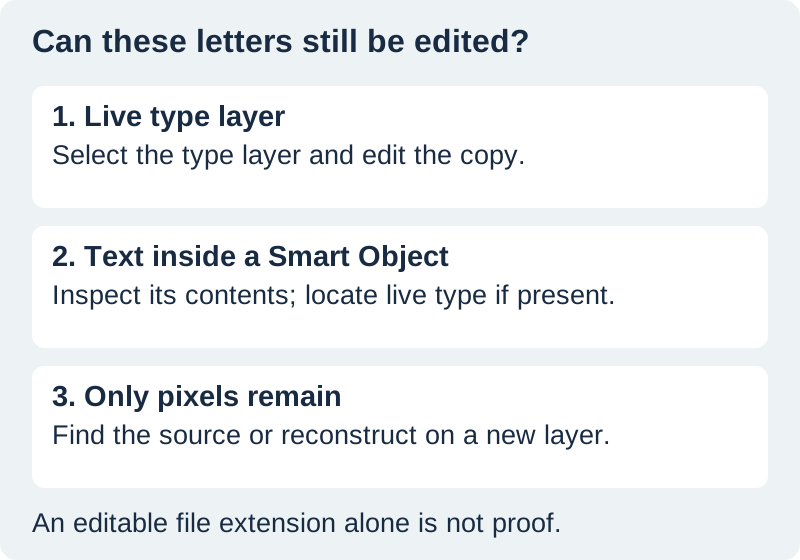
Replace copy on a live type layer
Adobe's type-layer editing instructions describe selecting existing text, placing the insertion point or selecting characters, and committing the edit. You can use the Type tool, or the documented Move-tool double-click route where appropriate.
Select the exact characters that should change. Replacing the whole text block when only one word is wrong can accidentally remove a line break, a special character, or a different style applied to a small portion of the copy. Keep the approved wording visible in a separate reference.
For our sample, change only “STUDIO OPEN” to “OPEN STUDIO.” Preserve “Saturday · 10 am to 2 pm.” Commit the edit with the explicit confirmation control, then move out of text editing and inspect the complete design.
Check the position and line breaks again. Different words have different widths even when they contain the same number of letters. A heading can shift visually without any change to its nominal font size or text-box position.
Resolve fonts and wrapping before polishing
If Photoshop reports a missing font, establish the intended replacement before approving the layout. A substitute can change character widths, line breaks, and the overall appearance. Do not dismiss the warning and assume that the exported image still matches the original design.
Choose the approved font if it is available and properly licensed for the work. If a replacement is necessary, compare the complete heading, punctuation, and numerals. A font that looks similar in a short word may have noticeably different figures or spacing in a date line.
Inspect whether the text is point type or constrained within a paragraph box. A longer replacement may wrap, overflow, or need a deliberate layout adjustment. Do not solve every overflow by shrinking the font until the words fit. The result still has to be readable at the intended display size.
After changing type size or tracking, inspect the spaces around the text. A mathematically centered layer may feel unbalanced because of the letter shapes. Use the surrounding artwork and intended hierarchy to judge the finished composition.
Handle lettering that is already flattened
If the file contains only a pixel layer, Photoshop cannot simply select the original letters as live type. Search for the layered source first. Check the original design folder, earlier project versions, or the person who supplied the image before reconstructing something that may already exist.
If reconstruction is necessary, preserve the original and work on a duplicate. Remove or cover the obsolete lettering using an appropriate image-editing method, then add the corrected copy on a new type layer. Inspect the repaired background at full resolution: repeated texture, visible patches, and altered object edges can reveal the repair.
For an important product label, official document, or other accuracy-sensitive image, reconstruction may be the wrong choice. Obtain a corrected source or recapture the item when the image must faithfully show the original. A visually convincing edit is not proof that the depicted object had that wording.
When the lettering came from generated artwork, use the image-text accuracy workflow. Keep the approved copy separate and compare every required character. Repeated generation is not a substitute for an editable typography stage when exact text matters.
Use the practice pair to understand editability
Download the editable vector practice artwork and its flattened PNG counterpart. They show the same fictional announcement in two different forms. The SVG contains text elements; the PNG contains rendered pixels.
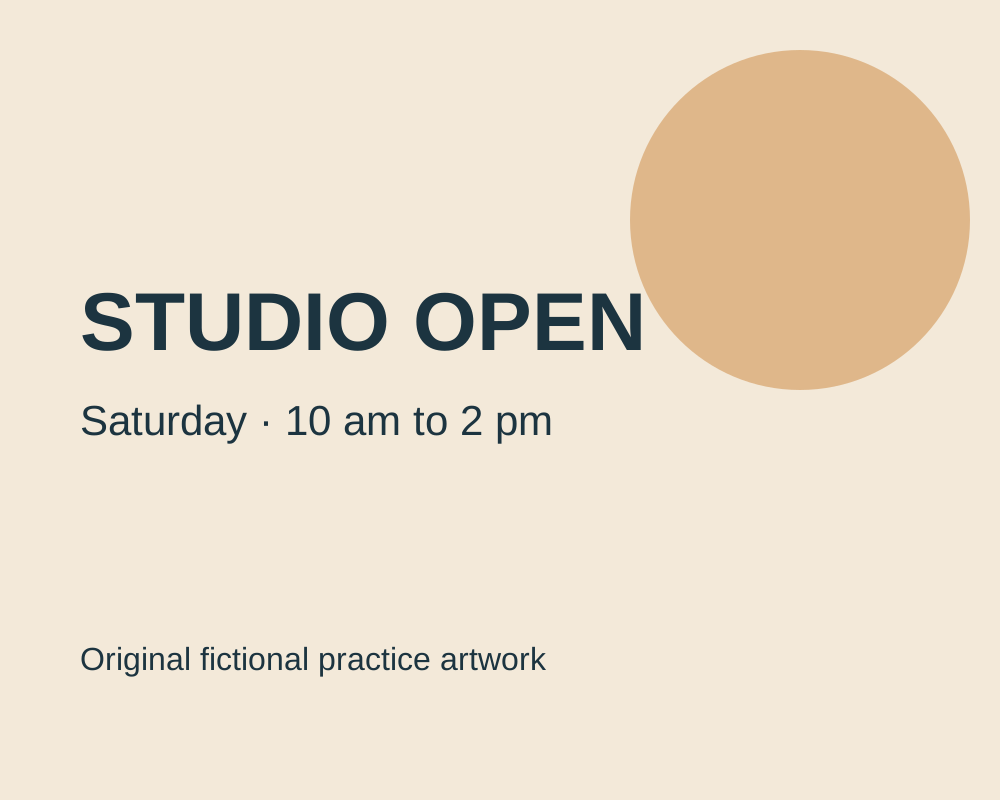
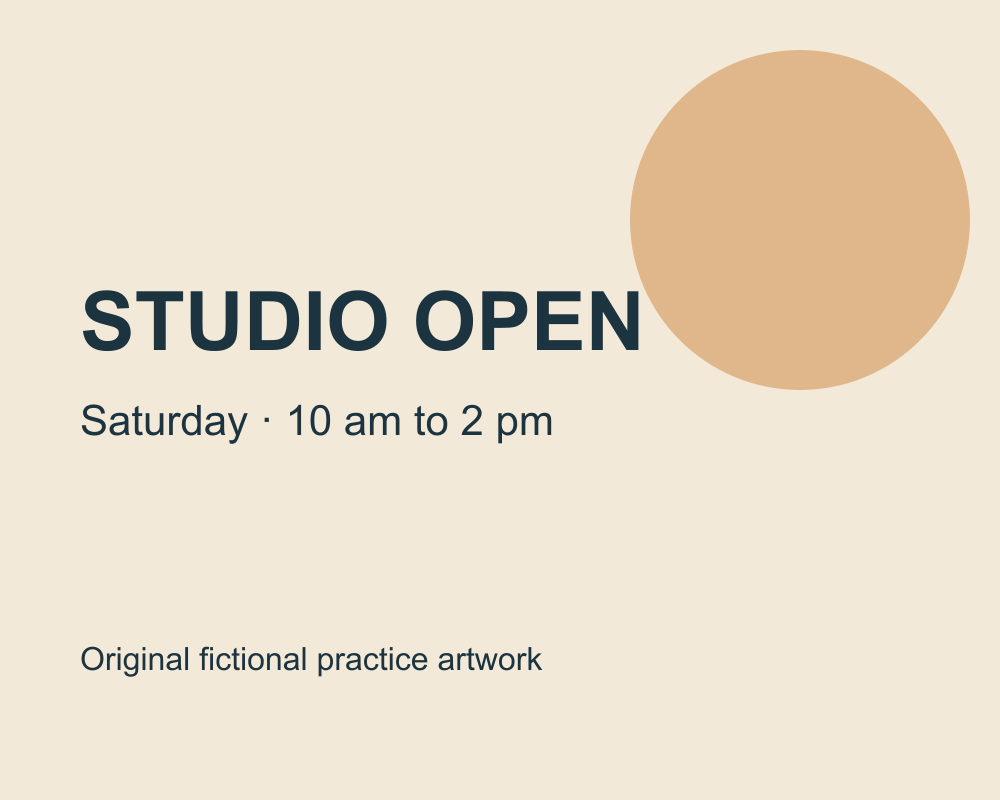
The SVG is not a Photoshop PSD, and opening it in Photoshop does not promise native live type layers. For a Photoshop exercise, create a new document, place the artwork as a reference, and rebuild the heading and date on native type layers. Keep those layers separate from the background.
Use the copy-change checklist to record the old wording, approved replacement, and unchanged date line. This makes the exercise about a controlled revision rather than freely redesigning the announcement.
Compare the finished source with its exported image. The source should retain the editable heading, while the delivery image should show the correct words without requiring the recipient to have your fonts installed.
Keep an editable source and inspect the export
Save the working design in a format that preserves the layer structure you need, and confirm that the type layer survives reopening. Adobe's type-layer documentation explains the role of type layers. A PSD extension alone does not prove that a specific layer remains live type.
Export the required delivery format separately. Read the exported image at its actual destination size, paying particular attention to small text, symbols, and the final line. Then compare it with the approved copy sheet rather than relying on visual familiarity.
If the new wording needs more room, the canvas-size workflow explains how to add space without scaling the artwork. QuestStudio's Image Lab can help prepare a supporting background, while exact wording remains in the editable design stage.
Frequently asked questions
Why can I not select the words in my Photoshop image?
The lettering may be rasterized, flattened, or inside another object. Inspect the layer structure and locate live type before trying to edit characters.
Does a PSD always contain editable text?
No. A PSD can contain flattened or rasterized layers. Verify the particular layer and reopen the saved source to confirm that the text remains editable.
Can I convert a PNG back into its original type layers?
A PNG does not preserve those original type layers. Find the editable source or reconstruct the lettering on a new layer, checking the background repair and exact copy.
Should I ignore a missing-font warning?
No. Confirm the intended font or an approved replacement, then review wrapping, spacing, numerals, and the exported appearance.
Is the downloadable SVG a native Photoshop project?
No. It is original vector practice artwork paired with a flattened PNG. Rebuild its wording on native type layers if you want to practice the Photoshop editing workflow.
Generate the supporting artwork separately
Create a clean background in Image Lab, then add approved copy as an editable type layer in your design editor.
Hero: AI-generated editorial illustration. Original teaching materials and documented feature research, checked October 31, 2026. Examples are labeled where synthetic or hypothetical.