
In Photoshop, use Image → Canvas Size when you want to add or remove space around an image without scaling the existing artwork. Enter the target dimensions, choose the anchor, and inspect the new boundaries. Use Image Size when your goal is to change the image's pixel dimensions through resizing.
The difference matters for a photograph that needs room for a headline. Stretching the image can change its proportions or scale; adding canvas space can leave the original pixels intact. This guide uses an original 1000 × 800 practice image and a 1400 × 1000 target to make that distinction visible.
Choose padding, resizing, or generated extension
Write down the intended result before opening a size dialog. “Add 400 pixels of width and 200 pixels of height” is a canvas operation. “Make the entire image 40 percent larger” is a scaling operation. “Continue the photographed room into the extra space” requires new visual content, not merely a larger boundary.
Canvas enlargement can create blank or transparent space, depending on the document. It does not invent the missing room, sky, or tabletop. If you need a believable continuation, use a separate extension workflow and review the generated area. Our outpainting guide covers that different task.
Keep an untouched source copy. Even a simple geometry change can become destructive if you shrink the canvas across important content or save over the only original. Give the working file a name that identifies the destination size rather than relying on memory.
Set dimensions and anchor deliberately
Adobe's Canvas Size instructions describe width, height, units, the Relative option, and the anchor grid. With Relative off, enter the final canvas dimensions. With Relative on, enter the amount to add or subtract. Mixing those interpretations is a common way to create an unexpectedly large result.
The anchor indicates which position stays fixed while the canvas changes around it. A centered anchor distributes added space around the image. A left-middle anchor keeps the artwork against the left side while distributing a height increase above and below it.
Adobe also distinguishes extension color for documents with a Background layer from transparent extension in appropriate layered documents. Inspect the actual layer structure and preview rather than assuming that every file will receive the same background treatment.
Work through the centered example
Our source is 1000 pixels wide and 800 pixels high. The destination is 1400 × 1000. The extra width is 400 pixels, and the extra height is 200 pixels. With a centered anchor, divide each difference equally: 200 pixels on the left, 200 on the right, 100 above, and 100 below.
The original artwork should still occupy a 1000 × 800 rectangle. A distinctive object inside it should retain its original width and height in pixels. Only its location within the larger canvas changes. That is the check that separates padding from an accidental resize.
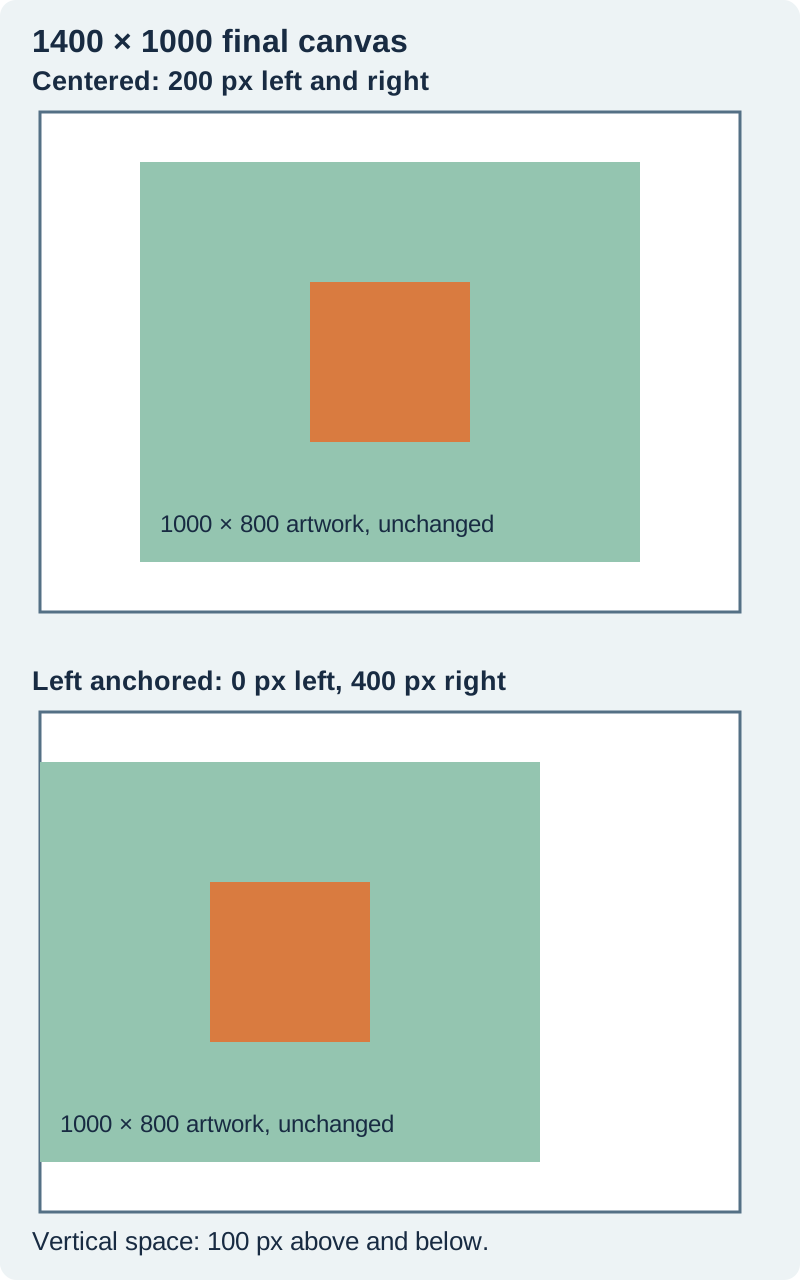
Download the padding calculation sheet. Substitute your own source and target dimensions. If the width or height difference is odd, whole-pixel padding cannot be perfectly equal on both sides; inspect which side receives the extra pixel.
Put the additional width on one side
Suppose the headline must sit to the right of the image. Use the same 1400 × 1000 target, but keep the artwork at the left edge. The added horizontal space becomes zero pixels on the left and 400 on the right. The height increase remains 100 above and below when the vertical anchor is centered.
This changes the composition without scaling the source. It is useful when a design requires a stable image region and a separate copy region. You can place a background layer behind the document and build the heading on an editable type layer.
Check the destination's crop behavior before relying on the extra space. A website card may crop a wide file to a square, removing the new copy region. The framing diagnostic explains why a complete source can still look clipped in a display container.
Inspect the original practice files
The downloadable source image and centered padded image were created for this article. They demonstrate the geometry independently of Photoshop. They are not screenshots or evidence of an in-app benchmark.
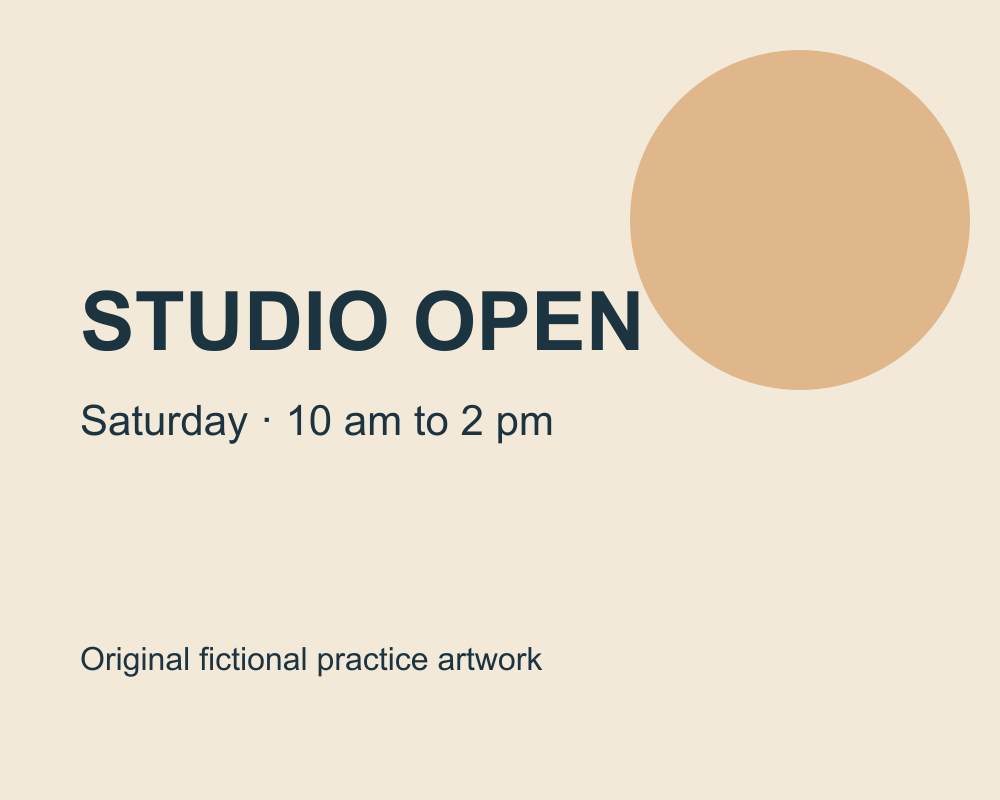
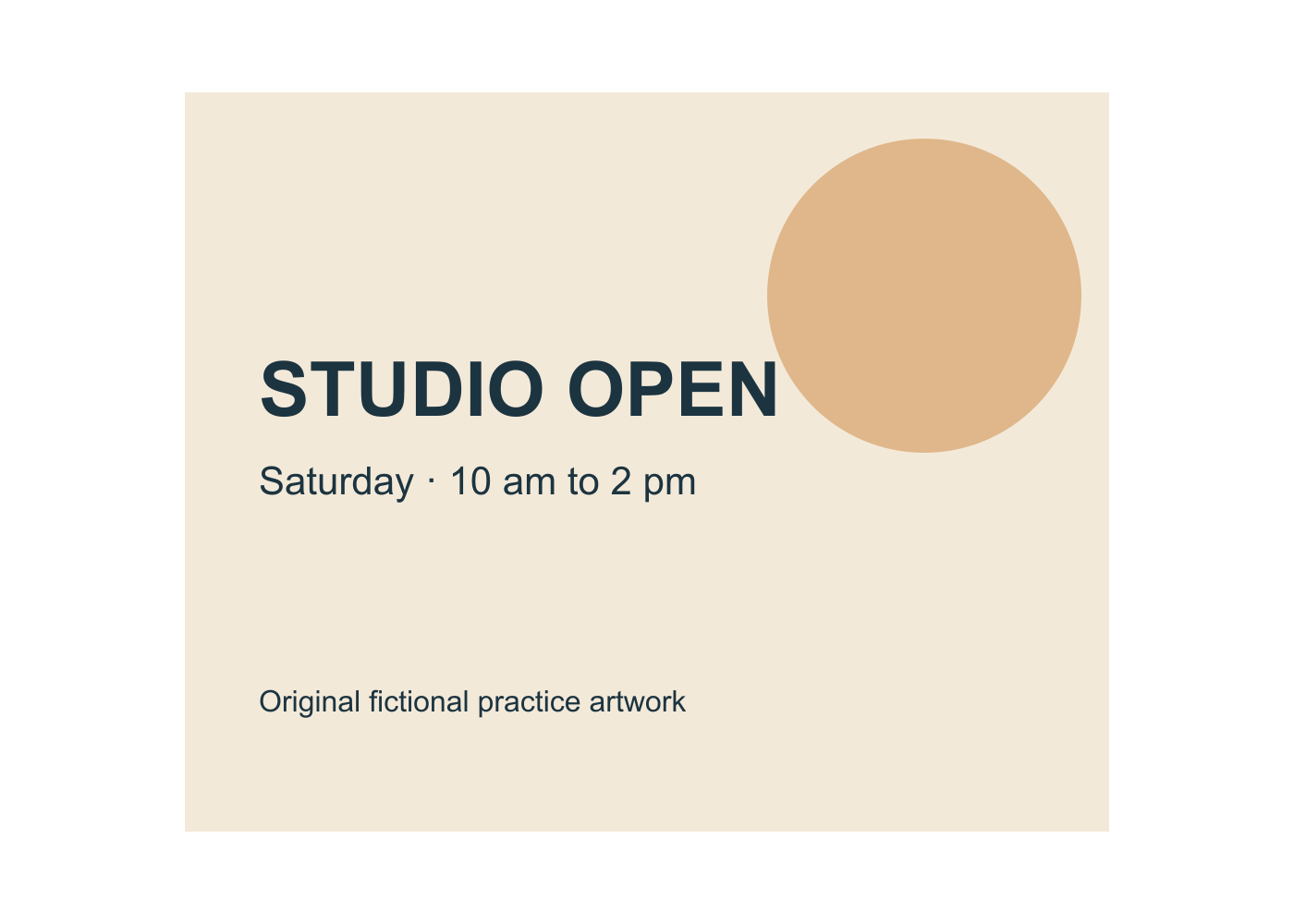
Open both at 100 percent zoom and compare the artwork. The padded file contains the same source region with space around it. Its dimensions are larger, but the lettering and shapes within that region are not stretched. Recreate the operation on a copy in Photoshop and compare your result with the stated dimensions.
Then try the left-middle anchor using the original source again. Starting from the already padded file would create a different experiment because its canvas is already 1400 × 1000. Return to the known starting state whenever you compare anchor choices.
Treat a smaller canvas as a clipping decision
When the target is smaller than the source, inspect what falls outside the new boundary. A centered reduction removes space from multiple sides. A corner anchor protects one corner's position while allowing the opposite boundaries to move inward.
Do not assume that content outside the visible canvas will always be recoverable in the eventual delivery file. Layer state, save format, and export can affect what survives. Keep the source and review the warning or preview before applying a reduction.
If the goal is to make the image fit a smaller box while retaining everything, padding alone cannot solve it. You may need resizing, a different crop, or a different layout. Choose the tradeoff deliberately instead of repeatedly changing canvas dimensions until the preview happens to look acceptable.
Check the source region and the exported boundary
Before export, confirm the final width and height, anchor result, background treatment, and visible content. Then reopen the exported file. Check whether transparency was preserved or replaced and whether the destination dimensions match the brief.
If you added a headline, use the type-layer editing guide to preserve editable copy. Keep the layered working source separately from the flattened delivery image. A correct exported picture should not become the only surviving design file.
QuestStudio's Editor Lab is useful when the next job is reframing or exploring generated surroundings. Plain padding remains a simple geometry operation. Use generation only when the brief calls for new visual content, and review any new content against the original.
Frequently asked questions
Does Canvas Size stretch my image?
Canvas Size changes the document boundary rather than scaling the existing artwork. Verify the source region and use Image Size when you actually intend to resize the image.
What does Relative mean in the size dialog?
It changes the inputs from final dimensions to the amount added or subtracted. Check that setting before entering values so that a target width is not mistaken for an increase.
How do I add space only on the right?
Use a larger target width and an anchor that holds the image at the left. Inspect the result and keep the height unchanged unless you also intend to add vertical space.
Why did the new area become transparent?
Extension behavior depends on the document's layer structure. Inspect the Background layer and available canvas-extension settings, then verify the exported file's transparency.
Are the practice images Photoshop test exports?
No. They are original geometry examples generated independently for comparison. Use them to check dimensions and preserved content when practicing the documented Photoshop operation.
Choose padding or image expansion
Use Editor Lab when you need to explore reframing or generated surroundings rather than empty canvas space.
Hero: AI-generated editorial illustration. Original teaching materials and documented feature research, checked October 31, 2026. Examples are labeled where synthetic or hypothetical.