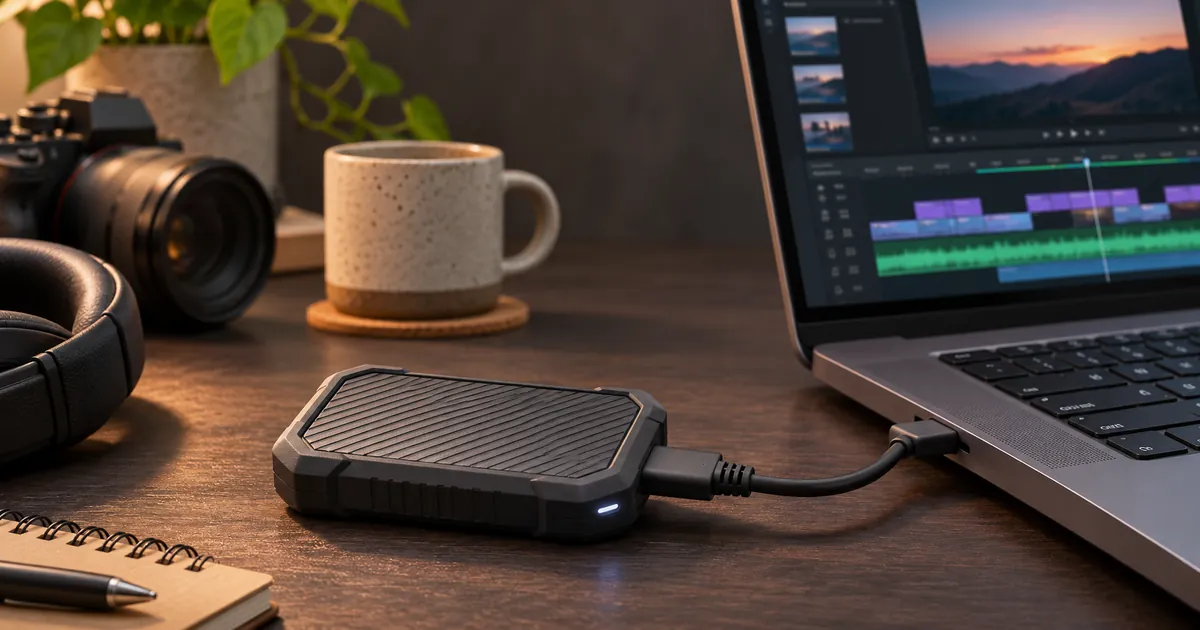

Put Resolve's render cache on an external SSD when internal disk space or sustained writes are holding back the grade you are editing. First confirm where Resolve is writing and whether the slow segment can finish caching on your existing disk. A 2 TB Samsung T7 Shield is a plausible dedicated cache drive when your direct USB connection and working-folder setup pass the test below.
Gear to consider
We may earn a commission if you buy through these Amazon links.
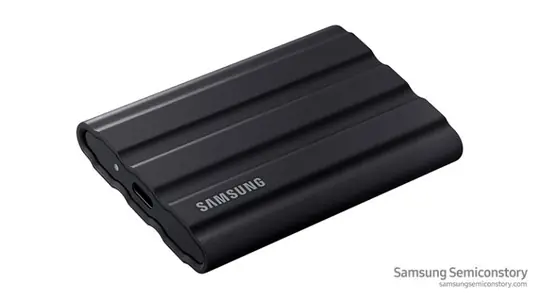
Samsung T7 Shield 2 TB
For dedicated cache space on a verified direct connection
Consider the 2 TB version when space is the real constraint and you have a stable supported port and cable. Keep source footage and backups protected independently.
Separate what you can rebuild from what you need to preserve
Duplicate the project or use a scratch project for the first test. Write down where the camera originals, project backups and export are stored. Give the cache a distinctly named folder on a drive that stays attached for your session. Cache files are rendered working copies. If the originals and project are still available, Resolve can rebuild the cache. That makes the cache a reasonable first job for an external disk when you are trying to free internal capacity.
In Project Settings, find the working-folder setting for the cache files location, then verify the path points to the mounted drive. Use the Blackmagic Resolve reference manual for your version and the Smart and User Cache options. Keep the gallery and source-media locations as they were unless you have a separate reason to change them. Create the new cache before removing any old working files.
What a storage review can tell you
Tom's Hardware tested the 2 TB T7 Shield with extended sequential writes as well as shorter transfers. Its sustained performance in that setup is more relevant to filling a cache folder than a brief promotional peak. Your port speed, cable, operating system and concurrent reads affect what you see. Read Samsung's drive specifications for the rated interface and connect directly to a supported port during the first trial.
Different write patterns matter. A fast copy of one large file can coexist with slow cache generation if the effects are expensive. A slow fill on the current connection with no editing underway points to a different bottleneck. Time both a representative cache generation and a separate file copy. A purchase is much easier to justify when you know which test you expect to improve.
Rehearse the roughest thirty seconds
Choose a section with the kind of effects that slow you down, such as a grade with noise reduction or a Fusion-heavy title sequence. Keep the same input footage, resolution and render-cache format between two trials. First generate the cache to your available internal location and time it. Then generate it to the external path, starting from the same uncached state on the scratch project. Confirm the new folder grows and the clip really does switch to cached playback.
| What changed | Likely next check | Useful observation |
|---|---|---|
| Render finishes but playback drops | Inspect concurrent reads from the same drive | Does it play with source media on another disk? |
| Cache folder never grows | Recheck project location and cache mode | Can the application write to that path? |
| Cache builds slowly on both drives | Look at effect and decode load | Is the same segment slow before disk activity peaks? |
| External disappears during edits | Test the direct cable and mount | Does reconnecting restore the same path? |
Choose capacity using a measured sample
Take a note of the folder size produced by five minutes of representative cached footage. For example, if five minutes takes 12 GB, allow about 72 GB for six equivalent sections before reserving room for later edits. Your actual render format, resolution and revisions can change that estimate. Keep space for peak working files and monitor free space during the heaviest project week. If the disk would mainly hold media and backups, read the external SSD comparison before combining jobs.
Do a restart rehearsal with the drive connected. Confirm Resolve reopens the project and can use the cache or recreate it. Check how you will work when you move to a machine with a different mount path. A replaceable cache folder can be rebuilt. Keep a separate verified copy of originals and project backups. See the external SSD slow transfer checks if a different cable or dock is in the normal setup.
Keep the cache path obvious to the next editor
Use a folder name that describes both the project and the replaceable cache job. For example, a scratch drive can have a parent folder called Resolve Cache and a subfolder for a specific cut. Keep export and archive folders elsewhere. If a collaborator opens the project without that drive, explain that the cache may need to be rebuilt and point them to the independent media copy. Document disk attachment and available space in the project handoff so a new editor can tell a missing cache from a missing source immediately.
Use representative material from QuestStudio
To compare settings without risking client footage, use Magic Editor to prepare a reference frame, then use Video Lab to make a short clip you have permission to edit. Build a disposable timeline with a few effects similar to the work you do, then time the uncached and cached runs. A test with comparable effects helps more than a simple benchmark alone.
Frequently asked questions
Can I store the source footage and cache on one drive?
It can work. Test your most demanding timeline while the same disk is reading source footage and writing cache. Separate the jobs if contention or free space hurts playback.
Will a faster SSD speed up noise reduction?
A faster disk helps when storage is the bottleneck. Processing a heavy effect can be limited by compute. Compare generation time and cached playback on the exact segment first.
Can I unplug the SSD and reopen the project later?
You may need to reconnect the drive at the expected path or rebuild its cache. Make sure original footage and project backups remain accessible independently.
Is a fast USB-C cable enough?
The port, drive, cable and any hub all affect the available speed. Test the drive directly and compare it with the setup you normally use.
Buy for the measured bottleneck
Choose the T7 Shield 2 TB if you need a dedicated external cache location and its supported direct connection meets your working speed and capacity needs. Leave the cache on a capable internal drive if your present setup already has space and keeps the timeline responsive.
Download the setup checklist (CSV)
Ready to check the listing?
We may earn a commission if you buy through these Amazon links.
Samsung T7 Shield 2 TB
Sources and further reading
- Blackmagic Resolve reference manual
- Tom's Hardware tested the 2 TB T7 Shield
- Samsung's drive specifications
Affiliate disclosure
As an Amazon Associate I earn from qualifying purchases. Recommendations draw on product documentation and the external tests linked above. The hero is an AI-generated setup illustration.
Continue with a useful next step
 Video
External SSD for Video Editing: T7 Shield or T9?
Choose an external SSD for video and AI assets by checking your computer's USB port, project size and backup plan. Compare Samsung T7 Shield and T9.
 Creator Workflows
External SSD Slow? Test the Cable, Hub and Drive
Diagnose slow external SSD transfers with one repeatable video copy. Compare a direct port and hub, then check the source disk and longer writes.