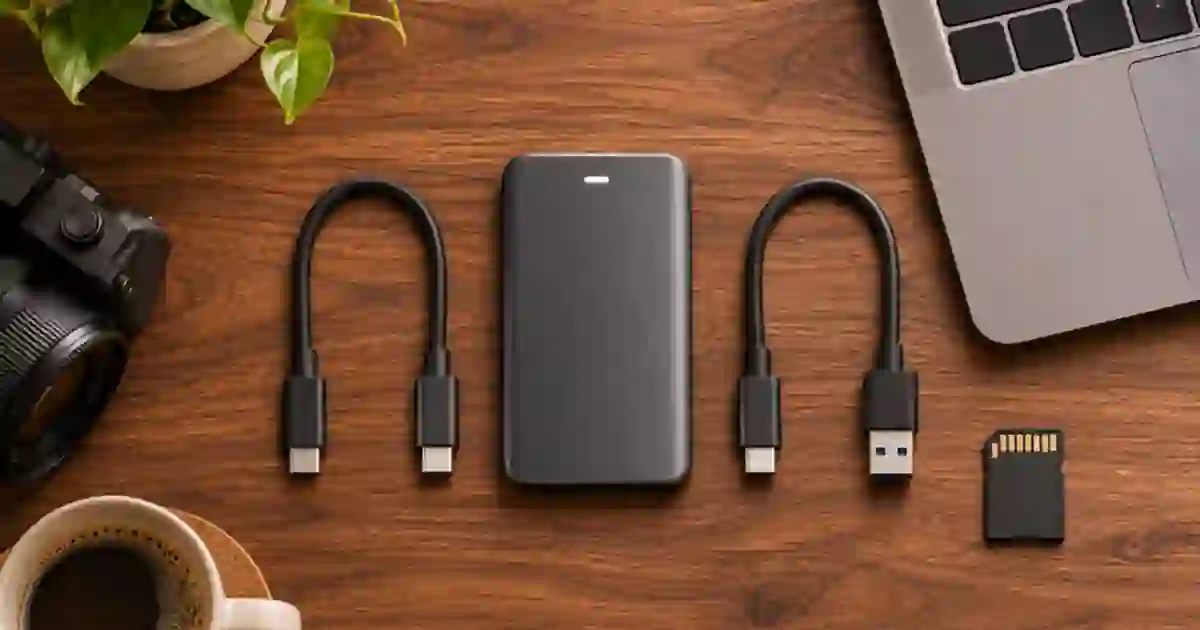

If your external SSD suddenly copies footage slowly, I recommend timing the same large file on a direct connection before replacing the drive. A short controlled test can show whether the slowdown follows the port, cable, hub, source or the drive itself. I work on copies and keep the originals available.
My gear pick for this setup
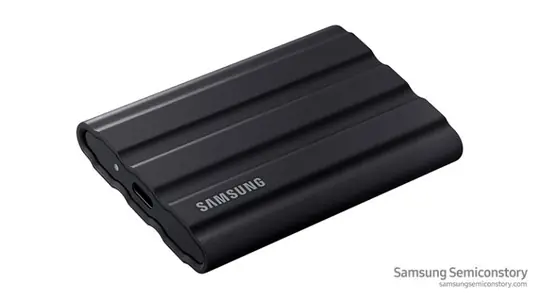
Samsung T7 Shield 2TB
A portable SSD if you need another working destination
I’d shortlist the black 2 TB T7 Shield if the current drive lacks capacity or the direct test points to the drive. Check the host data mode and keep independent backups.
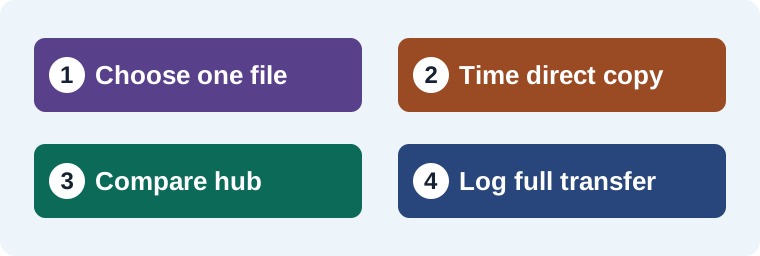
Time one copy with the size and direction written down
Choose a real video file large enough that the transfer runs for several seconds and fits safely on both drives. Copy it from known fast local storage to a new folder on the external drive. Record the byte count, elapsed time, source, destination and whether the transfer completed normally. Divide decimal megabytes by seconds for a rough average. Wait for the file operation to finish and use your normal safe eject procedure when the job is done.
Copy direction matters. A copy from the SSD to your laptop tests a different combination of read and write paths than a copy to the SSD. The slower device can limit the result. Keep the source and direction steady when comparing connections. I prefer one large file for this first pass. A folder with many small files adds directory and filesystem overhead and answers a different question.
Build a direct baseline
Connect the SSD to a documented data port with the manufacturer’s data cable or a known compatible one. Remove optional hubs and adapters for the baseline. A USB-C connector can be used by cables with different data capabilities, and a cable’s charging rating does not establish its transfer mode. Check the computer’s device information when it reports the negotiated link. That figure describes the connection. It is higher than the actual copy rate you should expect from a real file.
Repeat the same copy to a new destination filename. If the direct setup is steady, test the hub or spare cable while changing one piece. If the direct test is also slow, verify the source disk, destination free space, and whether another job is reading or writing either device. I write down the result before trying a faster-looking setting so I have a usable comparison later.
Watch for a speed change during a longer transfer
A brief burst at the start can reflect operating system or SSD caching. A longer copy can settle to another speed. Watch the pattern and record the average over the complete file. If a drive drops speed after several gigabytes, check the drive’s documentation and compare a cooled, well-ventilated run on the same connection. Leave free space and wait for background work to finish before drawing a conclusion. A slowdown that coincides with a low-space warning calls for a different response than a slowdown that happens only through the dock.
For a small project, I might copy a 4 GB file in 20 seconds in one setup, or roughly 200 MB/s. If another path takes 80 seconds for the same file, its rough average is 50 MB/s. These numbers illustrate the comparison. They are not speeds I measured for the drive. I would use that result to inspect the slower path first rather than compare either number directly with the fastest result in a product brochure.
Match the fix to the symptom
| Result | What I check |
|---|---|
| Direct copy much faster than hub copy | Dock port capability, cable, and shared devices. |
| Only copies from a card are slow | Card, reader and source connection. |
| Long write slows after a fast start | Cache, free space, temperature and sustained performance. |
| Copies are fast, editing still stutters | Decode, effects and the proxy workflow. |
The working SSD guide explains storage choices. Use the proxy playback test when copies work but a timeline struggles. Keep a verified backup before making any change that touches the storage format. I never use a live source card as a disposable test file.
Keep delivery files separate from the benchmark
When I download a new clip from Video Lab, I put it beside the project under a named folder for supporting footage. Use the verified storage path for the working copy and keep the original export with its project. If there is a storage problem, the timing worksheet tells you which path needs attention without changing the edit.
Compare the same drive in both directions
Test a read back to a fast internal drive after your write test completes. Use a separate destination folder so you keep the original untouched. If reads stay fast and writes fall after the first few gigabytes, record how far into the write the slowdown starts. A single peak reading tells you little about a long shoot backup. If both directions are slow on one cable and recover on another, label the faster cable for the kit.
Use the fastest repeatable route rather than a burst reading
Pick one 4 GB copy and time it three times under the same conditions, using a new destination name each time if space permits. I would note the range and compare it with the same copy through the hub, then recheck the direct path once. If the hub result stays slower and the direct result returns to the first range, the connection is a better lead than the drive. If the second direct copy is also slow, inspect workload, free space and how long the drive has been writing. Save the median of the repeatable runs and note your copy direction. If a source card is involved in the real job, benchmark it separately so it cannot conceal a slow SSD connection.
Download the creator storage troubleshooting worksheet (CSV)
Frequently asked questions
Can a charging cable slow an SSD?
Yes. Check its supported data capability as well as power. Connector shape alone does not tell you the negotiated speed.
Why is the first part of a copy faster?
Caching can make a short burst faster than a complete transfer. Measure the whole file under similar conditions.
Does a slow card copy prove the SSD is slow?
No. Test with a known source and then compare the reader and card separately.
Should I reformat the drive first?
I would start with reversible connection tests. Back up the drive and verify the copies before any format change.
Sources and further reading
Affiliate disclosure
As an Amazon Associate I earn from qualifying purchases.
Continue with a useful next step
 Video
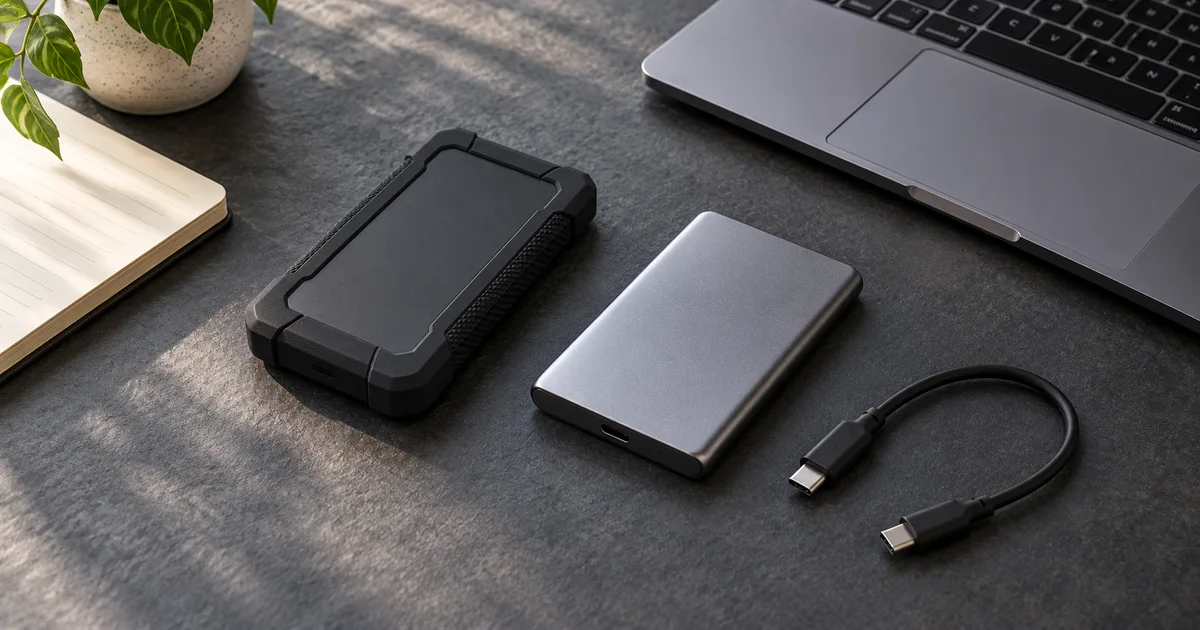
External SSD for Video Editing: T7 Shield or T9?
Choose an external SSD for video and AI assets by checking your computer's USB port, project size and backup plan. Compare Samsung T7 Shield and T9.
 Creator Workflows
Proxy Editing on an External SSD for Smooth 4K
Try proxy editing from an external SSD before changing drives. Create and attach one proxy, test playback, relink originals and verify the master export.
 Creator Workflows
Verify an SD Card Backup Before Formatting It
Verify a camera SD card backup with file hashes, two separate destinations, and playback checks before you format the card for your next shoot.