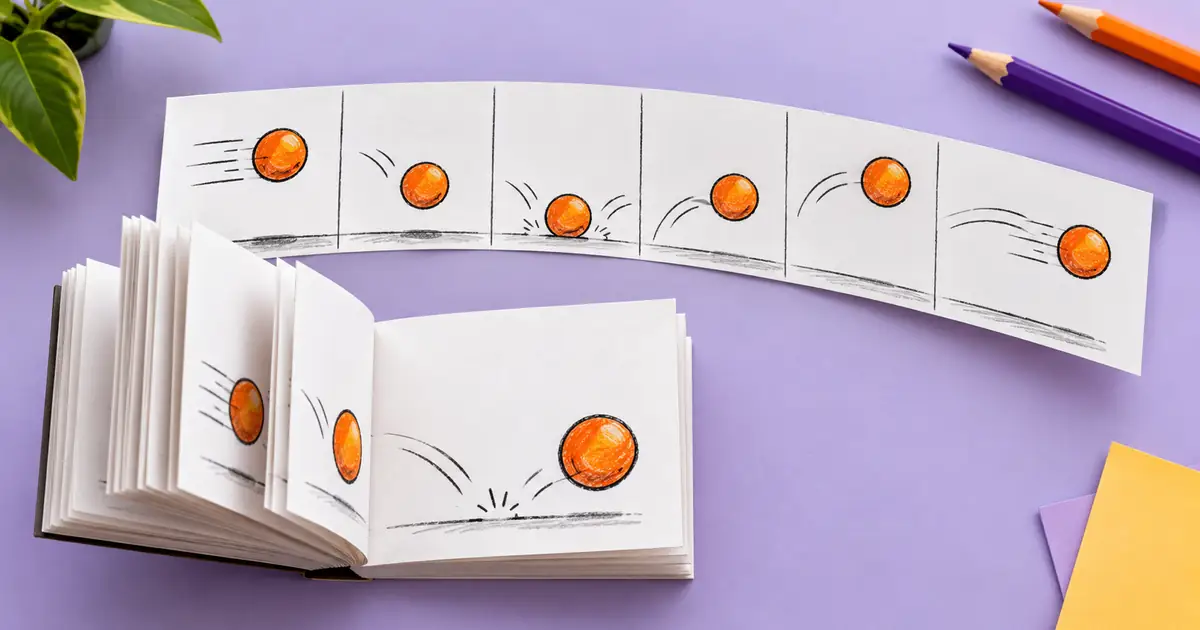

To add a useful caption to a GIF, decide when the text should appear, which frames it should cover, and how long the viewer has to read it. Then export and inspect the entire loop. Adding text to one preview frame does not prove that the wording survives the animation or remains readable on a small screen.
The original example below uses a simple moving circle with two instructions. It isolates caption timing from complicated footage. The files are locally generated teaching assets, not a test of a paid editor. They let you compare a rushed version with a held version and inspect the timing without uploading personal media.
Separate a persistent label from a timed caption
A persistent label stays on every frame, such as the name of a product. A timed caption changes with an action or piece of information. These jobs require different checks. A static label should not disappear halfway through the loop; a timed instruction should not remain visible while the next action contradicts it.
Choose an editor that supports the behavior you need. Some tools apply one text layer to all frames, while others let you target a frame range. Review the current controls before committing the project. The Ezgif text tool documents adding text to animated images; this guide focuses on timing and verification rather than ranking caption tools.
Write a frame plan in seconds first
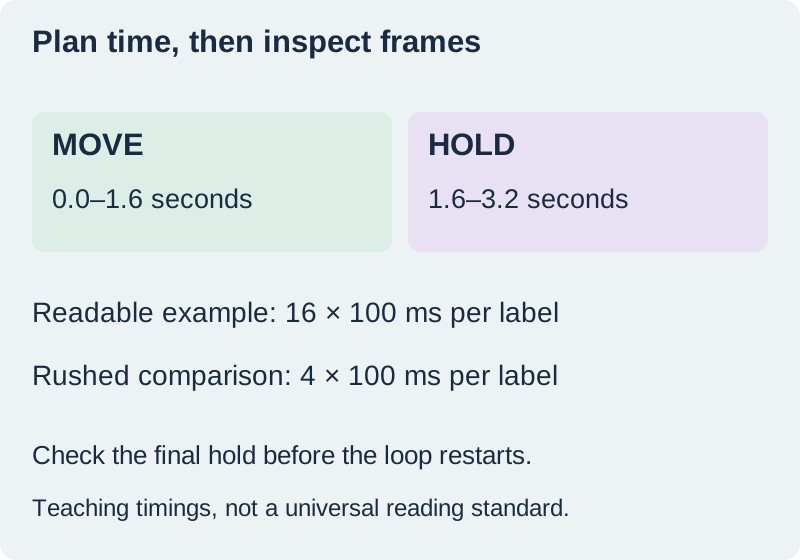
Our example shows “MOVE” for the first half and “HOLD” for the second half. In the readable sample, each lasts 1.6 seconds, making a 3.2-second loop. The rushed comparison uses 0.4 seconds per label. These are controlled example timings, not a universal reading-speed recommendation. Longer phrases or unfamiliar information need a different plan.
Write the start and end times beside each caption before mapping them to frame ranges. At ten frames per second, sixteen frames correspond to 1.6 seconds when every frame has a 100-millisecond delay. Real GIFs can use unequal delays, so do not infer duration from frame count alone. Inspect the actual delays in the exported file.
Download the held-caption example · Download the rushed comparison
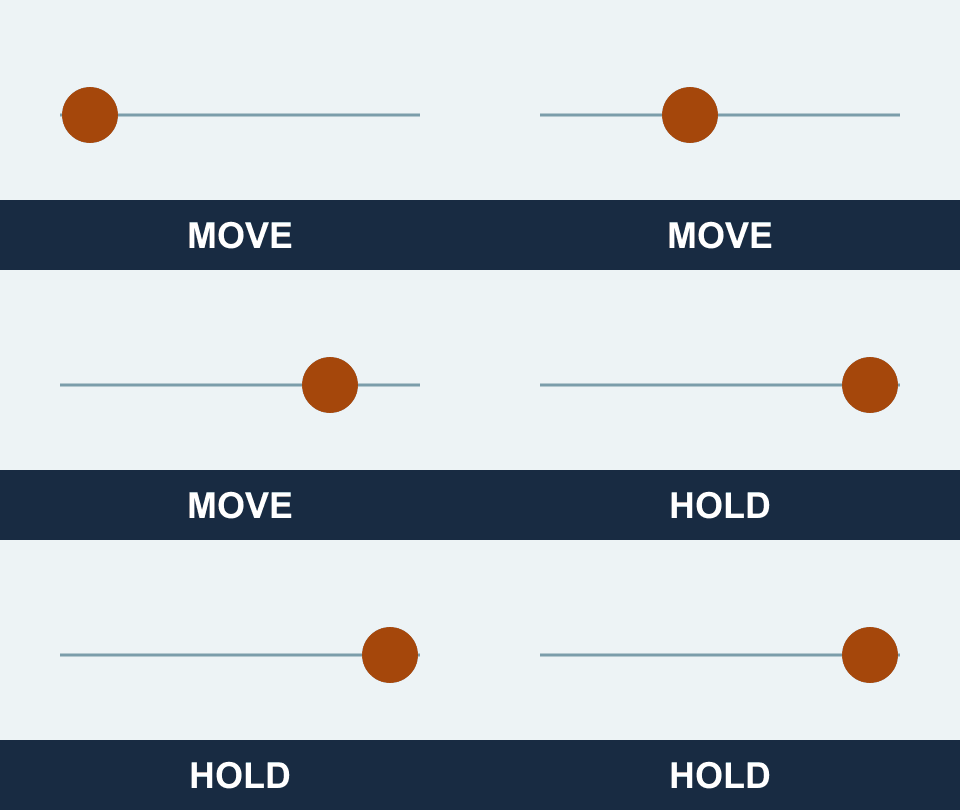
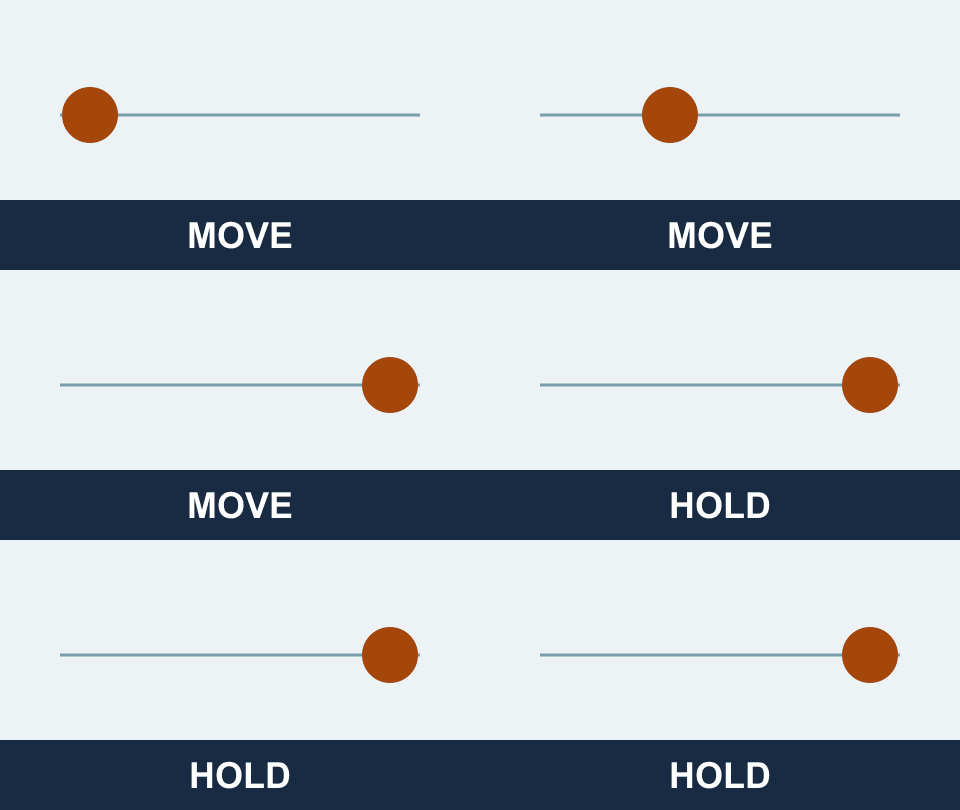
The examples are downloads rather than autoplaying animations. The diagram above gives a static overview, and the worksheet records the frame and timing plan.
Place text where the action will not cover it
Inspect the whole sequence, not only its most attractive frame. A caption placed over empty sky may cross a moving face or product later. Reserve a stable text area or use a sufficiently clear backing. Keep the important object visible and give the wording enough space to survive the final displayed size.
For our circle example, the text sits on a dark band below the motion area. That is intentionally simple: the moving subject never covers the letters. A more complex scene may require a different crop or less text. Avoid solving every collision by making the type smaller. The safe-zone workflow gives related placement principles for video destinations, whose overlays differ from a standalone GIF.
Apply the caption to the intended frames
Select the first and last frames for each text block in your chosen editor. Preview the transition between them. Watch for a frame with neither caption, a frame with both, or old text left underneath a new layer. If a caption should remain throughout, confirm it on the first, middle, and last frames after export.
Frame delay units can be confusing. Ezgif’s pause guidance explains hundredths of a second: a delay of 200 means two seconds. That unit is different from milliseconds. Write the unit in your plan and verify the resulting duration so an innocent number entry does not create a tenfold timing error.
Check the loop boundary as carefully as the middle
The last caption needs enough time before the animation returns to the beginning. A final “HOLD” that vanishes immediately at the loop point may be technically present but functionally unreadable. Preview several repetitions and ask whether the ending gives the viewer a coherent return to the first action.
Watch for accumulated frames when transparency or disposal behavior is involved. Text may leave remnants if the export does not replace the intended area cleanly. Open the saved GIF in a second viewer and inspect a contact sheet or extracted frames when the preview is ambiguous. A smooth editor preview does not substitute for checking the file that will actually be delivered.
Review file size after readability
GIF color quantization and frame encoding can change edges, gradients, and the size of the final file. Reducing dimensions or removing frames may help delivery but can also damage small type or shorten a deliberate pause. Keep the readable source export, then compare any optimized version against it. A smaller file is useful only if it still communicates the instructions.
Our examples use flat colors and simple shapes so the lesson remains easy to inspect. Their file sizes are not a prediction for photographic footage. If the destination accepts video, evaluate whether a video export better suits the content. The GIF and sound guide explains why adding an audio track requires a sound-bearing format rather than an ordinary GIF.
How QuestStudio helps prepare original motion
Use Video Lab for a short original motion concept, then handle GIF caption ranges and final export in an editor with the controls you need. This article does not claim that Video Lab is a GIF frame-caption editor. Keep the motion source, caption text, timing plan, and approved export together.
Finish by reading the captions at the final size, checking the complete loop, and comparing the file with the frame plan. Record the final duration and any destination limits you actually verified. If the message remains difficult to read, simplify the wording or extend the hold before adding decorative effects.
Download the original practice worksheet
Frequently asked questions
Will text added to one frame appear on every frame?
That depends on the editor and operation. Check the intended frame range and the exported first, middle, and last frames.
Does frame count tell me the duration?
Only when you also know the frame delays. GIF frames can have different delays.
Are the example holds a universal caption standard?
No. They are controlled teaching timings. Test your actual wording, audience, and displayed size.
Why can text leave a trail?
Frame replacement, transparency, or disposal behavior can leave previous content visible. Inspect the exported frames and editor settings.
Can the GIF contain my narration too?
An ordinary GIF has no audio track. Use a supported video format when the deliverable needs sound.
Prepare the motion before captioning it
Use Video Lab for an original motion concept, then add and inspect captions in an editor that supports GIF frame ranges.
Hero: AI-generated editorial illustration. Original teaching materials and documented feature research, checked November 1, 2026. Examples are labeled where synthetic or hypothetical.