
Vertical video safe zones are the parts of a frame where important content remains visible after the platform adds its interface. A product can be centered in your editor and still sit behind a caption, profile label or call-to-action button in the actual placement. Plan around the destination's current overlays, then check the entire moving shot.
There is no single margin that guarantees a clean result across every short-video app and ad format. Use the correct placement guidance and preview, keep critical content away from likely conflicts, and inspect the final export. The useful deliverable is a video that remains understandable with the real interface in place.
Name the placement before drawing the box
Write down the destination, format and whether the video is organic or paid. A full-screen organic clip and an ad in the same app may have different surrounding controls. A general “social video” brief does not tell the editor which interface to account for.
For a YouTube Shorts ad, start with Google's Shorts ad guidance and its YouTube safe-zone reference. Use the current version and confirm the relevant placement. Google recommends vertical creative for Shorts, but the aspect ratio alone does not establish that every product, caption and action will remain unobstructed.
Record the source and date of the overlay you use. Interface designs and campaign features can change, so an old template sitting in a shared folder should not silently become the permanent authority for new work.
Rank the information that must survive
List the elements a viewer needs to understand the video: the product, a demonstrated action, a critical caption and the intended next step. Put those ahead of background styling. If something is essential to the offer, it should not depend on a viewer noticing a partially covered corner.
Use three priorities in the working brief. Critical content must remain visible. Supporting content should remain useful where possible. Decorative content can be cropped or covered without changing the message. This makes revisions easier when the frame becomes crowded.
| Priority | Example | Review decision |
|---|---|---|
| Critical | Product opening or essential instruction | Move or recompose if an overlay blocks it |
| Supporting | Secondary product detail | Keep clear when it helps comprehension |
| Decorative | Background plant or surface texture | Allow cropping if the composition still works |
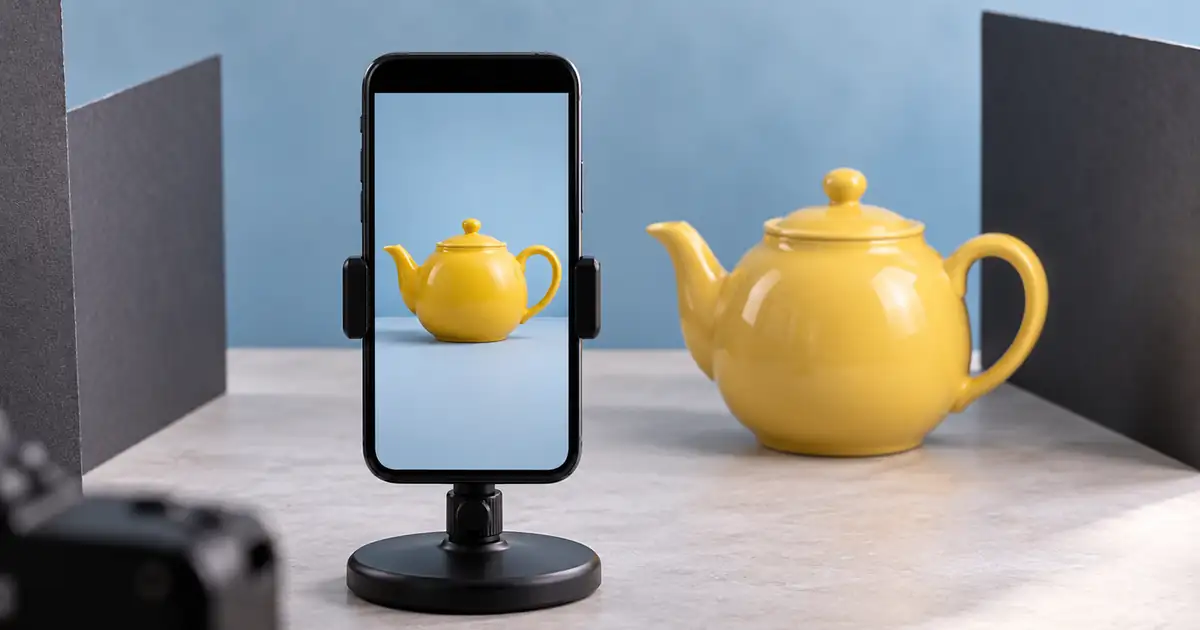
For an original planning example, a yellow teapot is the central product. Its handle, lid and pouring spout matter more than the table edge. If the right-side interface covers the spout during the pour, the shot fails even though most of the teapot remains visible.
Plan the moving boundary
A safe starting frame is not enough. Track the full area occupied by the product during the clip. A hand entering from the bottom, a camera push or a rotating handle can move important information into an overlay halfway through the shot.
Mark the widest and lowest positions reached by the critical objects. Then include captions and end-card text in the same review. Do not evaluate each layer in isolation: a caption can avoid platform controls yet cover the product's most important action.
If you are adapting an existing horizontal video, the video repurposing workflow covers the broader reframing process. Here, the additional requirement is placement-specific visibility throughout time. A successful crop must preserve both the subject and the action after the interface is added.
Generate with room for the final layout
Ask for generous separation around the subject and a restrained camera move. Avoid filling every available pixel with the product if captions and controls will also occupy the frame. Keep text out of the generated footage so it can be positioned and revised independently in editing.
This brief creates a candidate composition, not a certified safe-zone result. Check the selected model's supported aspect ratios and reference inputs. If the result fills the frame despite the instruction, reject or recompose it before building the captions around a flawed base.
Add captions as a separate review layer
Use accurate captions where appropriate and check their longest lines. Short opening captions can fit comfortably while a later sentence wraps into the product or platform controls. Review the actual wording, including punctuation, rather than placeholder bars.
The caption-generator guide can help with tool selection. Whatever tool produces the captions, review their timing, spelling and placement in the final edit. Automatic generation does not remove the need to inspect the exported result.
Keep the caption treatment consistent, but allow a deliberate placement change when the action requires it. Do not move captions unpredictably on every cut. If the scene is too crowded to support readable captions and a clear product, simplify the shot or split the instruction into a separate moment.
Preview the complete placement
Apply the current overlay in the editor as a review aid, then inspect the platform's available preview. Check the opening, every major action, the longest caption and the final frame. Scrub between those checkpoints so a brief overlap does not slip through.
For ads, confirm the platform's actual call-to-action treatment. Its appearance and timing may depend on campaign configuration. Do not place essential baked-in copy where that control will appear, and do not assume a drawn button inside the video behaves like the platform's clickable control.
Use the placement review worksheet to record the destination, overlay version, problem timestamp and correction. A row should end with an observed preview result, not merely “used the template.” Templates guide the review; they do not replace it.
Fix conflicts in a useful order
First move editable text or shorten unnecessary copy. Then adjust the crop or subject position if there is enough source area. If the critical action still falls behind controls, change the shot. Avoid shrinking everything until both the product and text become too small to understand.
| Conflict | First correction to try |
|---|---|
| Caption covers a handle | Move the caption to a stable clear area |
| Native CTA covers the offer | Reposition the offer or simplify the ending |
| Product enters a side overlay | Reduce motion or choose a wider source composition |
| Reframing cuts off the demonstration | Use a different shot or a separate placement version |
Export again after the correction and reopen the actual file. Confirm that the review overlay itself is absent from the delivery asset. Check text sharpness and motion after compression, because a clean editor preview can hide problems in the file that will be uploaded.
How QuestStudio helps
Use Video Lab to create a spacious vertical product shot with a supported model and aspect ratio. Start with one product, one modest movement and no generated text. That gives you a flexible base for placement-specific editing.
Your editor and the publishing platform control captions, overlays, native calls to action and delivery previews. Complete one placement review before adapting the video to others. The first useful output is one clear exported clip whose product and message remain visible in the destination you actually intend to use.
Frequently asked questions
Is there one universal safe zone for all vertical video?
No. Interfaces and ad formats differ, and they can change. Use the current guidance and preview for each destination rather than assuming one fixed margin works everywhere.
Does a 9:16 export guarantee the content is safe?
No. Aspect ratio describes the frame shape. Important objects and text can still sit under interface controls or move into them during the video.
Should captions sit in the same place in every video?
Use a consistent readable approach, but check the actual action and placement overlays. A familiar caption position is not useful if it blocks the information the viewer needs.
Can I just review the final frame?
Review the full clip. Motion, changing captions and platform controls can create conflicts earlier, even when the ending looks clean.
Approve what the viewer will see
Keep the product, essential words and next step clear in the actual placement. A safe-zone check is complete when the final file has been reviewed with the relevant interface, including the moments between the attractive still frames.
Create one spacious vertical shot
Hero image: AI-generated editorial illustration. Examples are original planning exercises, not measured model tests.