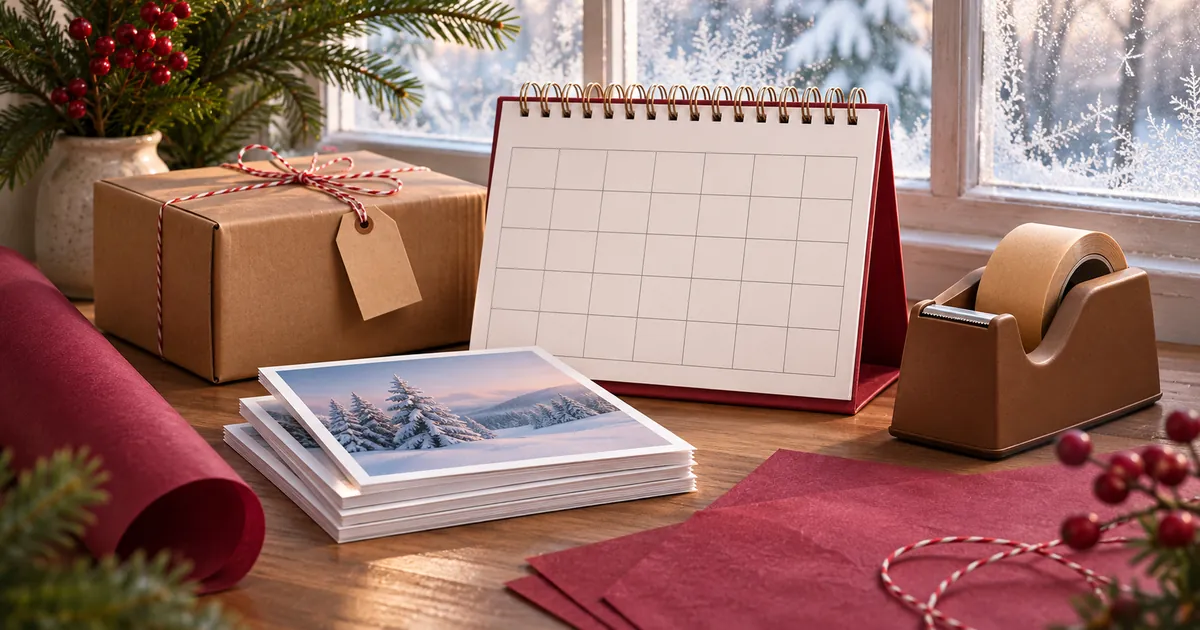

A holiday order deadline graphic should tell a shopper when to order, which items qualify, and where to check their delivery options. Start with the way your store actually fulfills an order. Work backward from the last carrier handoff you can reliably make, make a separate line for pickup, and publish the details in editable text as well as on the image. A customer planning a gift needs to know what they can do today, especially after an earlier option has closed.
Jump to the Image Lab example or download the worksheet.
Calculate the customer cutoff from the warehouse calendar
Pull the carrier's recommended send-by date for the destination and service you plan to advertise. It describes when a parcel should enter the carrier network. Your customer cutoff comes earlier in the process: count the days you need to pick, personalize, pack, and get it to that collection. Use the last handoff your team can consistently make. If the courier collects once in the morning, the afternoon staff may need the parcels staged a day early.
Suppose a maker wants ready-to-ship gifts in the contiguous United States to meet a Thursday, December 17 handoff. The carrier's current page lists that date for its Ground Advantage recommendation. The maker's team packs ordinary orders on the next working day and wants a spare working day for reprints or missed collections. It sets a sample order cutoff of Tuesday, December 15 at noon Eastern. Change the carrier, dispatch pace, or destination and run the calculation again. Keep the real carrier schedule in your team notes.
Separate the routes a shopper can actually choose
Put ready-to-ship, personalized, and pickup orders in different rows. Use a row only if the store can tell who qualifies. A zip code rule belongs in the linked details page if it would turn the graphic into a paragraph. The pickup row should name the shop or pickup town, say when people must order, and point to the separate collection window. The holiday hours graphic guide covers that storefront schedule.
This is a sample for a fictitious shop. The order deadline appears in the first column a customer needs to scan, and the third column gives them a useful next step.
| Option | Order by | Where to check |
|---|---|---|
| Ready-to-ship gifts | Dec 15, noon ET | Check eligible ZIP codes and estimate at checkout |
| Personalized gifts | Dec 11, noon ET | Open the personalization collection |
| In-store pickup | Dec 22, 3 p.m. ET | Choose the Maple Street pickup location |
| Digital gift card | Check current availability | Open the digital gift card page |
Avoid putting a delivery date next to an order date in the same font without a label. People will remember the larger number and may use it for the wrong decision. Use the heading “Order by” for the artwork and let the linked site show what delivery estimates mean.
Design the artwork for revisions
Use a solid panel under the dates and make the option labels left-aligned. On a phone, put the three important pieces on two lines: an option name above its date and time. Keep text as a live layer. A generated winter parcel backdrop can give the card context, while the numbers, exclusions, and link stay controlled by your team. Use the mobile banner crop workflow if the same campaign needs a storefront strip.
Export a social version from the same master as the website graphic. One export may say “Order by Dec 15” in larger type and use a small line for the destination. Copy the meaning in the caption and add a link to the store's shipping details. Under a wide desktop hero, display the order options in HTML so a mobile reader can enlarge or copy them. The graphic can then carry just the headline and recognizable campaign imagery.
Test the expired version before publishing the first
Make a second version dated after the ground cutoff. Replace the closed row with the next verified option, or mark it closed and keep it below the available choices. Check the morning after a cutoff and the day after the last pickup. An old pinned post may still be someone's first contact with the store. Give all versions the same editable destination URL, and update the description or pin when the graphic changes.
Run a test cart with one ordinary item, one personalized item, and one address outside the advertised range. Try a mixed basket too. If the checkout estimate depends on the slowest item, keep the image wording specific to eligible orders and explain the mixed case on the details page. Assign one person to change the banner, caption, and support reply from the same approved table. Record the update in the shared sheet so the person taking the next shift can answer from current information.
Test your cutoff where inventory changes
Use the example to try a specific edge case. At 11:55 a.m. Eastern, a ready-to-ship mug might show the advertised method. At 12:05, the same basket should point to a later estimated date or an alternate service. Repeat with pickup selected. If the catalog lets you sell a mug that is still being made, the ready-to-ship graphic should link to a filtered collection. Record the two cart results with time and timezone. Those screenshots give your next editor a quick way to see why noon appears in the artwork.
How QuestStudio helps
Use QuestStudio Image Lab to prepare a version of your real packing scene with a quiet area for the schedule. Use a photo without mailing labels or customer information. The editable date table will sit over the resulting image in your layout.
Use my uploaded packing desk photo. Keep the parcel shape, fold lines, and paper texture. Reframe as a 4:5 editorial photo with the parcel in the lower third, soft winter light, and a plain dark upper half for a deadline table. Preserve the original inventory and packaging details. Leave the text area completely empty.Compare the shot with your packaging. Export your final text at the size the customer will see. Trim a decorative line first if the time zone or qualifying order type is too small.
Try it with your own material
Pick the most requested gift first and build the cutoff around its actual path out the door. Ask someone who has never seen the draft to tell you the last time they can order and what they'll choose if they miss it. Their answers should match the live checkout.
References
Frequently asked questions
Can I use the carrier's send-by date directly?
Use it as an input. Subtract processing time, dispatch constraints, and a buffer to set the customer ordering cutoff.
Should I add the year?
Add the year in the linked shipping details and any downloadable or reusable art. Include it on the main graphic if customers could encounter the image later through search or a saved post.
How do I format a cutoff for several time zones?
Use one named time zone consistently and give local equivalents in the details if you need them. Run a test just before and just after the cutoff.
What should the graphic say after shipping closes?
Lead with a verified option that remains available, such as local pickup or a digital card, and direct shoppers to the current eligibility details.
Related guides
 Creator Workflows
How to Make a Holiday Hours Graphic Customers Can Read
Make a holiday hours graphic for your store, social page, and front door. Use a date-first layout, an editable schedule, and a quick phone and print check.
 Creator Workflows
How to Make a Black Friday Banner That Works on Mobile
Design a Black Friday website banner that keeps the product and offer visible on mobile. Test a real crop and choose when to use a separate phone image.
 Product Ads
Black Friday Ad Creative Checklist for Small Stores
Build Black Friday ad creative from one real product photo. Plan the offer, make feed and vertical layouts, and check price, product, and checkout details.