
To record audio on Android, open the recorder provided for your device, make a short test, and save the take with a recognizable name. On Pixel, use Recorder. On Samsung Galaxy, use Voice Recorder. When handing off a take, share the audio file and open it in another player before calling it finished.
Android devices differ in recorder controls and available features. The steps below cover the documented Pixel and Samsung paths. For another device, use the same capture and handoff checks with the app supplied by its manufacturer.
Choose the recording and delivery job
A personal voice note can stay in a recorder library. Narration for an editor needs a file that can be moved into another project. Decide on the destination before recording. Ask what formats the recipient can use, how they want files named, and whether they need a transcript as a separate item.
For a short practice take, speak a sentence with a specific word, number, and ending. Try “The blue sample is take two. Check the last word.” Leave a short pause before and after the sentence. Those details give you obvious places to listen for missed words, unwanted processing, and a file that cuts off too early.
Record and save on Google Pixel
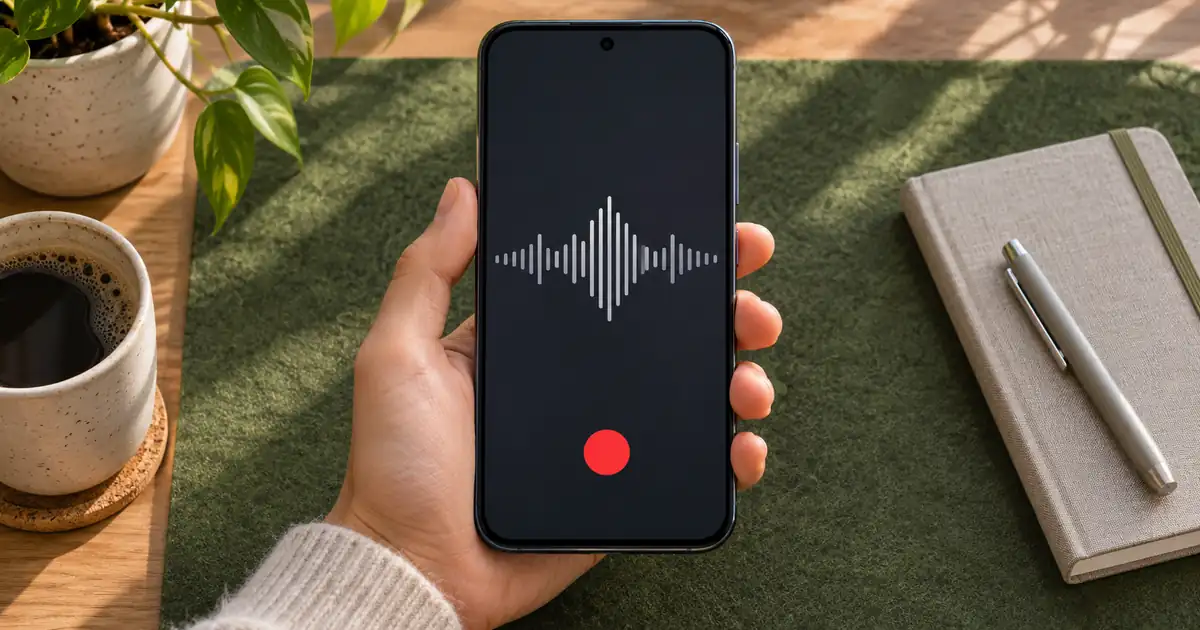
Open Recorder on a supported Pixel. Tap Record, make the take, and use the pause and save controls to finish. Rename the take so you can identify it in the recordings list. Listen to the beginning and the end before making a second take. Google’s Pixel recording instructions.
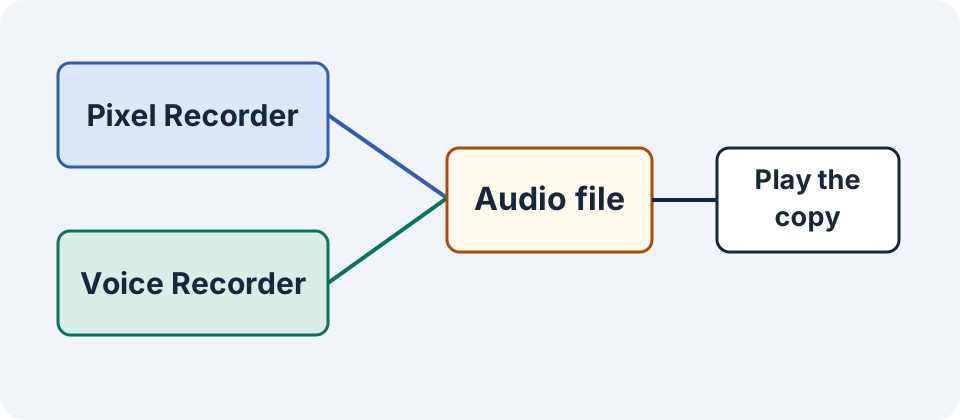
For a file handoff, press and hold the recording in the list and use Share > File > Audio. Choose a suitable destination in Android’s share sheet. Pixel Recorder also provides transcript and link options. Choose the audio file when the recipient needs to edit it. For a link handoff, check the selected audience and whether the recipient can open it. Google’s sharing options.
Record and save on Samsung Galaxy
Open Voice Recorder, tap the recording control, and make the take. Tap Stop, enter a name, and save it. The manufacturer’s guide describes recording modes and additional features on supported devices. For a simple narration, choose a mode intended for a single recording and test it with the device in the same position you will use later. Samsung’s Voice Recorder guide.
In the recordings list, select the saved item and use the available Share action to send the audio to your chosen file destination. Reopen the received file outside Voice Recorder. If the share sheet shows several destinations, choose the one that preserves the audio in a location you can find again. Check the saved copy before closing the project.
Make two useful tests before a full take
Set the phone on a stable surface and keep its microphone area clear. Speak at a consistent distance. Make one test in your planned position and a second slightly closer or in a quieter spot. Replay both at a similar volume. Compare the clarity of the first word, the tail of the sentence, and room sound in the pauses.
If the close take sounds harsh on P and B sounds, move the phone slightly off to one side and speak past the microphone. If the distant take sounds hollow, try the closer position or a room with more soft surfaces. Inspect headphones or Bluetooth routing if the recording appears to use a different microphone from the one you expected.
When recording an interview or a long narration, make a short test under the same conditions. Check that there is enough battery and storage. If you expect the screen to sleep or the app to run in the background, test that behavior on the device before relying on it. Record in sections when a mistake would make a long take difficult to repair.
Do a one-minute rehearsal with the actual handoff destination if the full take matters. Give the rehearsal its own name and send it through the same channel. If the recipient can only play a preview, ask them to download the file and try it in the edit. You can solve that transfer problem before putting an entire interview through it.
Protect the source and verify the received copy
Keep the original saved take. If a trim is needed, use a copy where the recorder offers that option or duplicate the file in your editor. Check that the opening and ending remain intact. In your handoff name, include the subject and take number, such as lamp-demo_take02_original. Keep the actual extension supplied by the device.
Open the copy from the destination folder or receiving app. Check its name, duration, first words, last words, and volume. Changing the file extension does not convert the recording. If the recipient needs another format, retain the captured file and make a separate converted copy with the tool they use. For a transcript, verify names and numbers against the original audio.
Use the recording handoff sheet to record your device, take, and playback result. For a second phone workflow, see recording audio on iPhone. For checking text and speaker labels, see the recorder and transcription guide.
Frequently asked questions
Which app should I use on a Pixel or Galaxy?
Use Recorder on a supported Pixel or Voice Recorder on a supported Samsung Galaxy. Check the manufacturer’s guide for your model and software version.
How do I send audio instead of a transcript?
Choose the audio file when sharing a saved take. On Pixel, the share options distinguish File Audio from Transcript and Link.
How do I know if the transferred file works?
Open the copy in another player or the destination editor. Check duration, the first words, and the last words against the take in your recorder.
Can I trim the recording before I send it?
Keep the original and trim a copy. Listen across the cut points and check the file you actually send.
Why is my recorded voice hard to hear?
Try a shorter microphone distance, a quieter room, and a stable phone position. Make a test to check that the recorder is using the microphone you intend.
Use the approved recording as a reference
Bring the reviewed transcript to Voice Lab when you need a separately generated narration. Compare its wording against your recording.